
Advanced Workflow Block Parameters
Advanced Workflow Block Parameters
Fill the advanced parameters in the following cases:
- When using custom event parameters
- For sending messages to an additional contact
- For inserting dynamic content
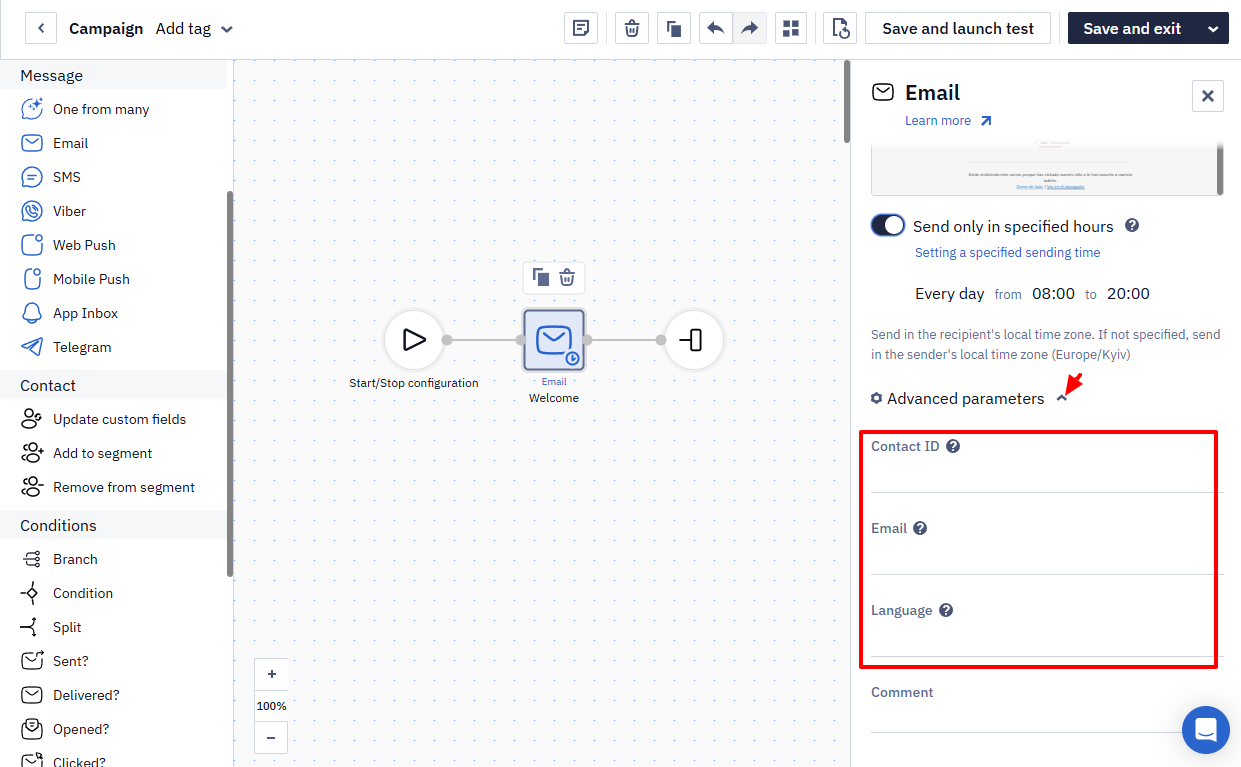
List of Additional parameters:
| Parameter | Description |
|---|---|
| Contact ID | Contact identifier in the system or an event parameter containing it. |
| Contact's email address or an event parameter containing the email address. | |
| Phone | Contact's phone number or an event parameter containing it. |
| Token | Contact's token or an event parameter containing it. |
| Language | Message language. Leave the field blank if you use a multilingual message in the workflow. |
Let's view each case of parameter configuration in detail.
NoteIf the Language field is empty, the language of a multilingual message is taken from the contact card: the matching language version is sent if it exists, otherwise the main version. A language passed in an event parameter is not applied automatically. To use it, put the full variable form in the Language field — for example
$data.get('attribution.lang'); the short form${attribution.lang}does not work, and the workflow fails with the errorattribution is required.
A sending block delivers to one address at a time: to send the same message to two static addresses, add a separate block for each. When you fill in Email to reach a specific address, leave Contact ID empty — an entered ID takes priority, and the message goes to that contact instead.
Using Custom Event Parameters
By default, when starting a workflow, the event should pass standard parameters for contact identification:
| Event parameters | Identifiers |
|---|---|
| ContactId | Contact ID |
| externalCustomerId | External ID |
| Email EmailAddress UserEmail ContactEmail | |
| Phone SMS PhoneNumber | Phone number |
| PushToken MobPushToken TelegramBotToken | Contact token |
The primary identifier is ContactId. If it is not specified but at least one of the other identifiers is provided, ContactId will be automatically added to the event.
To start workflows, the system identifies the contact for which the event was received. The system searches for the contact using the following rules:
Contact ID has the highest priority among all parameters.
Entered contact email, phone number, or token are used for sending.
If externalCustomerId is specified, the message is sent to the contact it belongs to; among those contacts that were found by email address, phone number or token.
If externalCustomerId is not specified, the message is sent to the contact found by email address, phone number or token.
If a contact is not found, a new contact will be created for sending.
- For data consistency, provide parameter names according to the specified list.
If the parameters in the event don't match the standard values, such as using PersonalEmail instead of EmailAddress, like on the screen below
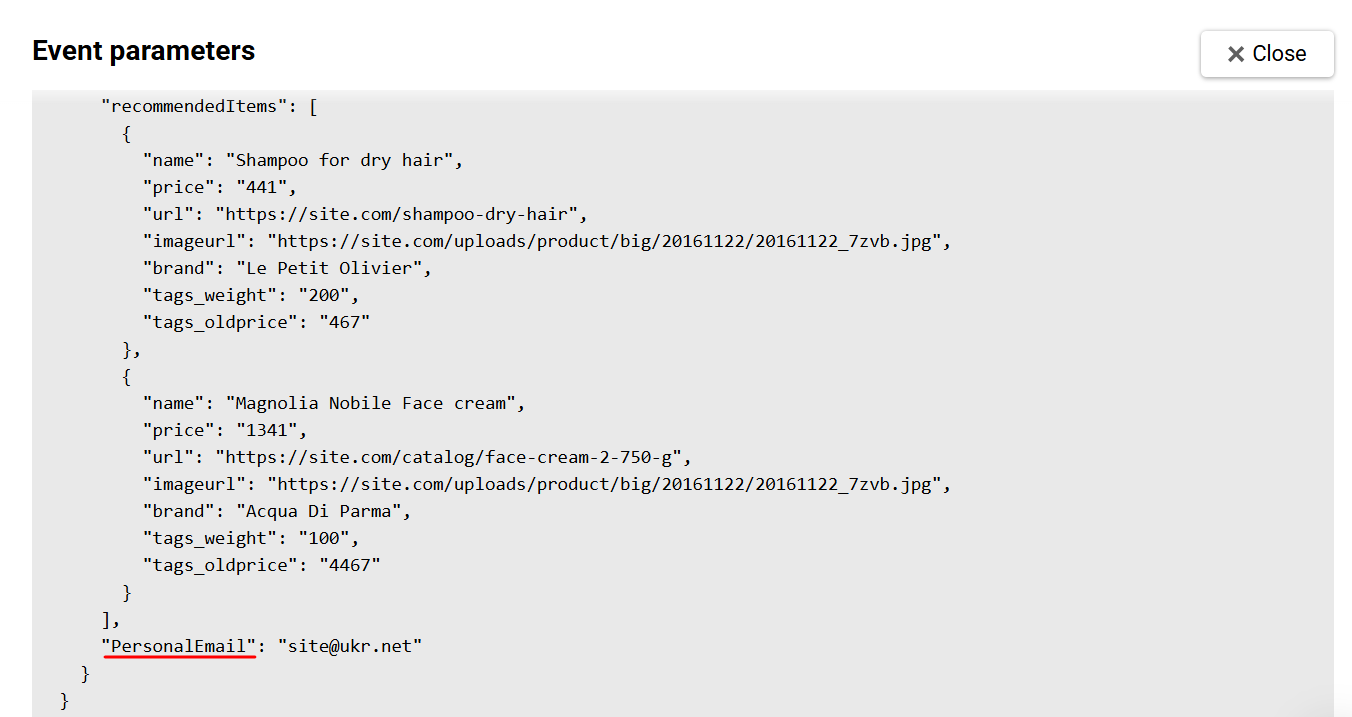
In this case, specify the name of the corresponding variable in the Email field.
EmailAddressand the "Empty contact media" error
EmailAddressis one of the standard parameter names the system can use to match an event to a contact, and the name comparison is case-insensitive. However, that alone doesn't make the block work: even a standardEmailAddresshas to be mapped explicitly in the block's Advanced parameters, and the Email field must contain the exact event variable — for example${EmailAddress}or${emailAddress}, matching your payload.For a backend event, linking the event to the contact card additionally requires segmentation to be enabled for that event type.
The Empty contact media error means the block received no valid email address, phone number, or token.
Standard variable names and empty values
If the Email field contains a standard variable name —
${email}or${emailAddress}— and its value in the event is empty, the message is still sent: the system falls back to the contact's email channel from the workflow context. Sending is skipped on an empty value only when the field contains a non-standard variable name.
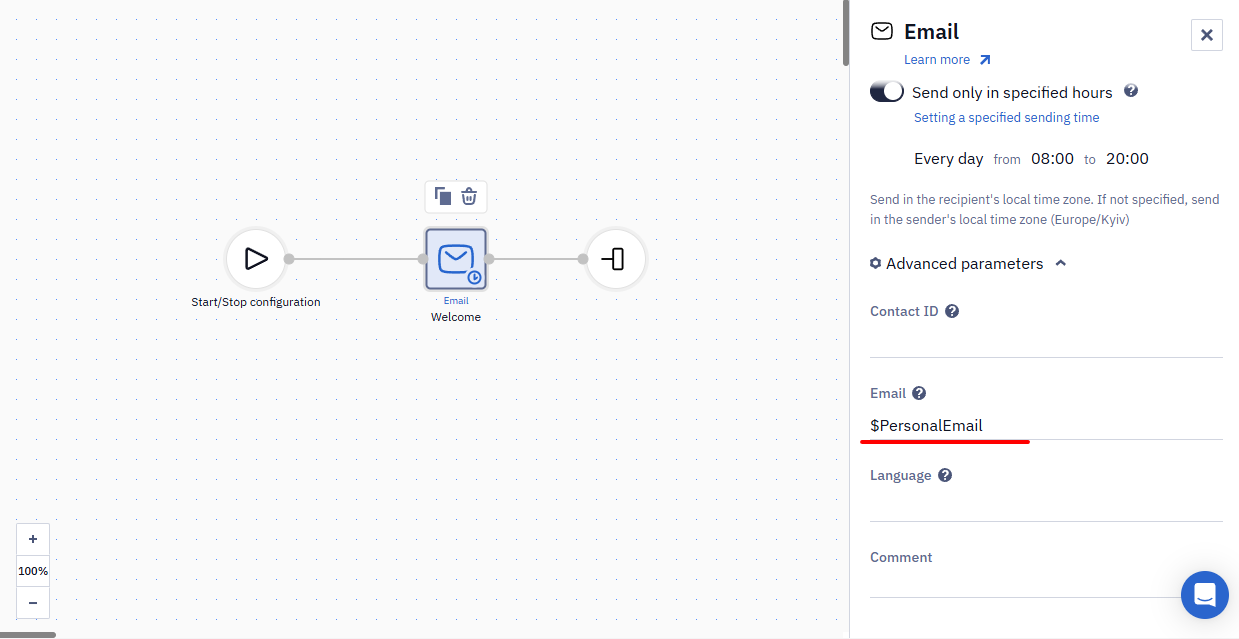
If the Email field contains a variable with an address, such as ${email}, and the event has no contact ID or External ID, the email goes to the contact found by that address. When the base has several contacts with the same address, this can be any of them. To make the email go to the right contact, pass its ID or External ID in the event. If the duplicates appeared by accident, find them with the Search duplicate filter.
Sending Messages to an Additional Contact
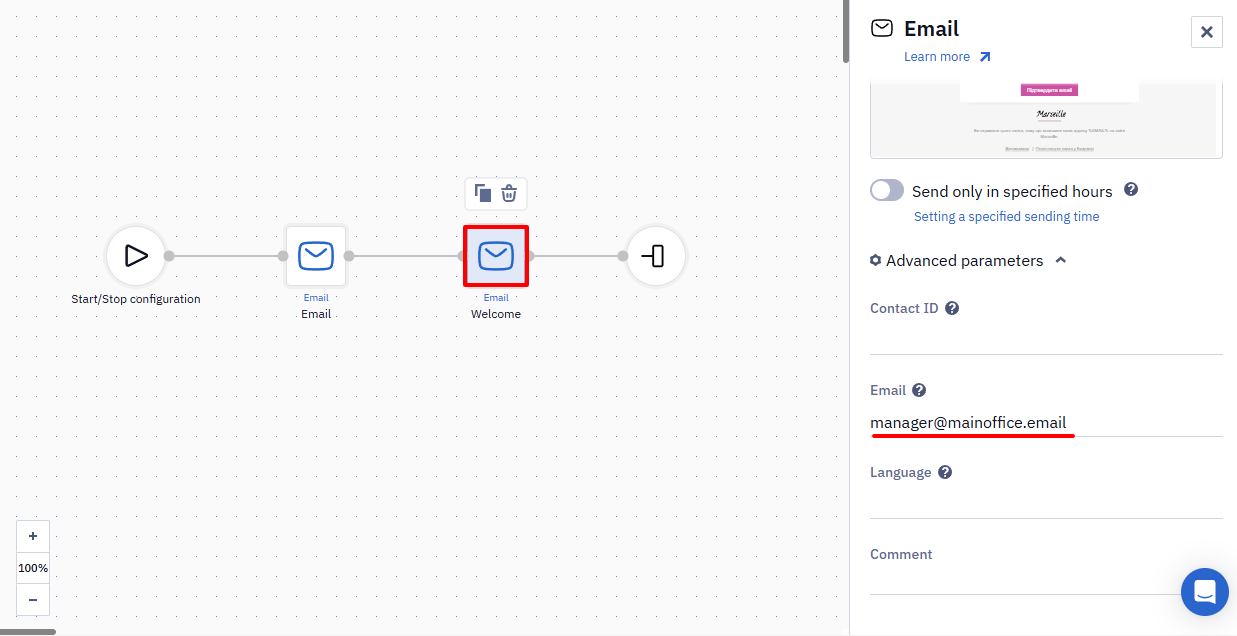
For example, if you need to duplicate the message sent to the user and send it to the manager.
Copy the block with the selected message in the workflow and specify the manager's contacts in the advanced parameters.
A message block can't send one message to several addresses at once. To send an email to additional addresses as well, add a separate message block for each static address: in the block's advanced parameters, enter the address in the Email field and clear the Contact ID field. Keep a separate message block with default parameters for sending to the contact themselves.
Instead of a static address, the Email field can hold an event variable. For example, a contact registered with one address and paid with another, and the second address arrives in the paymentEmail event parameter. To send the payment email to both addresses, add two blocks with this message to the workflow:
- in the first, keep the default advanced parameters — it sends the email to the contact's address;
- in the second, enter
$paymentEmailin the Email field and leave the Contact ID field empty — it sends the email to the address from the event parameter.
You can't send one email to several recipients, the way the Cc and Bcc fields work in a mail client: each email has one recipient. An email to an additional address:
- contains personalization for that address, not the main contact's data;
- counts in the statistics as one more send;
- is shown in the activity of the contact whose card has that address.
The address itself counts as one contact in your base, however many emails go to it.
Updated 8 days ago