
Managing Users
Owners of Yespo organizations can invite or block managers and manage their access rights to account capabilities and information in it.
Parent and Child Accounts
A Yespo organization can be structured as a parent account with one or more child accounts attached to it — for example, to separate different brands or business units. The parent account is the billing entity: invoices are issued and paid at the parent level, covering all of its child accounts.
A child account cannot be created or attached to a parent from the interface — ask support to set this structure up.
This structure also determines what a user can see:
- A user invited to the parent account has access to it and to all of its child accounts.
- A user invited to a child account has access only to that account — not to the parent account or to any other child accounts.
To restrict a user to a single sub-project, invite them directly to that child account instead of to the parent account.
Billing and user access are the only things the parent shares with its children. Everything else belongs to the account it was created in: each account keeps its own contact base, and the bases are not summed across the structure. Plans and their limits are set per account too, so a feature that comes with the parent's plan is not available in a child account until that account has a plan with it.
A user who has access to several accounts switches between them with Switch account in the account menu — signing in again is not needed.
There is no separate test environment at the account level. To keep testing apart, connect a separate mobile app — it has its own API key, contact base, and push delivery — or create a separate account when the test environment also needs its own workflows and event types. See Connecting Mobile App.
List of Account Roles
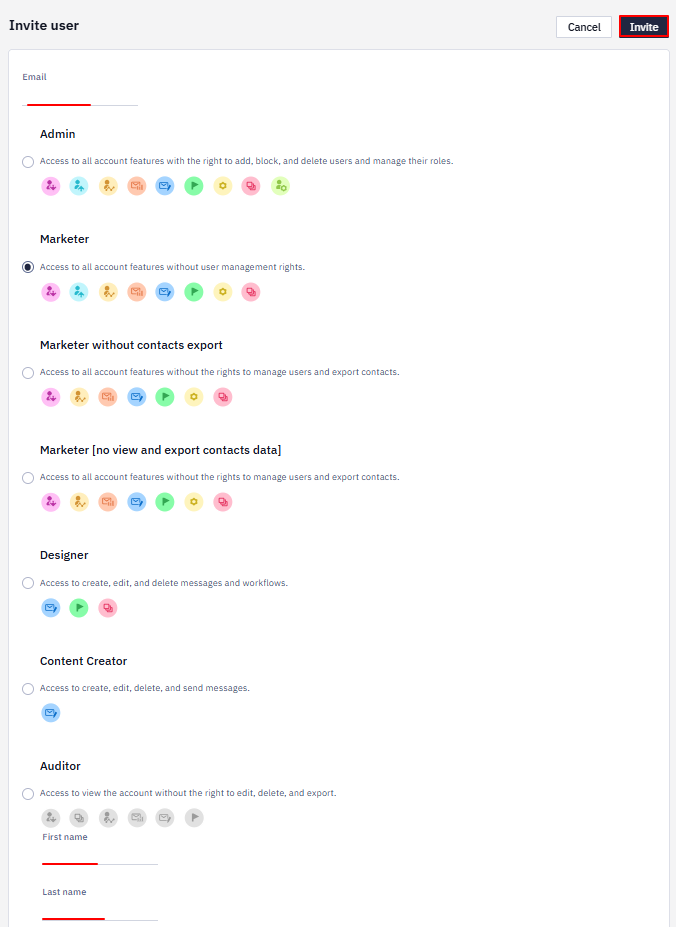
- Admin: access to all account features with the right to add, block, and delete users and manage their roles.
- Marketer: access to all account features without user management rights.
- Marketer without contacts export: access to all account features without the rights to manage users and export contacts.
- Marketer[no view and export contacts data]: access to all account features without the right to export and view emails and phone numbers.
- Designer: access to create, edit, and delete messages and workflows.
- Content Creator: access to create, edit, delete, and send messages.
- Auditor: access to view the account without the right to edit, delete, and export.
Note
- Inviting users is only available in accounts with activated multi-factor authentication.
- By default, the Marketer role has no access to the API keys / API section of account settings. This can be changed on a per-role basis — contact Yespo support if the role needs API section access.
- There's no dedicated feature for exporting the list of users with their roles, either through the UI or the API. You can get this information manually — for example, by taking a screenshot of the Users tab or copying the list.
Choosing a Role for Common Cases
- Support staff who need to see what communications a contact received — Marketer (or a variant with export restricted, if they don't need to export contact data).
- Analyst who needs to pull contact data for reporting — Marketer, since export rights are required; Auditor doesn't include export.
- Someone who only needs to review campaigns/workflows without changing anything — Auditor.
- Content or template creator who shouldn't send campaigns or manage users — Content Creator (can send) or Designer (cannot send, edit-only).
Inviting a New User
- Log in to your account using administrator credentials.
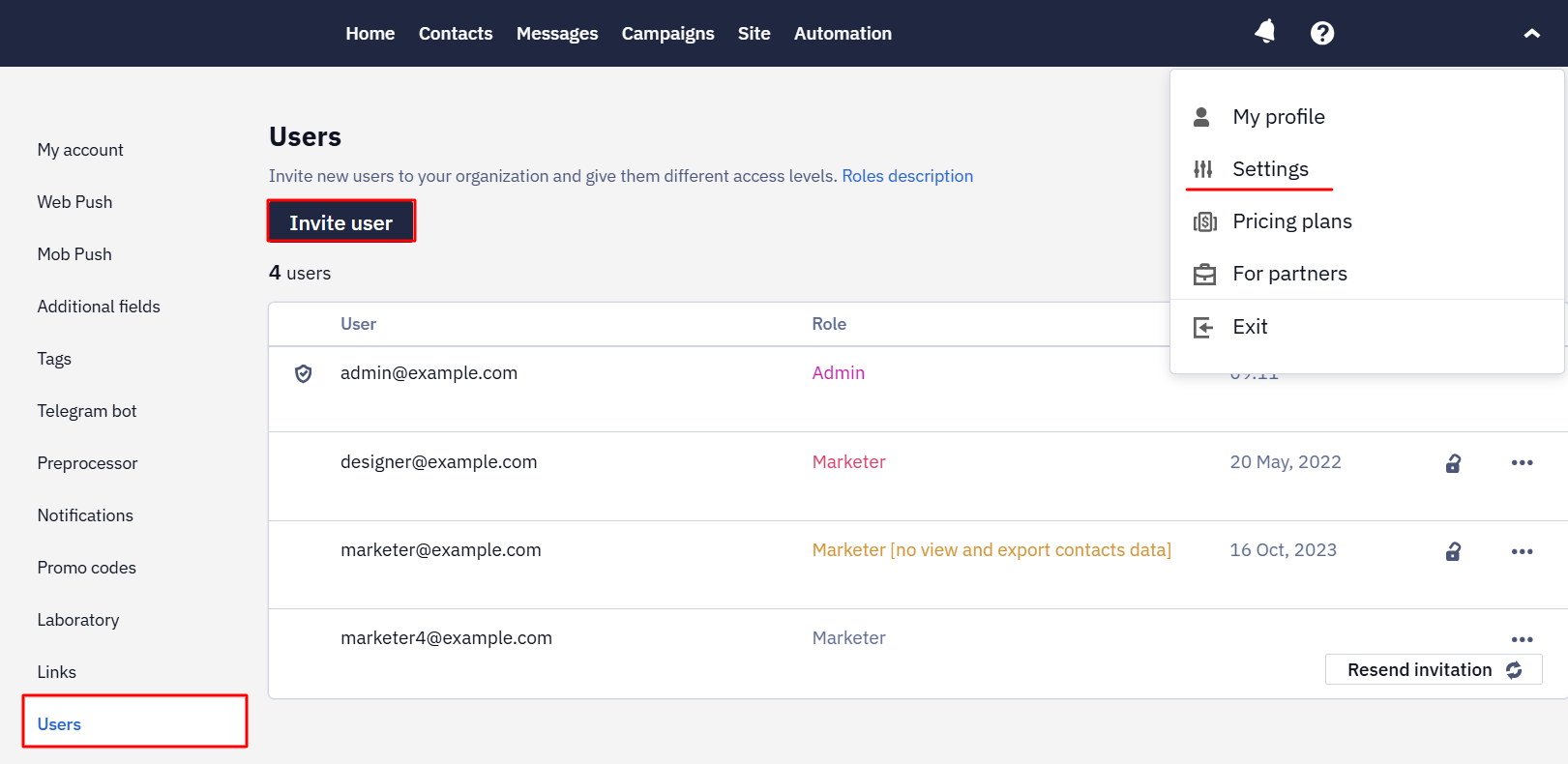
- Go to settings → Users and click the Invite user button.
- Enter the user's email and select a role (for example, Marketer). Optionally, add the name and surname of the invitee at the bottom of the page. Click Invite.
- The invited user will receive an email with a link to activate their account.
- By clicking on the link from the email, the user will go to a registration page.
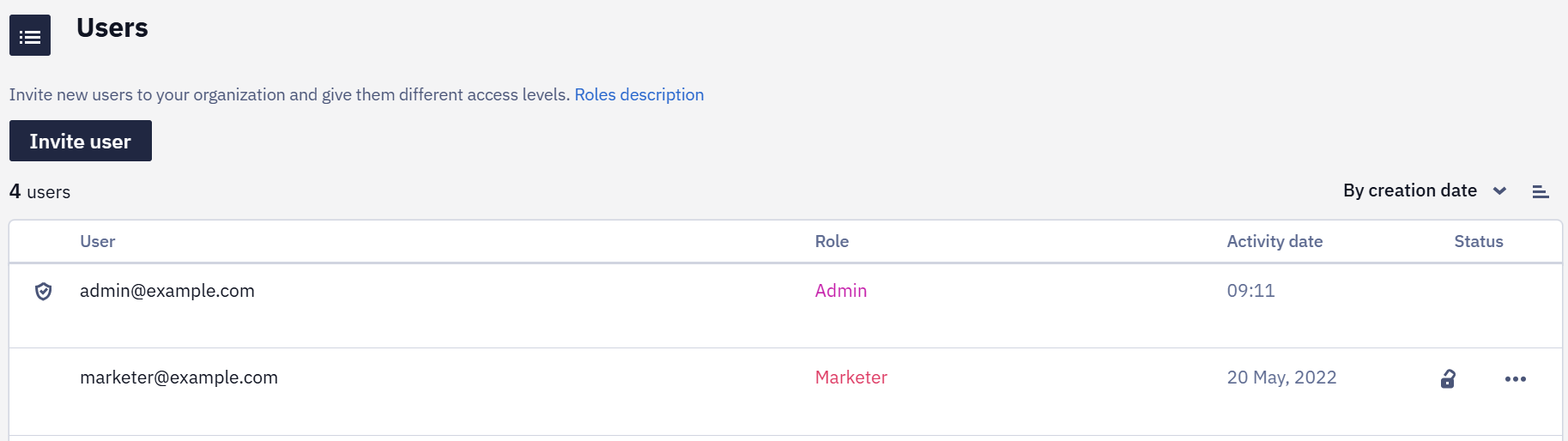
- After this, the invited user will be activated in the provided role and appear in the Users tab.
Note
- You can invite a maximum of 5 users during the day.
- The maximum number of users added to an organization is 20 (these can be users with different roles). The user limit can be raised on request — contact support if your team needs more than 20 users.
- One email can be a log in for only one account. If the email is registered in another organization, it must be deleted from the previous one to transfer it to a new account.
- The 20-user cap is not a hard product limit. If your team needs more seats, contact support with the number of users you need — the limit can be raised for your organization.
Blocking / Deleting a User
To block a user, click the lock icon in the user's line in the general list.
You can block a user permanently or temporarily, for example, during an employee’s vacation.
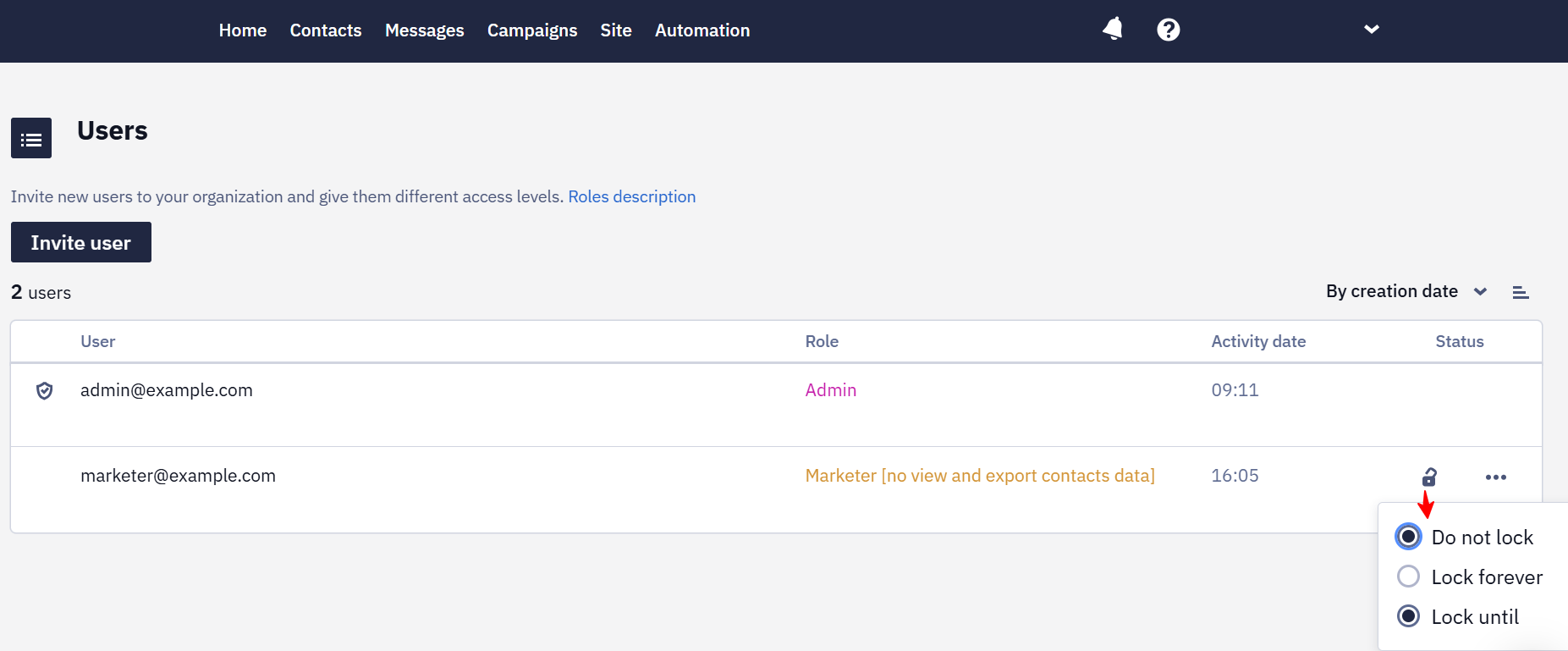
If the administrator blocks a user, access will be instantly closed, and the system will log out this user, even if they are currently working in the system. The administrator can remove all types of locks at any time.
To delete a user, click the ellipsis at the end of the line.
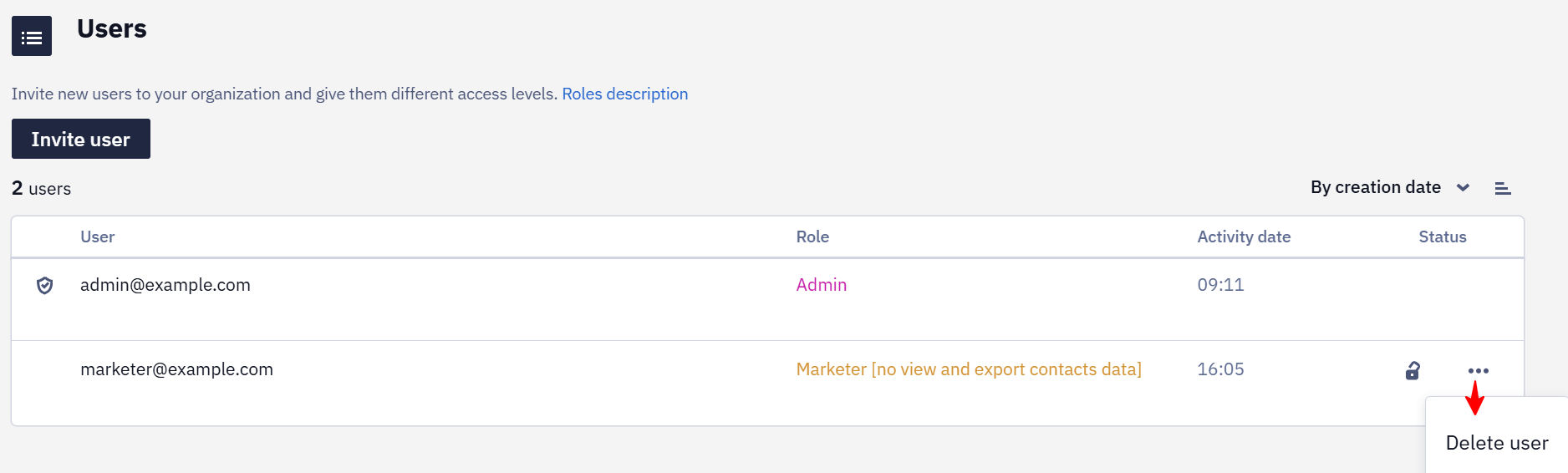
If you delete a user, you will not be able to restore it, but you will be able to create it again.
Exporting users and roles
The user list cannot currently be exported with role assignments. An administrator can review the current users and their roles on the Users tab; if a copy is required, save it manually or take a screenshot.
The Marketer role does not provide access to API settings or API key generation. Assign a role with the required account-management permissions when a user needs to manage API keys.
Updated 2 days ago