
Regular Workflow for a Segment
A regular workflow is a series of automated messages sent to a contact segment based on determined conditions. Only dynamic segments can be selected in the start settings, so to run a regular workflow for a static list, build a dynamic segment that selects the contacts of that list.
A regular workflow differs from a one-time workflow in that it automatically runs for all new contacts added to the assigned segment after the workflow has been started.
An important condition for launching a regular workflow for a segment is that you must have a contact database with whom you have been interacting for a long time.
In this article, we will describe the process of creating a regular workflow for contacts who show certain activity/inactivity in your messages.
You can build both single-channel or multichannel workflows with any type of message in an unlimited number – Email, Web push, Mob push, SMS, Viber or App inbox.
Messages in workflow work together to accomplish a particular goal. It can be
- birthday greeting;
- event invitation;
- reactivation, etc.
1. Create a Dynamic Segment
Dynamic segments can include contacts based on one or more parameters (conditions). The number of contacts in the segment varies depending on how many current contacts match specified conditions.
Let’s create a dynamic segment that includes contacts who opened your messages a month ago.
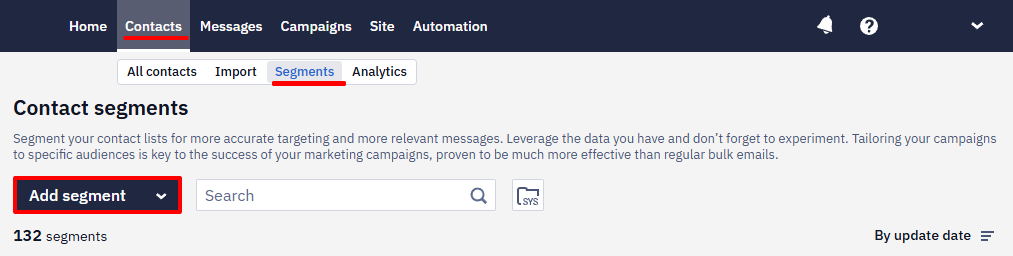
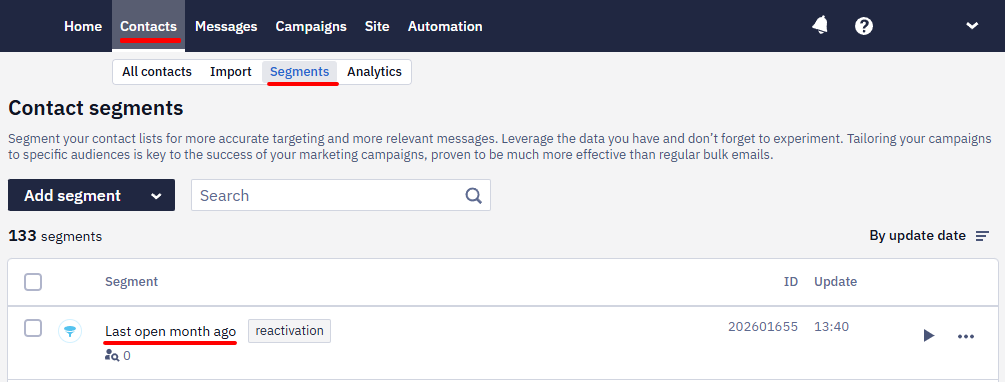
- Go to Contacts → Segments, click the Add segment button.
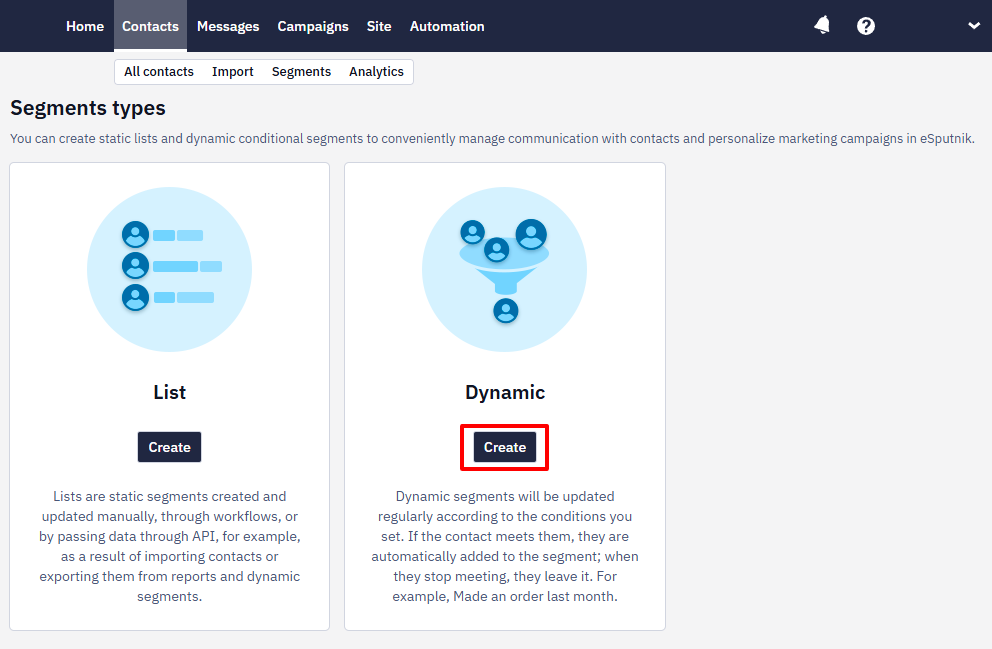
- Select Dynamic segment and click Create.
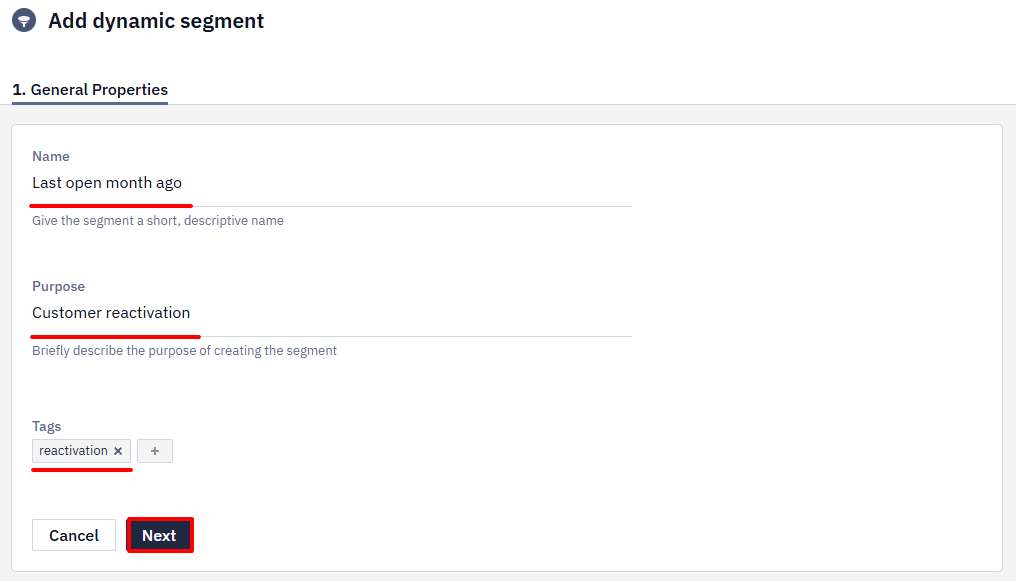
- Fill in general properties:
- Name (required) — displayed in the general segment list.
- Purpose (optional) — specify how the campaigns will be used. For example, for triggered emails, regular promo campaigns, etc.
- Tags (optional) — select from the list or add a new one for quick filtering and segment search.
- Click Next.
- To select conditions click Add condition.
- Go to Channels → Contact activity by Email → Last opened → on day X time ago → 30 → days ago.
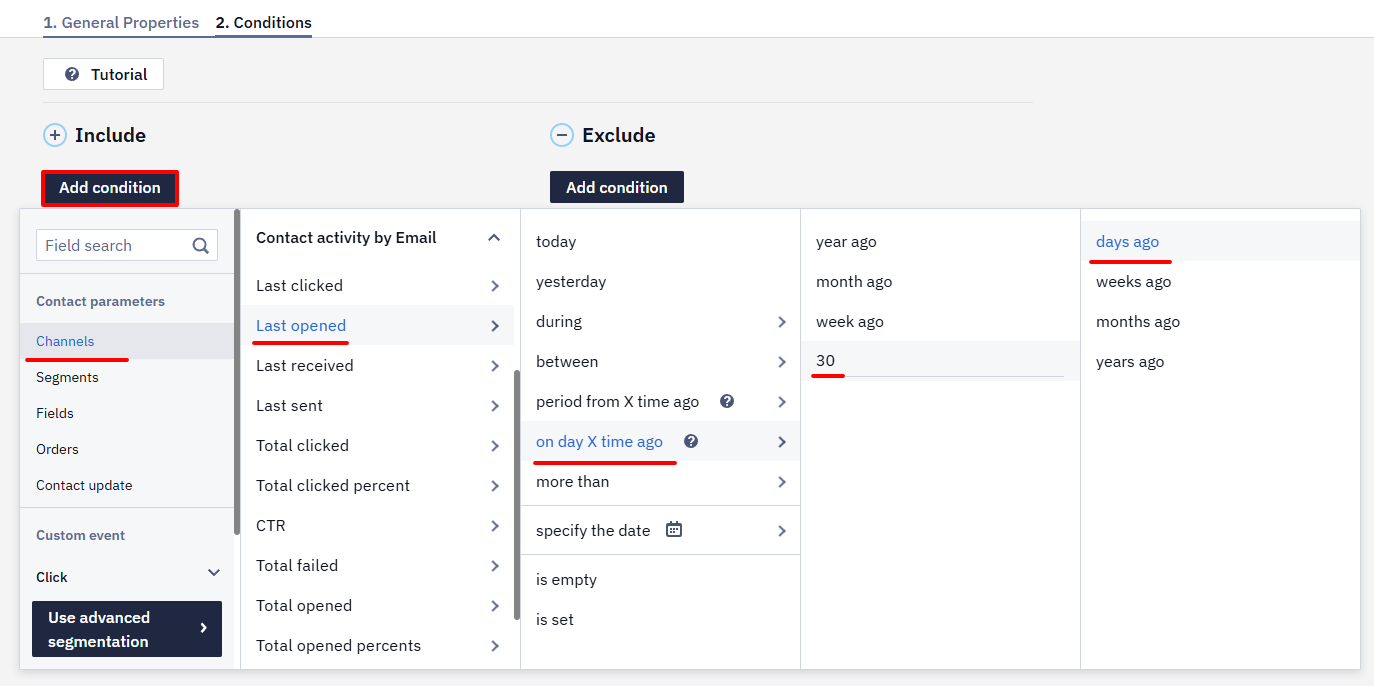
- Click Done. The created segment will appear in the general segment list.
Segment recalculation and workflow launch are two separate mechanisms, and they run on different schedules:
- Segment recalculation decides who is in the segment. For dynamic segments it runs daily from 3 a.m. to 4 a.m.
- Workflow launch decides when the workflow starts for those contacts. Workflows triggered by a segment or a group are started in batches once an hour, so a contact can wait up to an hour after entering the segment before the workflow starts for them.
Workflows triggered by an event behave differently — they start as soon as the event is registered, without waiting for a batch.
2. Create a Workflow
You need to create corresponding messages before getting started with a workflow.
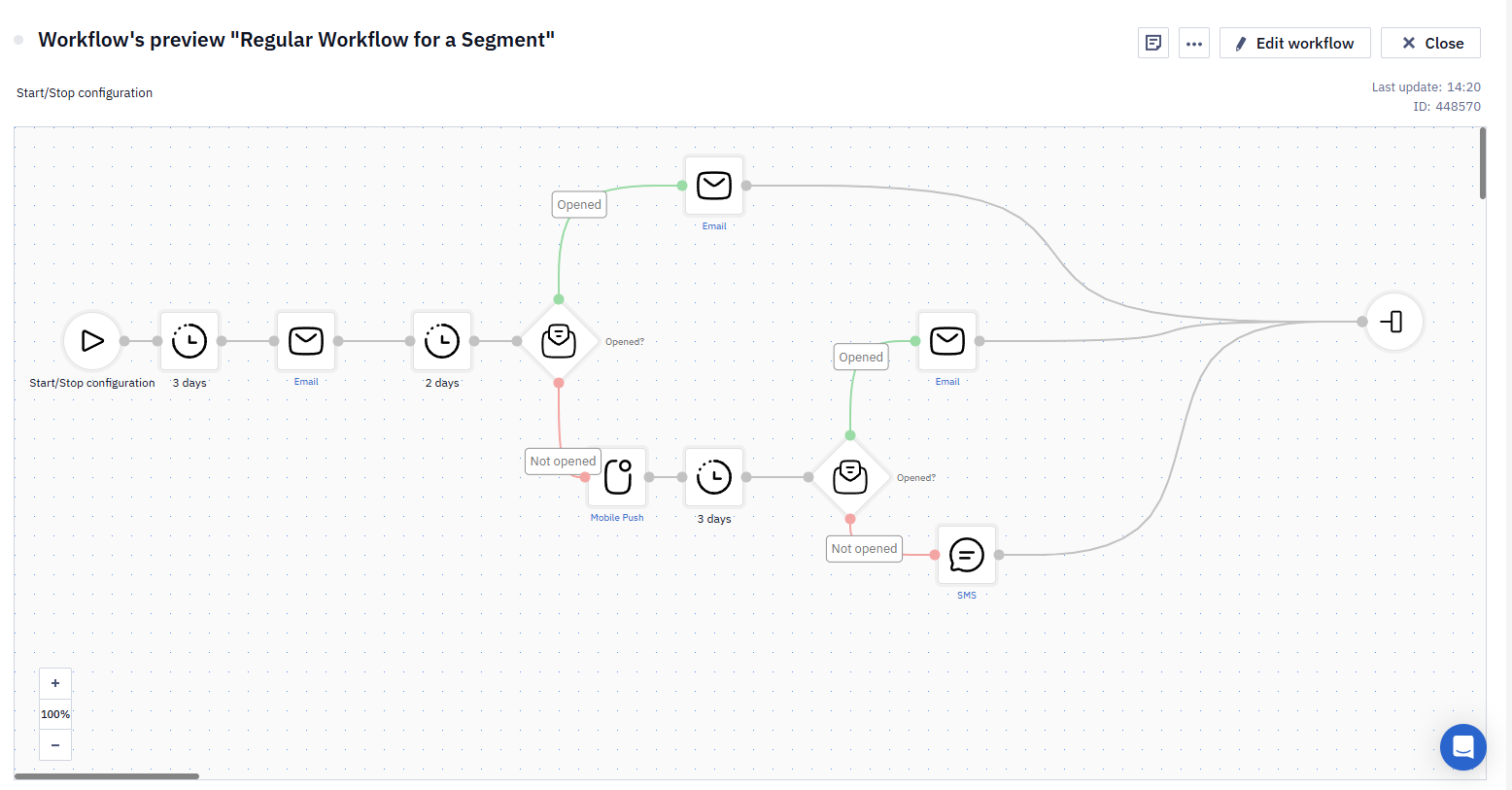
Let’s create the following workflow that consists of two emails, timers and conditions.
Learn more about building and editing workflows >
- Go to Automation → Workflows and click New workflow. Enter its name and tags (optionally). Build a workflow with the following blocks:
- Start. A required block that starts every workflow.
- Timer 1. The workflow starts sending messages straight after contact recalculation. Since contacts are recalculated from 3 a.m. to 4 a.m., set the timer so as not to bother your recipients at night.
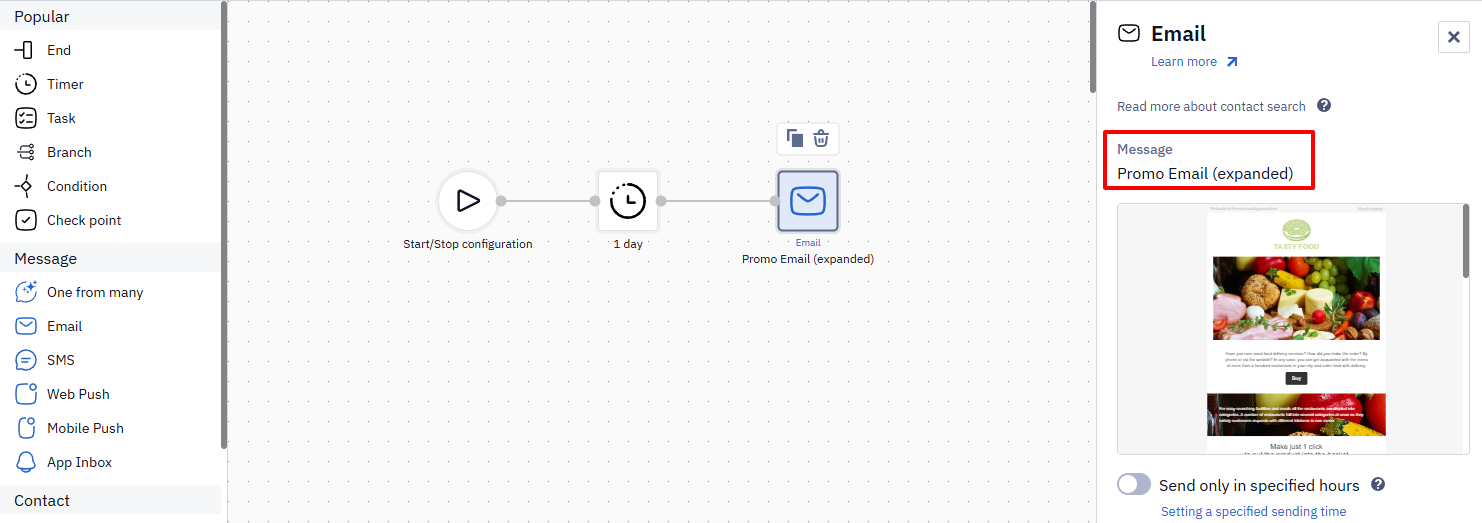
- Email. In Message, select the previously created email. Repeat this for each Email block in the workflow.
- Timer 2/3. Specify a time gap between the sends. You can also select on what day and at what hour the message should be sent. The timer starts counting down after contacts have been recalculated but not after the workflow has been activated.
- Condition Opened/Not opened. After a specified timer expires, the system checks whether the contact has performed the target action. The workflow continues to run depending on the result:
✓ Opened: The workflow sends a follow-up and ends.
✓ Not opened: The workflow repeatedly sends the 1-st email. Depending on the response, it sends a follow-up message or ends. - End. The required block that must end every workflow brunch.
- Click Save.
The workflow will look like this:
3. Configure Trigger
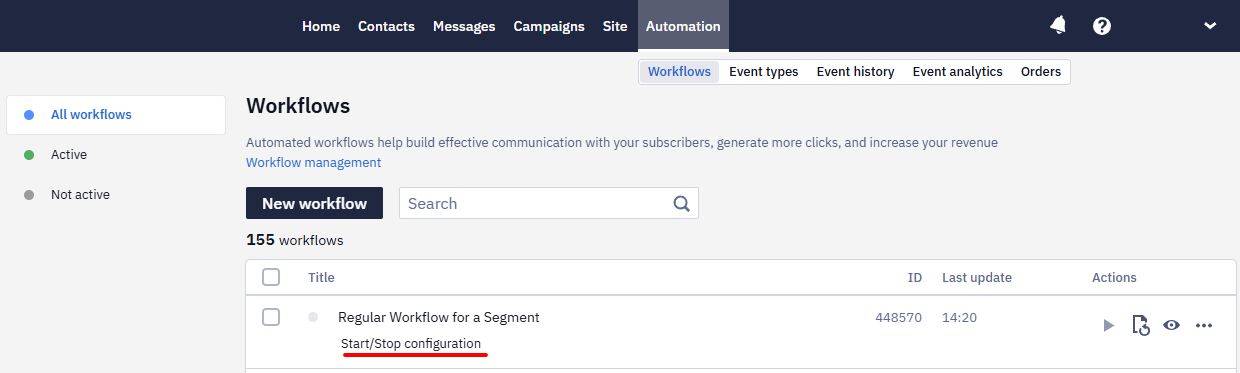
- In Automation → Workflows, choose the created workflow and click Start/Stop configuration.
- Activate Start configuration switcher
- In the Regular tab,
- In Segment, select the created segment.
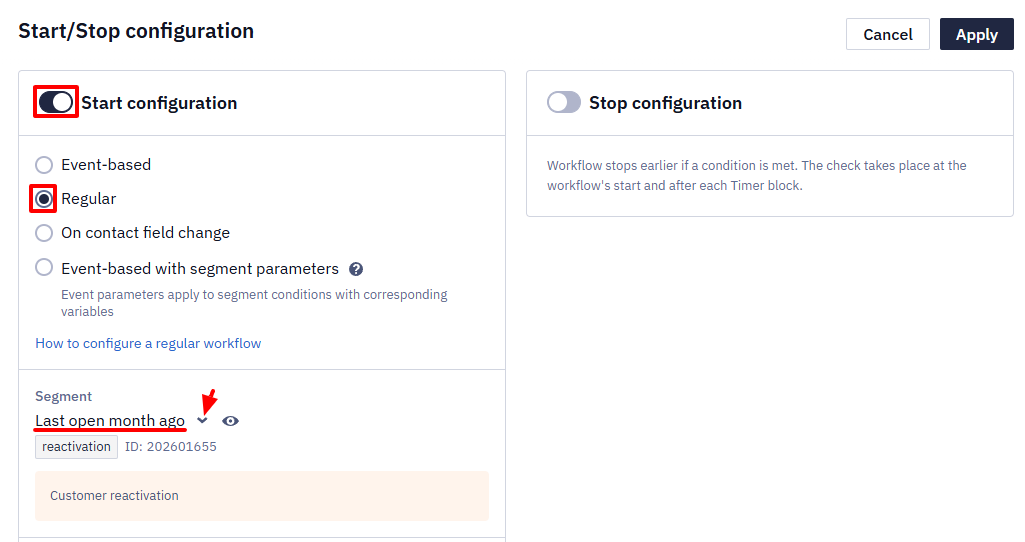
- In Starts on, select the current date.
- In Start schedule, select once a day.
- Select allowed start days.
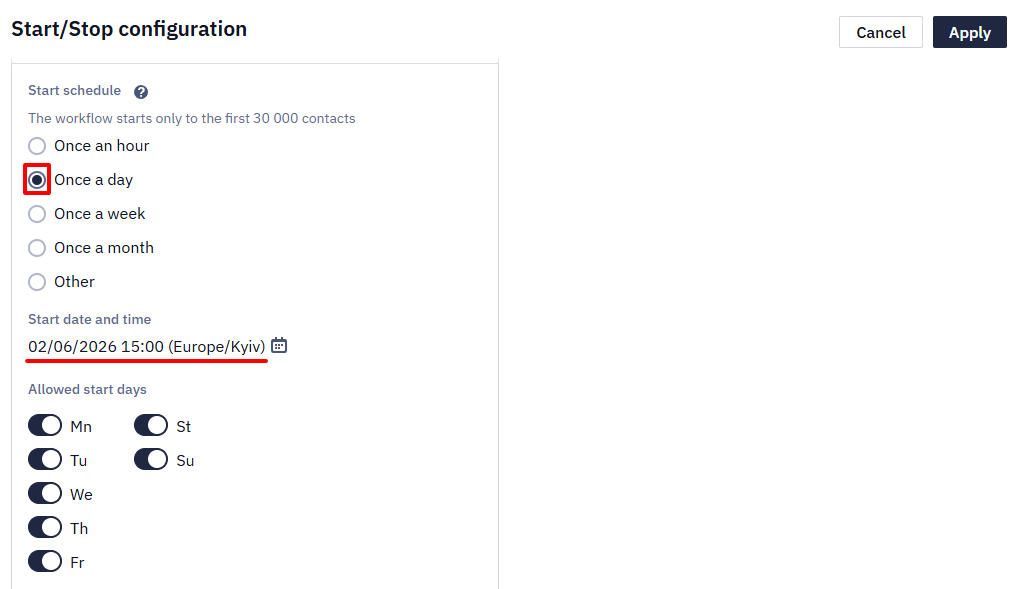
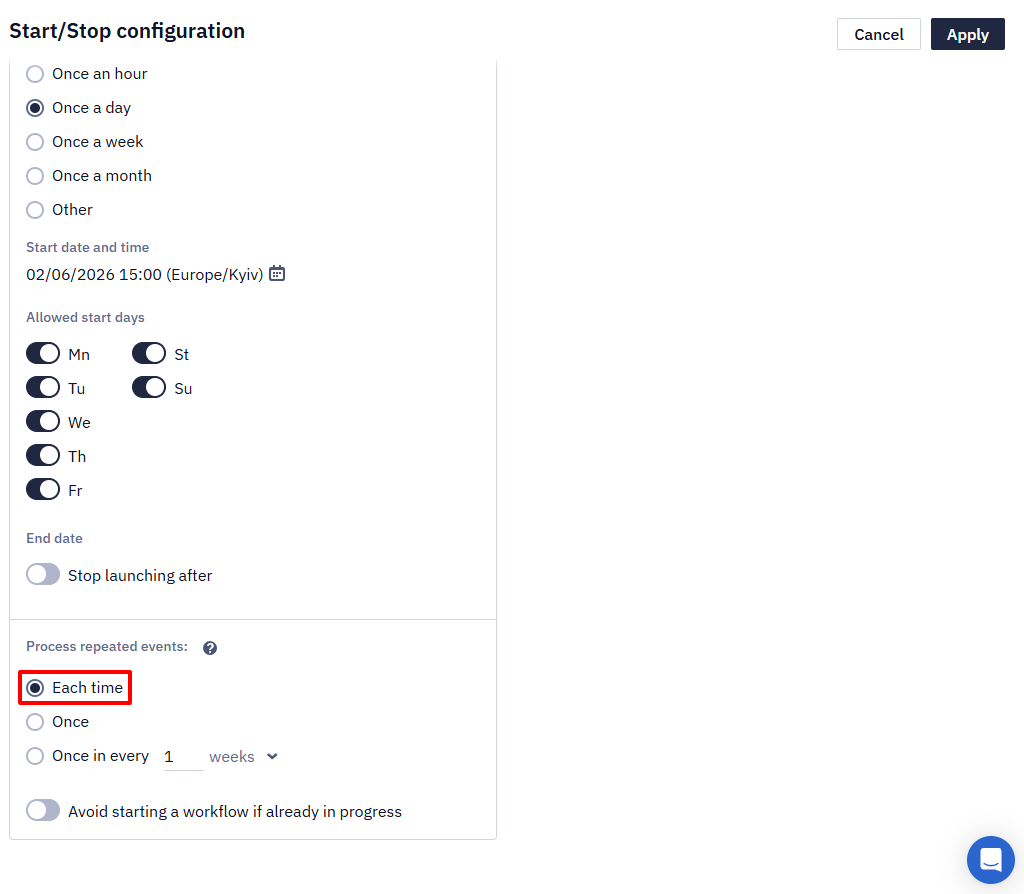
- Set the Start time and set the End date of the workflow;
- In Process unique events, select each time.
NoteA scheduled (segment-based) workflow has no limit on segment size. At the start time, the system takes a snapshot of the segment, and every contact in the snapshot goes through the workflow. The snapshot is processed in batches of 10,000 contacts every 10 minutes, which is 60,000 contacts per hour for each launch. For a large segment, the first batch enters the workflow only after the segment is built; a small segment starts without a noticeable delay.
Processing time depends on the number of contacts, so a large segment can take several hours. For example, a segment of 1,000,000 contacts takes about 17 hours: a launch at 09:00 finishes at about 02:00 the next night. If the message has to reach everyone at about the same time, keep the trigger segment small, for example by excluding contacts who have already gone through the workflow.
Contacts who join the segment after the snapshot enter the workflow at the next launch. While a launch is in progress, the following scheduled launches of the same workflow are skipped, and the next launch starts at the first scheduled time after the current one finishes. With Once a day, for example, the next day's launch is skipped if processing the segment takes more than 24 hours.
After you deactivate the workflow, the current launch still processes the whole segment.
- Click Apply.
- To start a workflow, click Activate on the right and confirm the action.
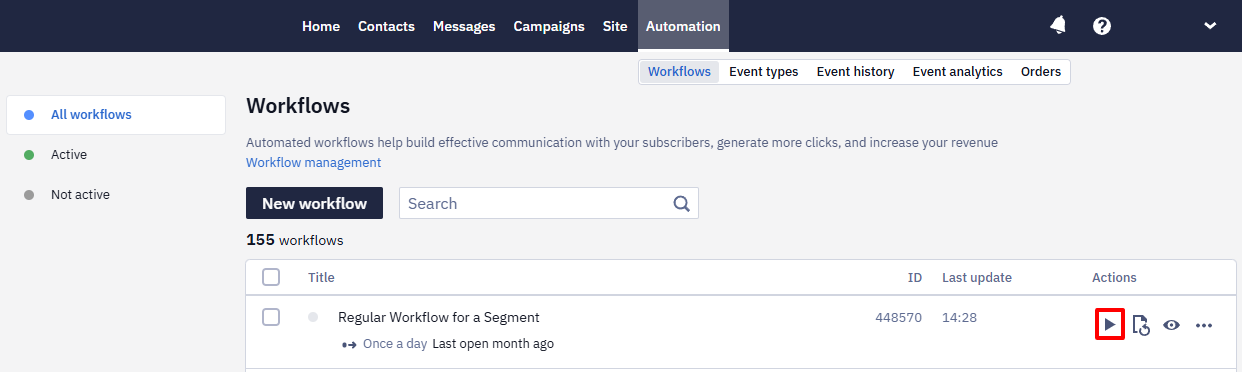
The workflow status will change to active. The first message will be sent when all the conditions specified for the segment are met.
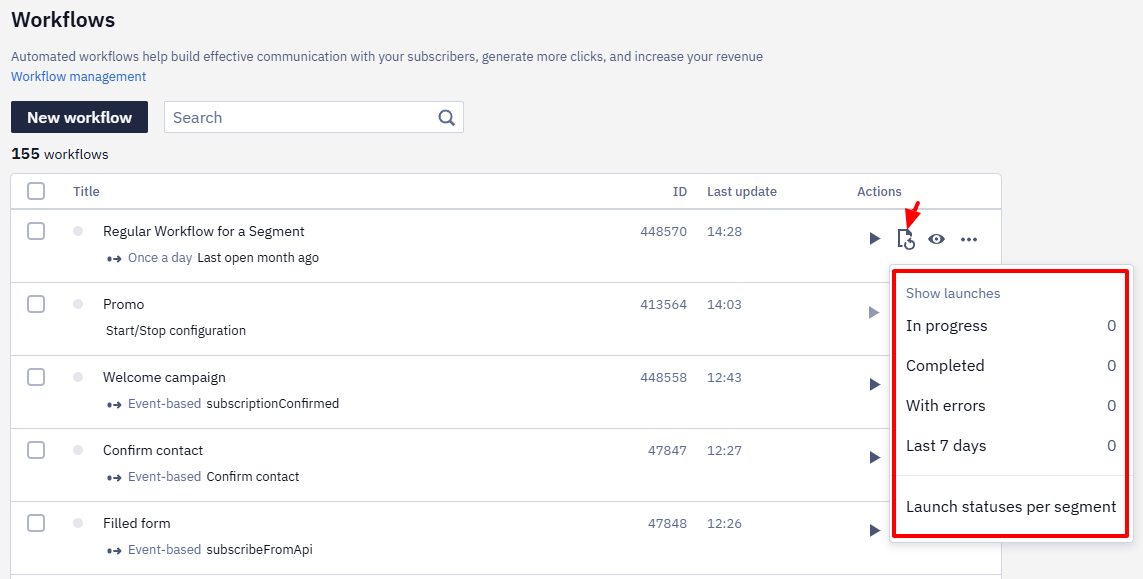
To track the workflow launch history, click the Launches icon. For more details, see the article.
Updated 2 days ago