
FAQ: Email Authentication and Domain Reputation
If you send email campaigns with Yespo, your sending domain, authentication settings, and sender reputation affect whether mailbox providers accept your messages and where they place them.
This FAQ explains DNS and email authentication, how Yespo uses DKIM, how to check whether email works on your domain, and what technical sender information appears in message headers.
For step-by-step domain setup, see Setting Up Email Domain Authentication. For common verification errors, see Domain Verification Troubleshooting.
Why Should I Use a Corporate Sender Address?
Yespo requires sender addresses on a domain controlled by your company.
- Corporate sender address:
[email protected] - Public sender address:
[email protected]
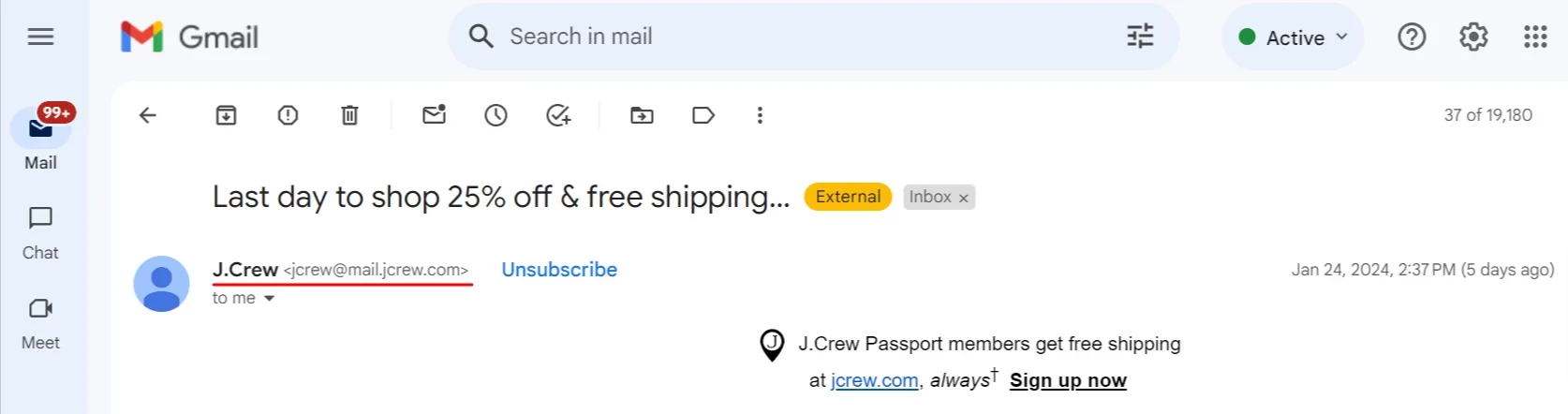
A company-controlled domain lets you authenticate email with SPF, DKIM, and DMARC, build a separate sender reputation, and make your sender easier for recipients to recognize.
Public email domains such as gmail.com cannot be authenticated for sending through Yespo on your behalf. Using your own domain also helps protect recipients from messages that spoof your brand.
Before sending, add and confirm a sender on your corporate domain. See Adding, Changing, and Deleting a Sender.
For the full deliverability preparation process, see Email Deliverability: Getting Started.
Why Do I Need DNS Settings?
DNS (Domain Name System) records define how your domain receives email and how sending is authenticated.
The main records used for email are:
MX— identifies the servers that receive mail for your domain.SPF— lists the services authorized to send email for your domain.DKIM— publishes the public key used to verify DKIM signatures for your domain.DMARC— defines how mailbox providers handle messages that fail DMARC and supports authentication reporting.
After registering a domain, make sure it is configured in DNS and can receive email. Your mail or hosting provider typically adds the basic mail records when you set up a mailbox.
By default, replies go to the sender address. To receive replies at another mailbox, add a reply address in the Yespo email editor.
To authenticate your domain for sending through Yespo, add the DNS records shown in Settings → Domain verification. See Setting Up Email Domain Authentication.
What DNS Records Are Used for Email Authentication?
You add or edit DNS records in your provider's DNS management panel. The exact Name and Data values and the record type required for Yespo domain authentication are shown in Settings → Domain verification.
Follow your DNS provider's instructions when adding records. You can also use the dedicated Cloudflare domain authentication guide.
MX Record
An MX (Mail Exchanger) record identifies the mail servers that receive email for a domain.
A domain can have several MX records. Each record has a priority: the lower the number, the higher the priority. A sending mail server first tries the available server with the highest priority and then moves to the next one if necessary.
Example:
yourdomain.com.    IN    MX    1 aspmx.l.google.com.
yourdomain.com.    IN    MX    5 alt1.aspmx.l.google.com.
If email already works on your domain, your mailbox provider normally has the required MX records in place. Do not replace the mailbox domain's MX records with Yespo values unless the domain verification instructions explicitly require a record on a technical or sending subdomain.
SPF Record
SPF (Sender Policy Framework) authorizes services to send email on behalf of your domain.
SPF is published as a TXT record that starts with v=spf1. A domain should publish a single SPF policy. If an SPF record already exists, add the value required by Yespo to the existing policy instead of creating a second SPF record.
SPF also limits DNS lookups during evaluation. Too many include: mechanisms or other DNS-based mechanisms can make the policy invalid.
Use the exact SPF values shown in Settings → Domain verification. For duplicate records, lookup limits, and other common issues, see Domain Verification Troubleshooting.
DKIM
DKIM (DomainKeys Identified Mail) adds a cryptographic signature to selected email headers. Receiving mail servers verify the signature with a public key published in DNS.
DKIM uses a key pair:
- The private key is used by the sending system to create the signature.
- The public key is published through DNS so receiving mail systems can verify the signature.
The DKIM signature contains a selector that tells the receiving server which public key to request from DNS.
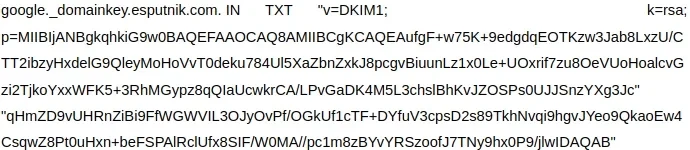
NoteYespo can provide a
CNAMErecord that points to a DNS record containing the DKIM public key managed by Yespo. This reduces manual configuration and lets the signing key be updated without requiring you to replace the public key directly in your DNS.Always add the exact
CNAMEName and Data values shown in Settings → Domain verification.
DMARC
DMARC (Domain-based Message Authentication, Reporting, and Conformance) builds on SPF and DKIM. It checks whether authenticated identifiers align with the domain in the visible From address and defines how mailbox providers should handle messages that fail DMARC.
The main DMARC policies are:
p=none— monitor authentication without requesting quarantine or rejection of messages that fail DMARC.p=quarantine— treat failed messages as suspicious.p=reject— reject failed messages.
The rua tag can specify an address for aggregate DMARC reports.
Configure SPF and DKIM before enforcing a strict DMARC policy. If you are introducing DMARC for the first time, monitor authentication results before moving to p=quarantine or p=reject.
NoteA strict DMARC policy can affect Yespo domain warm-up because messages signed only with the Yespo domain may fail DMARC if SPF also does not align with the domain in the visible From address. See Domain Warm-up.
You can check published DNS records with DNS Record Query.
BIMI
BIMI (Brand Indicators for Message Identification) can display your brand logo in supporting inboxes.
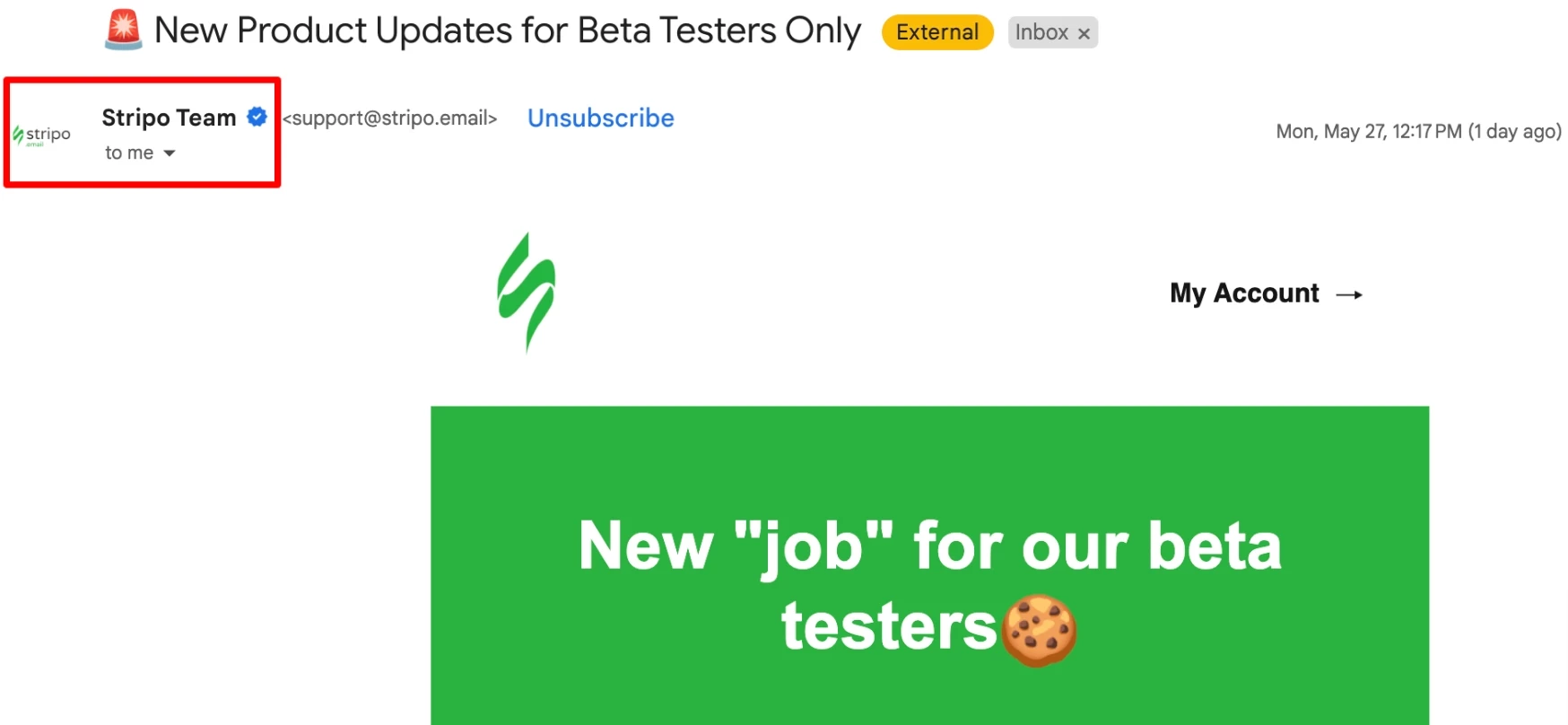
BIMI generally requires an enforced DMARC policy, such as p=quarantine or p=reject. Logo display also depends on the mailbox provider and its requirements.
See Adding a BIMI Logo.
What Affects Sender Reputation?
Mailbox providers build reputation from multiple signals, including:
- Delivery results — repeated rejects and delivery errors can indicate poor list quality or sending problems.
- Spam complaints and unsubscribes — high rates can signal that recipients do not expect or want your email.
- Authentication — SPF, DKIM, and DMARC help mailbox providers verify your sending domain.
- Recipient engagement — mailbox providers can use interaction signals when evaluating mail.
- Sending patterns — sudden volume changes or irregular sending can affect how a domain is evaluated.
Authentication alone does not guarantee inbox placement. Monitor deliverability metrics and investigate changes before increasing sending volume.
See Email Deliverability: Getting Started and Deliverability Control Process.
How Does Domain Warm-Up Work?
Domain warm-up is a gradual increase in the volume of emails signed with your domain's DKIM key.
New or previously inactive sending domains do not have enough recent sending history for mailbox providers to evaluate them confidently. A sudden large campaign can cause temporary delivery errors, throttling, or spam placement.
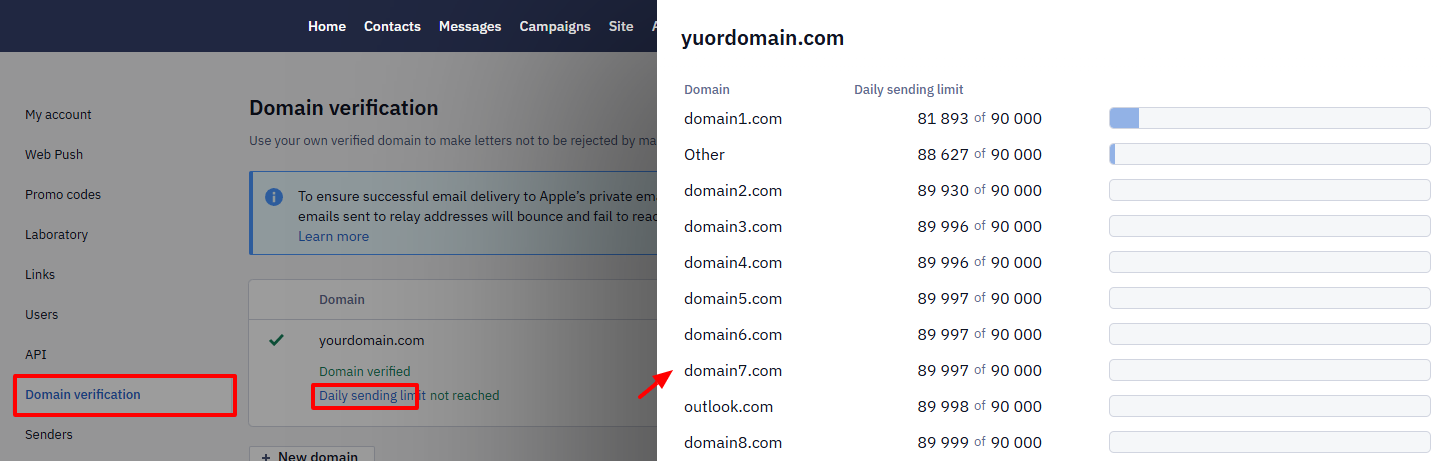
Yespo manages domain warm-up by limiting the sending speed and setting a daily limit on emails signed with your domain's DKIM key. The daily limit increases gradually.
During warm-up, a campaign can include more recipients than the current daily limit for emails signed with your domain's DKIM key. Yespo signs emails within the limit with your domain's DKIM key. Other emails may be signed with the Yespo domain and sent at the regular rate unless a strict DMARC policy prevents this.
NoteTo check the current limit, go to Settings → Domain verification → Daily sending limit.
See Domain Warm-up for the full process and recommendations.
How Do I Check Whether Mail Is Working on My Domain?
After setting up mail for a new domain, check that the domain can both send and receive email.
For example, suppose you created example.org and set up the mailbox [email protected].
- Send an email from
[email protected]to an external mailbox, for example, a Gmail address. - Send a reply or a new message from that external mailbox to
[email protected].
If both messages arrive, basic email sending and receiving work correctly.
If either message does not arrive, check your mailbox and DNS settings with your mail or hosting provider before configuring campaign sending in Yespo.
What Information About the Sender Does an Email Contain?
Email headers contain technical information that is not normally shown in the inbox. Recipients usually see the sender and subject, while the full headers contain details used for routing, authentication, and complaint processing.
In Gmail, open the email menu and select Show original to view the full message headers.
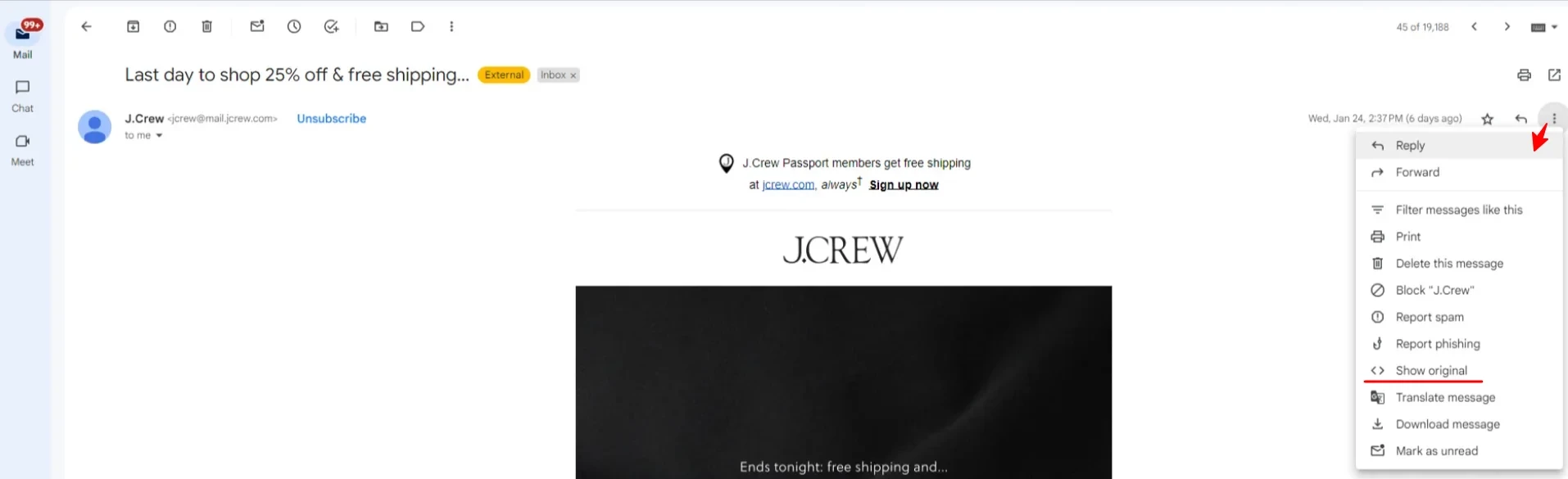
Common email header fields include:
- From: — the visible sender address. In Yespo, this comes from the Sender configured for the email.
- Sender: — a technical sender address. Some mail systems can display this field when it is present.
- Reply-To: — the address that receives replies when the recipient clicks Reply. It is added when you configure a separate reply address.
- To: — the recipient's email address.
- Subject: — the email subject.
- Date: — the date and time when the message was generated.
- Message-ID: — a unique identifier for the email.
- X-Mailer: — information about the software used to send the message.
- Feedback-ID: — an identifier used with Google Postmaster Tools to associate spam complaints with a campaign or message.
- List-Id: — a mailing list identifier that can be used for filtering.
- List-Unsubscribe: — unsubscribe information used by supporting mailbox providers to show an unsubscribe action in their interface.
- DKIM-Signature: — the DKIM signature, selector, signing domain, and list of signed header fields.
- Return-Path: — the technical return address used to process delivery errors and some complaint signals.
- Received: — routing information added by mail servers and services that process the message.
- Authentication-Results: — authentication results recorded by a receiving mail server, for example, SPF, DKIM, and DMARC results.
Email clients can display header data in a more readable form. For example, Gmail can show mailed-by and signed-by under the sender details. These values are derived from technical message and authentication information.
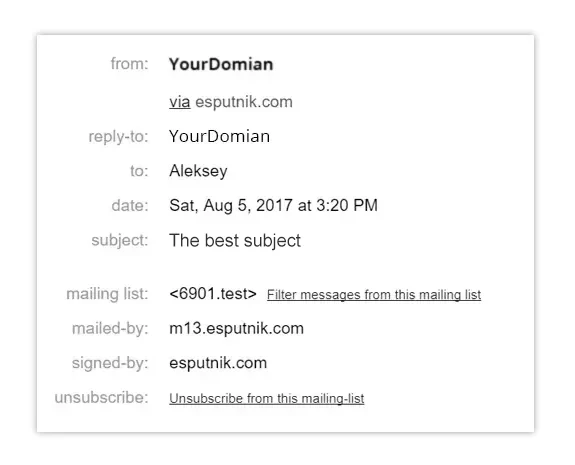
Most email clients do not display the Sender: header separately. Some Microsoft mail products may show the Sender: field in message details when it is present.
How Does Domain Authentication Affect Email Headers?
The visible From address is the sender address you configure in Yespo, for example, [email protected].
Technical fields such as Sender, Return-Path, and the DKIM signing domain depend on the domain authentication method and sending configuration.
While Yespo is not yet using your domain's DKIM key for all emails, technical message fields may reference a Yespo sending domain. Gmail may therefore show a Yespo technical domain in mailed-by or signed-by, while the visible From address remains your sender address.
When an email is signed with your domain's DKIM key, the DKIM signing domain can align with the domain in the visible From address.
During domain warm-up, Yespo gradually increases the number of emails signed with your domain's DKIM key. The exact behavior also depends on your DMARC policy.
For the differences between Full, Full +, and Subdomain configuration methods, see Setting Up Email Domain Authentication.
For Gmail authentication and complaint data, see Checking Domain Settings and Reputation with Google Postmaster Tools.
Updated 23 days ago