
Responsive Email Editor Overview
The responsive email editor lets you create emails without HTML knowledge. You build layouts by dragging and dropping blocks. The editor helps you focus on segmentation, analytics, and personalization.
Creating a Message
- Go to Messages → Messages → Email.
- Click New Email.
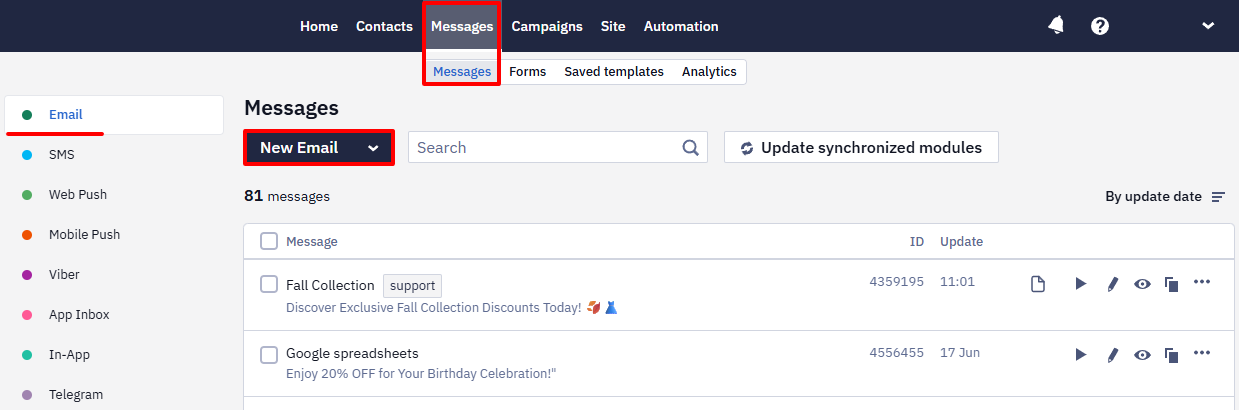
- Open the Gallery tab.
- In the left panel, select the template that best fits your campaign from the available categories.
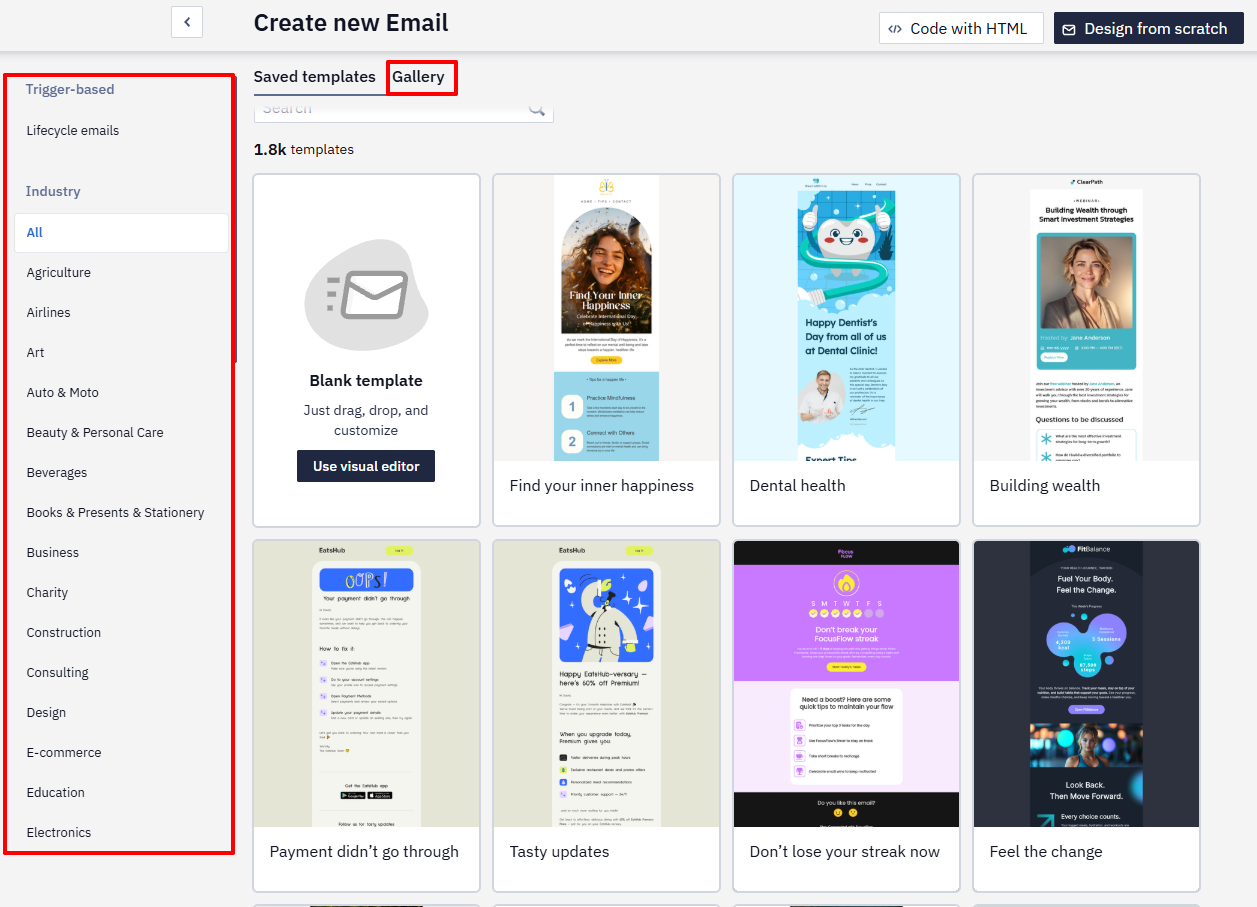
The selected template opens in the editor and is ready for editing.
Editor Interface
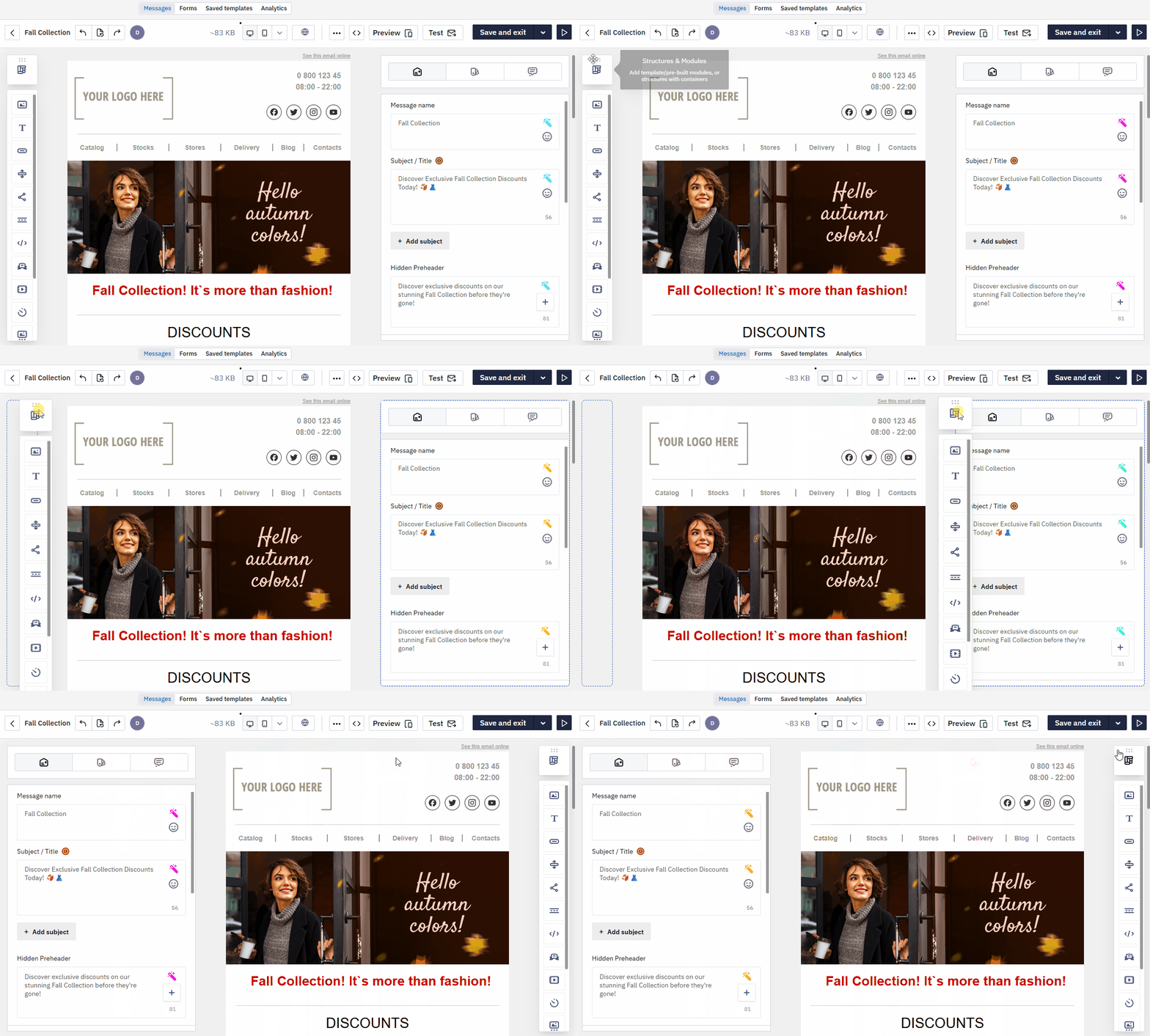
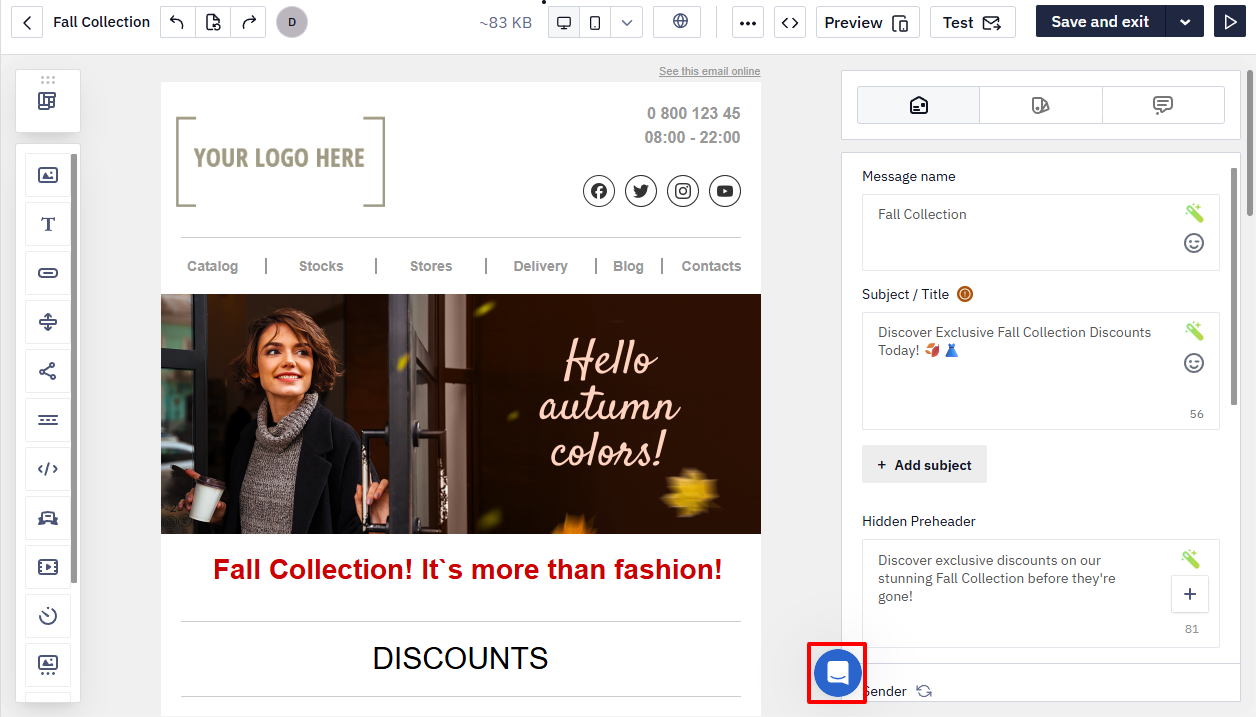
The editor consists of the following panels:
- Email Management — manage the email lifecycle: save, undo actions, preview, test, etc.
- Structure and Modules — build the layout using predefined structures and modules.
- Content Blocks — add content such as text, images, buttons, etc.
- Message Settings — set core parameters, including subject, hidden preheader, and sender name.
- General Styles — configure global styles for stripes, headers, buttons, and other elements.
- Comments — collaborate with team members directly in the template.
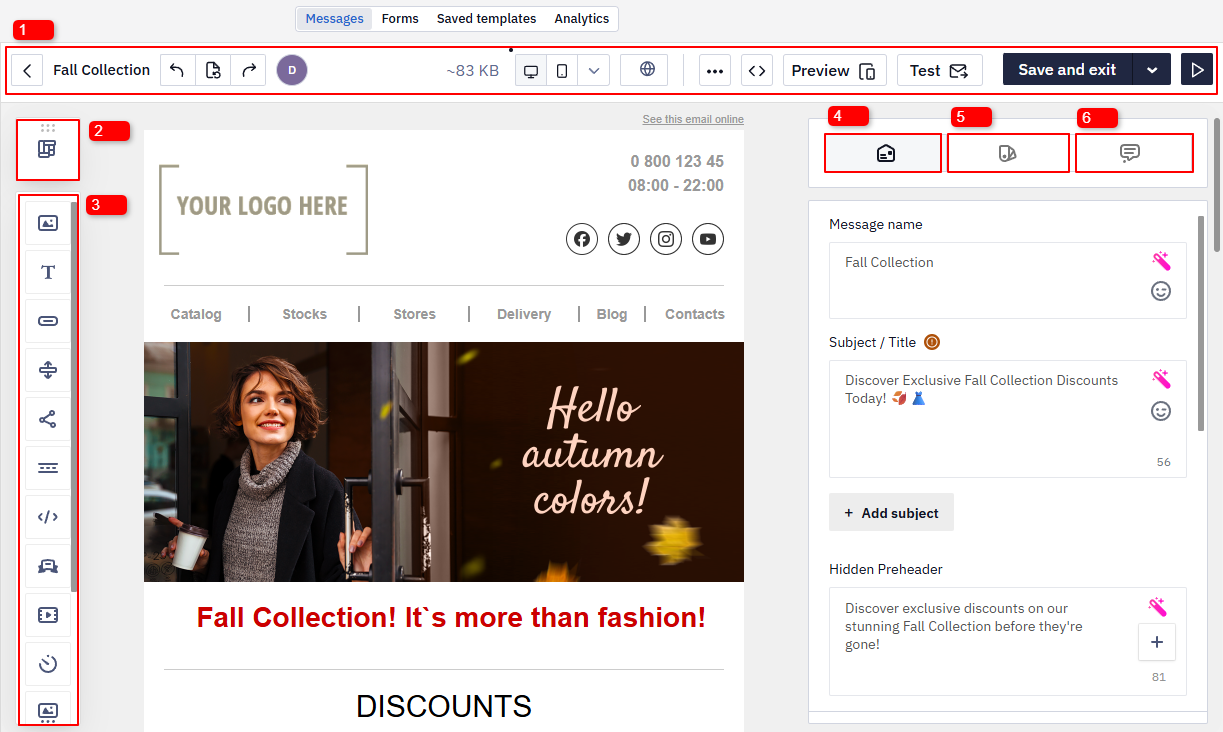
You can drag and rearrange panels to customize the editor layout.
Email Management Panel
The panel contains the following buttons:

- Return to the message list — exit the editor.
- Undo / Redo — revert or restore recent changes.
- Version history — view all saved versions of the email.
- User identifier — shows who is currently editing the email. If multiple users are working at the same time, all active users are displayed.
More about Collaborative Email Creation >

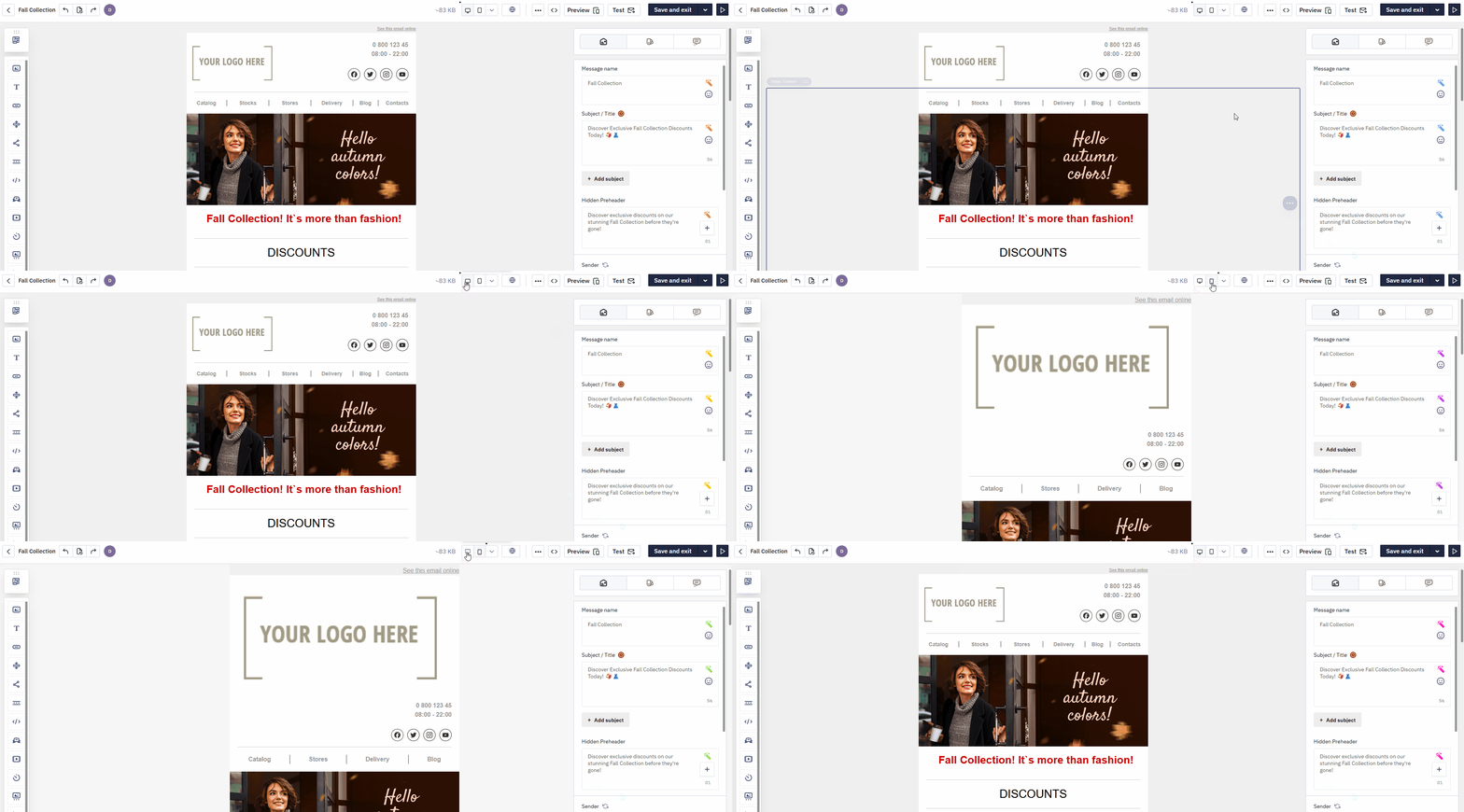
- Desktop / Mobile mode — switch between modes to verify layout and make device-specific adjustments.
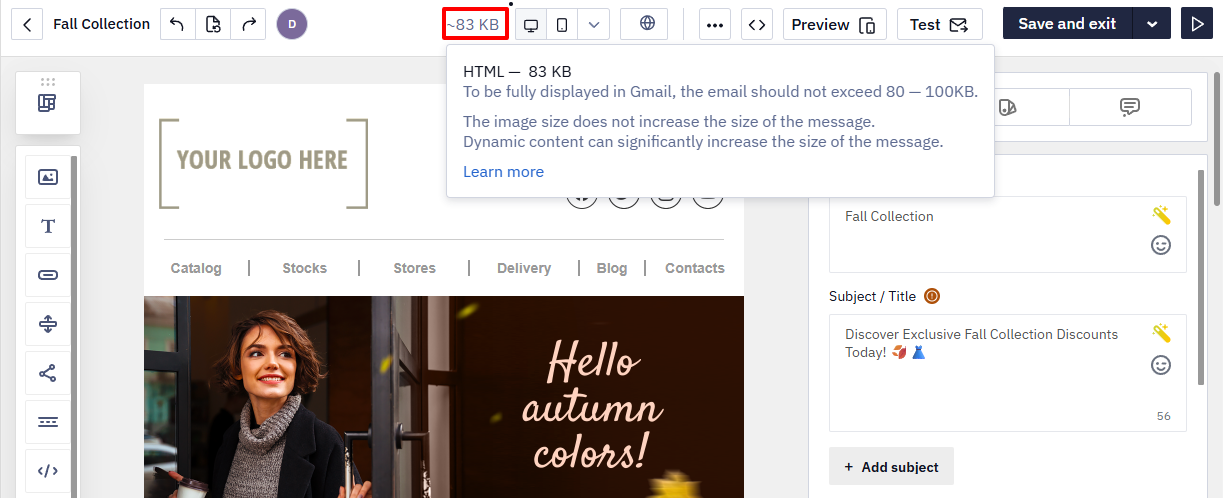
- Email size indicator. Next to the version controls, the current email size (KB) is displayed.
Keep the email size within 80–100 KB. Some email clients, including Gmail, may clip content if the HTML exceeds this limit. Learn more >
NoteDynamic content can increase the final email size.
Gmail clips a message when the final HTML exceeds roughly 102 KB. The size shown in the editor preview is only indicative: after export or sending, the size changes because of merge tags, the subject and preheader, plain-text and AMP parts, unsubscribe and view-in-browser links, tracking links, and platform post-processing.
The tracking pixel is added by the platform when the send is assembled, not as a visible editor block. The pixel itself is negligible and is not a typical cause of clipping — but the whole assembled HTML counts toward the limit.
To check the real size, look at the delivered
.emlfile or use Gmail's Show original. To reduce it, simplify structures and styles.
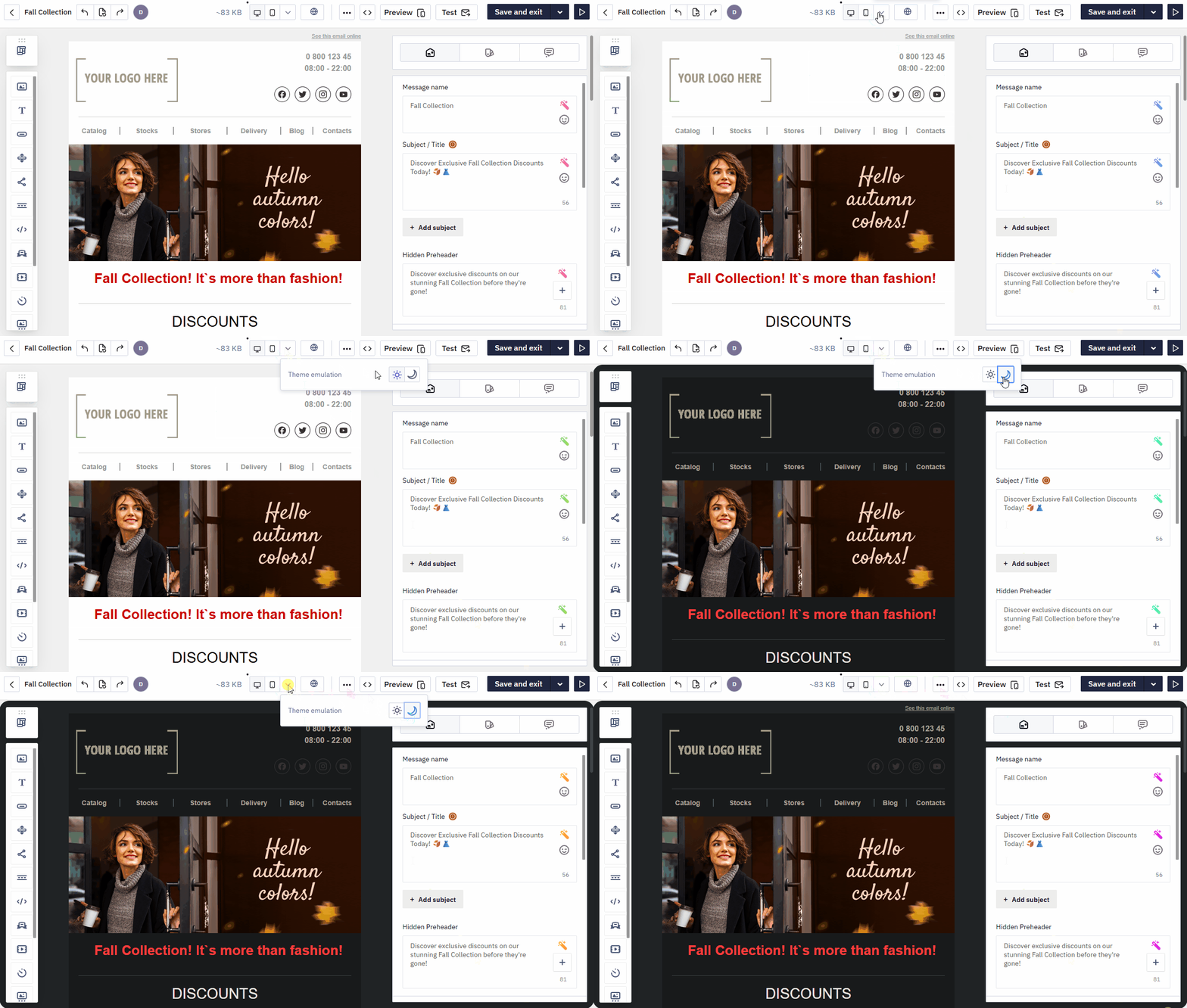
- Theme Emulation. Preview how your message will look in Light or Dark mode directly in the editor, and check whether the design and text render correctly in email clients that support dark mode.
- Multilingual version (optional) — use the Globe icon to create language versions of the email.
Learn more about creating multilingual messages >
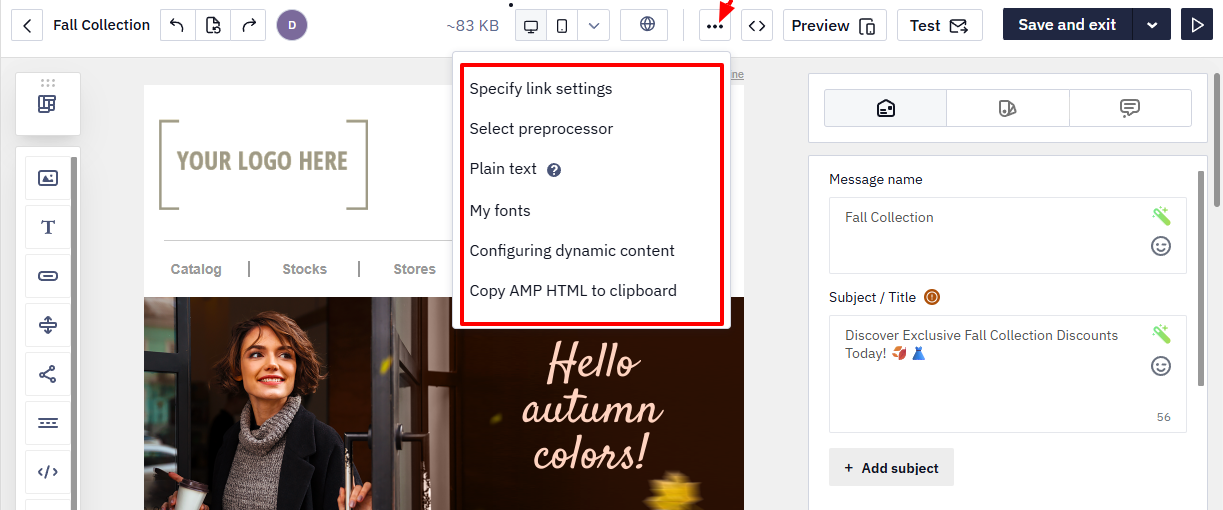
- Additional settings.
Open the three-dot menu to access advanced options:
- Link settings — enable click tracking and configure UTM tags.
- Preprocessor selection — select the method for building dynamic content from prepared data.
- Plain-text version — fallback version for clients that do not support HTML. An email message includes a plain-text and an HTML version, and can also include an AMP version. The plain-text version is generated automatically from the HTML version, with an option to regenerate it. Mailbox providers require its presence, so seeing it in the message source is standard behavior, not injected foreign code.
- Custom fonts — add or connect custom fonts.
- Dynamic content configuration — configure personalized content based on segmentation or behavior.
- Copy AMP HTML to clipboard — copy the AMP version for testing or debugging.
- Code editor — switch to manual HTML editing for direct code changes.
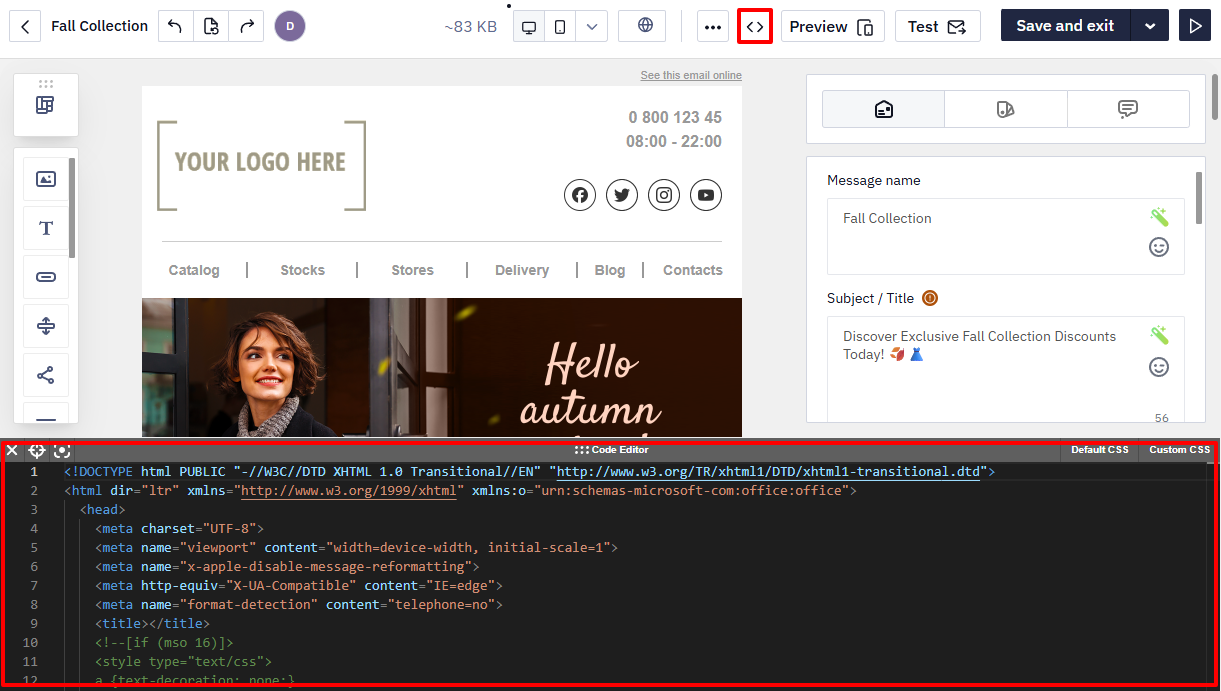
- Email preview — view the email as recipients will see it, without editor elements.

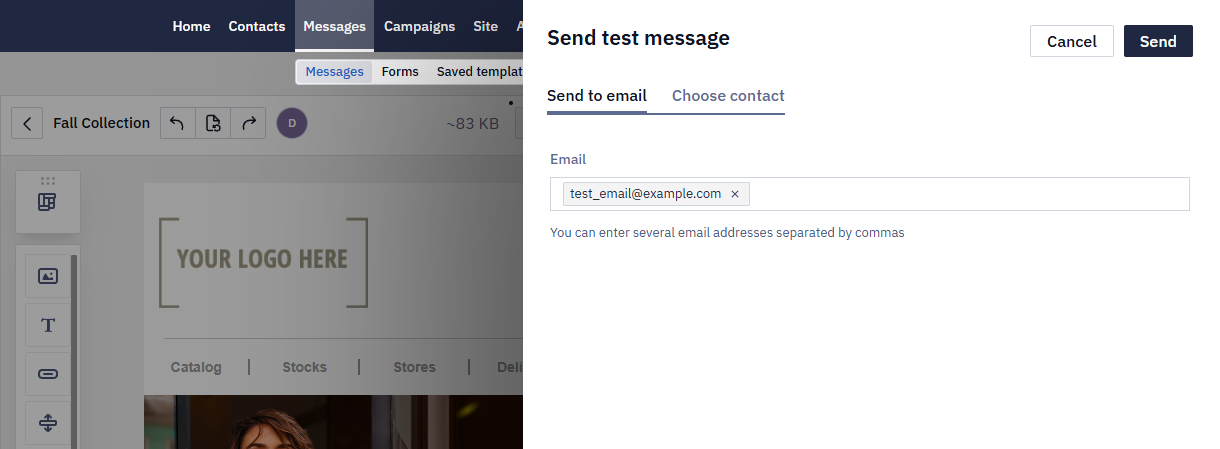
- Test — send the email to one or more addresses to verify rendering in a real inbox.
You can enter multiple email addresses separated by commas. To edit an address, click it and select Edit.
Clicking the arrow next to the Test button also lets you run the Accessibility checker — a tool that scans the email for elements that may be hard to perceive for people with visual or cognitive impairments and suggests how to fix them.
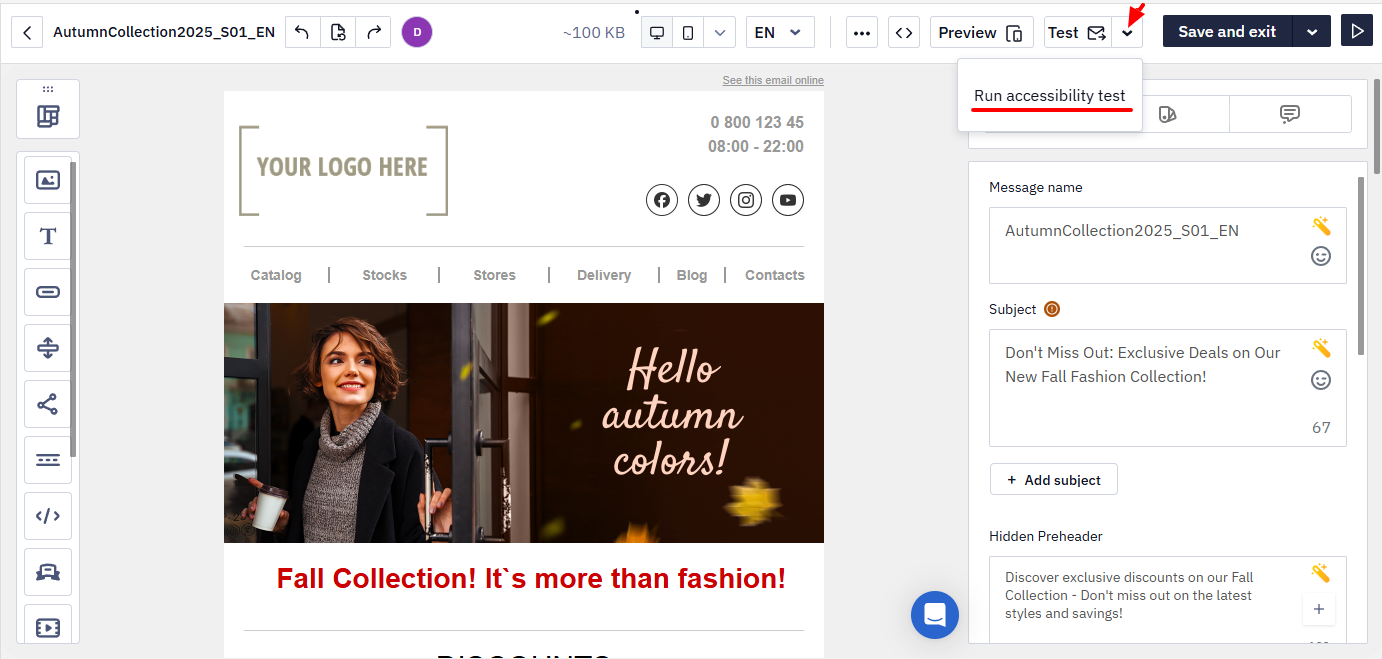
Learn more about the accessibility checker >
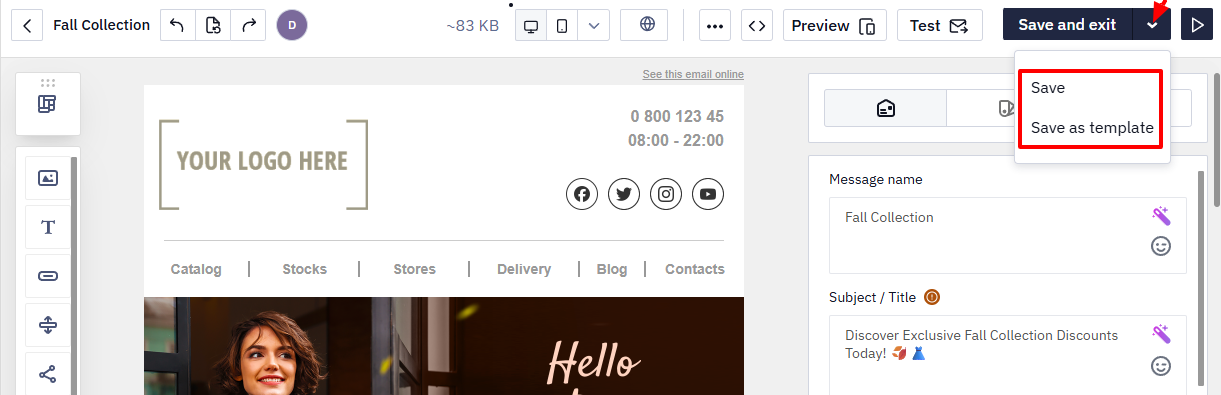
- Save and exit — saves the current changes in the email and exits to the email list.
The dropdown menu includes the following options:
-
Save — saves the current changes in the email without exiting the editor.
-
Save as template — saves the email as a template.
- Create campaign — continue to campaign setup and launch.
Support Chat
The email editor includes a built-in Intercom chat. If you have any questions while working on your email, you can contact the support team without leaving the editor or losing your workflow context.
Updated about 3 hours ago