
Using One from Many Message Block
The One from many block sends the best one from all messages with specific tags. The main purpose of the block is to understand what option is the best. At first, the block sends specified messages randomly to gather performance data. After a few thousand messages are sent within one workflow, the algorithm starts to prefer the messages with higher click-through rate (CTR). At the same time, the block considers the message's previous performance and the last messages sent to the contact to select the best option.
NoteBy default, you prepare and tag a pool of messages in advance. The One from many block selects and sends one variant from that pool based on performance. With auto-optimization enabled, the block can also generate new message variants for moderation.
This block can be considered a continuous A/B test that improves performance with every message sent, providing the best possible CTR for the given set of messages.
We encourage you to add messages to One from many block at any time. If you have any idea about a better version of the message, just mark it with the tag, and the One from many block will give it a try. The pool can hold many variants, and the block still sends only one of them — a newly added variant is prioritized in the selection so that it can gather performance data.
The block sends by the contactId from the workflow context and doesn't look the contact up by email or phone. If the event that started the workflow didn't let the system match a contact, the context has no contactId and the block skips the send. Pass contactId in the event, or use a regular sending block.
Adding Tags to Messages
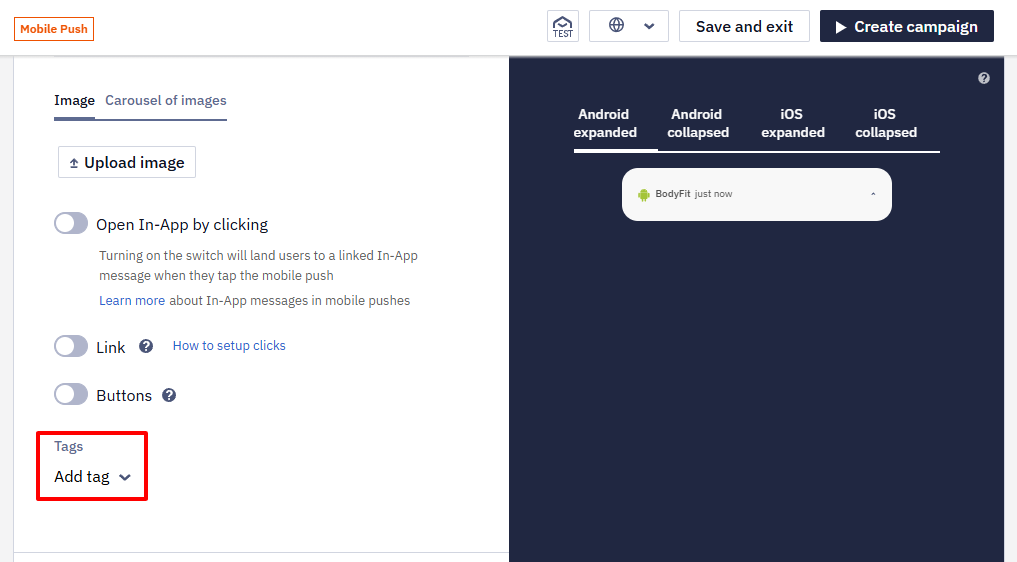
Open the message in the editor, find the Tags field, and add the necessary ones: Cart, Browsing, Reminder, etc.
Setting Up Workflow with One From Many Block
The One from many block participates in workflows like any other message.
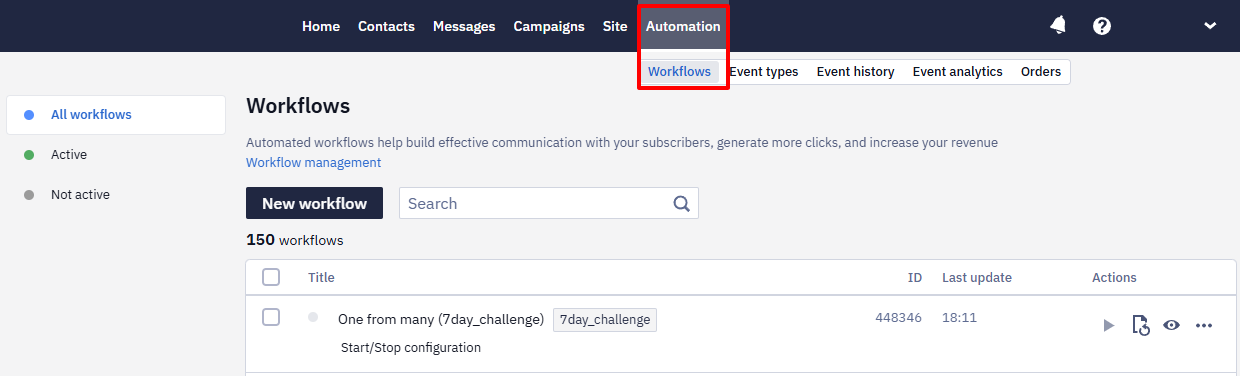
- Open or create a workflow in the Automation → Workflows section.
- Drag the One from many block from the left sidebar into the workflow.
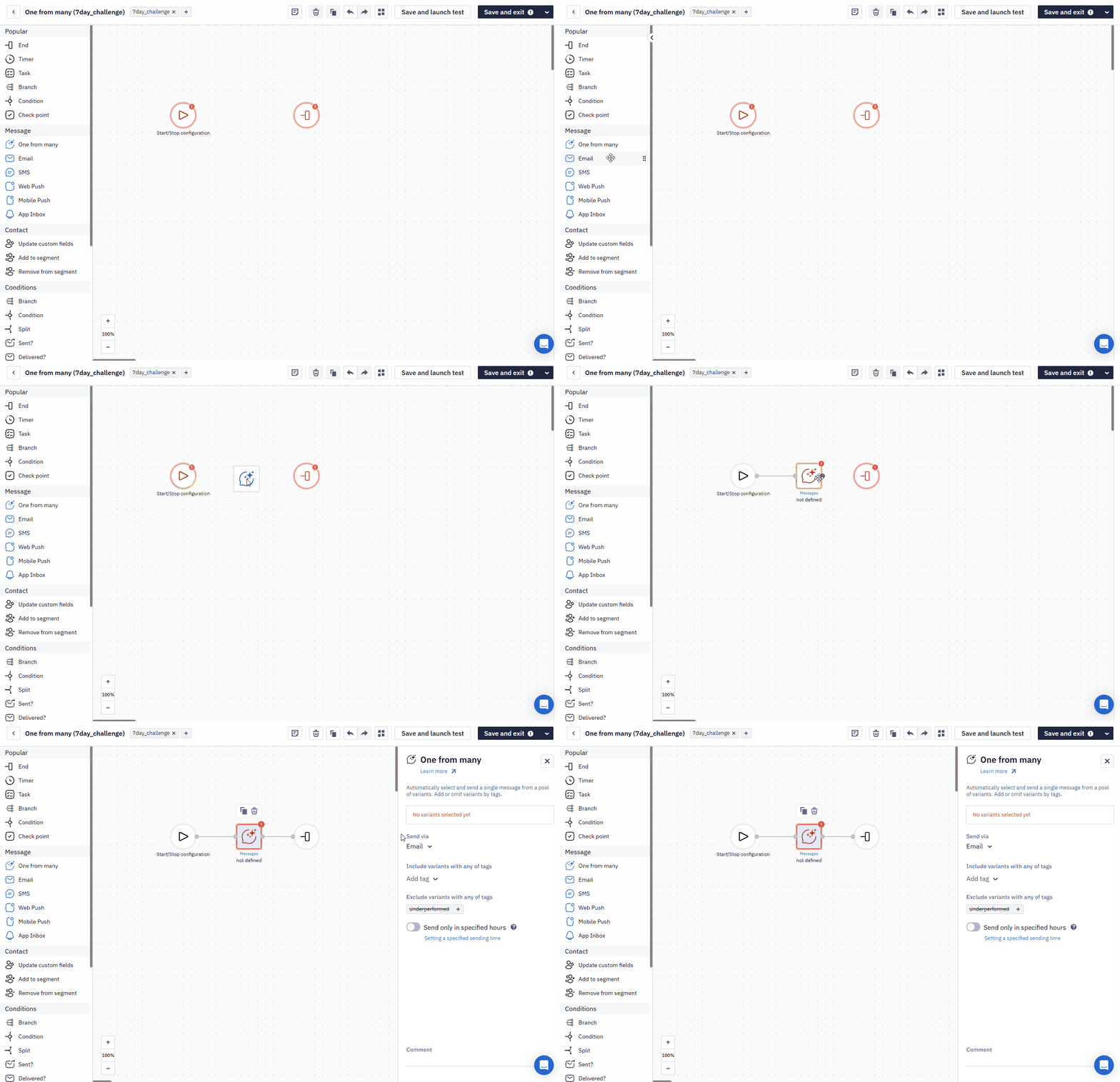
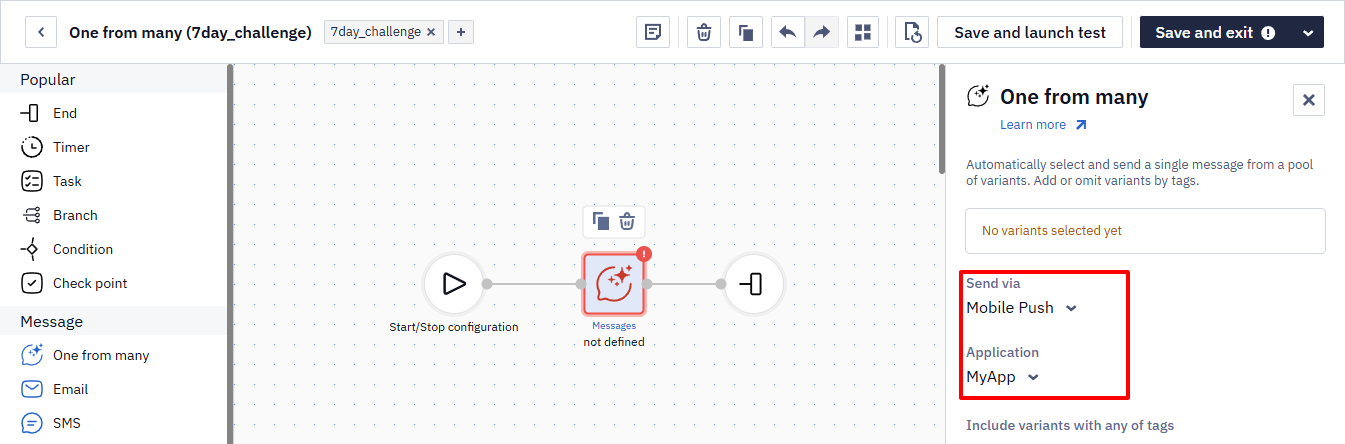
- Configure the block parameters:
- Send via — messages’ media channel.
- Application — the name of a Mobile Push app or Telegram bot (there is no option to select an application if there is only one app or bot registered in the account — the corresponding parameter will be applied automatically).
- Include variants with tags with which messages will be triggered.
- Exclude variants with tags so that the block does not trigger them. We recommend implementing a persistent tag like Excluded or Stopped and then adding it to low-performing messages to stop their sending. The check for sending or excluding messages occurs every time the message is sent.
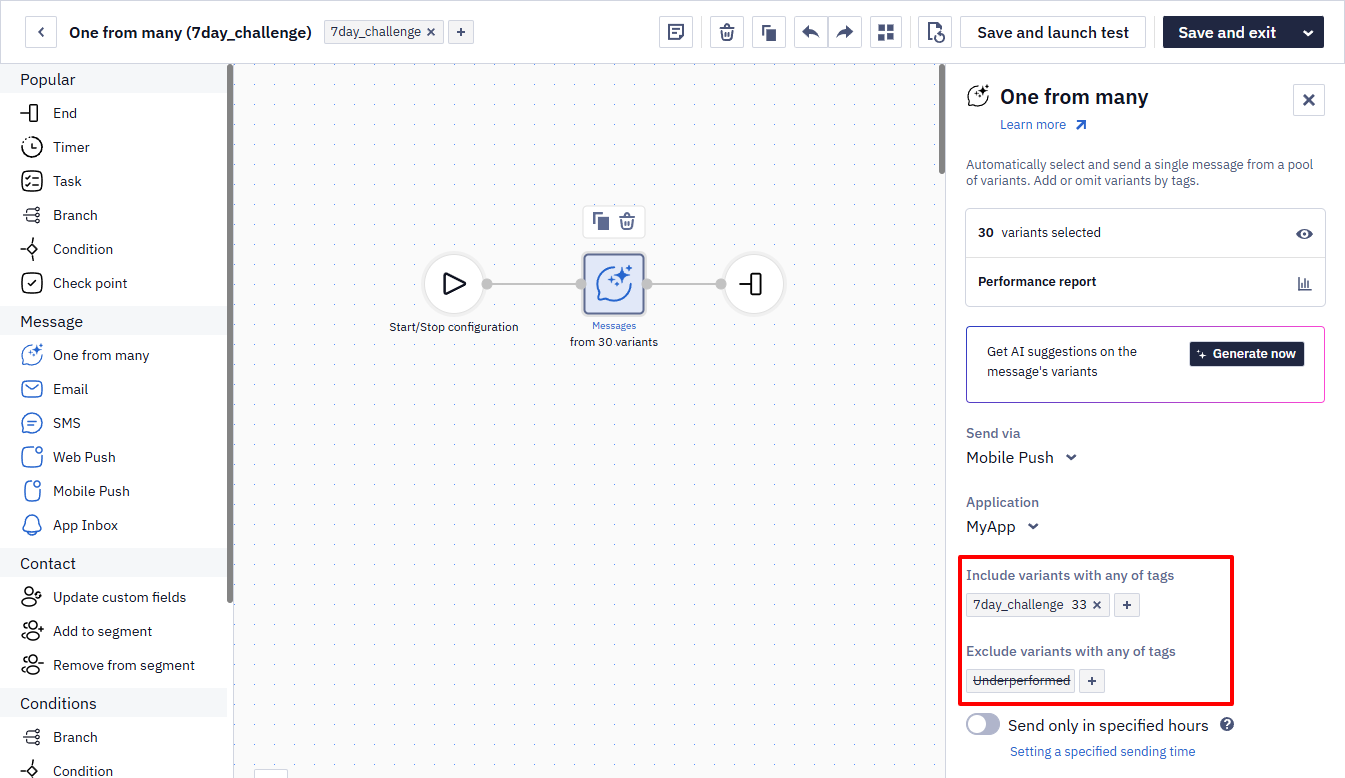
Note
The numbers next to the tags indicate the number of messages with those tags. 0 means the tag exists but must be added to the appropriate messages.
You can create a tag directly in this field: the workflow editor opens the same tag management window as the account settings.
- Get AI suggestions based on message variants: Generate additional versions of messages and their translations based on existing ones.)
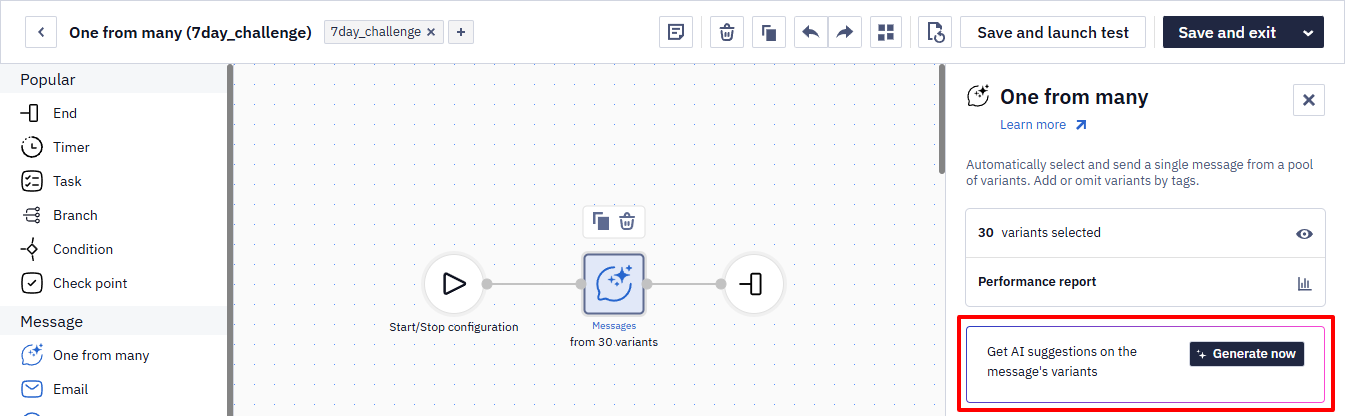
RecommendationUse the AI generation feature wherever Mobile Push messages are used in the One from many block. Consistent application across campaigns ensures you capture every opportunity to engage contacts with the highest-performing copy.
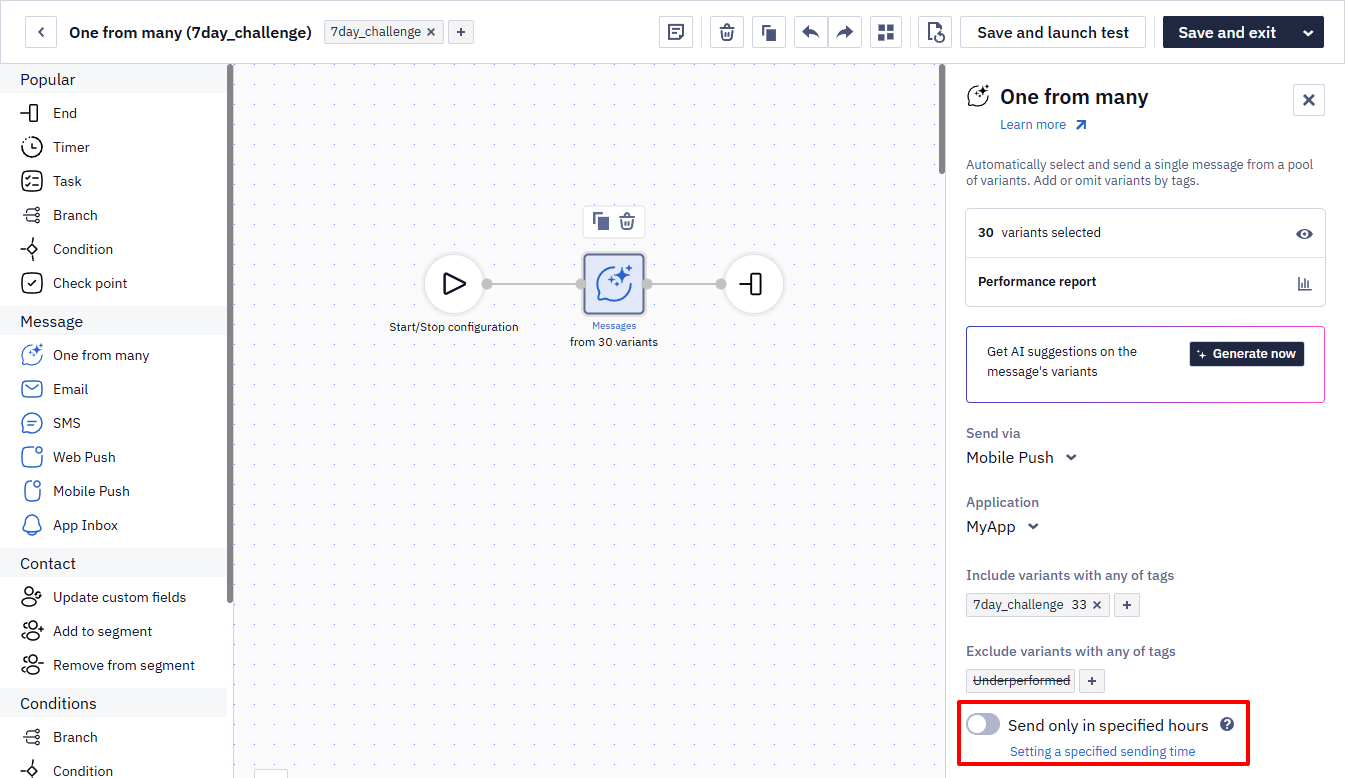
- Send only in specified hours — by default, daytime hours are set for all organizations from 8:00 a.m. to 8:00 p.m. to avoid bothering contacts with messages at the unsuitable time and postponing the campaign until the allowed period.
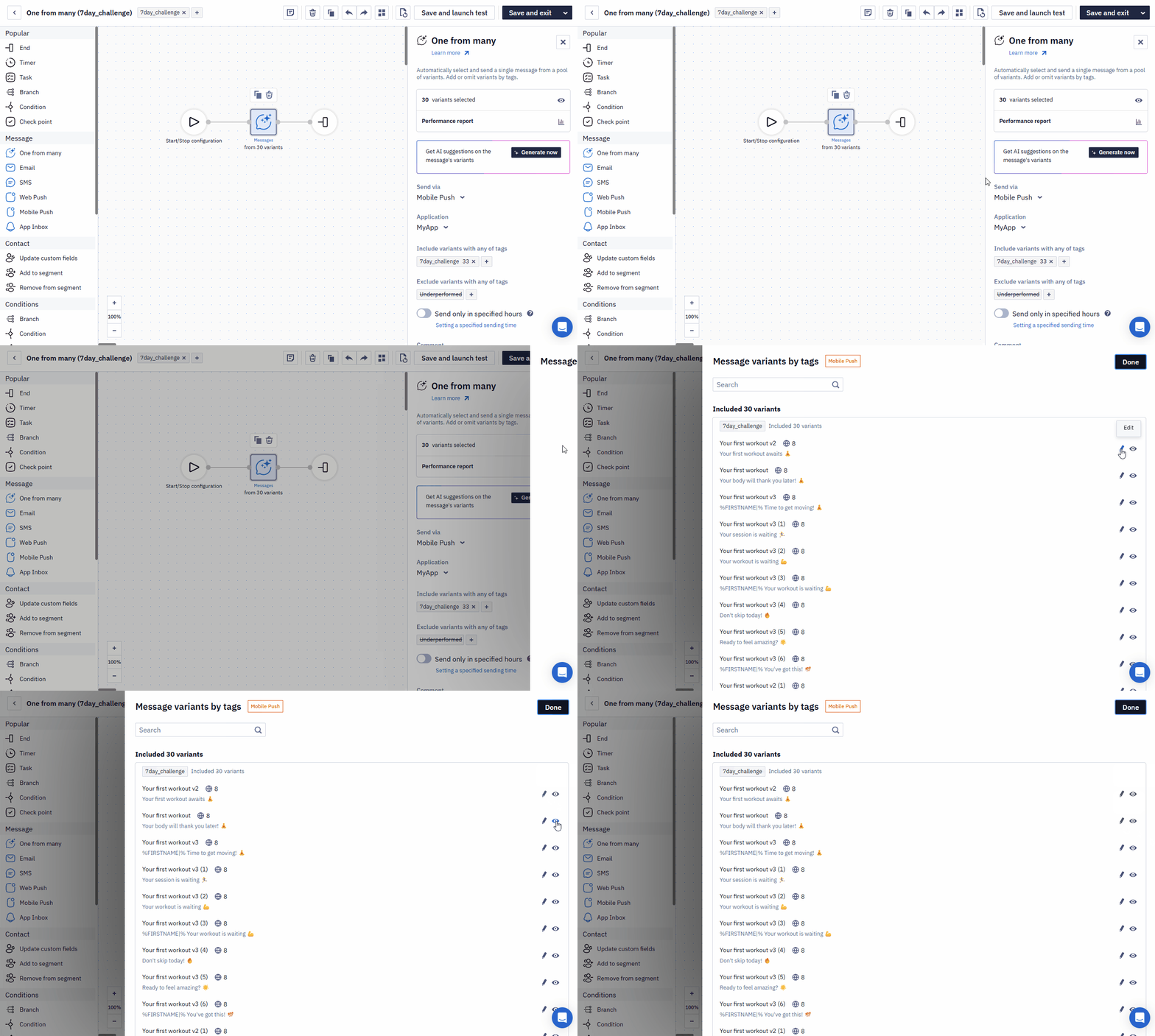
- To quickly preview or edit the messages included in the block, click the preview icon in the field with the number of options filtered by tags.
- Configure the launching workflow conditions and activate it.
NoteTo keep messages fresh, this block avoids re-sending the same message variant:
- Regular workflows (e.g., Reminders): The block won’t send any variant that was sent to the contact in the last 4 days, across launches. Recommendation: add at least 8 variants.
- Workflows with multiple One from many blocks (e.g., Abandoned cart): The system doesn’t repeat variants from any One from many block within a specific workflow launch. Recommendation: Add at least 2× as many variants as the number of One from many blocks in the workflow.
If all eligible variants for this contact are exhausted, the block sends the highest-CTR variant.
The 4-day interval is an account-wide default. It can't be set separately for an individual workflow or block.
Auto-Optimize Variants
After saving the workflow, you can enable the Auto-optimize variants option for the One from many block.
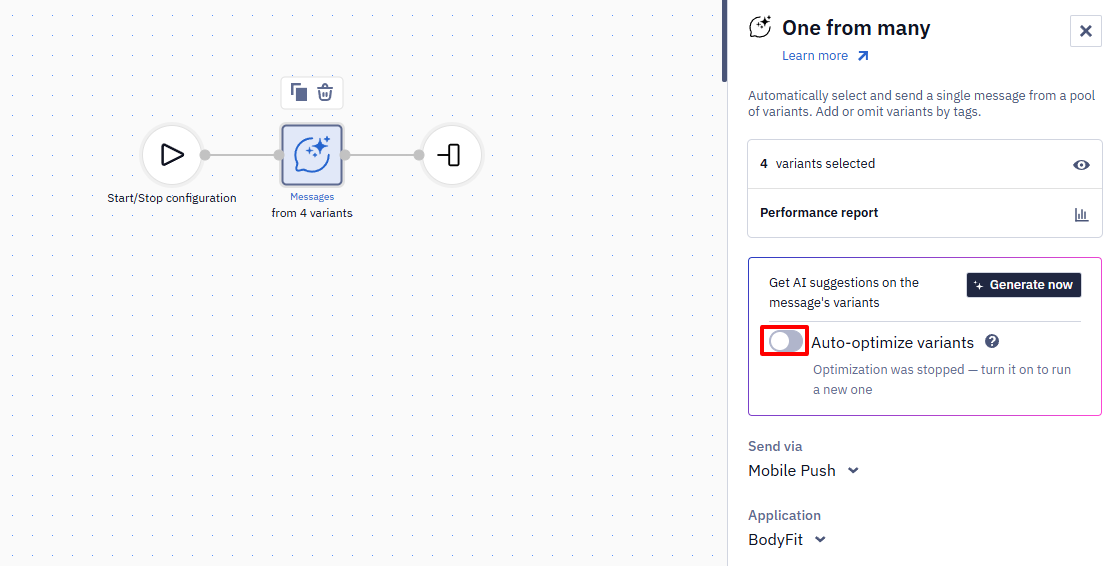
This option lets the system generate new message variants during optimization and keep the message pool updated with stronger-performing variants.
When auto-optimization is enabled:
- the system generates new message variants separately for each segment based on existing examples from that segment;
- users must moderate generated messages before the next optimization iteration starts;
- consecutive iterations run with a cooldown period, so new variants are not generated continuously;
- underperforming messages are removed from the pool according to the existing Underperformed tag logic;
- manual message generation is unavailable for the block until auto-optimization is stopped.
You can stop auto-optimization at any time.
When the system generates new messages, users receive email and App Inbox notifications during business hours. Blocks with generated messages awaiting moderation are highlighted in the workflow editor.
Underperformed Tag
Underperformed is a system tag that is automatically assigned to message variants in the One from many block when their click-through rate is significantly lower than that of other variants in the pool. Variants with this tag are excluded from further automatic selection.
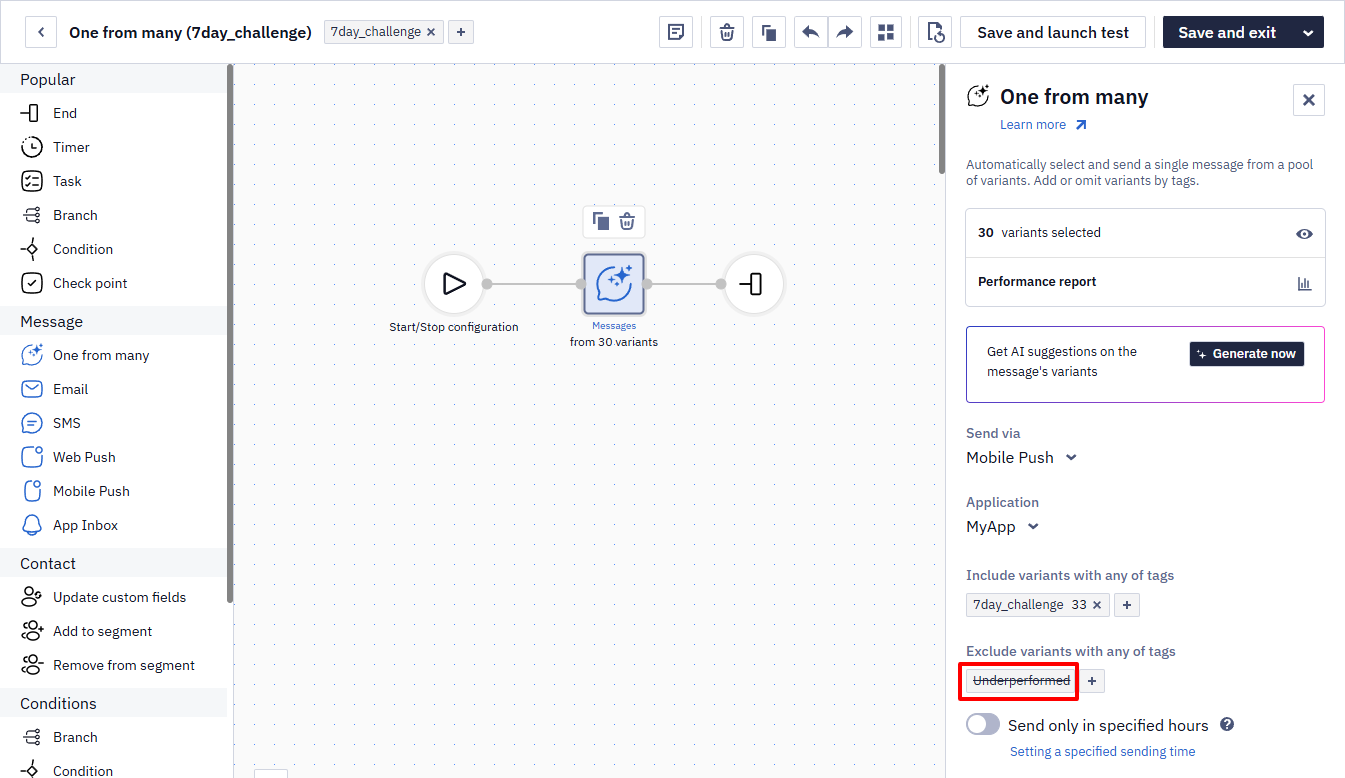
Tag Assignment Rules
The system analyzes all message variants in the pool and identifies low-performing ones based on the following criteria:
- The message has more than 100 sends within a single workflow.
- Its selection probability is below 2%.
If both conditions are met, the system assigns the underperformed tag to the message.
Note
- If the pool contains fewer than 4 messages, the system does not assign the
underperformedtag and does not exclude any variants.
- If a campaign is sent to multiple segments, the algorithm evaluates low-performing messages separately for each segment.
Analytics
The aggregated CTR trend for all messages in the block is displayed in the block settings (Performance report). The system selects the Last month period by default.
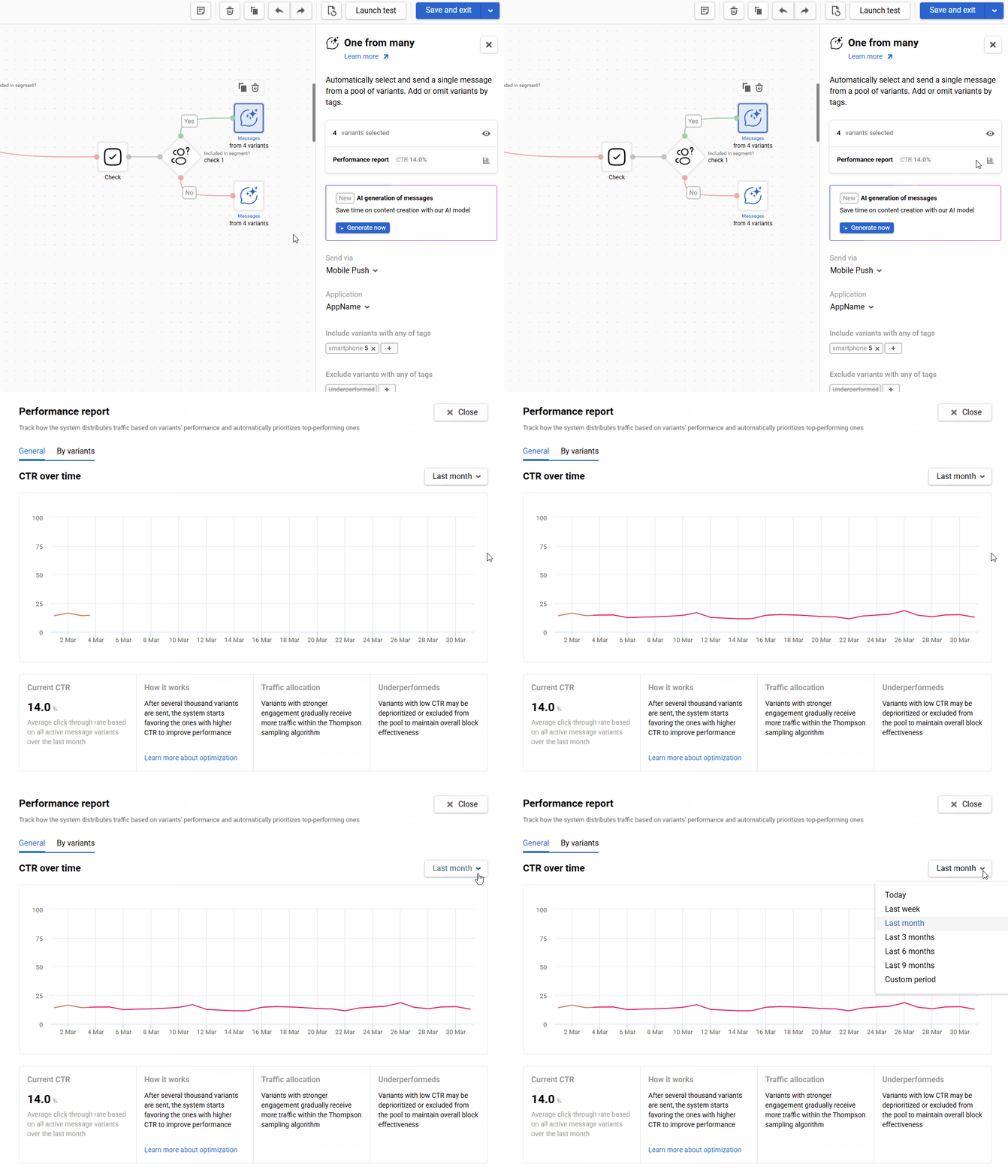
The Performance report includes the following tabs:
- General — summarized information about the performance of all message variants.
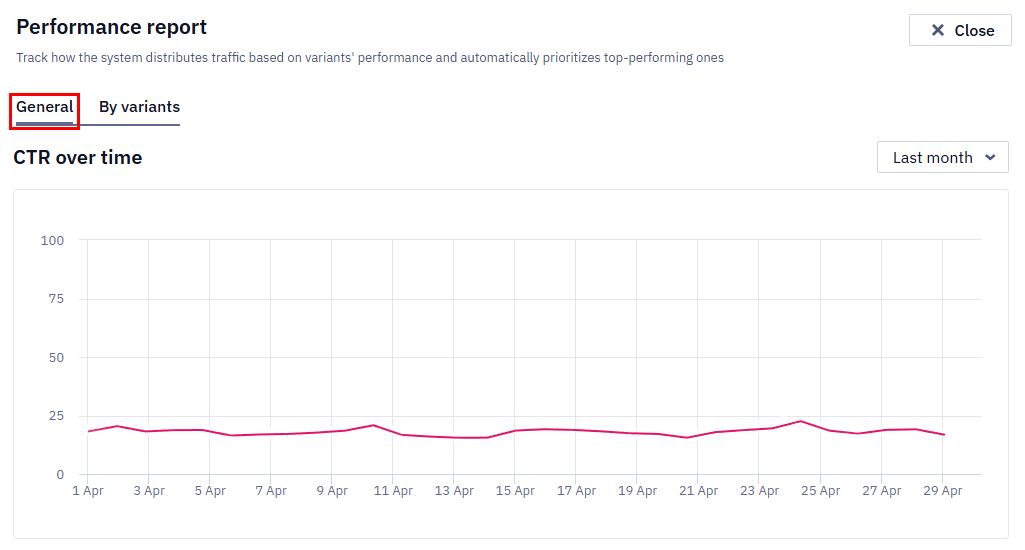
- By variants — shows detailed statistics for each message variant.
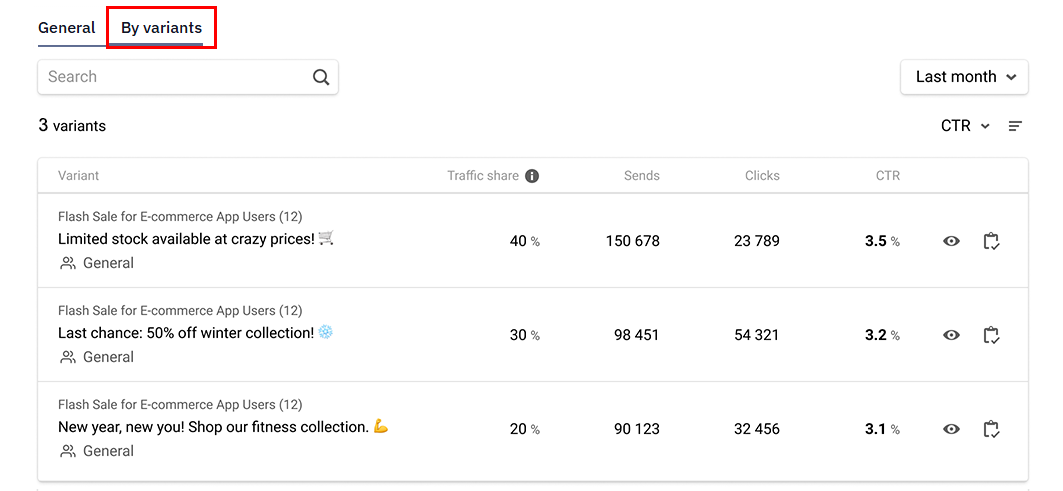
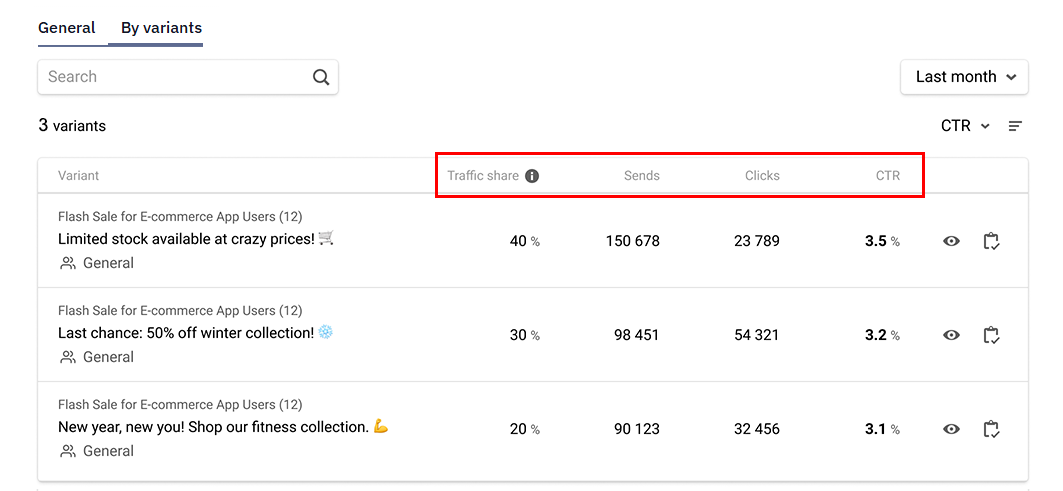
The table shows the following metrics:
- Traffic share — the percentage of the audience that received the variant;
- Sends — the number of messages sent;
- Clicks — the number of clicks;
- CTR — the click-through rate of the variant.
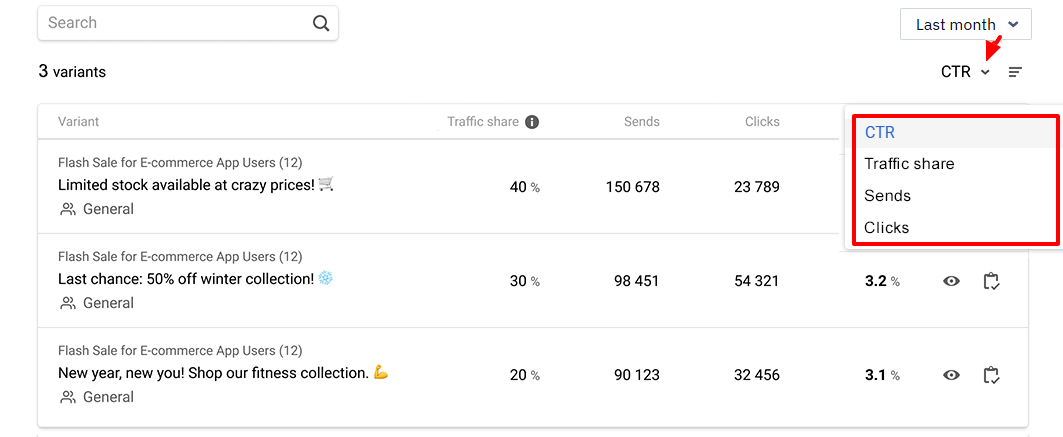
You can sort the data by each of these metrics:
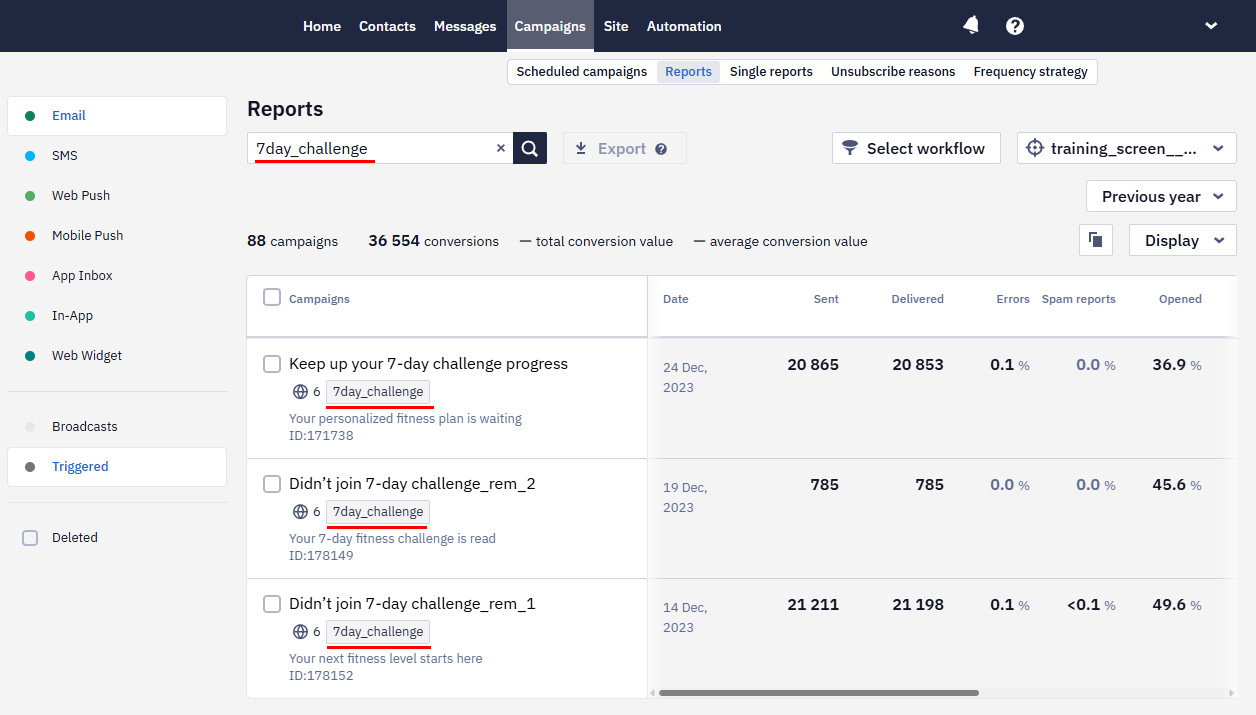
To analyze the performance of individual messages, go to the Campaigns → Reports section and enter the tag in the search field or click on it in the report list.
To analyze the performance of individual messages, go to the Campaigns → Reports section and enter the tag in the search field or click on it in the report list.
To manually stop a message with low performance, add a tag specified in the block's exclusions (for example, Excluded or Stopped).
Routing Different Segments to Different Message Pools
The One from many block itself does not support routing by segment — it only selects a variant from messages matching the tags configured in the block. If contacts from different segments should receive messages from different pools (for example, segment A gets one of three pool-A messages, segment B gets one of three pool-B messages), add a Branch block before the One from many block: create one branch per segment, and place a separate One from many block (with its own tag-based selection) on each branch.
NoteKeep the number of segment checks in a single Branch chain reasonable (up to ~10). Checking a contact against dozens of segments at once in one workflow step adds unnecessary load — if you need to route across many segments, split the logic into multiple sequential Branch checks instead.
Using Block
The One from many block helps to A/B test different messages in your workflows.
Use this block to
- Simplify the A/B testing process: There is no need to create separate workflow branches for each message or channel option, which significantly reduces the time for preparation and subsequent workflow adjustments and the probability of making a mistake when changing the message.
- Diversify communication in trigger campaigns: If one workflow launches several times for the user, we recommend diversifying the messages so that one customer doesn’t get the same content for training or lesson reminders, abandoned carts and views.
- Test hypotheses: If you have ideas for improving messages, just add a new option to the block settings with a few clicks and watch the result — there is no need to edit the workflow and run A/B tests separately.
- Continuously optimize campaigns: We recommend regularly adding new messages to achieve better results. Remove or add the appropriate tag to replace, upgrade, or discontinue an option with lower performance.
Updated 12 days ago