
Setting Multilingual Widget
Create a widget on your site that will be displayed in the user's language.
The system checks the following to determine the user's language:
- the lang attribute in the
HTMLcode of the site; - if the lang attribute isn't set, the system checks the language code in the page URL (for example,
/ua/); - if there's no language code in the URL, the system checks the language of the user's browser;
- the system will use the default language version if the user's language doesn't match the specified widget languages.
The visitor's country doesn't affect which language version is shown.
The widget language is determined when the page loads. If your site switches languages without reloading the page, the widget stays in the language determined at page load. The new language version appears after the page is reloaded.
Multilingual Settings
- Go to Site → Widgets and select the widget type from the drop-down list.
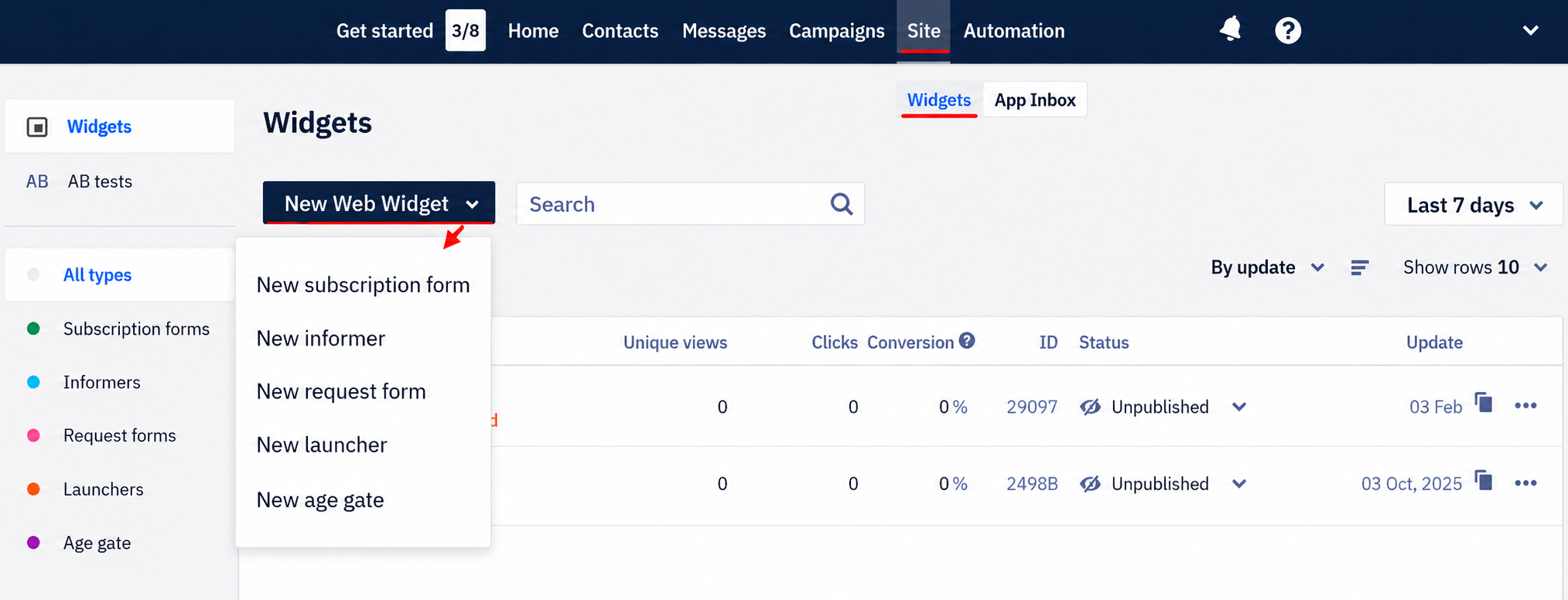
- When editing the widget appearance, click the globe icon on the top panel and specify the default language. The system will display it if the user's language is not defined.
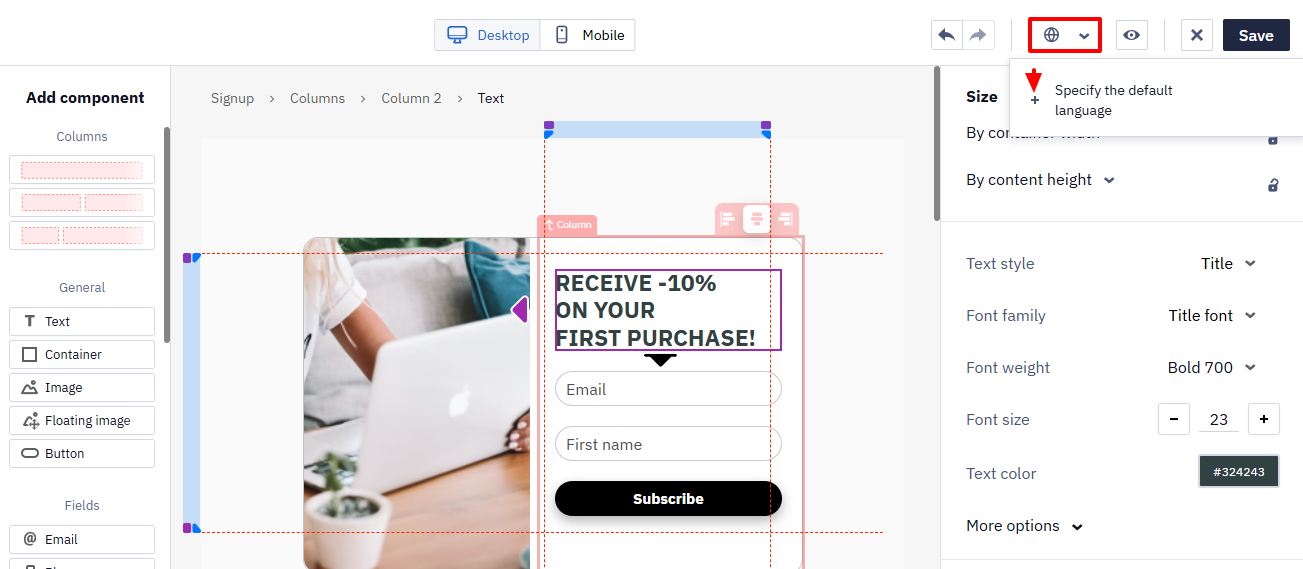
- Click on the default language code and add the language version.
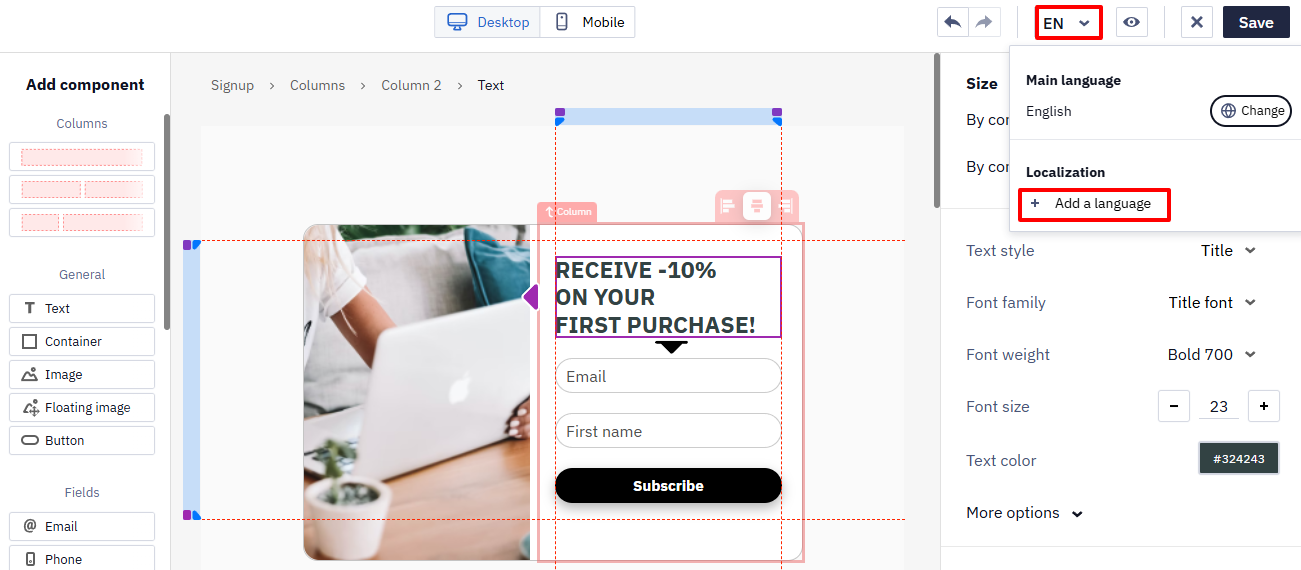
- Translate the widget texts into the appropriate language. Other elements in the language versions remain the same as in the default version.
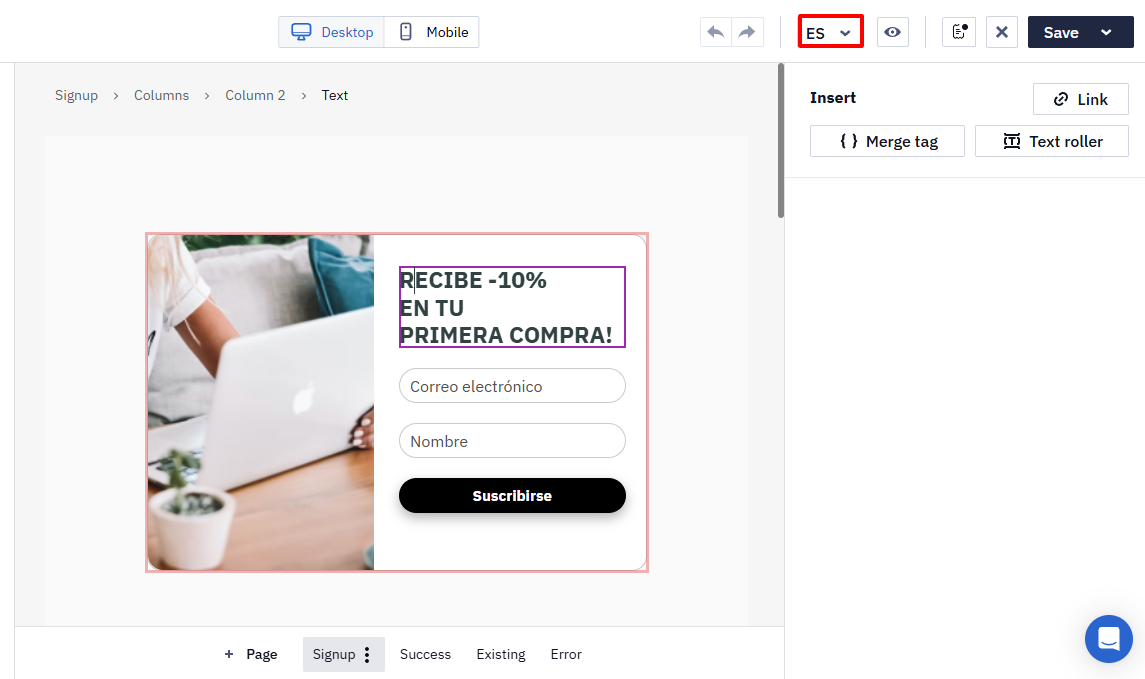
NoteWhen you add a language, the system automatically creates a copy of the widget you are editing at the moment. So if you edit the widget in Polish, the system will duplicate this widget but not a copy of the widget in the default language. This feature simplifies work with languages belonging to the same language group.
To switch between languages, use the drop-down list. You can replace any language, remove it, or set it as default.
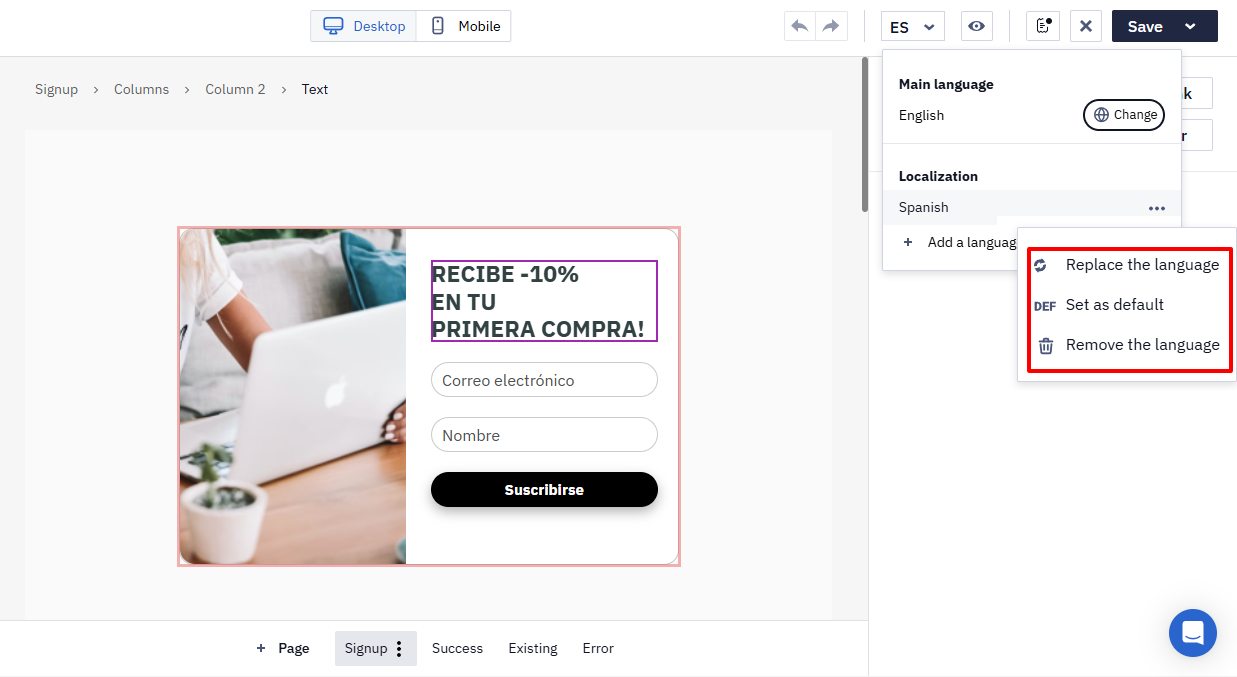
The number of language versions you can create is limited only by the pricing package.
The publication process of the multilingual widget is standard (see instructions).
Displaying Multilingual Widgets in Account
Multilingual widgets in the lists are marked with a globe icon. The number next to the widget’s name indicates the number of its language versions.
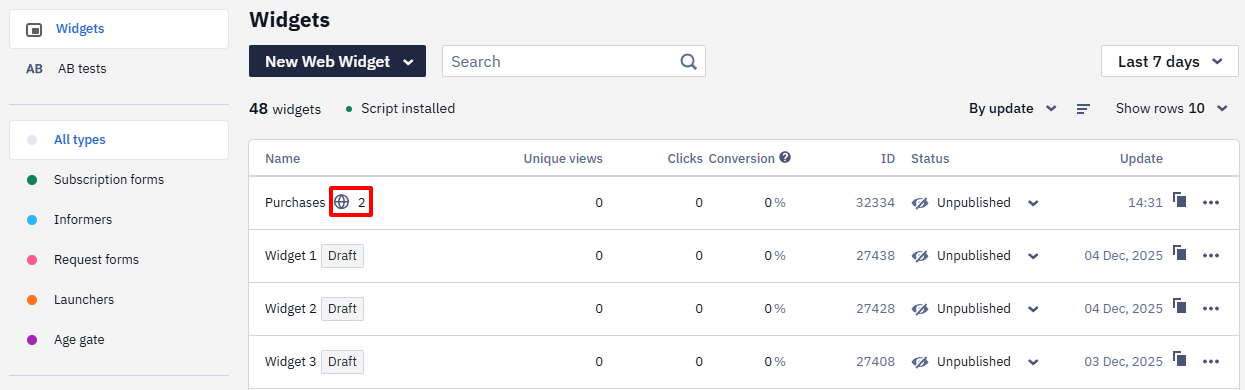
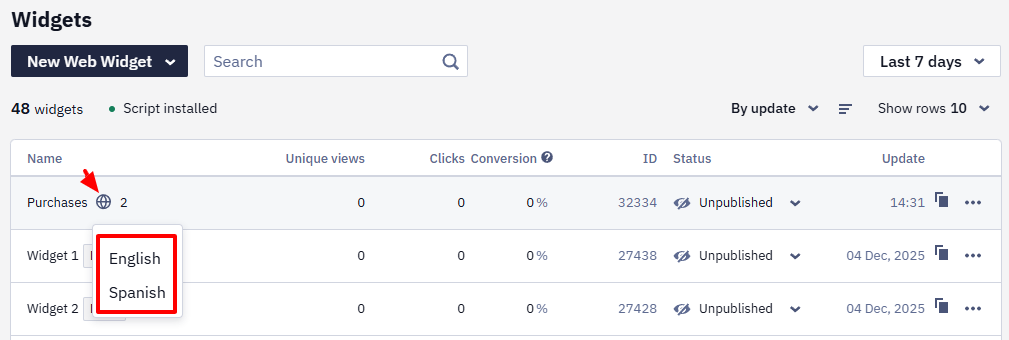
Hover over the icon to see the list of added languages. You can edit the necessary widget by clicking the corresponding language in the drop-down list.
The thank-you page is single-languageA multilingual widget picks the language of the page it appears on, and the confirmation email follows the browser, but the standard subscription thank-you page is shown in one language — by default the one the account was registered in. Support can translate that page for your account, and it stays a single language after that.
For several languages, host your own thank-you page on a verified domain and point the widget to it in After a click on the confirmation link the contact is directed to → Verified domain URL. Unsubscribe forms do support several languages, so the limitation is specific to this page.
Updated about 2 months ago