
Contact Field Variables Cheat Sheet
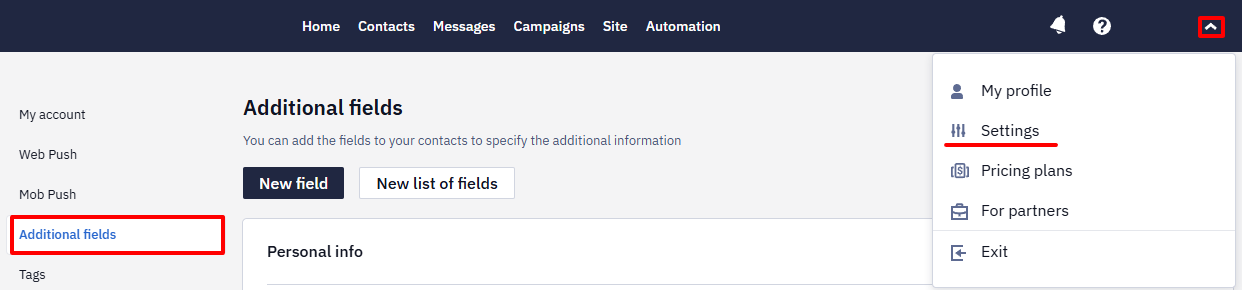
Every standard and additional contact field is available as a Velocity variable. To see all fields available in your account, go to Settings → Additional fields.
You can insert a variable manually or use the personalization menu in the message editor — a UI shortcut that inserts the correct variable syntax automatically.
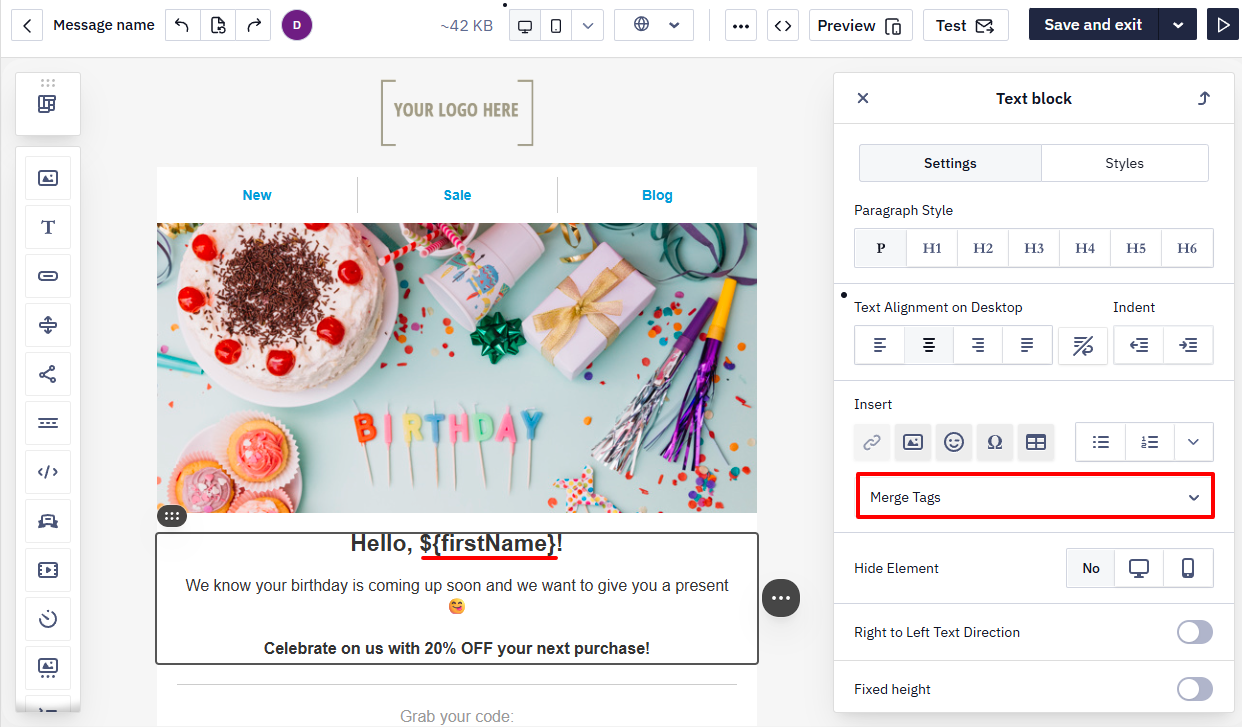
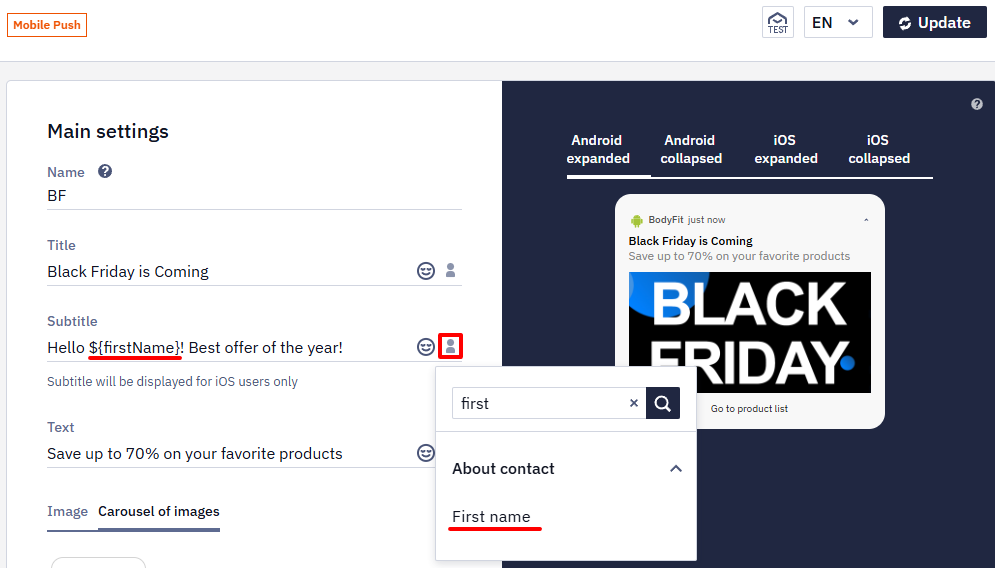
The menu is available in all channels: Email, SMS, Viber, Mobile Push, Web Push, App Inbox, Telegram. The variable syntax is the same across all channels.
Standard Contact Fields
| Field | Variable |
|---|---|
| First name | ${firstName} |
| Last name | ${lastName} |
| Full name | ${firstName} ${lastName} |
${email} | |
| Phone | ${sms} |
| External ID | ${externalCustomerId} |
| City | ${town} |
| Address | ${address} |
| Region | ${county} |
| Postcode | ${postcode} |
| Message name | ${messageName} |
Merge tags in link fieldsMerge tags in the
%LISTNAME.FIELDNAME%form (for example,%PERSONAL.LANGUAGE%) remain in use for one case only: substituting a contact field into a button or text Link field. In the message body and in Velocity conditions, use the Velocity variables shown on this page (${externalCustomerId},${personal.bonus}, and so on). See Dynamic Links in Email.
Additional Field Examples
Additional fields follow the same syntax. The variable name is made up of the list and field personalization keys shown in Settings → Additional fields.
| Field | Variable |
|---|---|
| Bonus balance | ${personal.bonus} |
| Promo code | ${personal.promocode} |
| QR code | ${personal.qrcode} |
| Manager name | ${manager.name} |
| Manager phone | ${manager.phone} |
| Subscription status | ${subscription.status} |
Variable names in your account may differ depending on how your contact fields are named.
If a field stores a link to an image file, such as a QR code, the variable in the message text inserts the link itself. To show the image, add an Image block to the email and paste the variable, for example ${personal.qrcode}, in its settings instead of the image address.
If a list or field personalization key contains Cyrillic characters or consists of numbers only, use the fallback syntax ${data.get('KEY')} — for example, ${data.get('TEXTBOX.2312312')}.
Handling Missing Values
Depending on the syntax, variables behave as follows when a value is absent:
${firstName}— insert the value; if missing, outputs the literal text${firstName}$!{firstName}— output nothing if the value is missing${firstName|'friend'}— show fallback text if the value is missing${personal.bonus|'0'}— show a default value
Example:
Hello, ${firstName|'friend'}!
You have ${personal.bonus|'0'} bonus points.
Your manager: ${manager.name|'our support team'}
Notes
- Field names are case-insensitive:
${firstName},${FIRSTNAME}, and${firstname}all work the same way. - Use
${variable}with curly braces when the variable is adjacent to other text to avoid ambiguity. - To show a literal
$character right before a merge tag, use${esc.d}${variable}— for example,${esc.d}${personal.bonus}renders as$100instead of being parsed as part of the variable syntax. - Contact field variables work the same way across all channels: Email, SMS, Mobile Push, Web Push, Viber, App Inbox, Telegram.
- For event data and external sources, variable availability depends on the context. See Velocity in Messages and Velocity in Workflows for details.
Updated about 1 month ago