
Revenue from Campaigns
Enable the visualization of revenue in reports to see how much income each channel generates.
Enabling Revenue Display
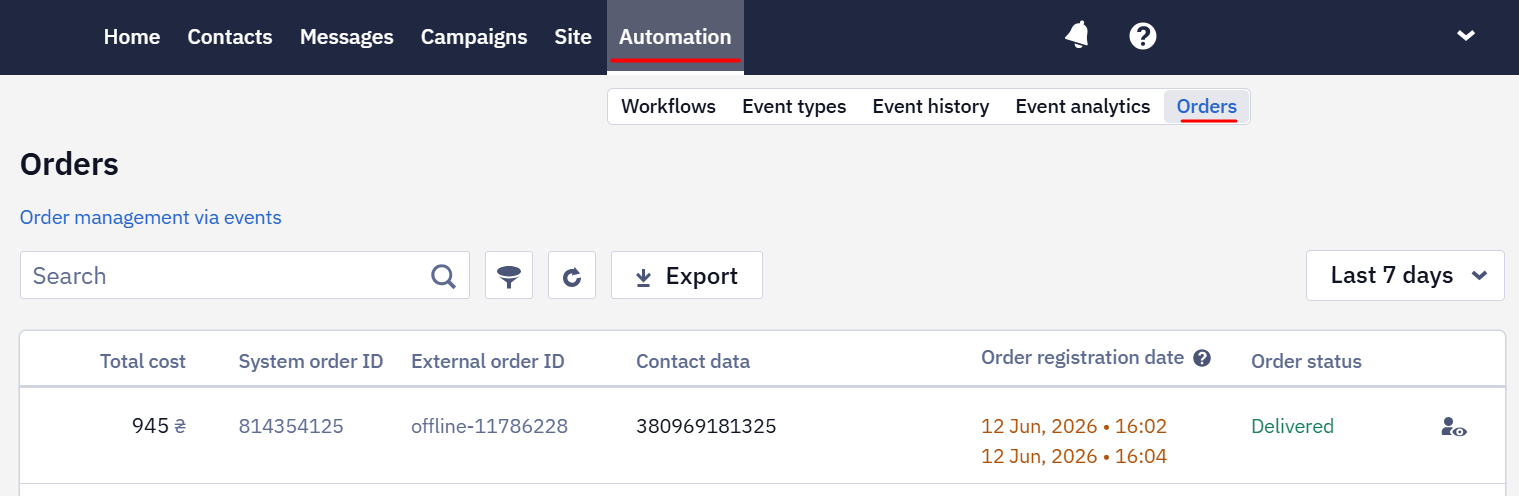
- The first step is to set up order data transfer to the system via API resources Add orders and Generate event. You can see order information in Automation → Orders if integration is active.
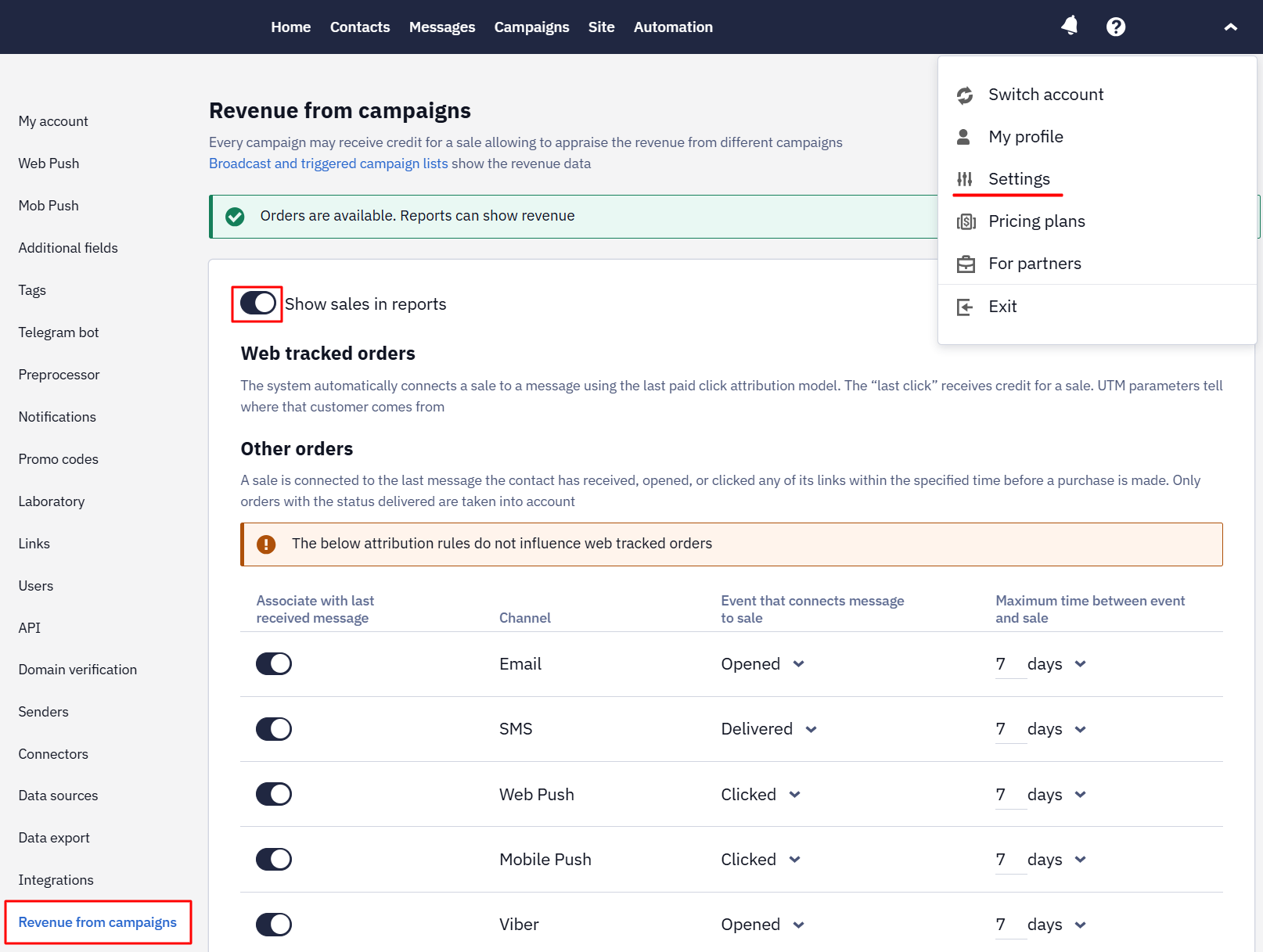
- Go to your profile Settings → Revenue from campaigns and enable the Show sales in report option.
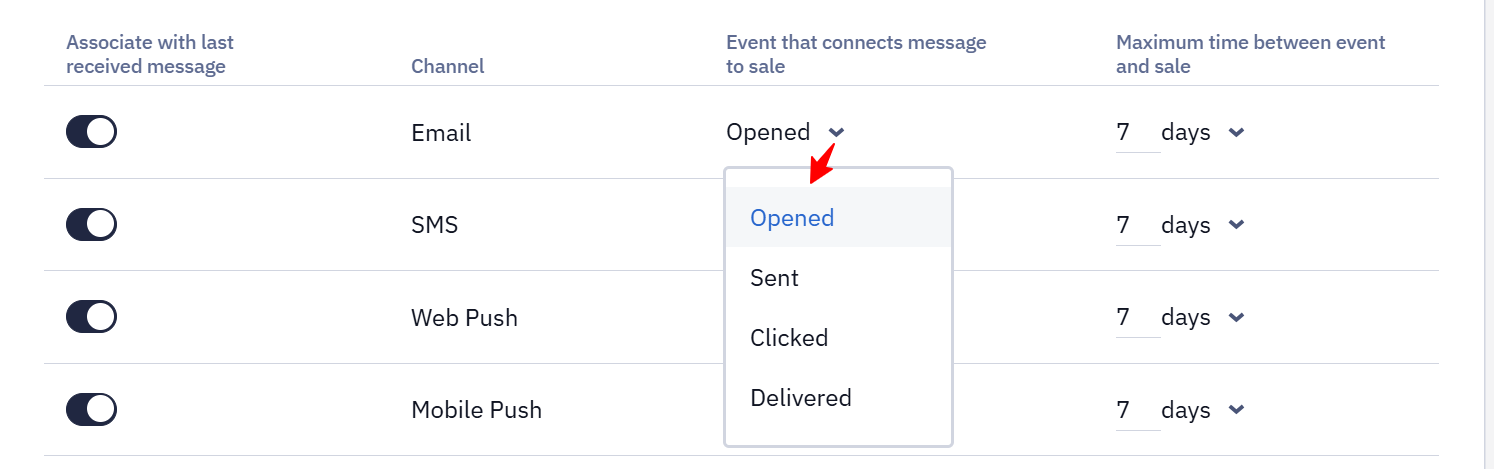
- Activate the Associate with last received message switcher and select parameters for each channel:
- The event that connects the channel to sale (Opened, Sent, Clicked, Delivered);
- The time between the event and sale (hours, days, weeks).
Different parameters can be set for each channel.
- Specify the order currency to calculate the income. Select a currency code from the list and click the Save button. Revenue visualization will include only orders in the specified currency.
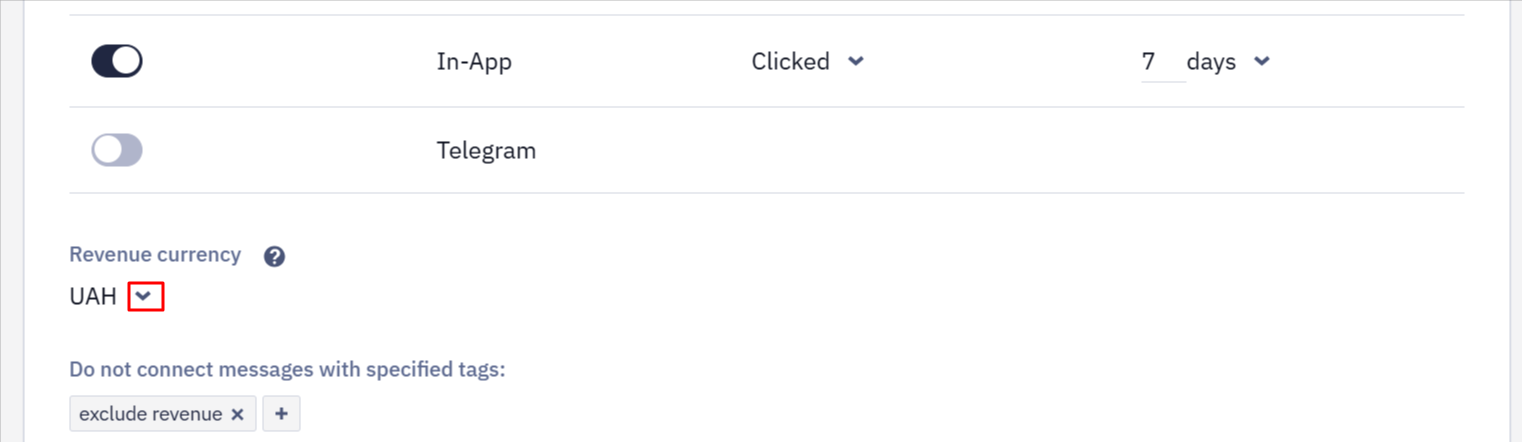
Add message tags to exclude specific messages from the revenue calculation (technical notifications, password recovery, delivery confirmation, etc.) Data on them will be available in the report but won't be included in the revenue calculation.
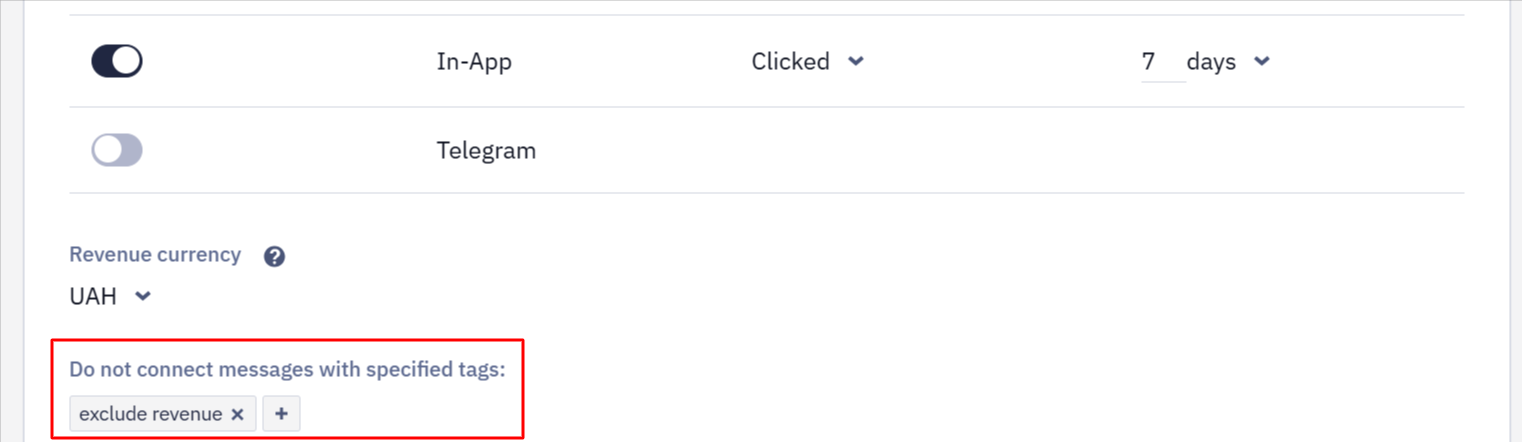
Revenue from Campaigns in Reports
- Go to Campaigns → Reports. Select the channel, for example, Email.
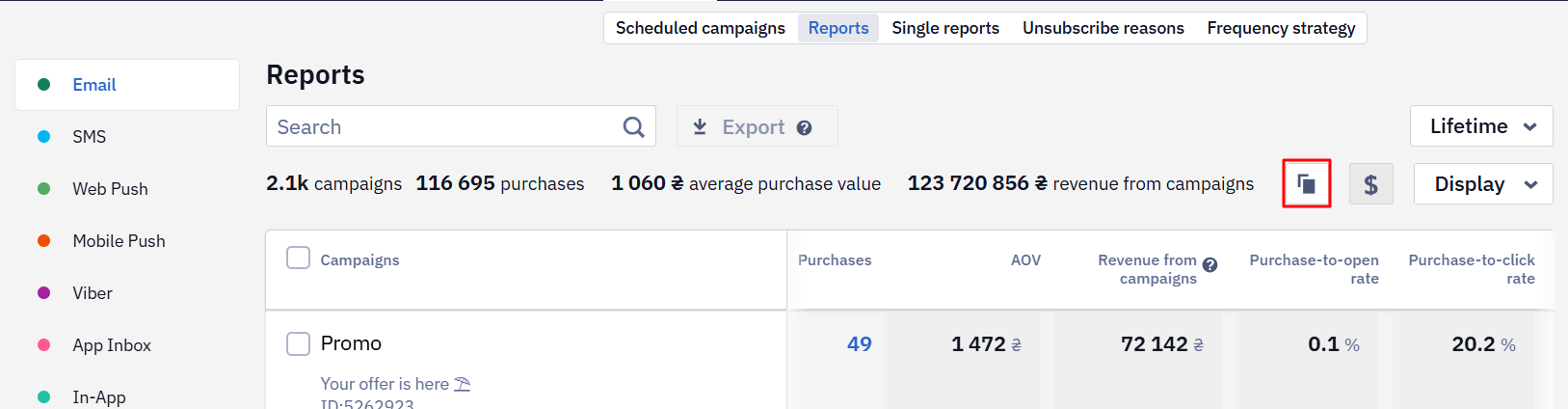
Data on campaign revenue over the specified period will be given on top of the general list:
- Campaigns;
- Purchases;
- Average purchase value;
- Revenue from campaigns.
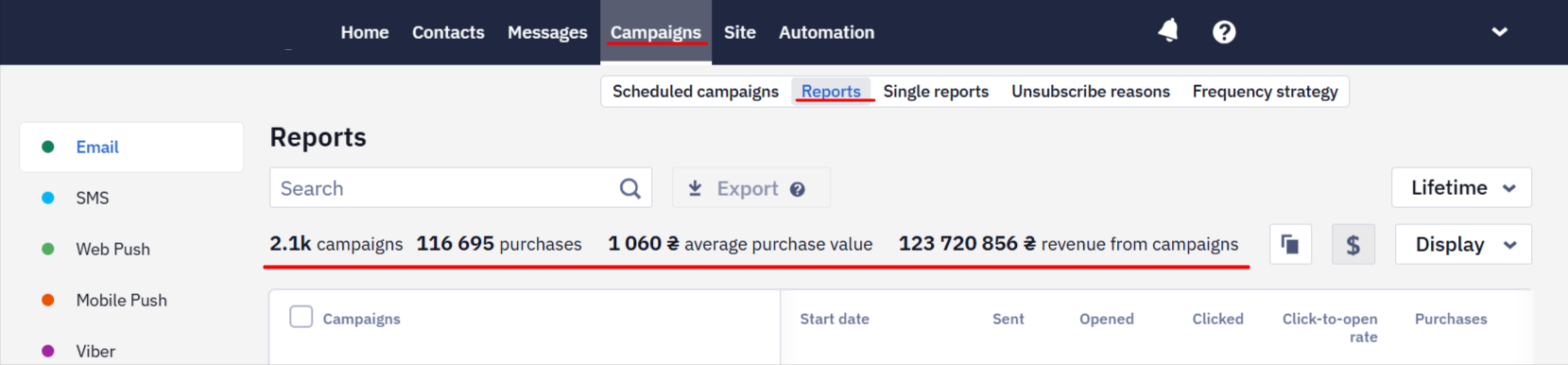
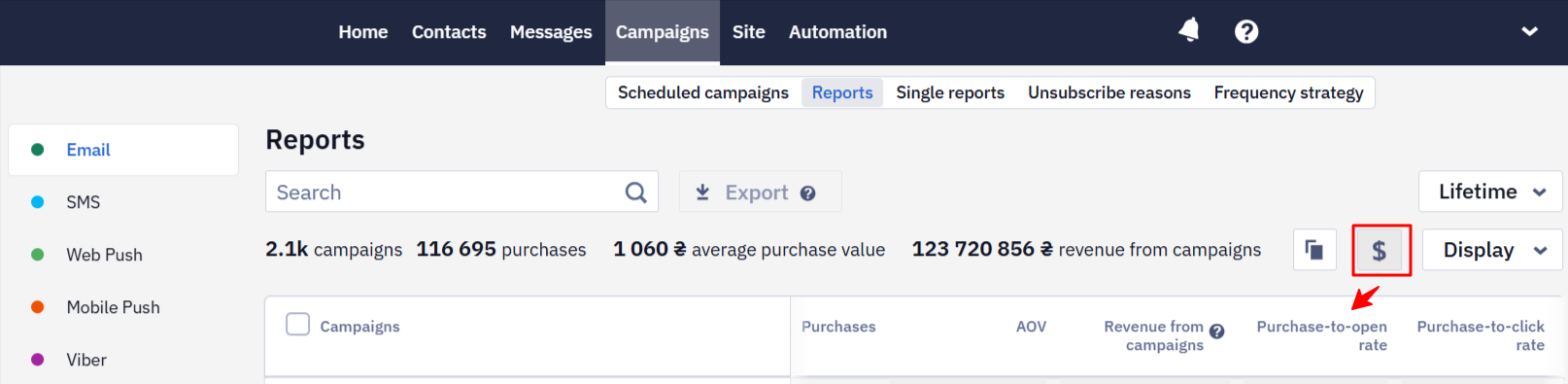
- Click the
$icon to see details on each campaign:
- Purchases;
- Average order value (AOV);
- Revenue from campaigns;
- Purchase-to-open rate;
- Purchase-to-click rate.
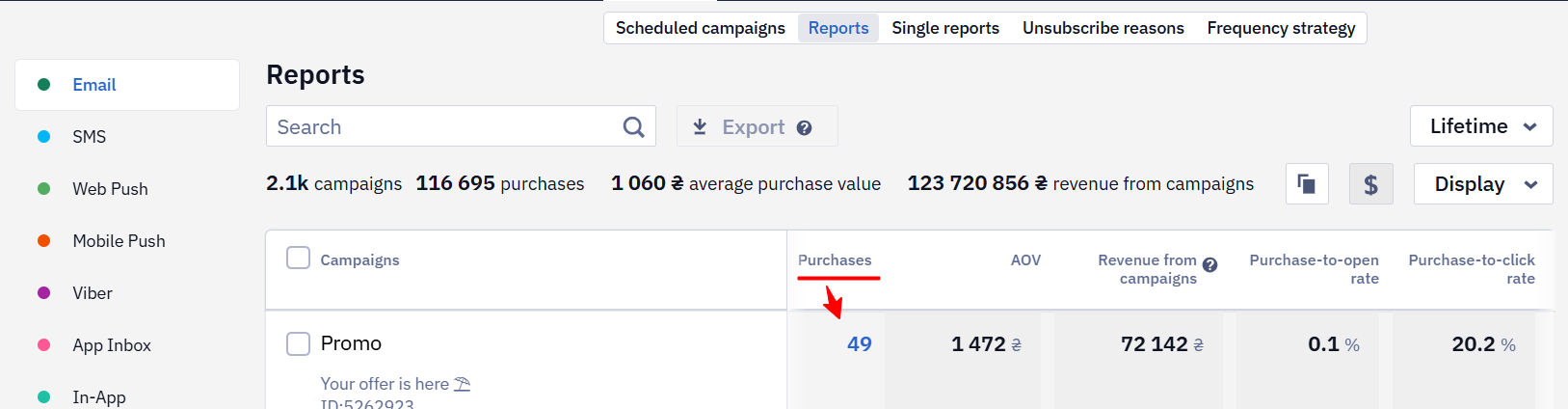
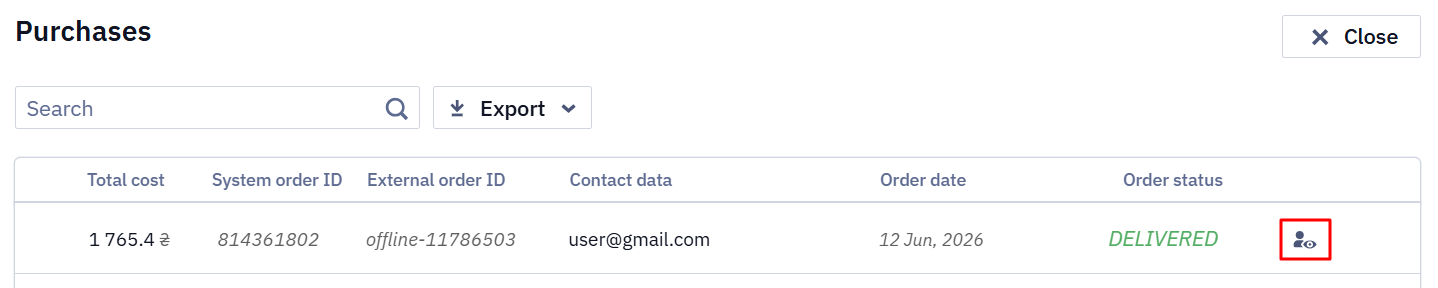
- Click on the number of purchases the campaign generated to open a window with a list of contacts who made purchases and other order information.
- To export all customers to a separate segment or file, click the Export button.

NoteExporting data from the Purchases tab to a
CSVfile is available only to users in the role with the appropriate permission (Admin, Marketer).
Click the preview button to view the contact card.
To copy or export a report with general purchase data, click Copy or Export, respectively (with $ active).
Revenue from the campaign is also displayed inside its report:
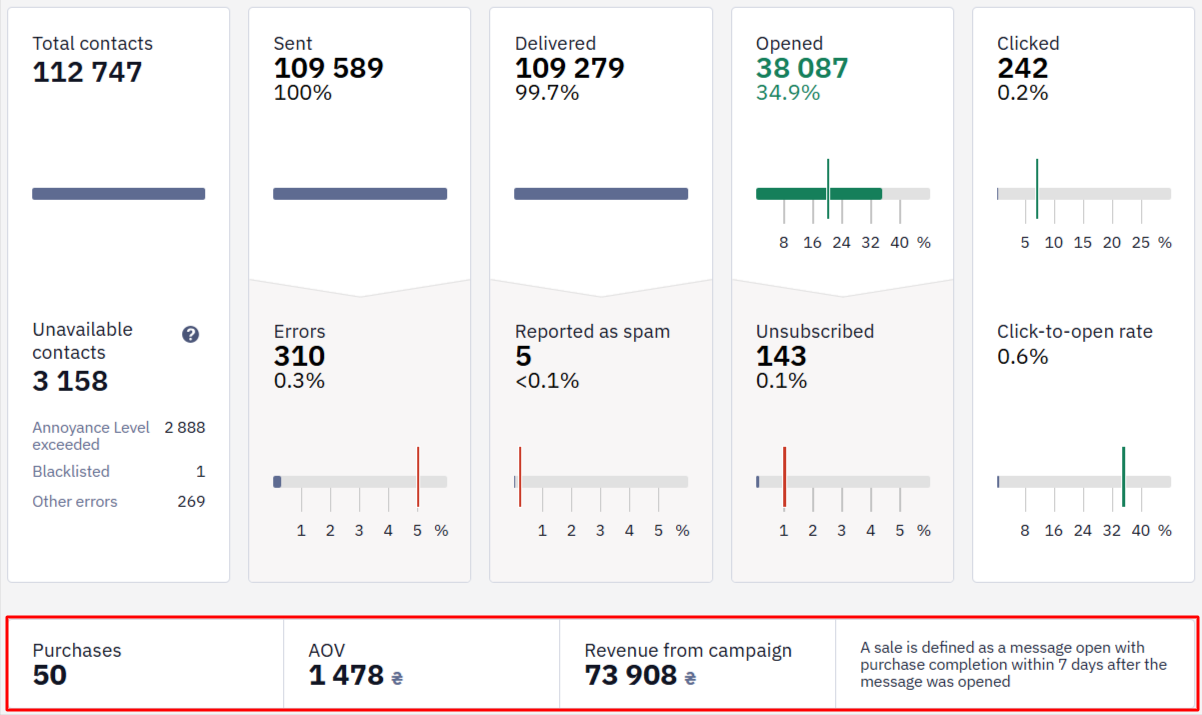
Next to the numbers, you can see the sale formula. For example, for the campaign on the screen, a sale is defined as a transition from the message to the website with purchase completion within 24 hours after the transition.
Notes
- Set up order data transfer to the system via API resources
Add ordersandGenerate event. - On the Reports tab, orders passed through the API are counted only with the Delivered status. Orders from web tracking are counted with any status, and orders from the mobile SDK with the Initialized and Delivered statuses.
- All sales transferred to the system are connected to channels. You connect channels to sales in Settings based on events (sent, delivered, opened, clicked) and time period.
- A sale is always associated with the last interaction with the channel.
- One sale is counted for a single campaign only: if a purchase has already been counted in one campaign's revenue, it isn't counted in another — even when the campaigns were sent close together.
- Refund data isn't included in the general statistics.
- An update to an existing order enters attribution as a new event. If the update arrives after the contact interacted with a message, the sale is attributed to that message — even when the order itself was created before the send. This behaviour is not configurable.
- For orders passed through web tracking, the sale is linked to a campaign by the
etm_termtag in the message links, which carries the send identifier. If that tag is stripped on the website side, the sale has nothing to match against and stays unattributed even though the contact did follow the link.
Updated 22 days ago