
Testing the Products Block
After configuring the Products block, you can preview how the recommendations appear in the email on desktop and mobile devices.
Testing Without a Product Feed
If you configured Brand Kit but have not uploaded a product feed, the editor can display sample products generated from your website. They are intended for creating email content and do not replace real product data.
When you send a test email in this case, the system warns you that sample products are being used. The Products block is skipped, but the rest of the email is sent. Click Set up product feed in the warning to add real product data. The campaign launch flow also warns you when generated data is used and prompts you to upload a product feed.
You can test the block for an individual contact or a segment of contacts:
- If you are going to use the product block in a promo campaign, select a list of recipient contacts.
- If you are going to use the product block in a trigger campaign, select the dynamic segment on which the workflow with this email will be launched.
Consider an example of testing the Products block for Abandoned view workflow.
How to find out which segment is used in the workflow
- Go to Automation → Workflows, select the workflow, and go to the Start/Stop configuration.
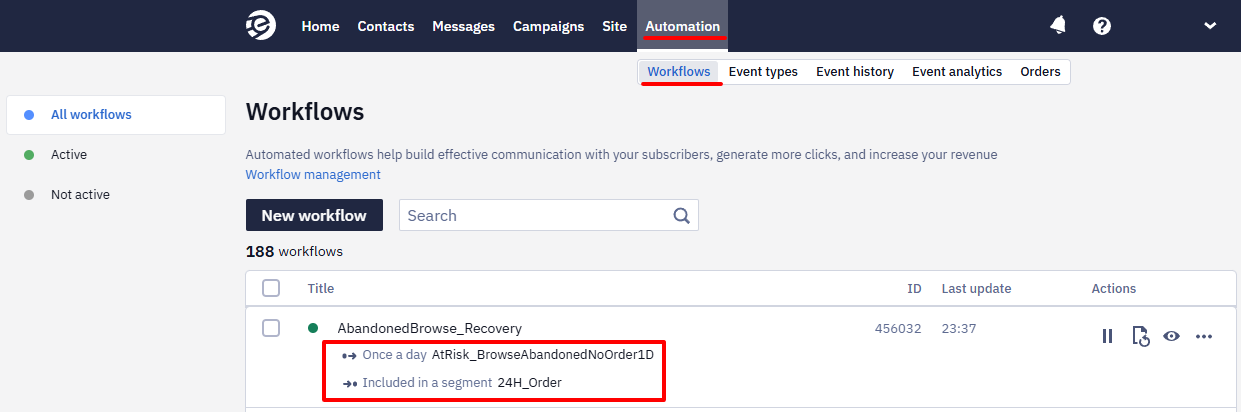
- Copy the segment’s name or its ID in the Segment parameter.
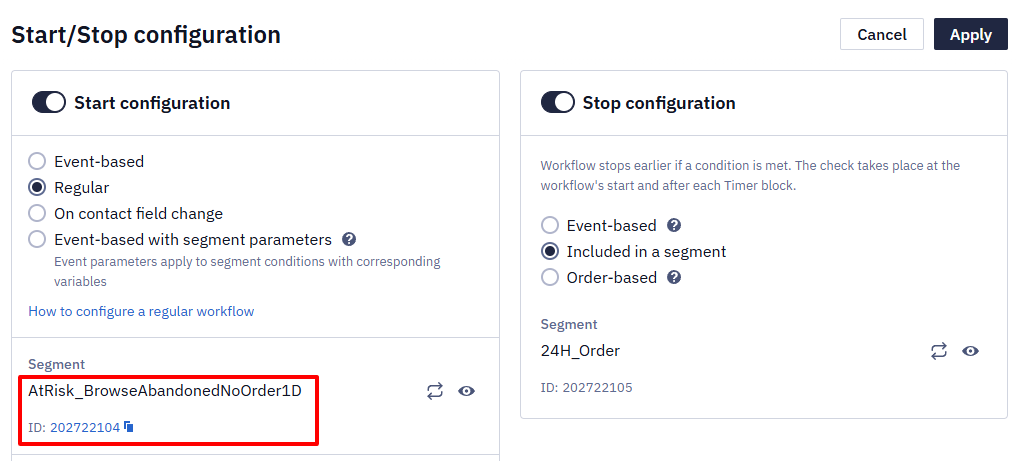
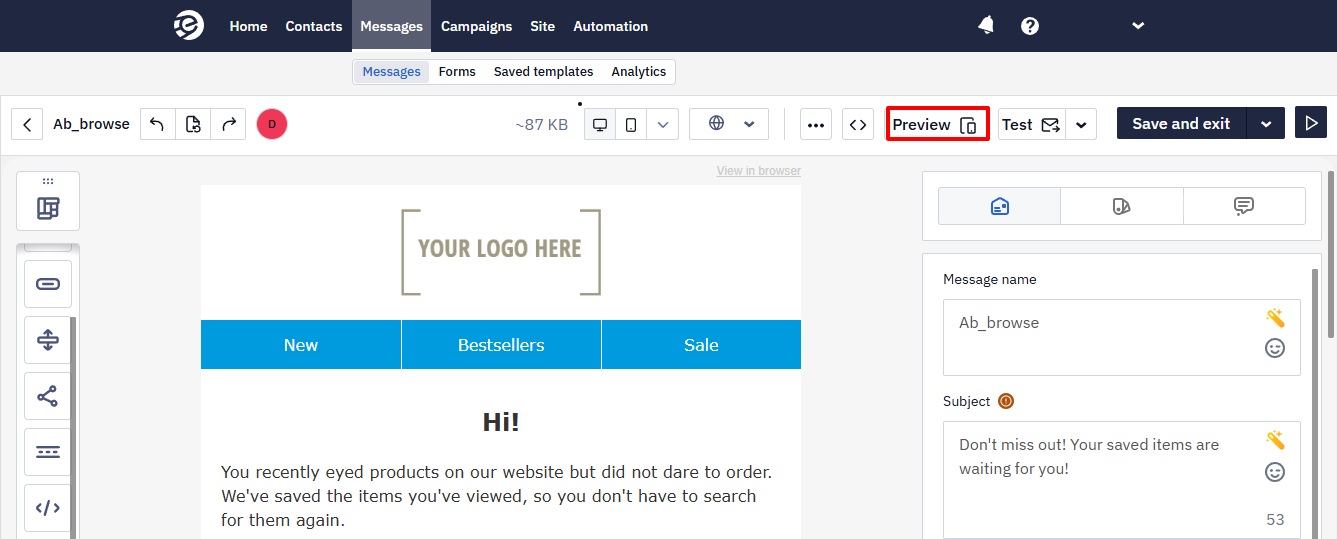
Block Testing
- Open the email in the editor and click View message.
- Click Select contact.
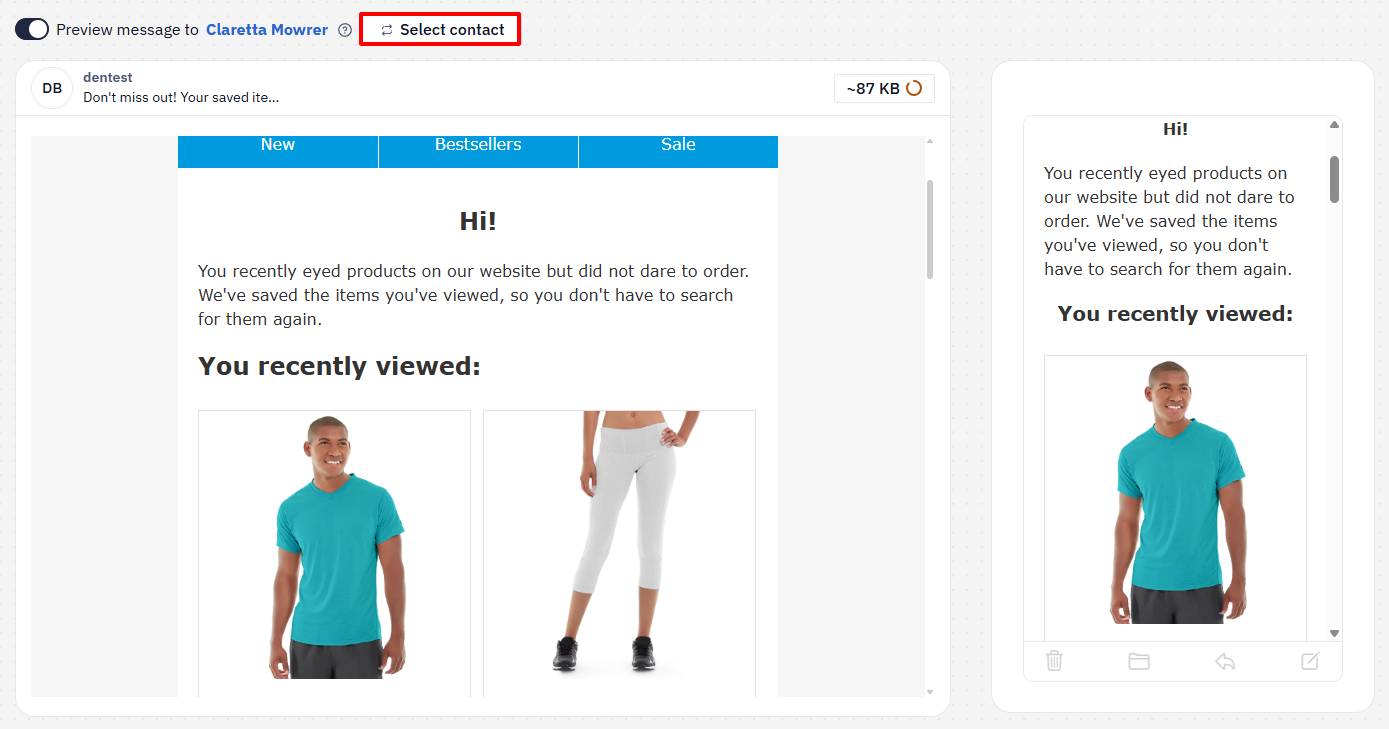
- Select Preview contacts from selected segment and paste the name or ID of the segment into the search field.
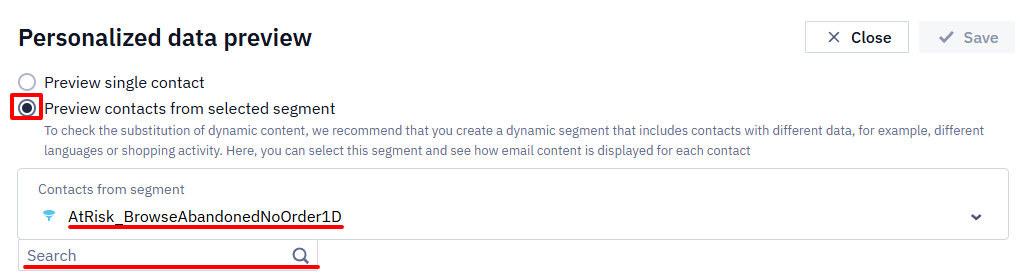
- Select a contact for testing.
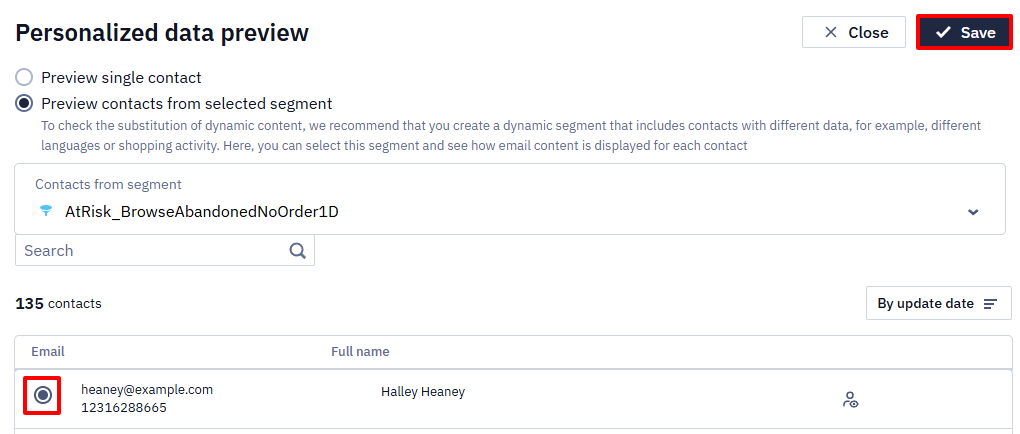
The message content will be generated differently depending on the following cases:
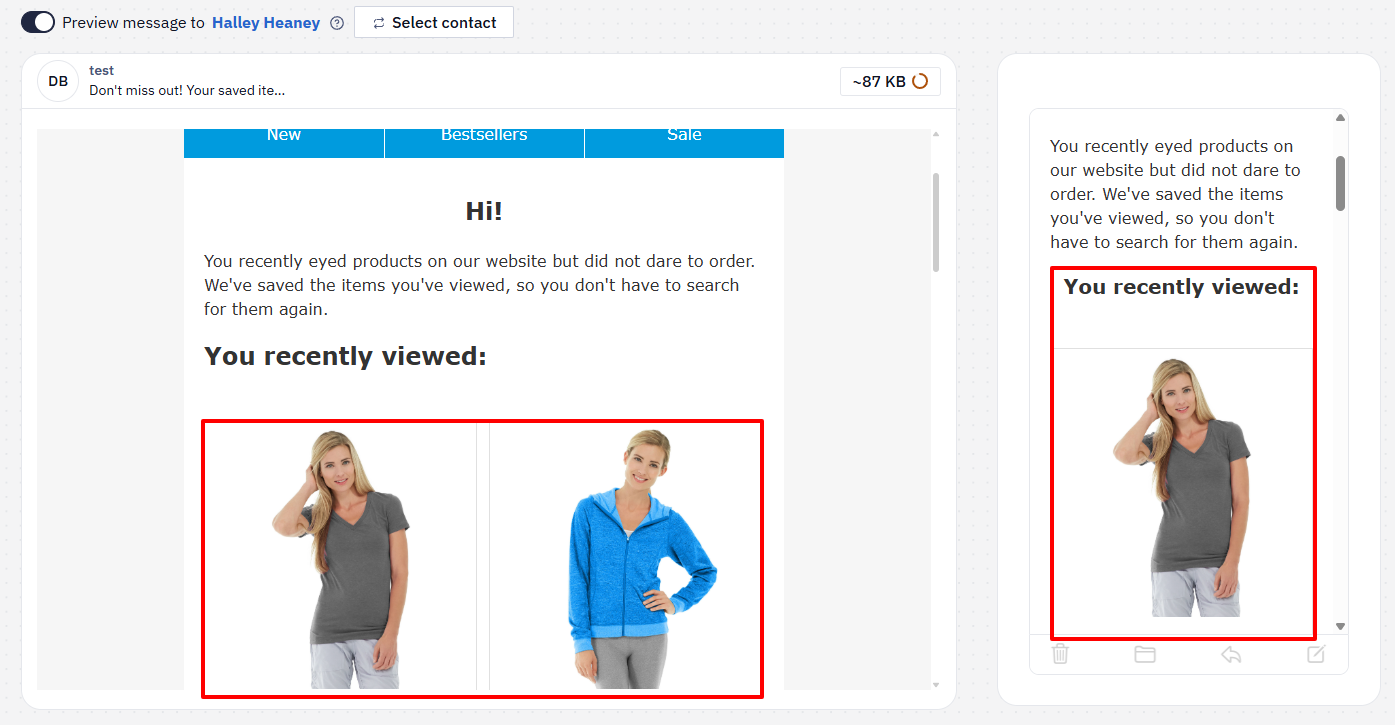
- There is data available to display for a contact
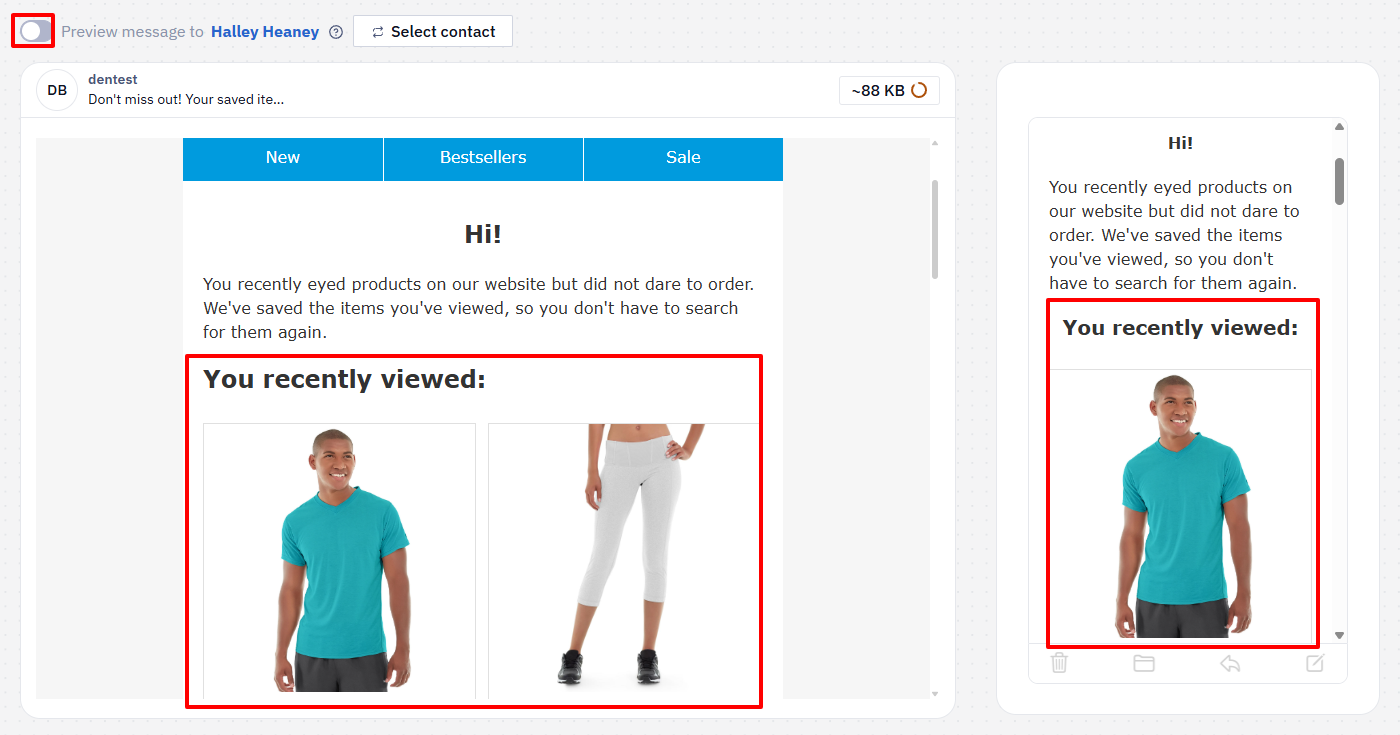
In this case, you will see the block content as the selected contact will see it.
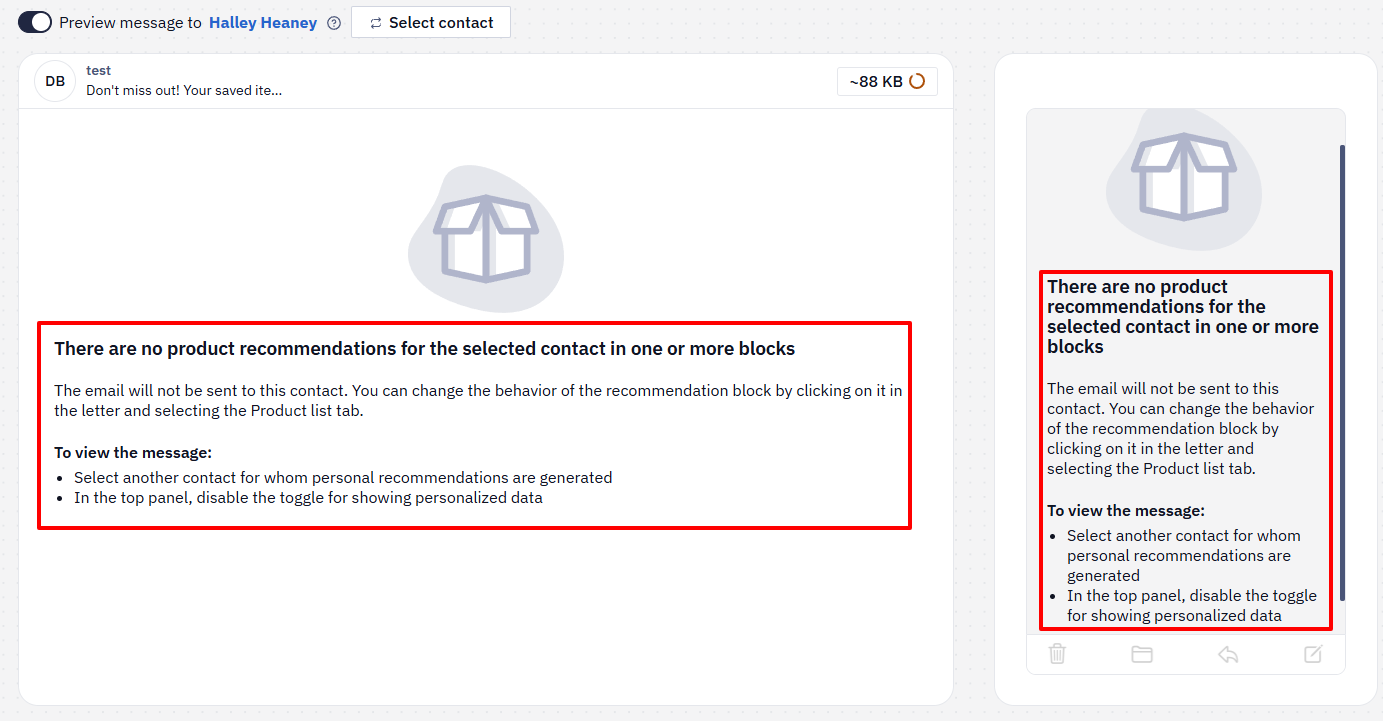
- There is no data available to display for a contact
In this case, there are two possible options:
- The preview will display a notification about the absence of recommendations, and the system will not send the email.
- The product block will be hidden, but the system will send the email.
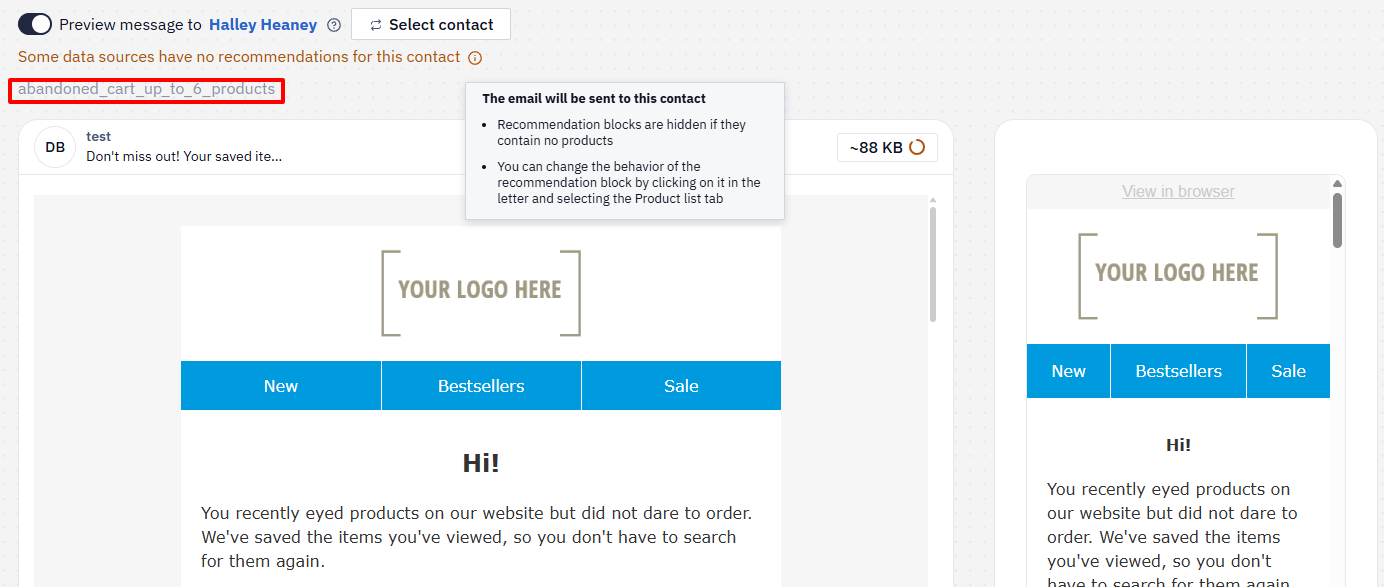
NoteThe display of the first or second option depends on the If there are no products to show setting in the Products block.
If you deactivate the Message for switcher, the recommendations will always display bestsellers from the general recommendation algorithms.
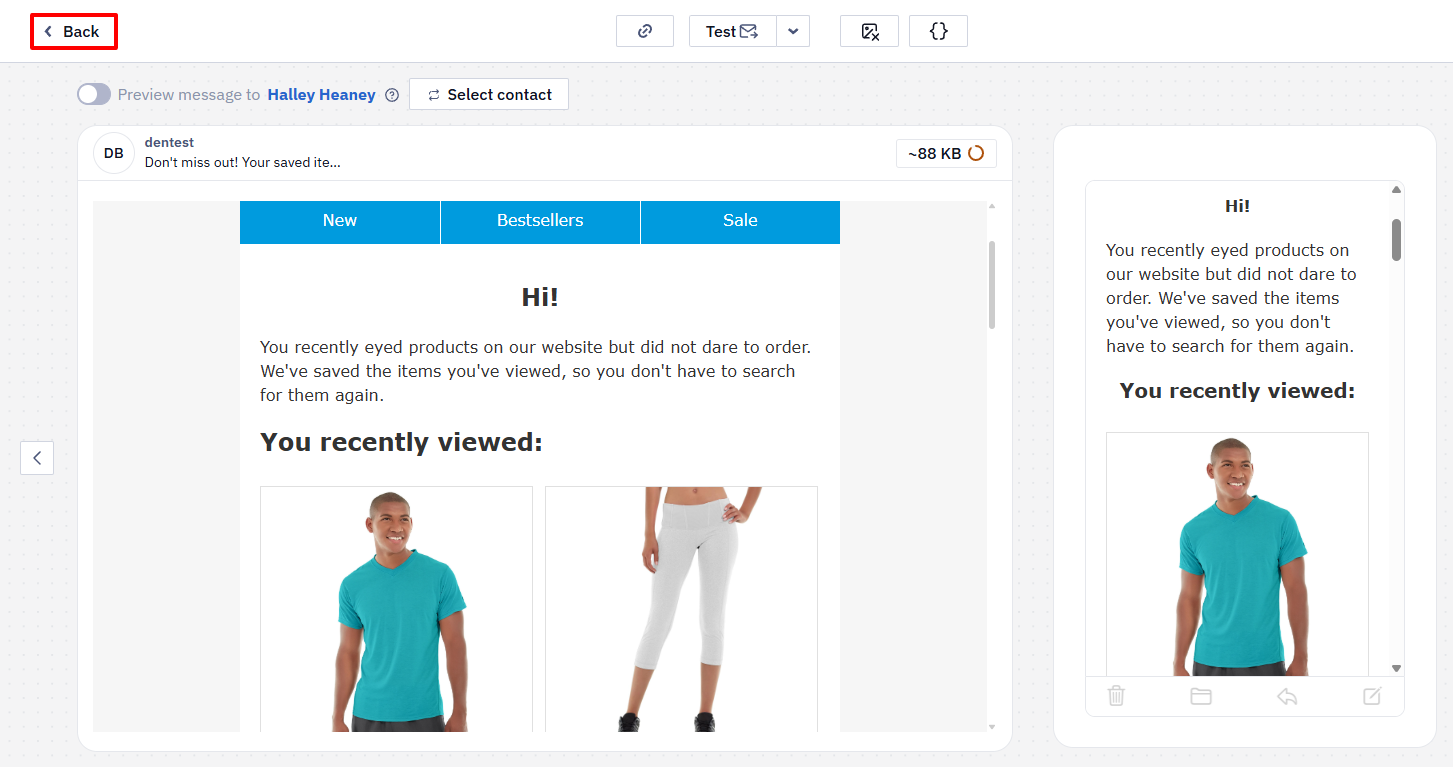
Click the Back button to return to the editor window.
Updated about 11 hours ago