
Mobile Push Campaign Report
Mobile Push campaign reports provide information about the campaign results, including key metrics and operating systems of the message recipients.
Let's consider the features of broadcast reports. You can also check out
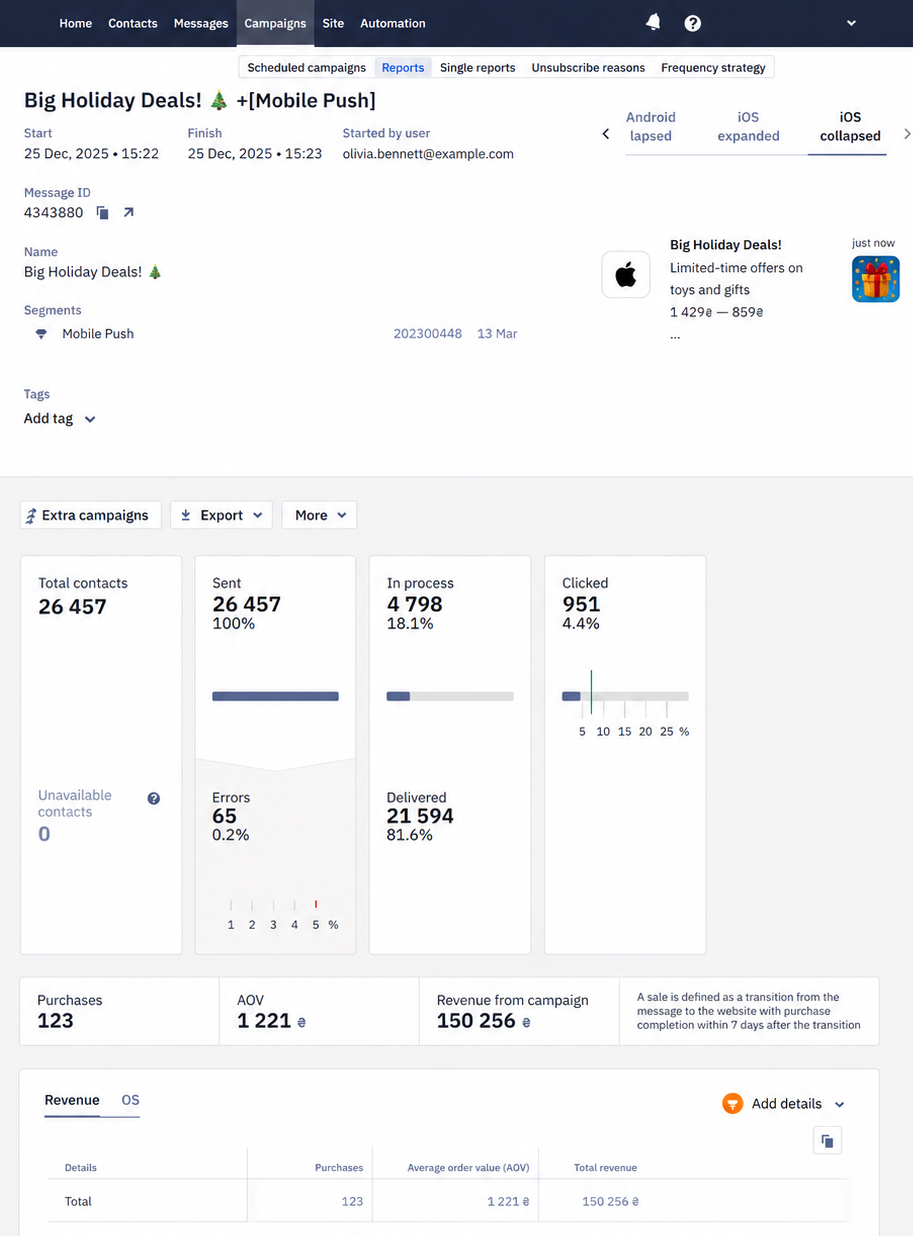
The interfaces of broadcast and triggered reports are similar. They have four parts:
- General information.
- Performance indicators.
- Revenue.
- Detailed statistics.
1. General Information
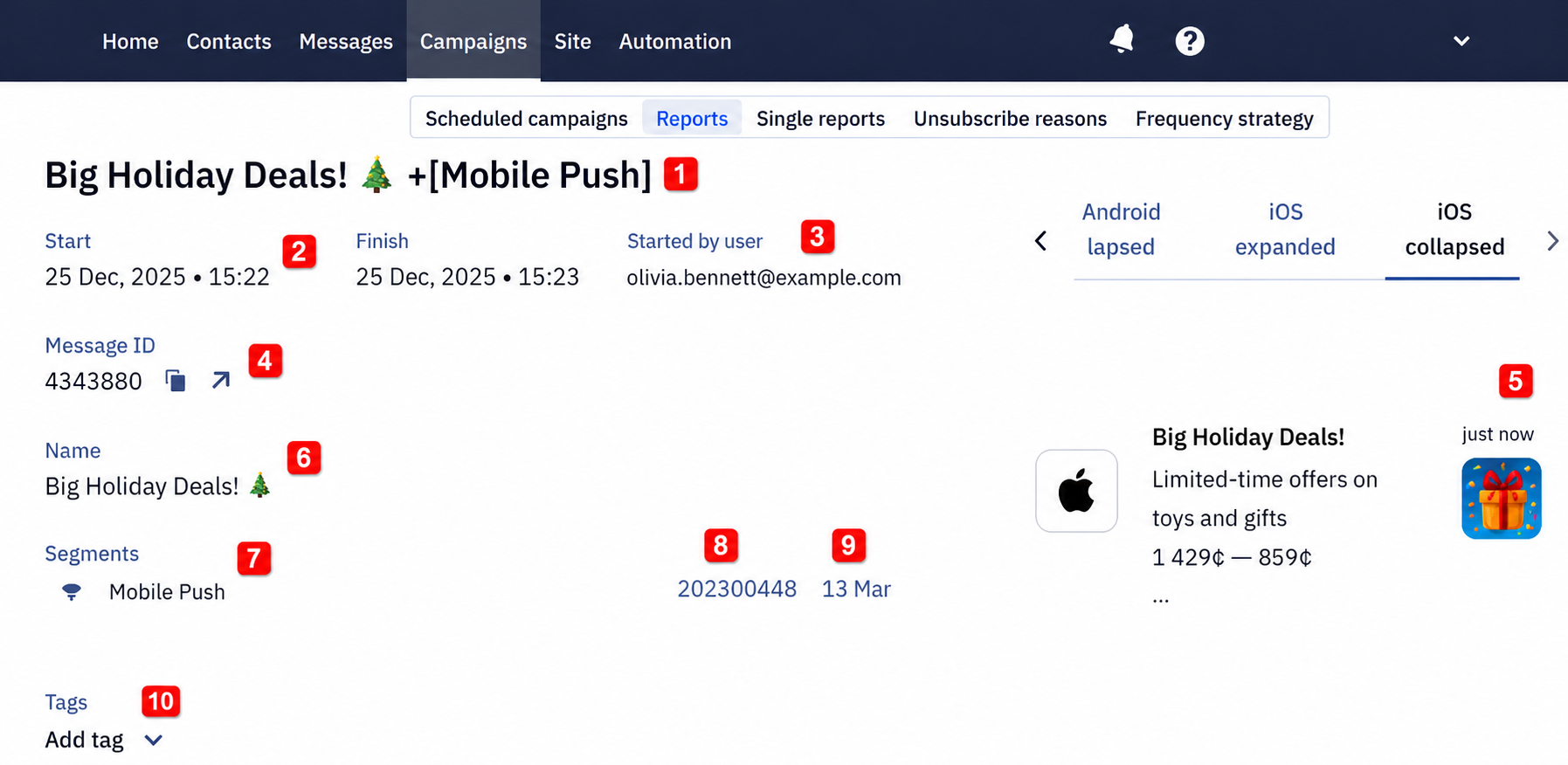
The first part of the report contains the following data:
- The message's and segment's names.
- Campaign start/finish date and time.
- Email of the user who started the campaign.
- Message ID. To copy an ID, click on the copy icon next to it. Click on the link icon to edit a message.
- Message preview across operating systems.
- Message name.
- The segment of contacts to whom the message was sent.
- Segment ID.
- Date of segment's last editing.
- Tags for search and filtering of messages.
2. Performance Indicators
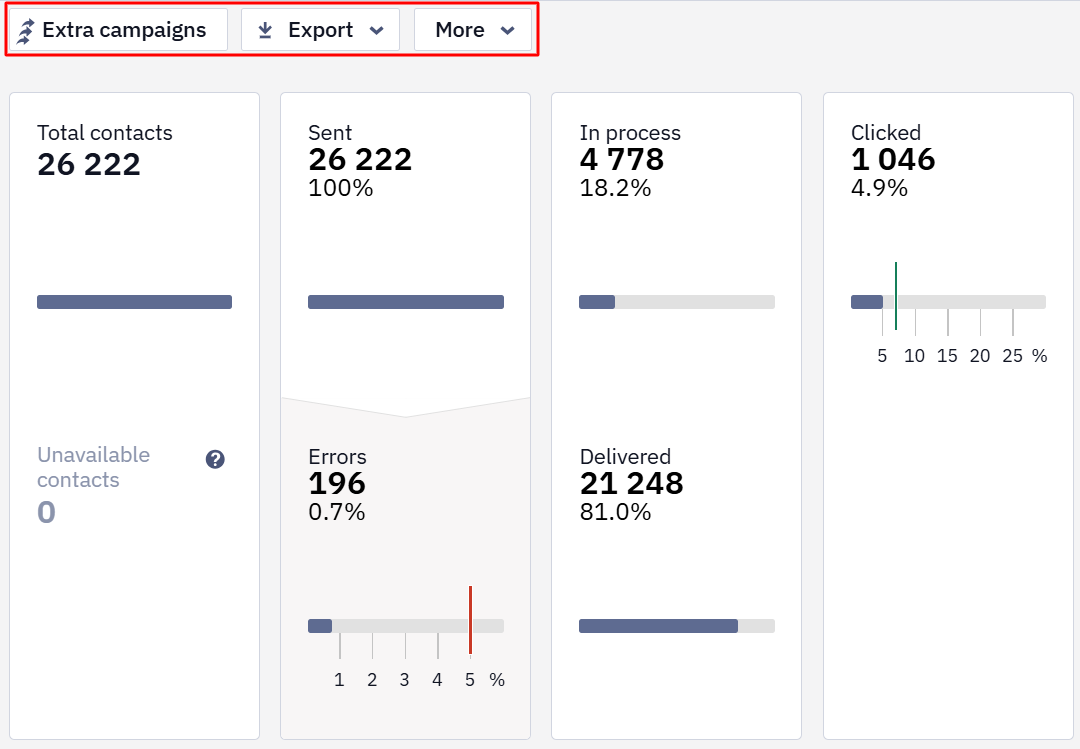
Yespo automatically tracks push campaign performance metrics, including clicks, errors, and more. All statistics are collected in the form of a table.
A message is sent to every mobile token the contact has, and the status of each send is counted separately in the report. A contact with several devices therefore produces several deliveries and clicks, and the click rate can exceed 100%.
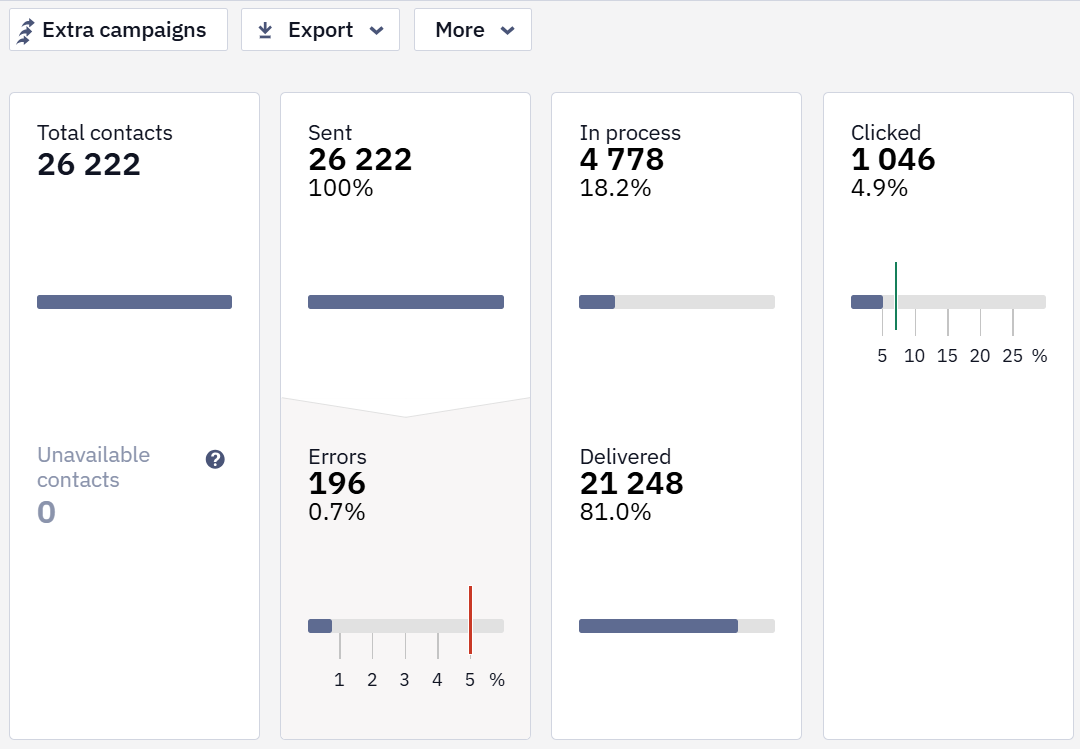
Green marks on the scale show the conditional indicators of a successful campaign, and red marks are negative indicators' conditional norm.
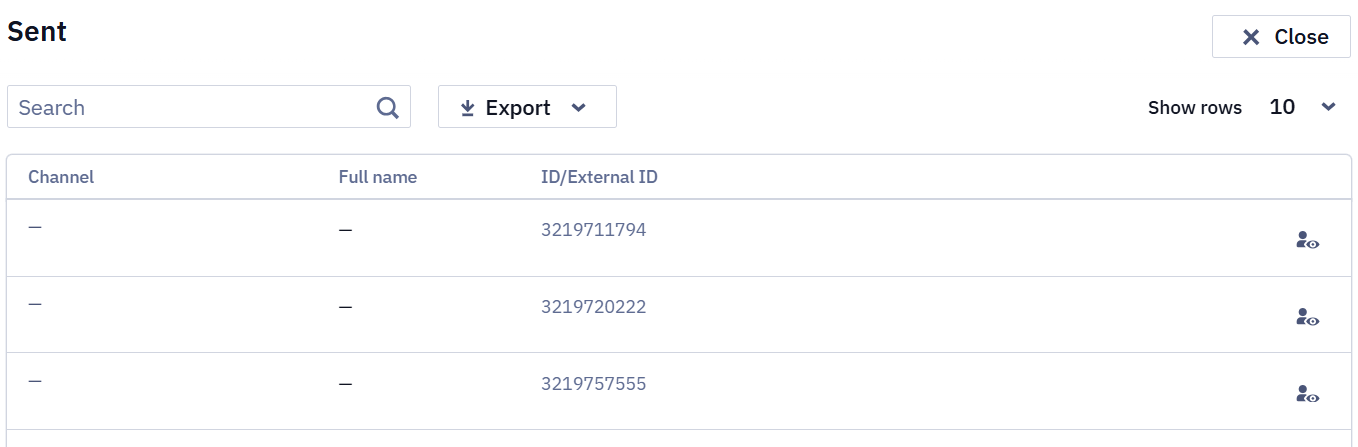
Clicking on any report item opens a window for viewing the contacts list.
Above the general statistics are the following tabs:
- Extra campaigns. Allows you to configure the automatic sending of messages based on the activity or inactivity of users regarding this campaign. More — at the link.
- Export. Allows you to export contacts from the report to a CSV file, to an existing or a new list. Export is available for all campaign metrics: sent, delivered, inaccessible contacts when sending, over plan limit, annoyance level exceeded, etc.
- More. Allows you to delete the report.
How the figures in this report are counted
- For Mobile Push + In-App bundle messages, a tap on the push itself isn't counted as a click, and a click on an In-App button is counted as a Mobile Push click. For standalone Mobile Push messages, the click event is tracked as usual.
- If a contact has several push tokens, the message is sent to all of them (up to 10), and the status of each send is counted in the report separately. One contact can therefore show, for example, one delivery and several clicks coming from different devices. The number of device records (
deviceId) a contact has does not affect the number of sends — pushes are sent per token.- A contact ends up with several tokens for the same app when tokens are uploaded through the Add/update contacts API resource alongside the ones the SDK registers — the same push then arrives several times. You remove the stale tokens yourself, through the same resource; fix how contacts are updated first, otherwise the duplicates come back.
- Segmentation has no condition for the number of tokens on a contact. To find such contacts, read them with the Search for contacts API resource and count the
mobilepushentries in each contact'schannelsarray, or ask support for the list.- The Delivered metric is calculated as sent minus undelivered messages. Delivery statistics are therefore displayed even if your app doesn't report delivery statuses to Yespo. To get the actual statuses from devices, set up delivery and click analytics.
3. Revenue
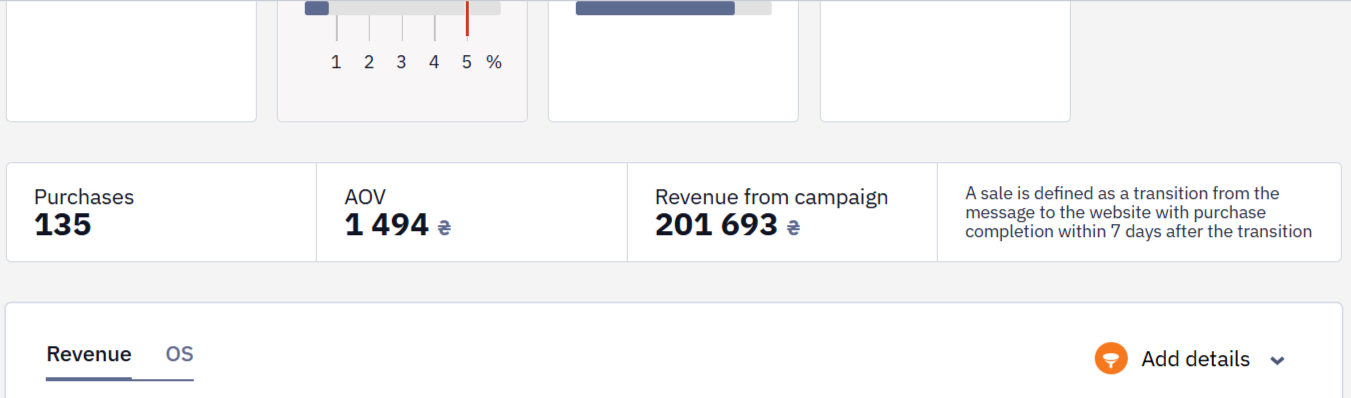
If you set up integration with a CRM system that records order data, you can evaluate the financial results of the campaign.
More on the settings for displaying revenue >
4. Detailed Statistics
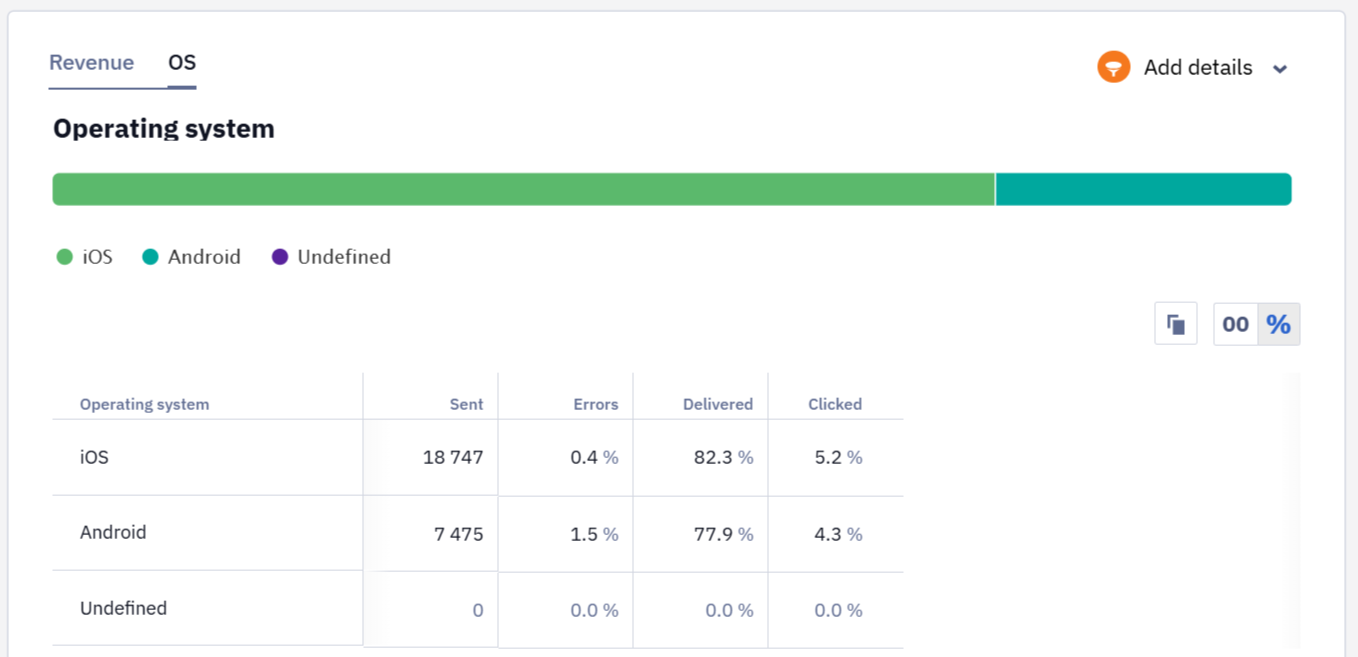
The section includes information about the operating systems of contacts and, optionally, data on the effectiveness of the language versions of the message (if they were used) and revenue (if this option is activated in the account).
OS
See how users of different operating systems reacted to the campaign.
Multilanguage (optional)
Multilanguage is an automation tool that enables sending messages in different languages within one campaign. It helps avoid long message lists and voluminous unsystematic reports for every message.
Reports on multilingual campaigns are described in a special article.
Adding Details
You can filter tabs' data using the Add details option.

Updated 25 days ago