
Creating an AMP Form
The Form block in the Yespo editor lets you run surveys and collect customer data straight in the email.
ImportantFor the AMP form to show in subscribers' emails when you send a campaign, apply for sender approval.
Step 1. Creating a Data Service
A data service stores your users' feedback and responses. You can create it in your Stripo account or via Zapier. Both ways are described in Managing Data Collected via AMP Forms.
To create a service in Stripo:
- Log in to your Stripo account.
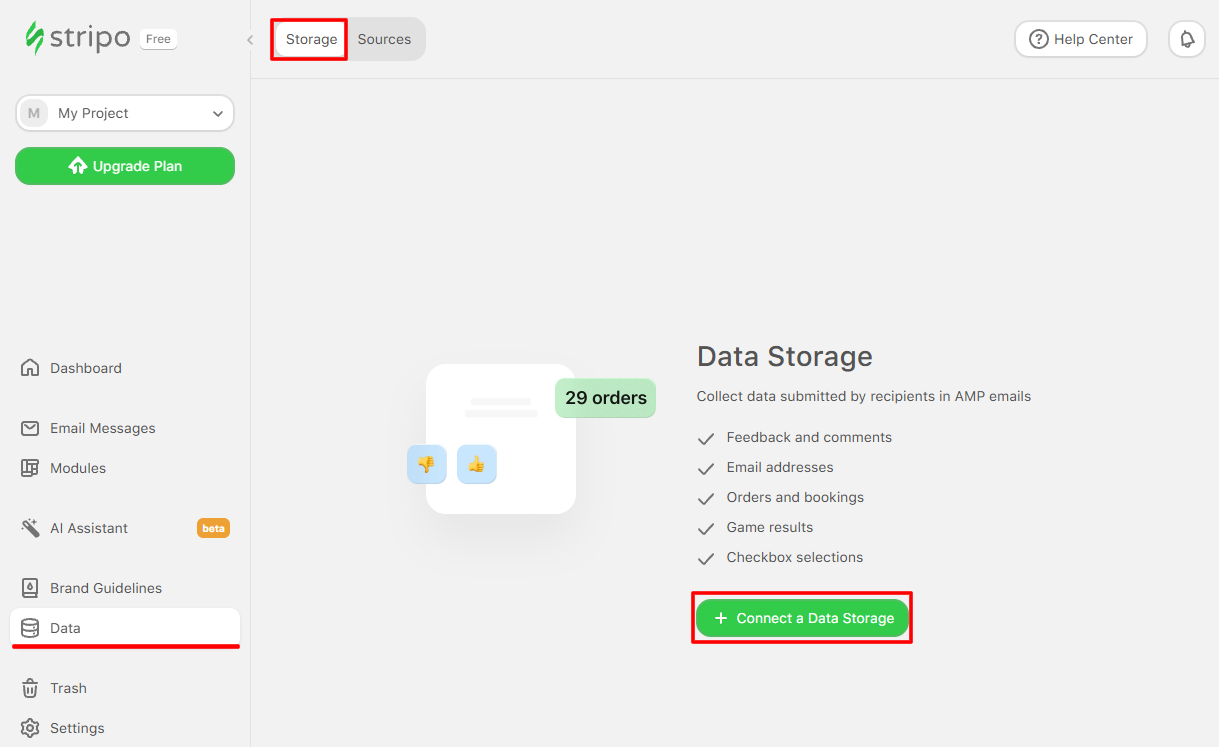
- In the left panel, select the Data tab and click Connect a Data Storage.
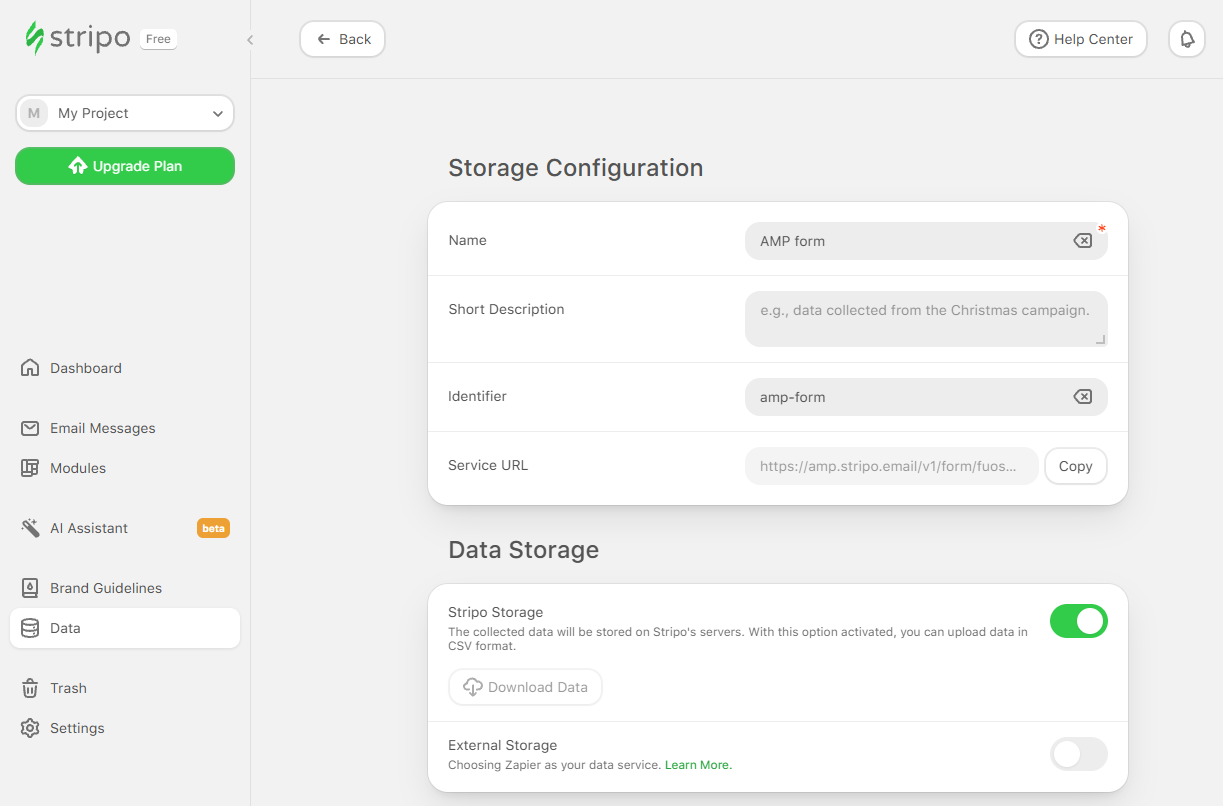
- Enter the service name and a short description. The Identifier and Service URL fields are filled in automatically.
- Keep the Stripo Storage toggle on to store the collected data on Stripo servers. You can download it as a
CSVfile.
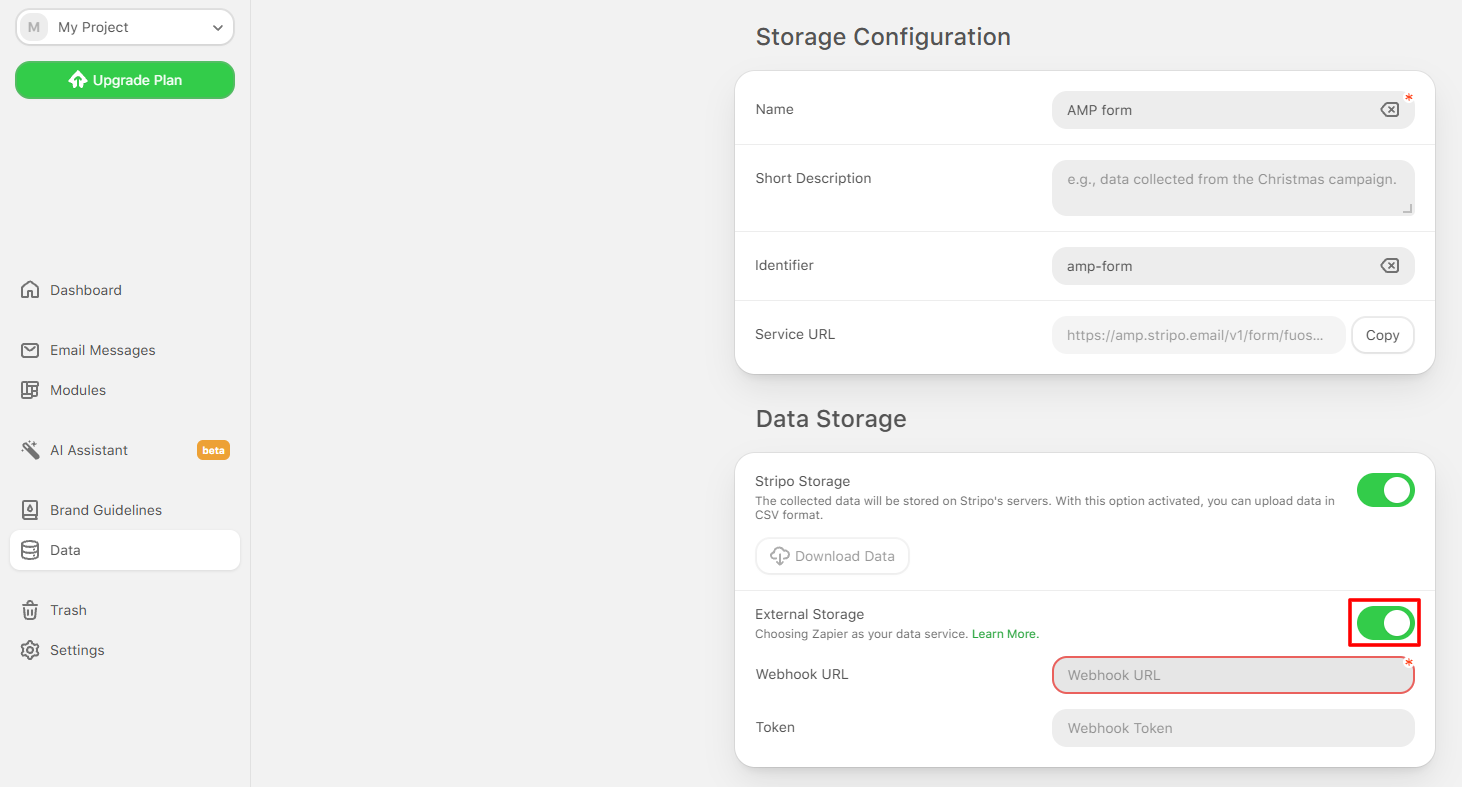
- To store data in external resources, turn on the External Storage toggle and add a link to the resource. This way, you can pass the data to Zapier, Google Sheets, or any other storage connected to emails via Zapier.
Step 2. Creating a Form in the Email
Step 2.1. Adding an AMP Form
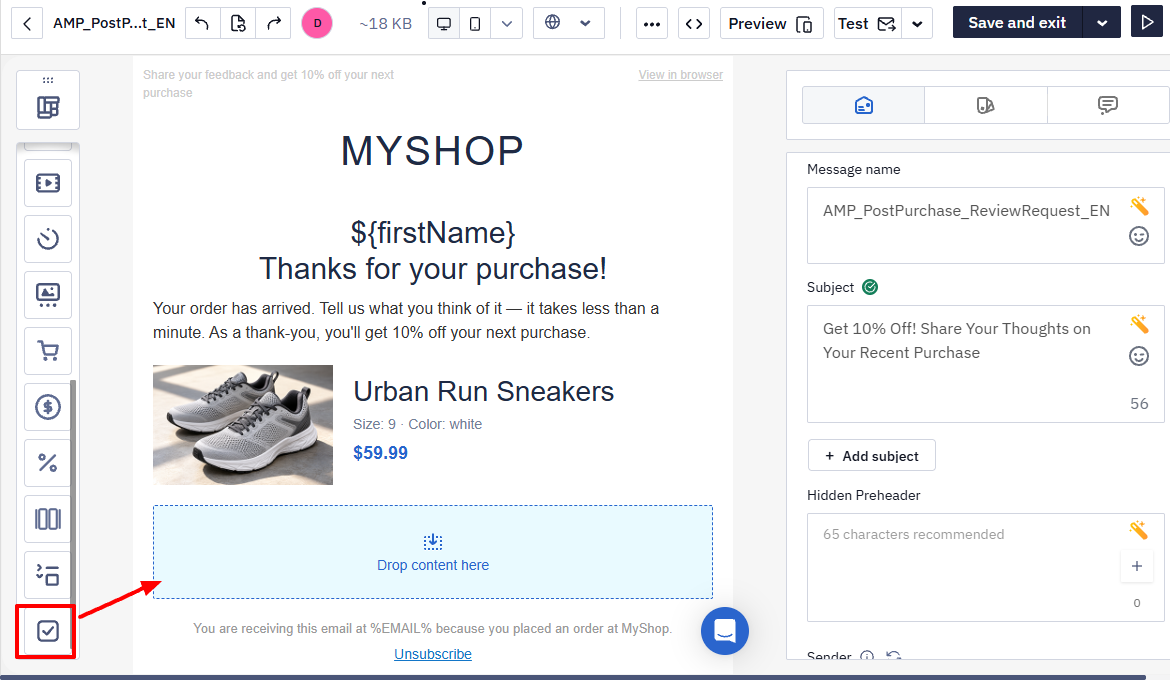
- In the Blocks side panel, find the Form block and drag it to the right place in the email.
- Click the orange ϟHTML label to open the form settings.
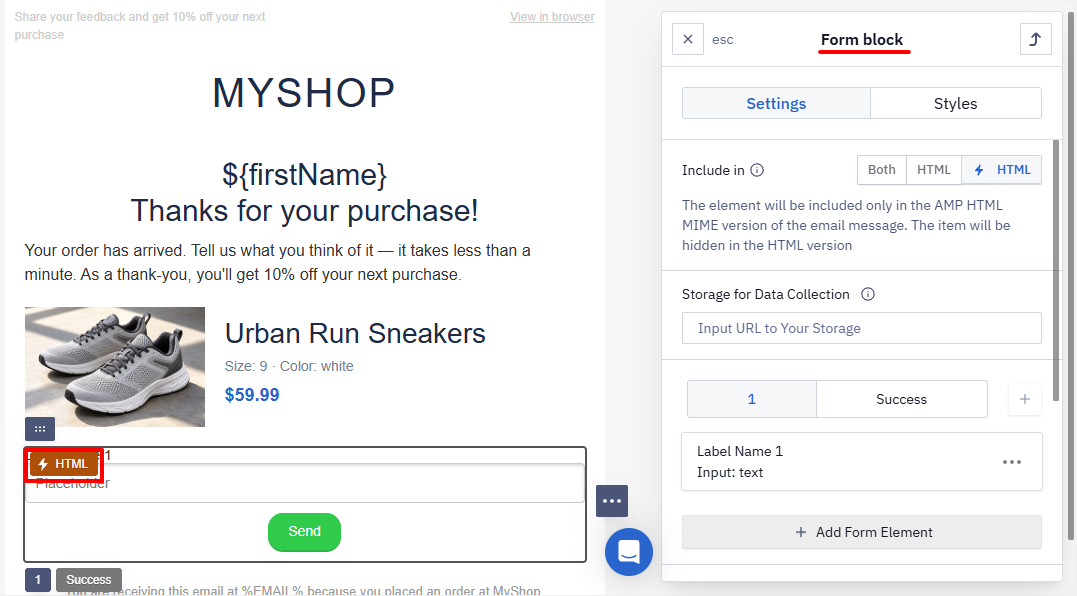
- In Storage for Data Collection, enter the URL of the data service you created in step 1.
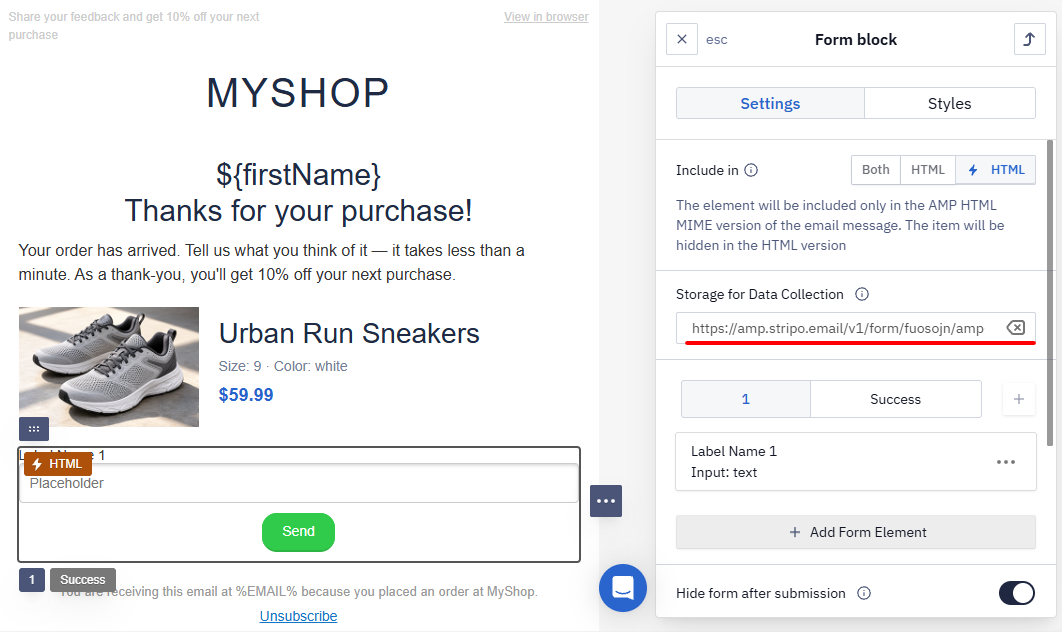
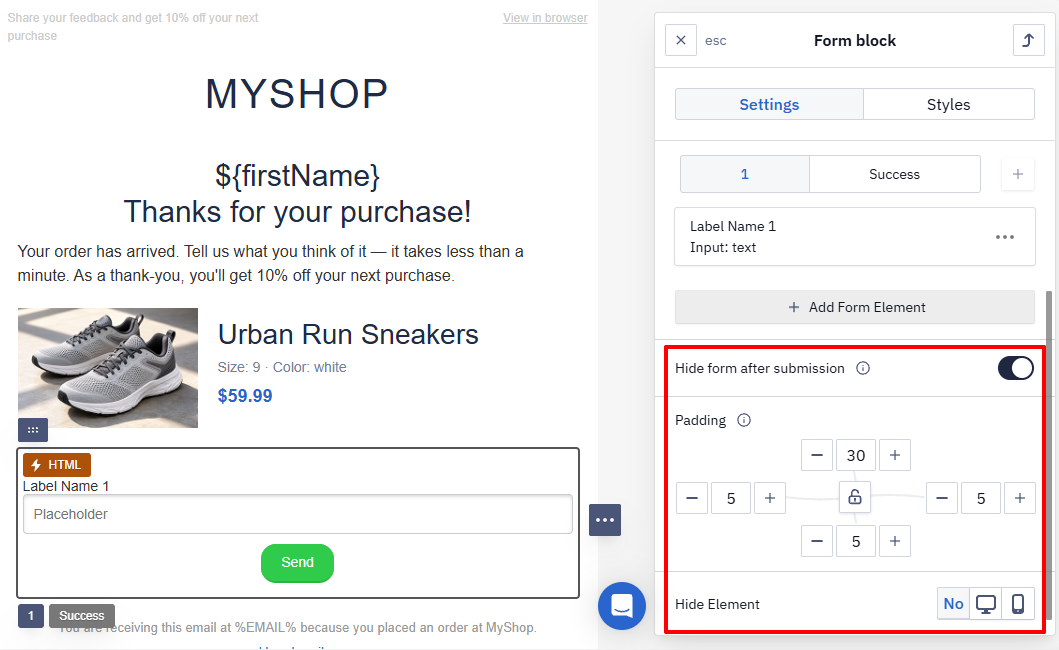
- On the Settings tab, set the general form parameters:
- Hide form after submission — once the data is submitted, the form is hidden and a success message appears instead, for example, a thank-you for the response. The toggle is on by default. To keep the form in the email, turn it off.
- Padding — set the form padding on each side.
- Hide Element — hide the form in the mobile or desktop version of the email if needed.
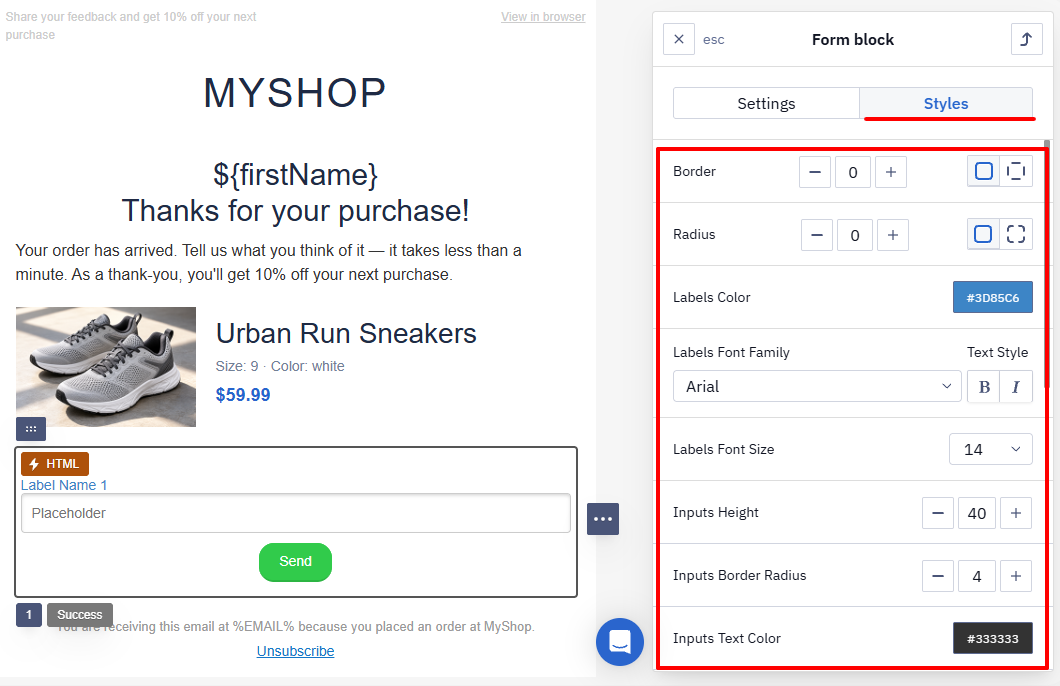
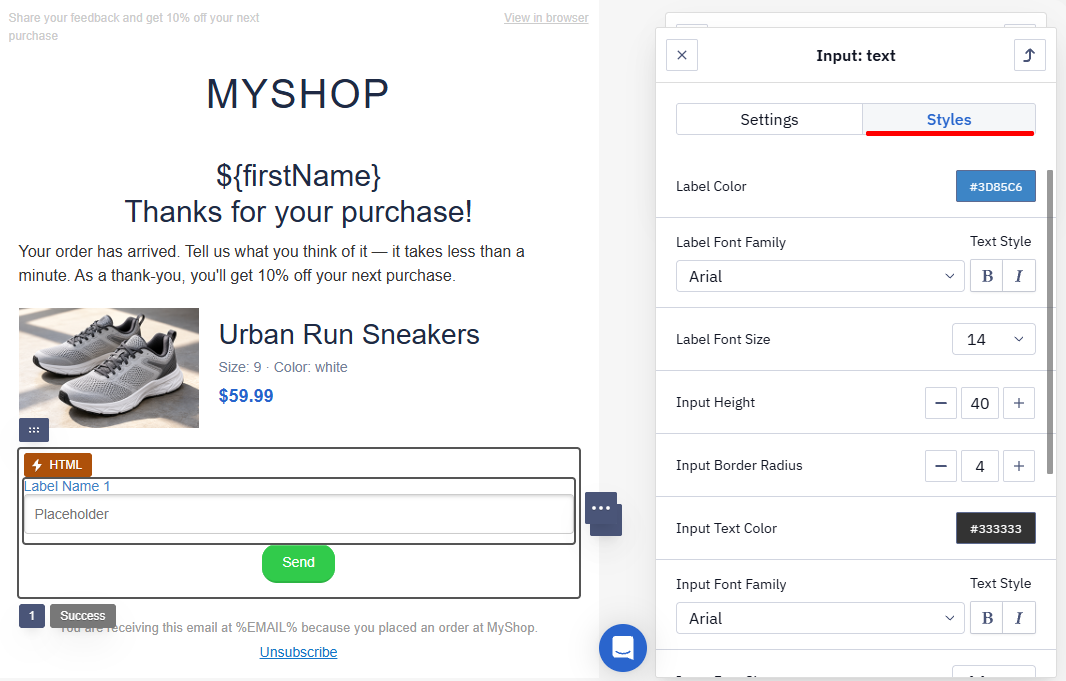
- On the Styles tab, set up the form design: border and radius, background color, and the look of the input fields — their height, border, border radius, background color, and inner shadow. For labels and input text, you can set the color, font, and size separately.
Field Settings
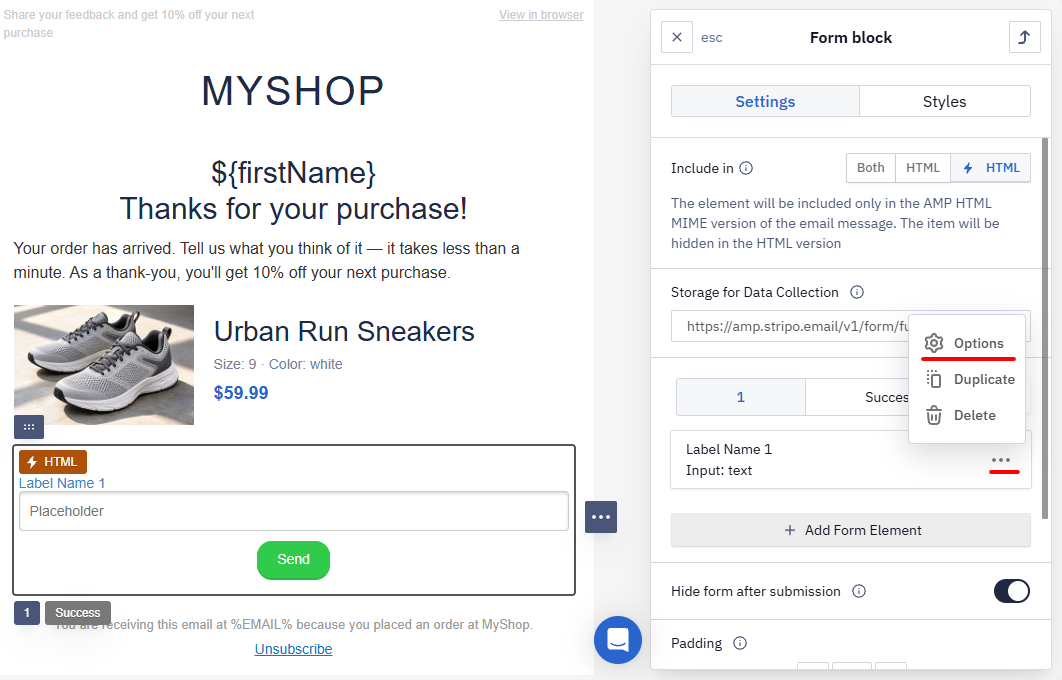
- In the form settings panel, click ••• next to the field and select Options. In the same menu, you can duplicate or delete the field.
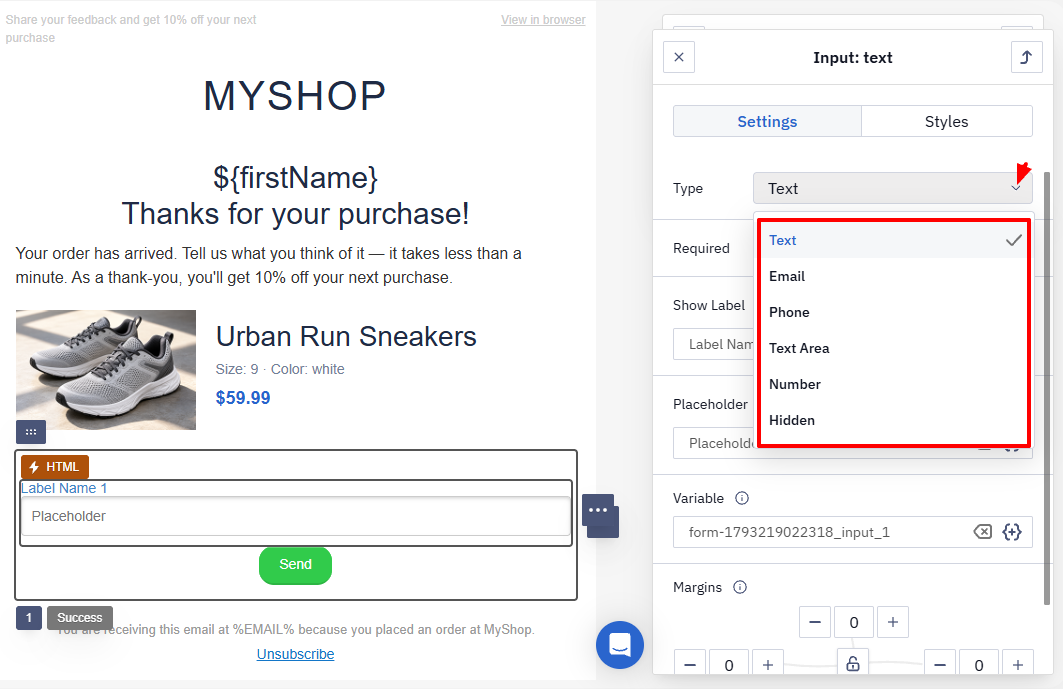
- Select the element type:
- Text — a single-line answer: name, city, product name, etc.
- Email — an email address.
- Phone — a phone number.
- Text Area — a detailed answer: review, comment, suggestion.
- Number — a numeric value, for example, a rating from 1 to 10 or a quantity.
- Hidden — passes data without the user's input, for example, an email address or name already stored in your database.
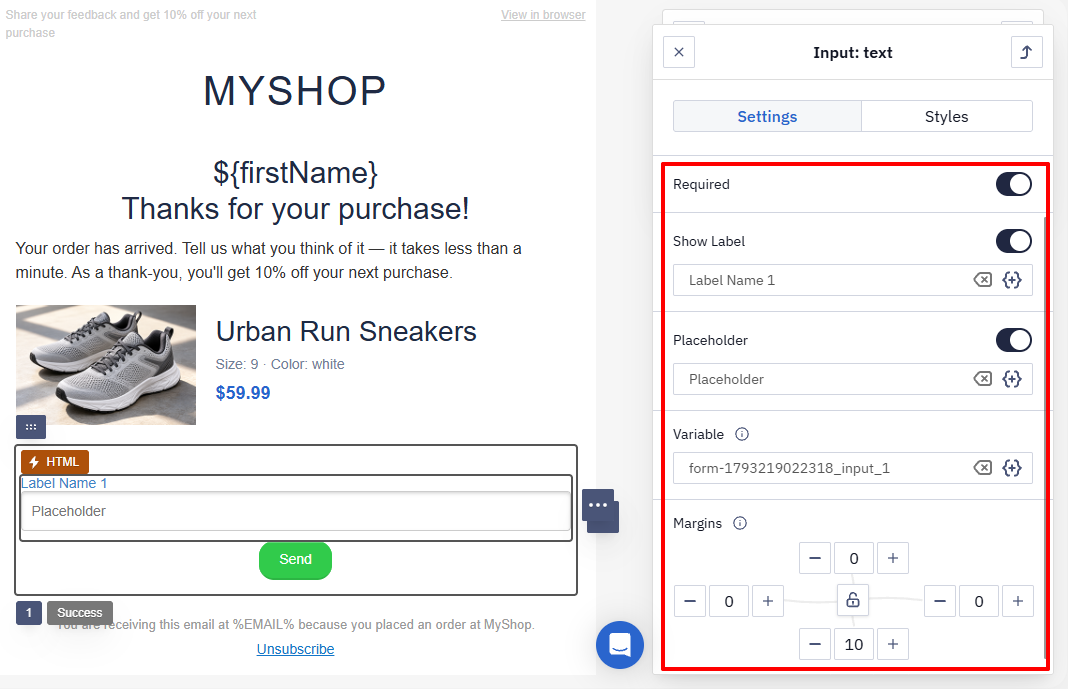
- On the Settings tab, set the field parameters:
- Required — turn it on if the respondent must fill in this field.
- Show Label — enter the question text. The number of characters is unlimited. If you only need an input line, turn the toggle off.
- Placeholder — enter a sample answer.
- Margins.
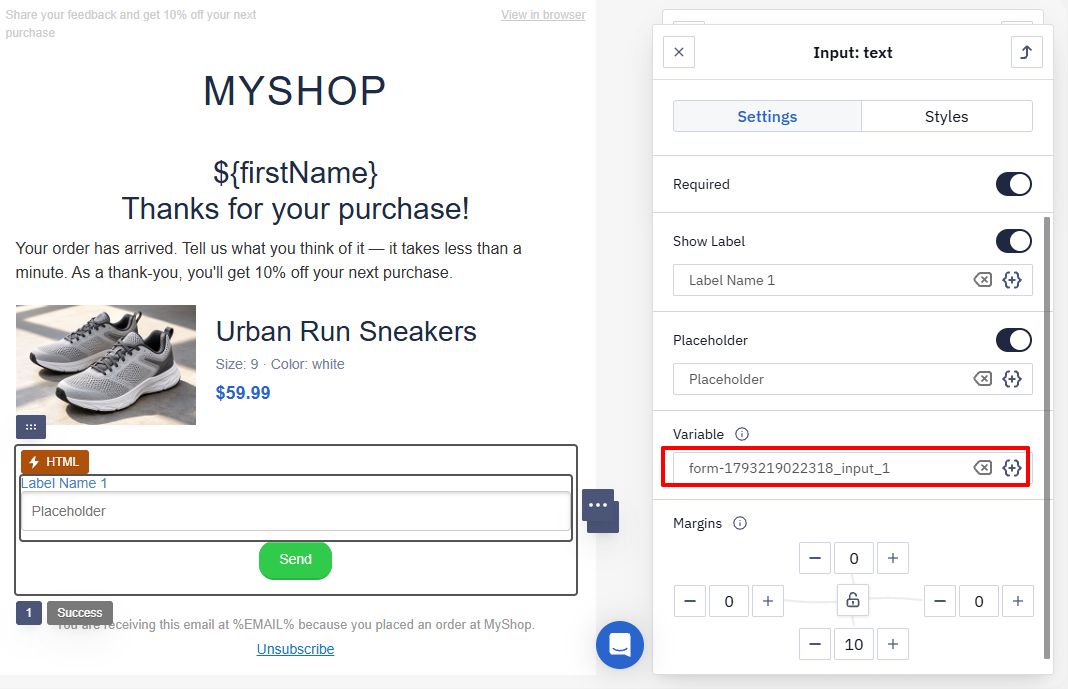
- Enter the variable name. It helps you find answers to this question in the form data faster, for example, in a
CSVfile. Use only uppercase or lowercase Latin letters (A-Zanda-z), numbers (0-9), and underscores (_).
- On the Styles tab, set up the field design.
Hidden Field
To find out which subscriber left a review, add a hidden field with the respondent's email address to the form:
- Click the ϟHTML label to open the form settings.
- Click Add Form Element and select Hidden.
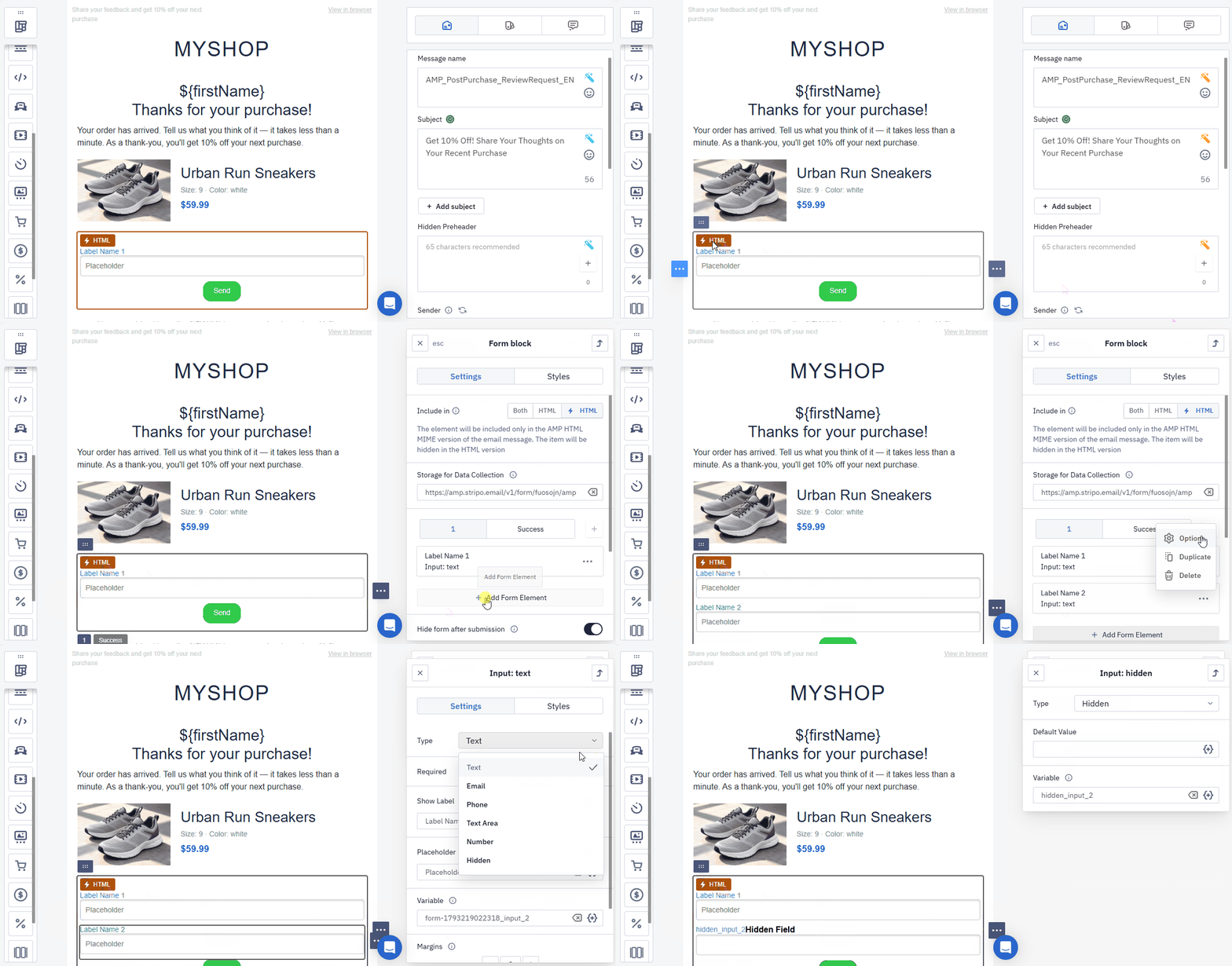
- In the field settings, enter
${email}in Default Value — it inserts the respondent's email address. More on variables.
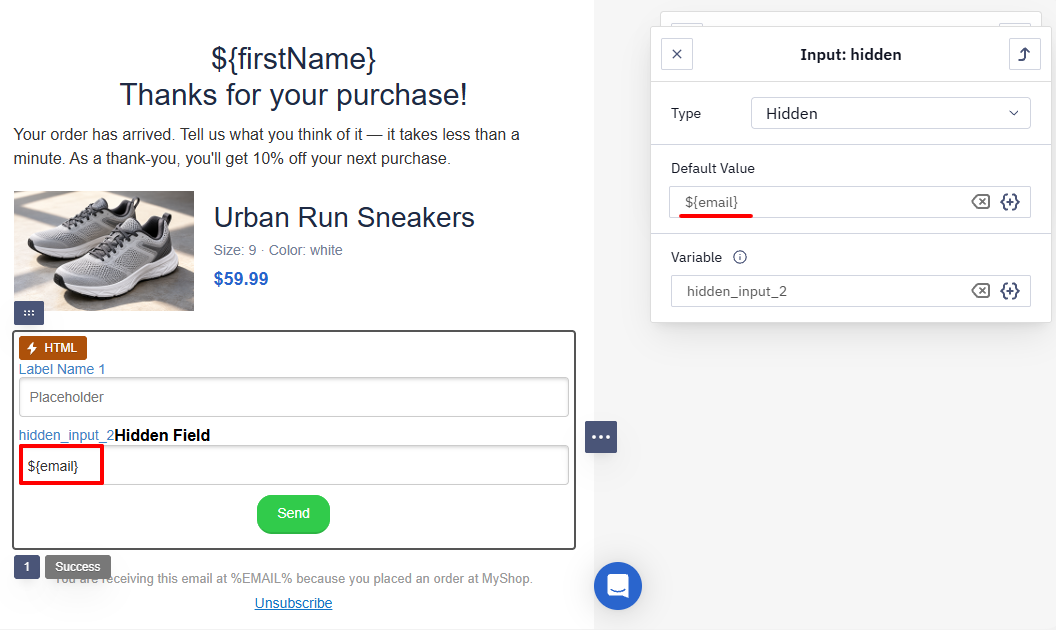
Subscribers won't see this field in the email.
Button
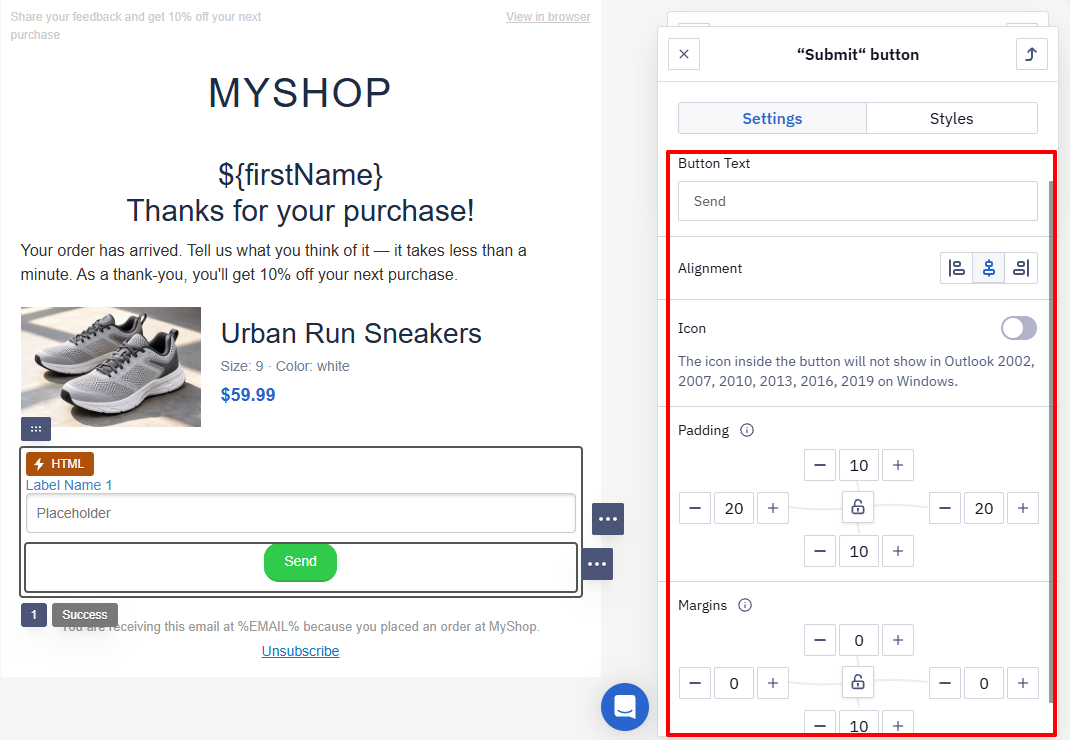
The button submits the form responses. Unlike a regular CTA button, it needs no link: after a click, a response message appears.
- Click the button in the form to open its settings.
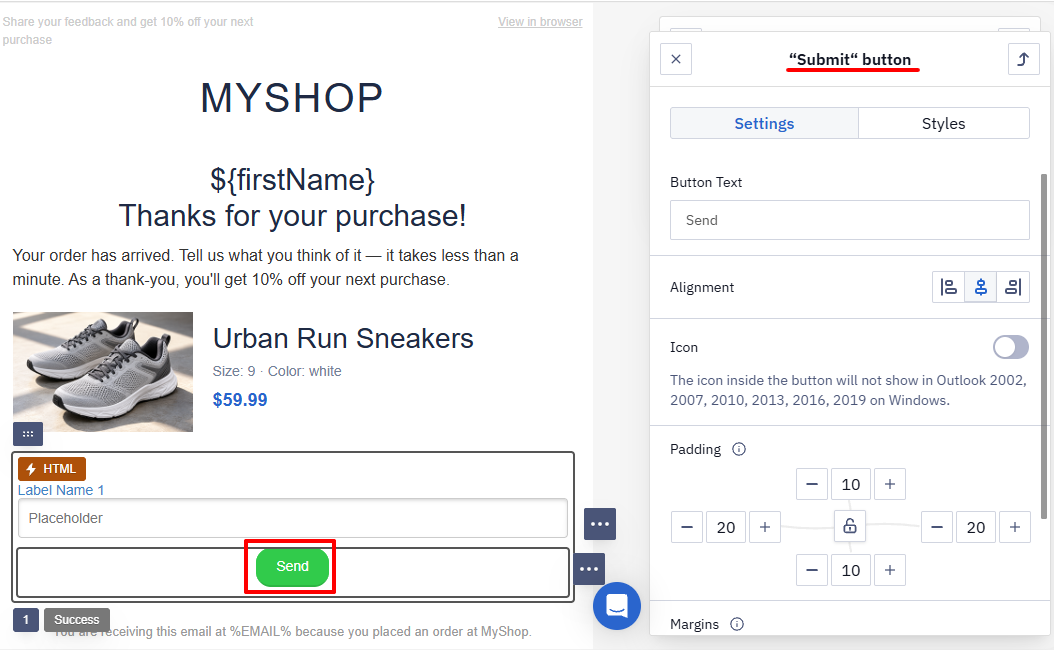
- On the Settings tab, set:
- Button Text;
- Alignment;
- Icon — add an icon to the button. Windows Outlook 2002, 2007, 2010, 2013, 2016, and 2019 don't show the icon;
- Padding;
- Margins.
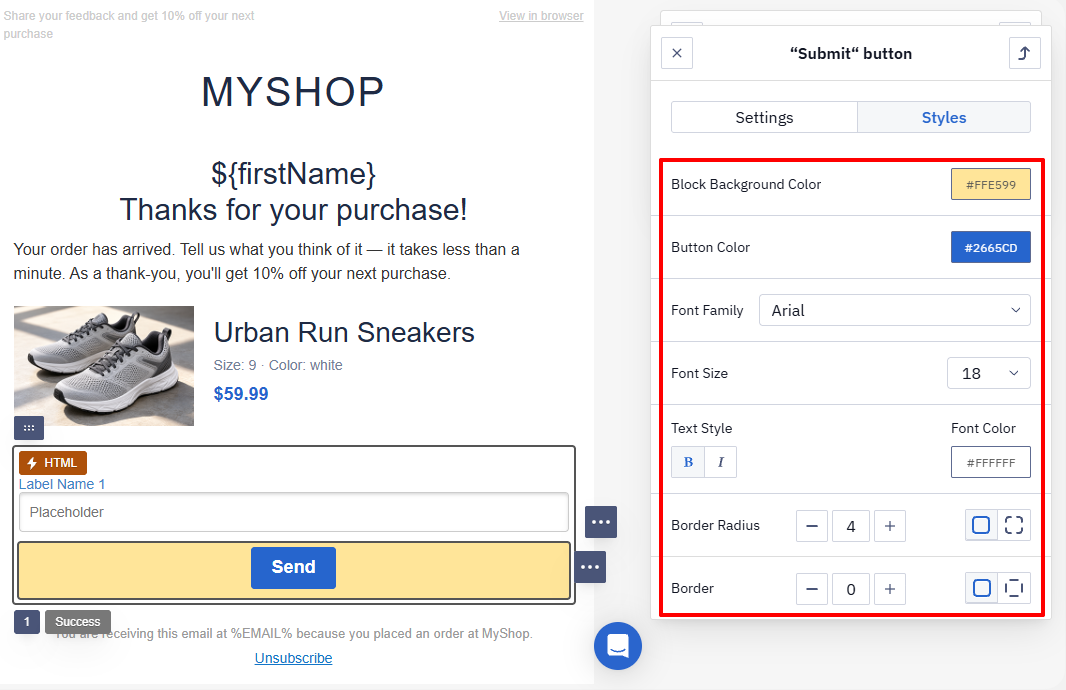
- On the Styles tab, set up the button design:
- block background color;
- button color;
- font, its size, and style;
- font color;
- adjust to width;
- border radius;
- border.
Success Message
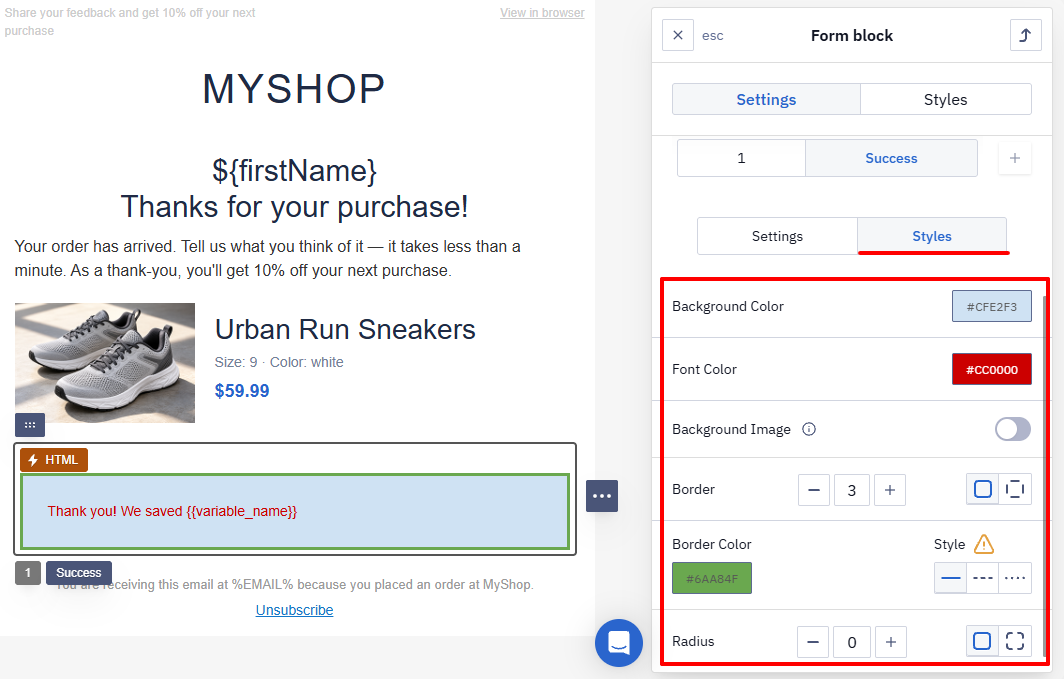
After submitting the form, the respondent sees a success message. By default, it's green.
- In the form settings panel, go to the Success tab.
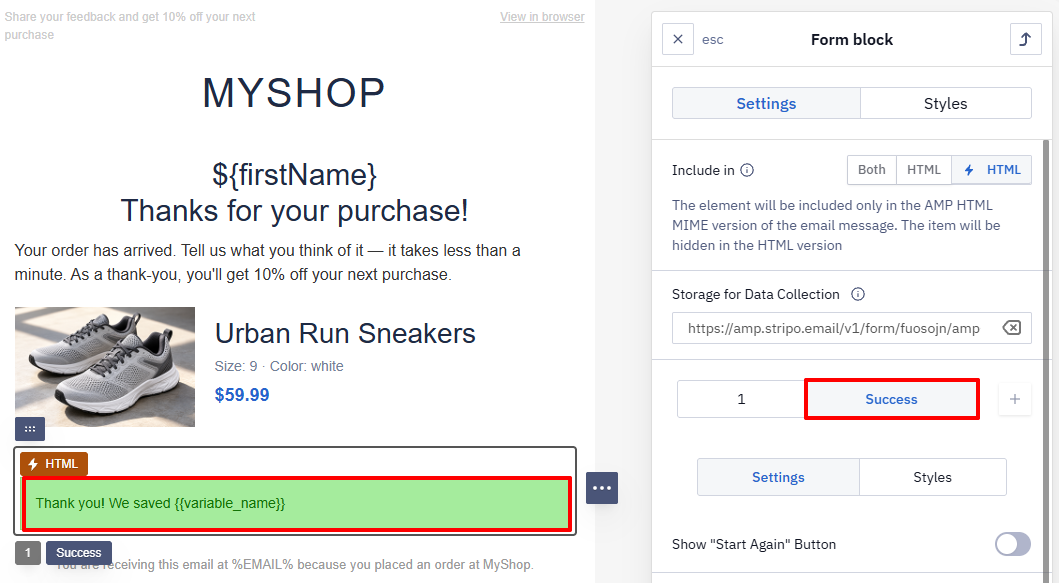
- On the Settings tab, turn on the Show "Start Again" Button toggle if needed and set the padding.
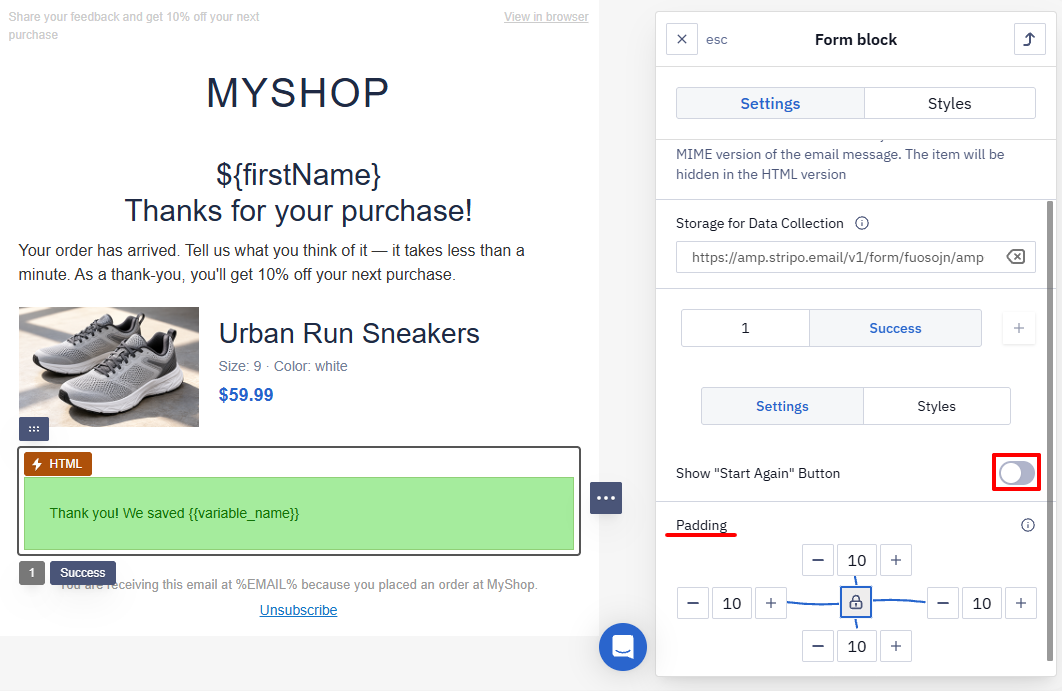
- On the Styles tab, set up the message design:
- background color;
- font color;
- background image;
- border, its color, and style;
- radius.
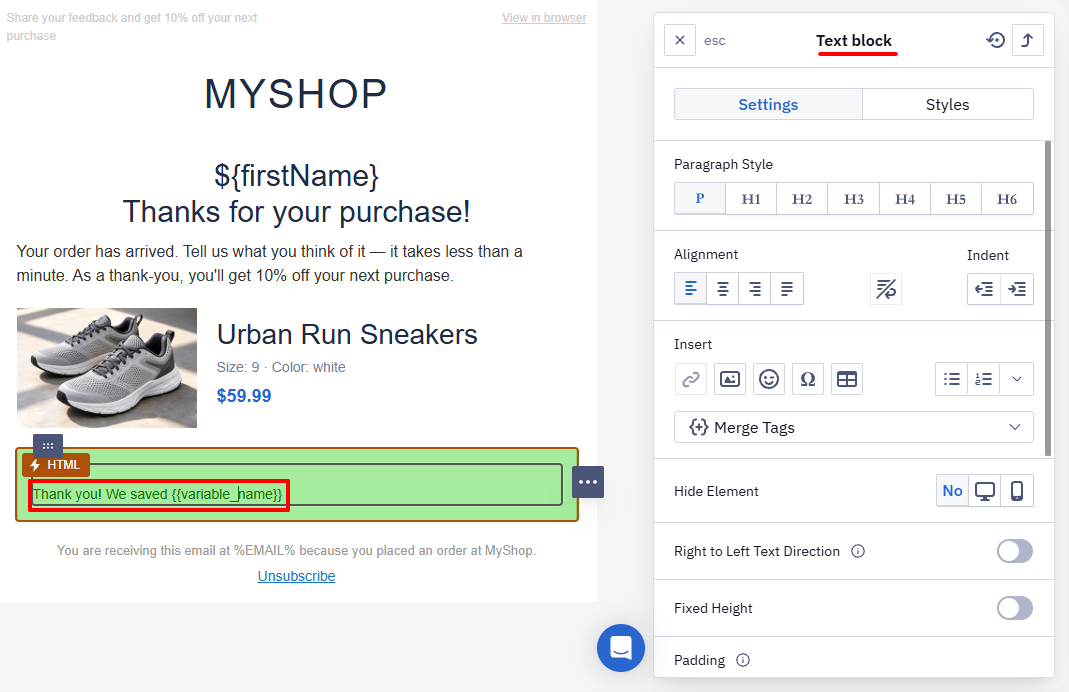
- To change the message text, click it in the email.
Step 2.2. Adding an Alternative Form
If the AMP content doesn't show, the subscriber can take the survey via a link to an alternative form. Create it, for example, in Google Forms or SurveyMonkey. You can add the link to any element in the email — below is an example with a button.
- Drag the Button block from the Blocks side panel to the email.
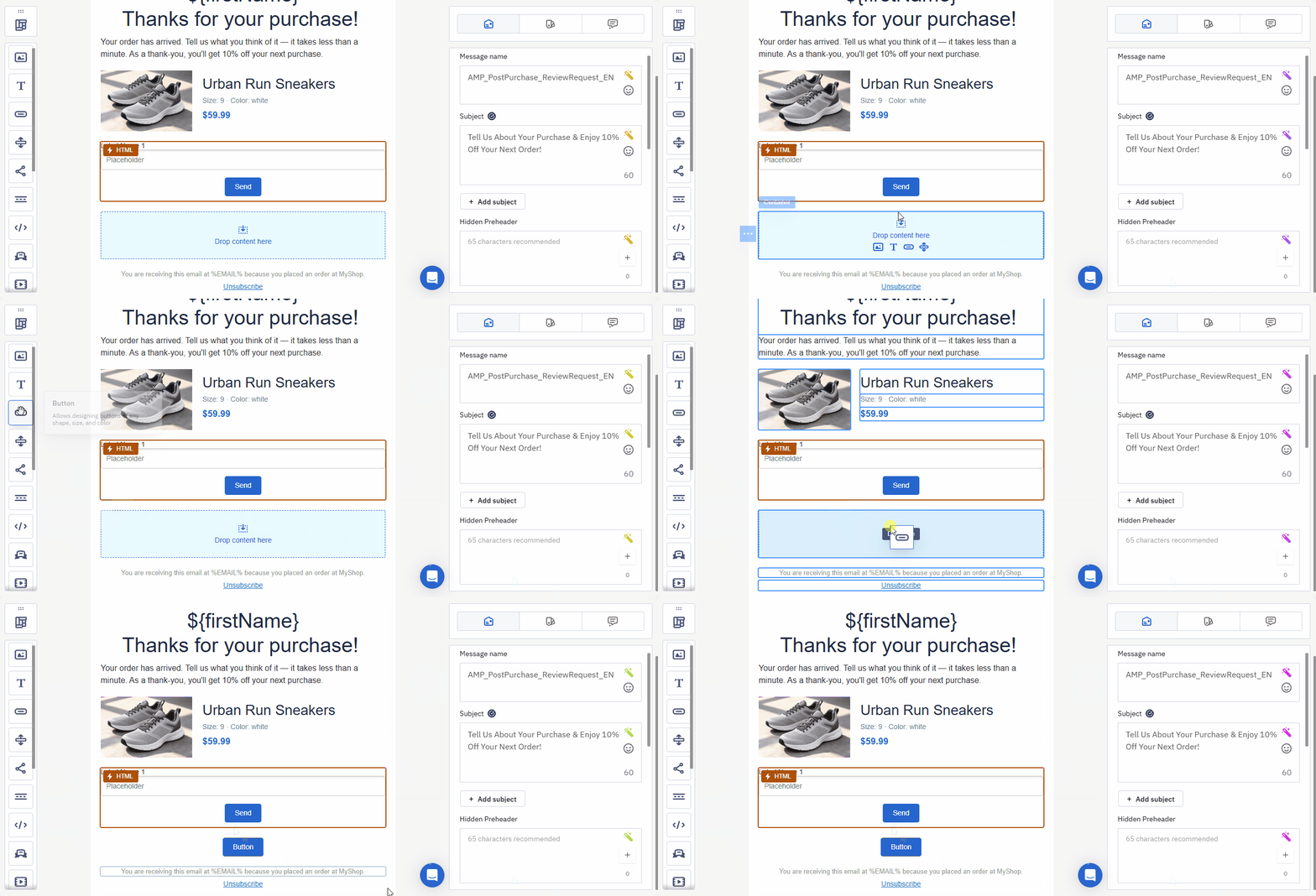
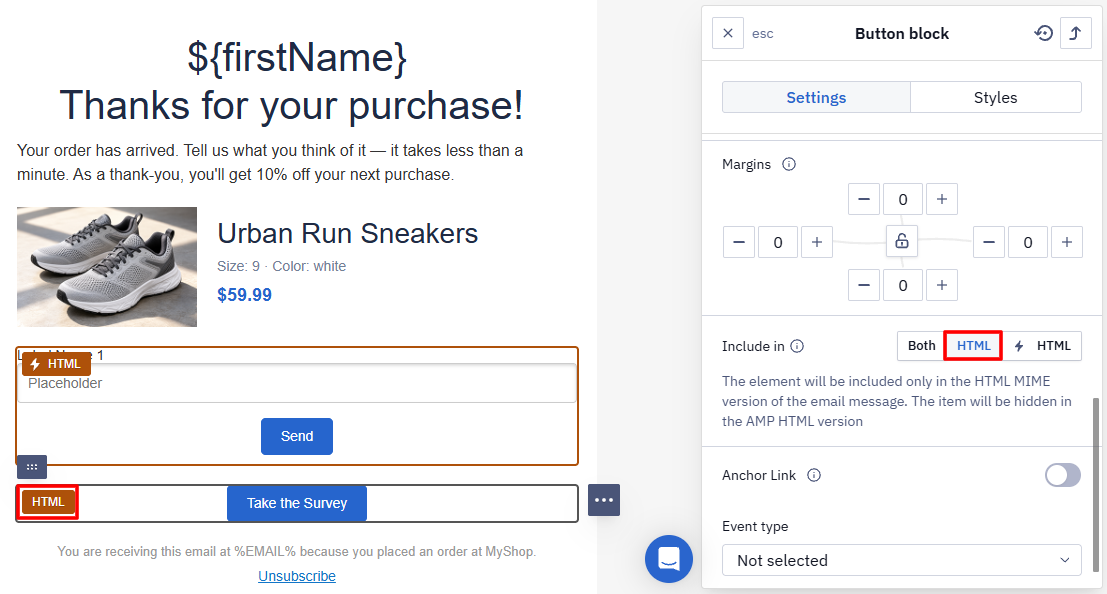
- Add the link to the alternative form to the button and set up its design: color, style, padding, etc.
- In Include in, select HTML so that the button shows only when the AMP form doesn't.
Step 3. Checking the Form Display
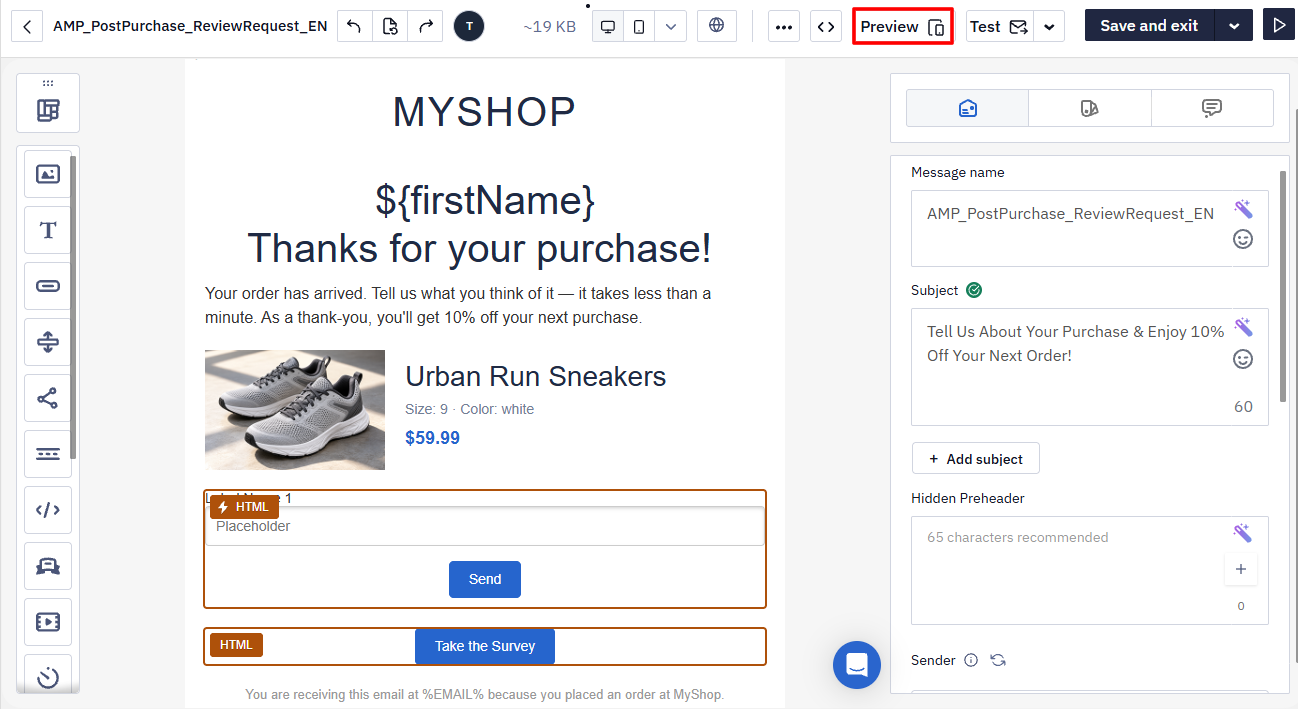
- Click Preview in the editor panel.
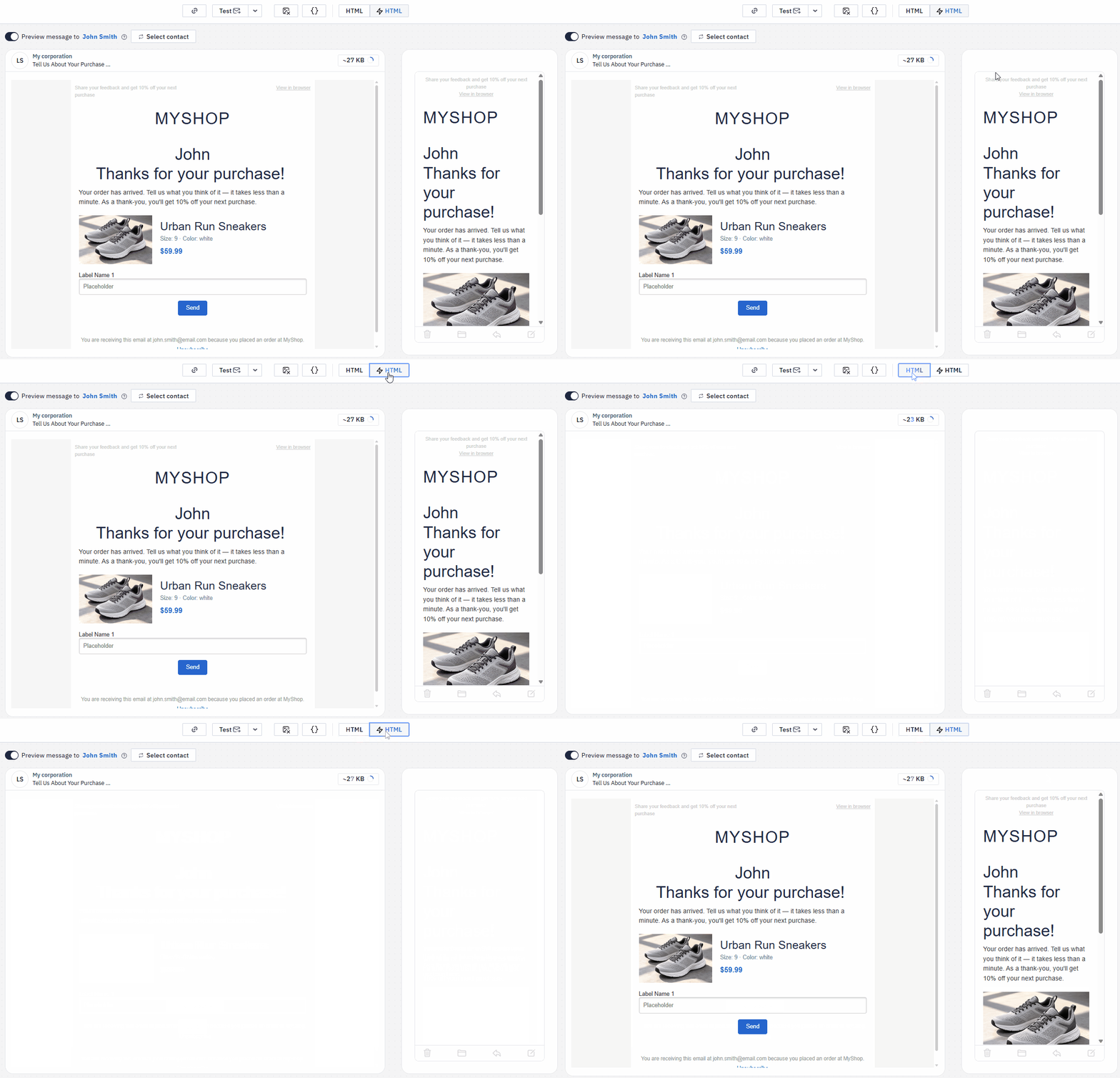
- The desktop and mobile versions of the email open.
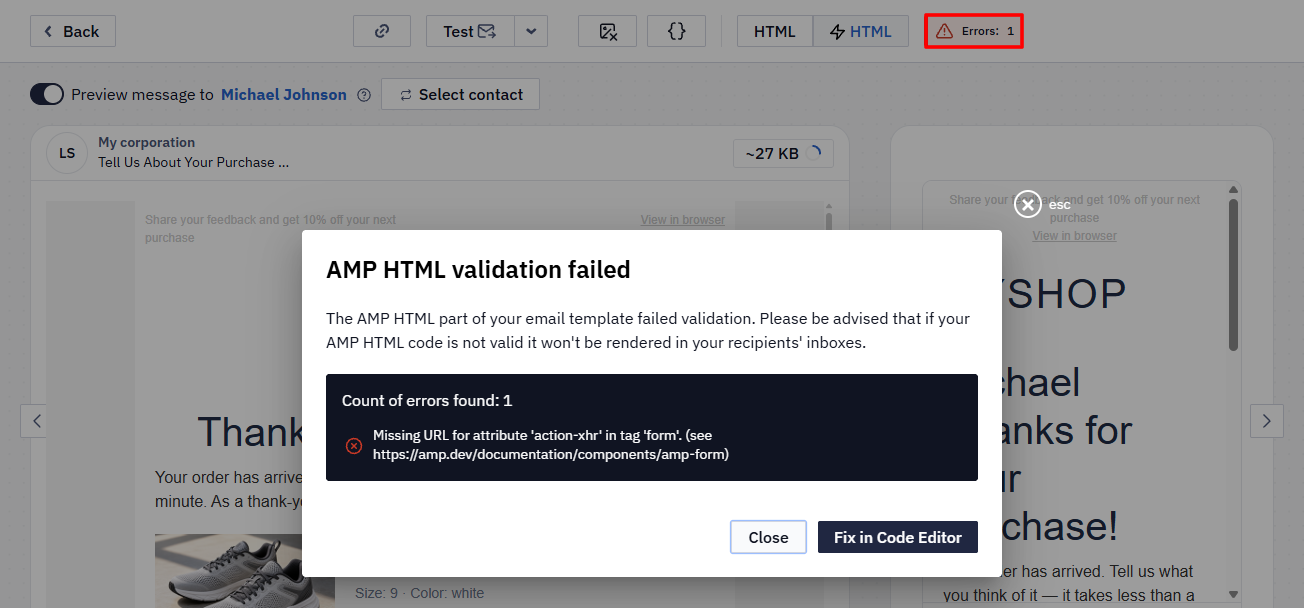
- If the email has errors, you'll see a notification about them. Click it to view the description and fix the errors: if the code has at least one error, the AMP content won't show.
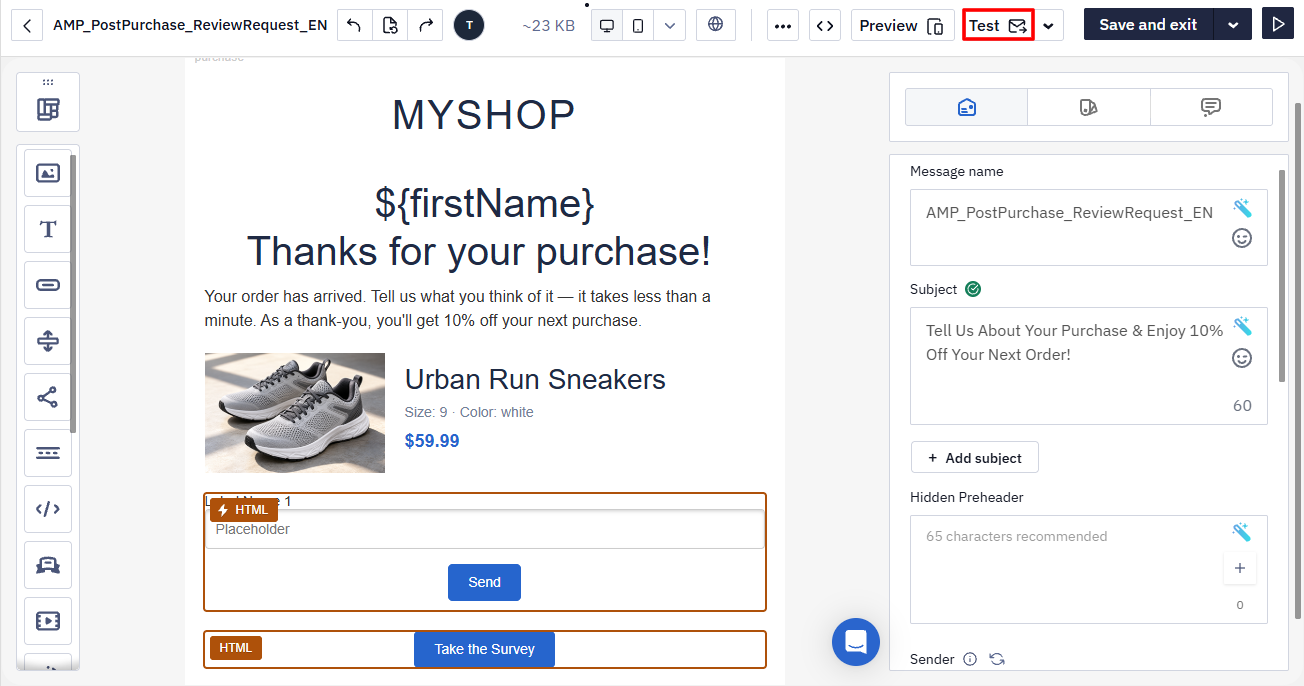
- Send a test email to a Gmail address. If you aren't an approved sender yet, allow dynamic content in Gmail. To apply and become an approved sender, see the guide.
- Open the test email. If the form is created correctly, you'll see a lightning icon and the form block.
Step 4. Checking Response Collection
- Fill in and submit the form in the test email.
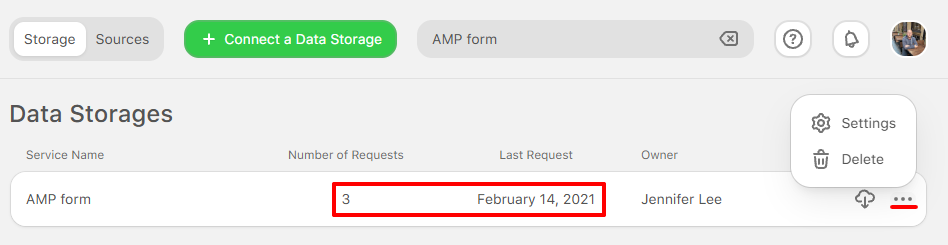
- Log in to Stripo and open the data service you created. It shows the number of requests, the time of the last form submission, and buttons for editing and downloading the data.
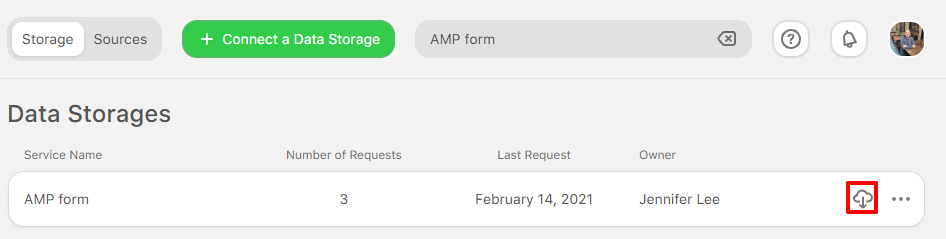
- Click the download icon to get the data as a
CSVfile.
To evaluate the campaign performance, go to Campaigns → Reports and click the email. The report page shows how many subscribers got the email in each version.
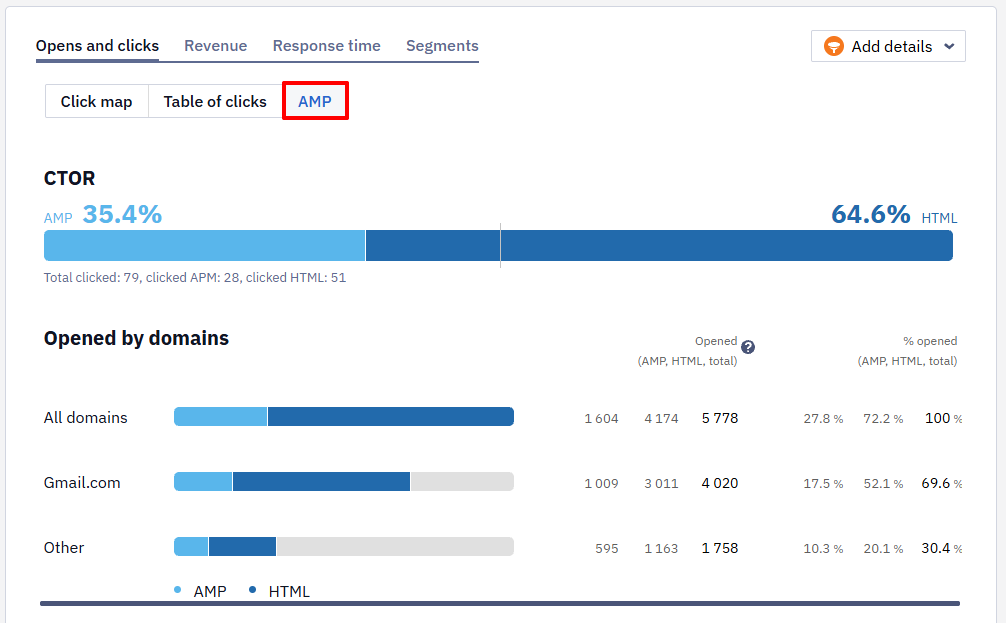
More on AMP campaign reports.
Updated 1 day ago