
Triggered Campaign Report
Reports on triggered and broadcast campaigns are structurally similar, but there are some minor differences, mainly activity dynamics graphs.
In addition, the system has special features for convenient analytics of all messages participating in the workflow.
Activity Dynamics
In this example, the Activity Dynamics data covers analytics for email campaigns. Other channels may offer a different set of metrics.
The Activity dynamics tab shows the distribution rates in graphs over a certain period.
Performance
The Performance graph displays the following numbers for a selected period (on the example of the email channel):
- Delivered messages;
- Opened;
- Clicked;
- Unsubscribed;
- Reported as spam.
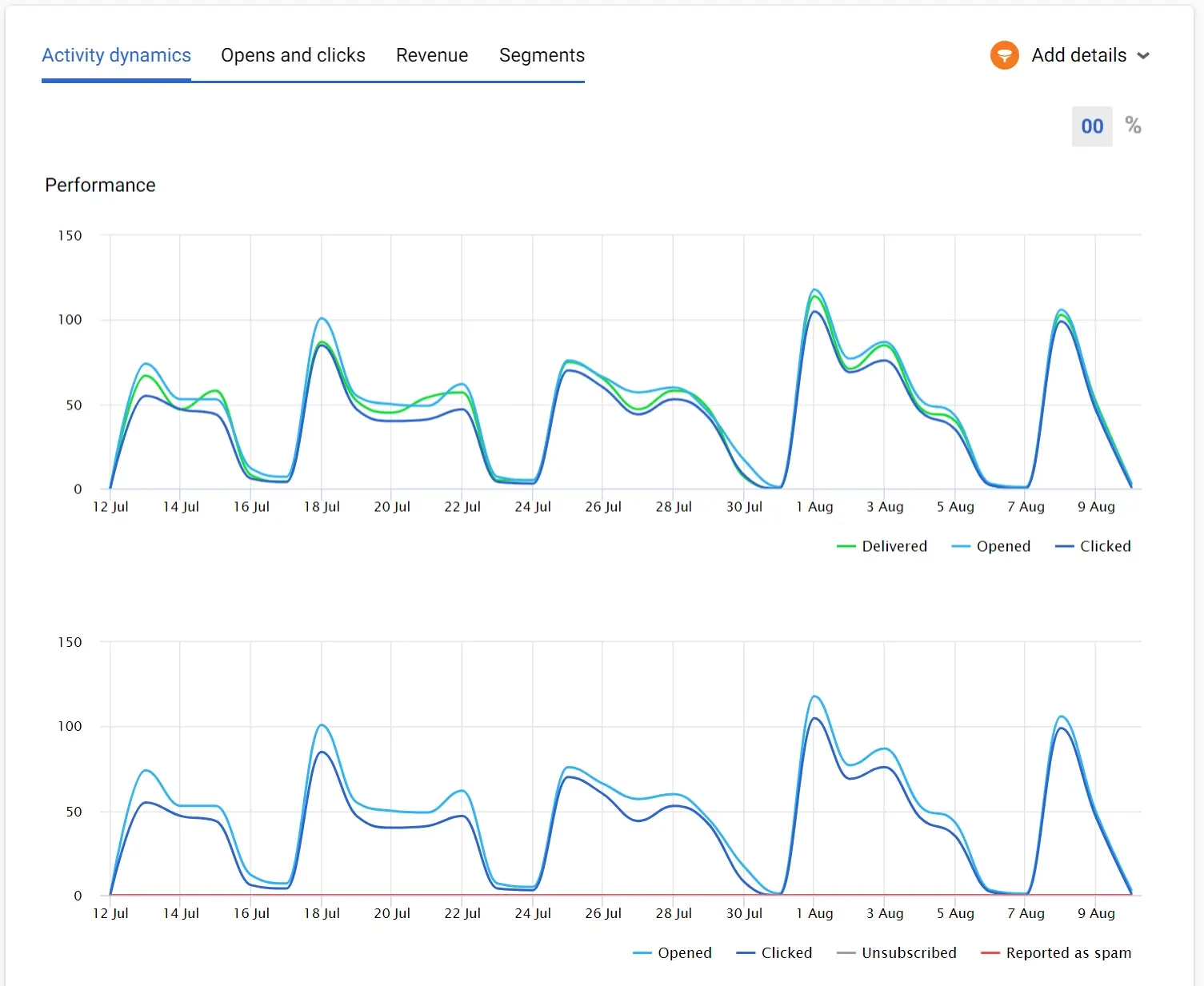
The number of indicators on the performance graph depends on the channel.
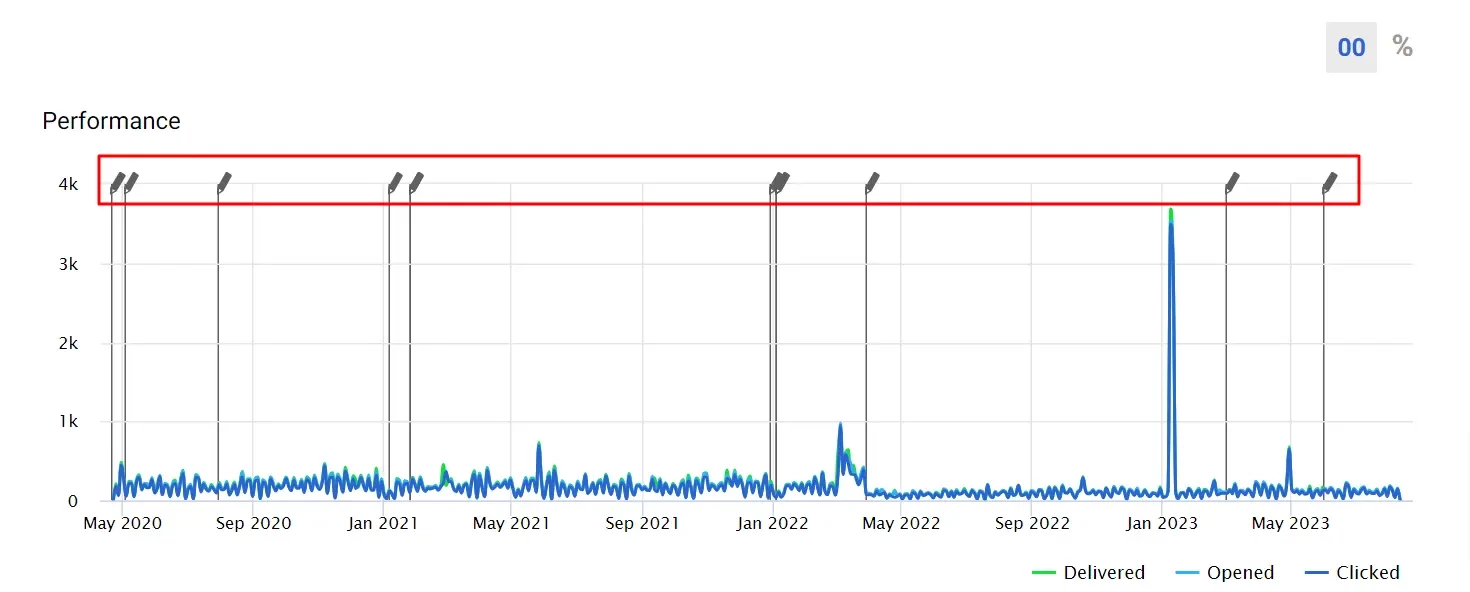
Hovering the cursor over the graph lets you view the exact time and number of openings and clicks for a certain period. The pencil on the graph shows when the message from the workflow was edited:
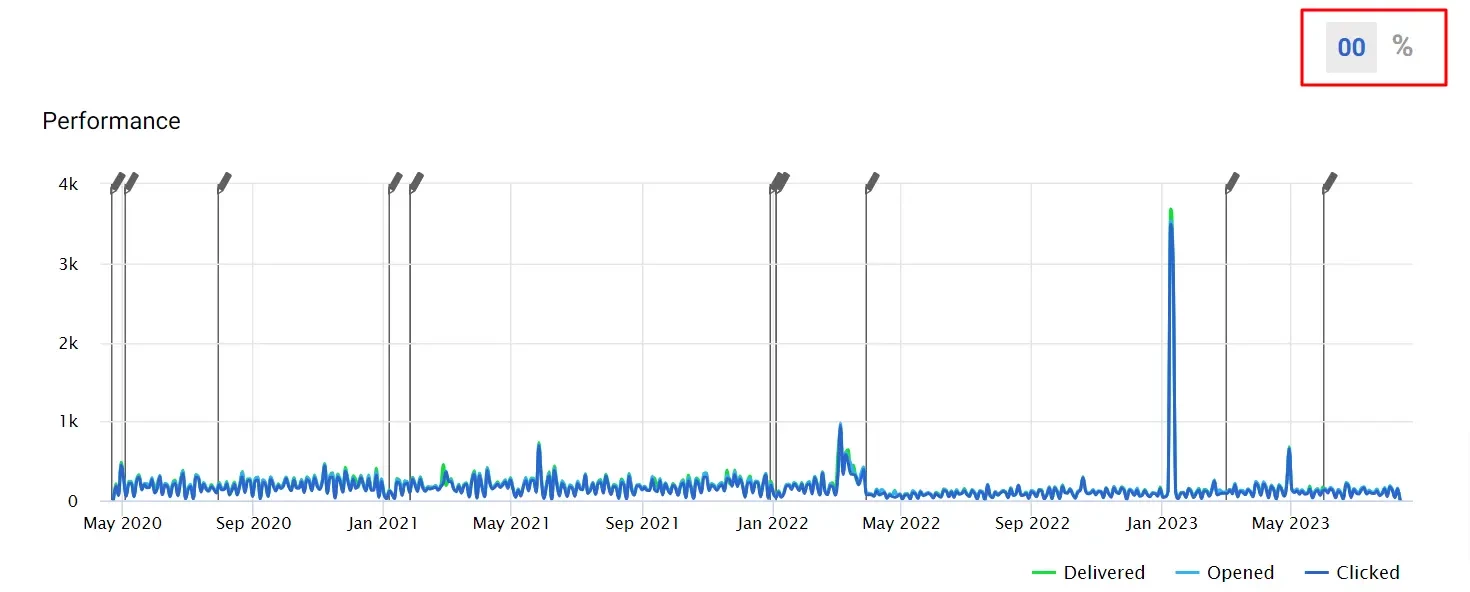
You can see the report data in relative and absolute values:
NoteThe account UI stores only the last open and click date per message, not the first. To get the first open/click date, use Webhooks for Tracking Activity or the contact's event history.
Deliverability
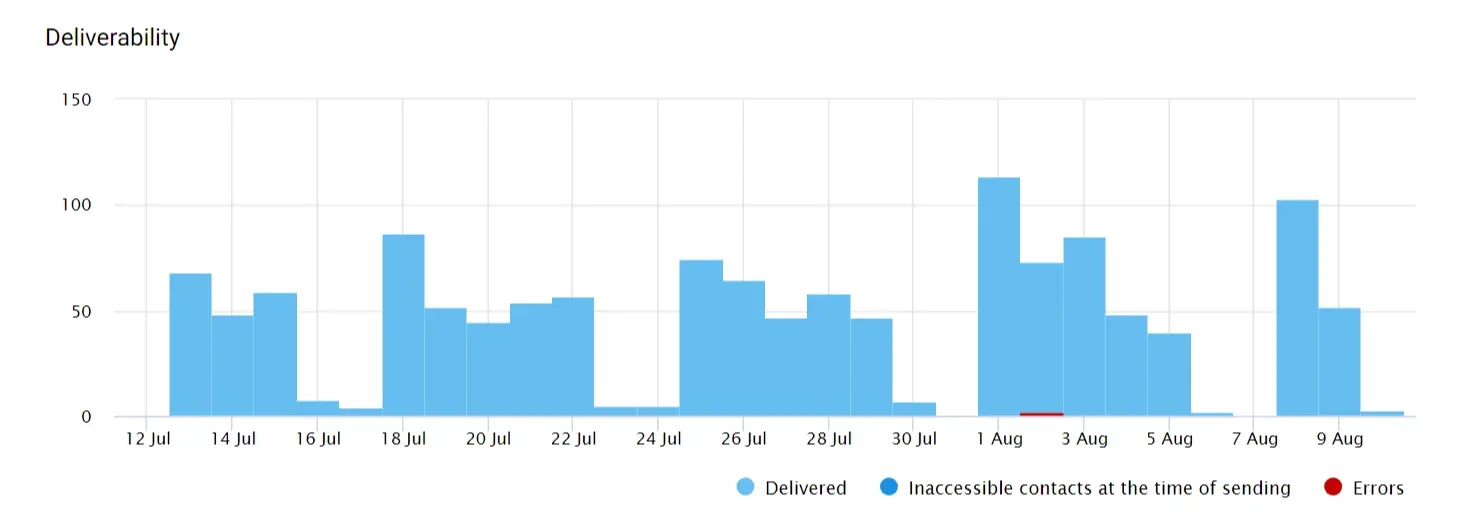
Below is a graph with deliverability rates, which is also based on the selected period. Here you can see indicators for:
- Delivered messages;
- Inaccessible contacts at the time of sending;
- Errors.
General Report on Workflow Messages
You can see all the messages participating in a particular workflow and their statistics. For this:
- Go to
- Automation → Workflows → View campaign report.
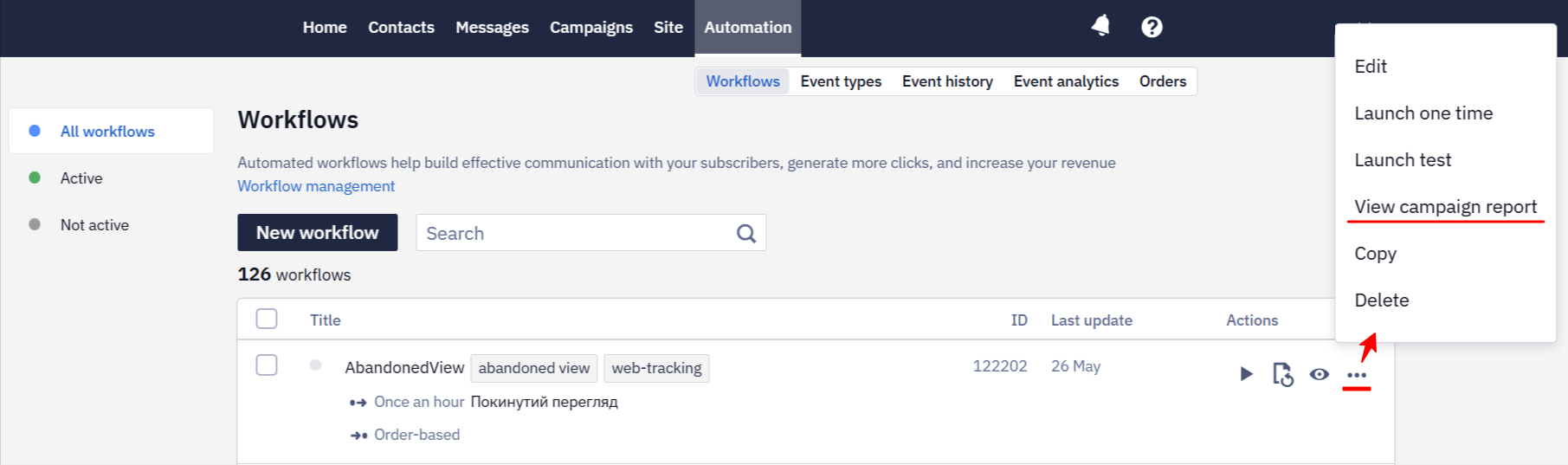
Or,
- Campaigns → Reports → Triggered → Select workflow.
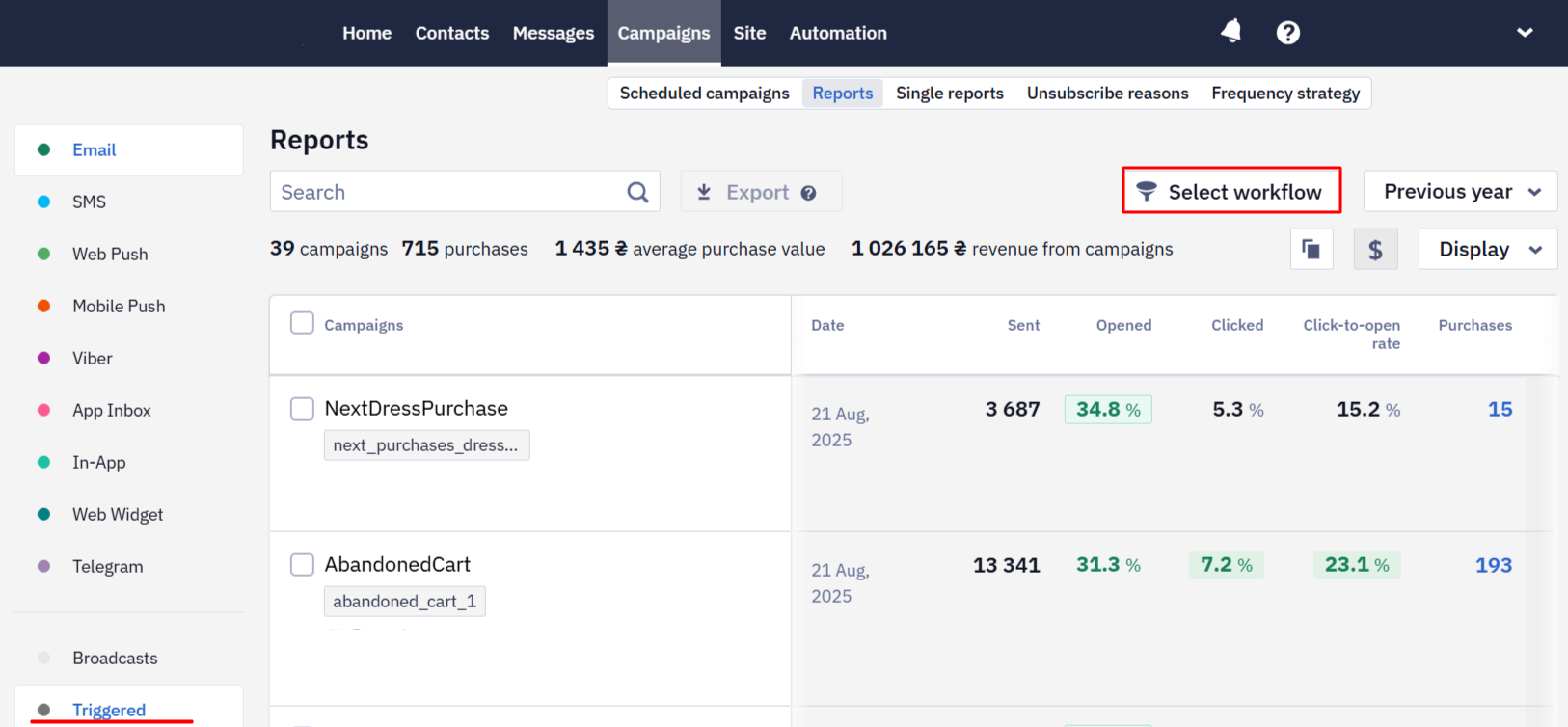
- On the screen with reports, select:
- Message media type (for omnichannel workflows)
- Reporting period
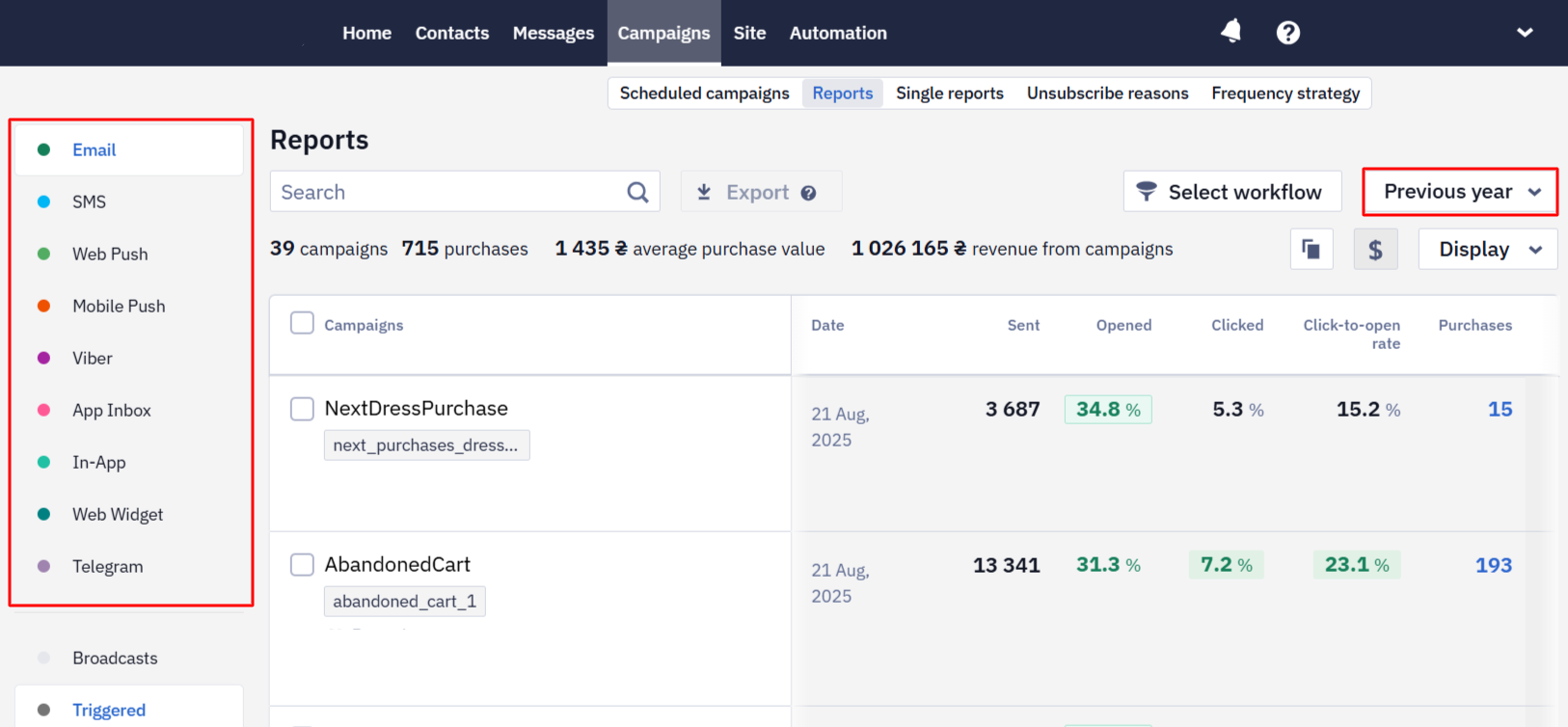
Statistics are exported according to the selected filters.
The report covers only the selected period, so in a chain of messages a later email can show more sends than the one before it: contacts that received the first email before the period began receive the next one inside it. To compare the steps of a chain, select a period that covers the whole time the workflow has been running.
To pass the data to a BI system, collect it separately — through webhooks, the Contact activity resource, or the BigQuery export — and aggregate it on your side.
To see delivery and open statistics broken down by mailbox provider (Gmail, Hotmail, and so on), open the report's Details (the eye icon), scroll down, and select the Segments tab.
You can easily see which workflows the messages are involved in:
- The list of trigger campaign reports displays the name of the workflow, clicking on which opens its preview;
- In the general information about each report, you can copy the workflow ID and open its preview;
- In the message preview, you can copy the workflow ID.
NoteA report is a separate record: it is created with the first send of a message and keeps the name the template had at that moment. Later changes to the template affect what the contact receives, but not the report's name — new emails keep going into that same report under the old name.
Stop the campaign in the general list of reports, and the next send creates a new report with the template's current name. Stopping the workflow itself does not do this.
The old report stays in the list and can't be deleted.
See also: Broadcast Email Campaign Report
Updated 6 days ago