
Collecting Order Feedback
An email campaign is a convenient and effective way to receive customer feedback.
There are four types of email surveys:
- survey inside the email
- link to form/feedback page
- redirect to a product page
- AMP form
Let's look at the first three ways to implement such campaigns.
Survey Inside the Email
For a short survey, you can use the editor functionality and add answer options directly to the email:
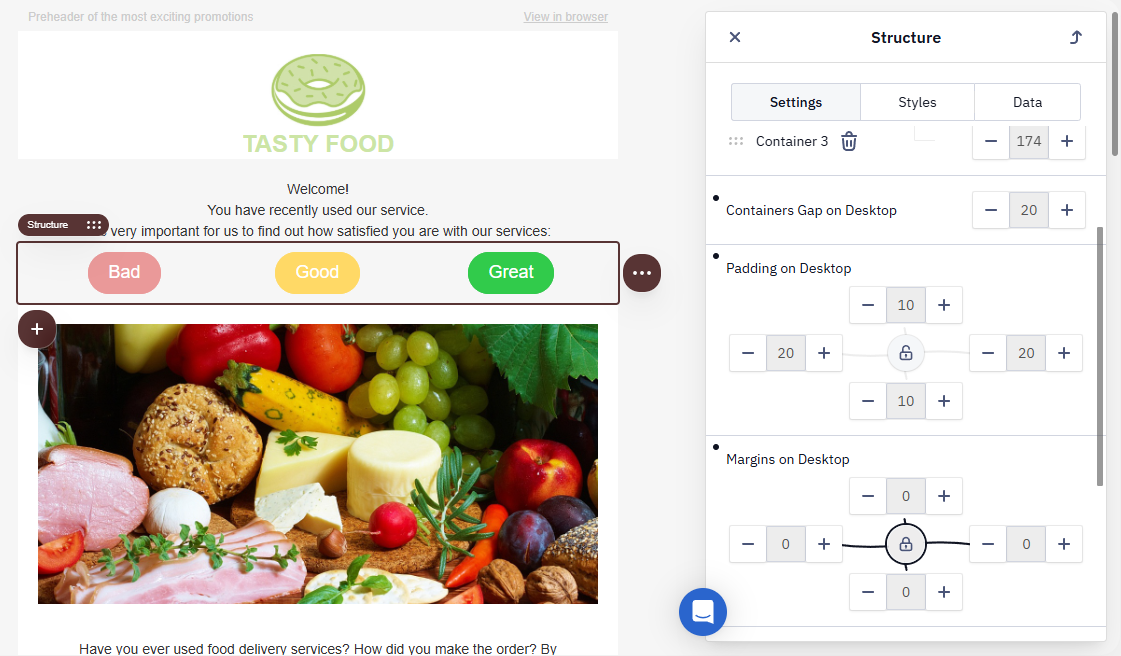
Each button (survey item) should have a link to record the response, such as a thank you page.
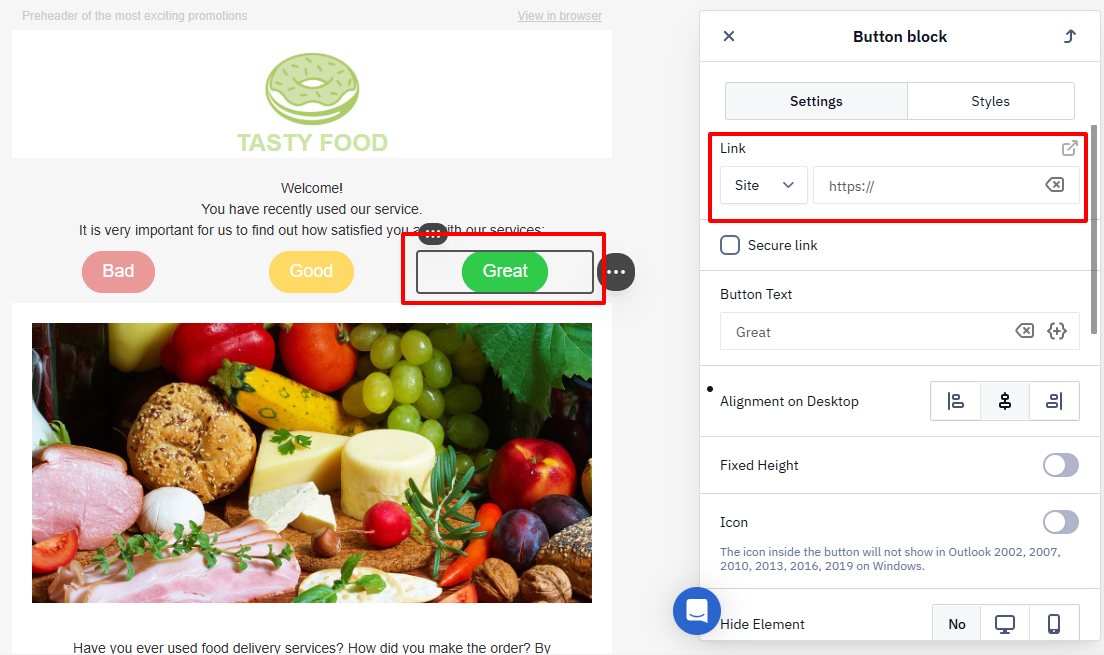
In addition to recording the clicks on certain links, you can add respondents to segments according to the answer.
For each answer option, you need to create:
- An event.
- A segment.
- A workflow.
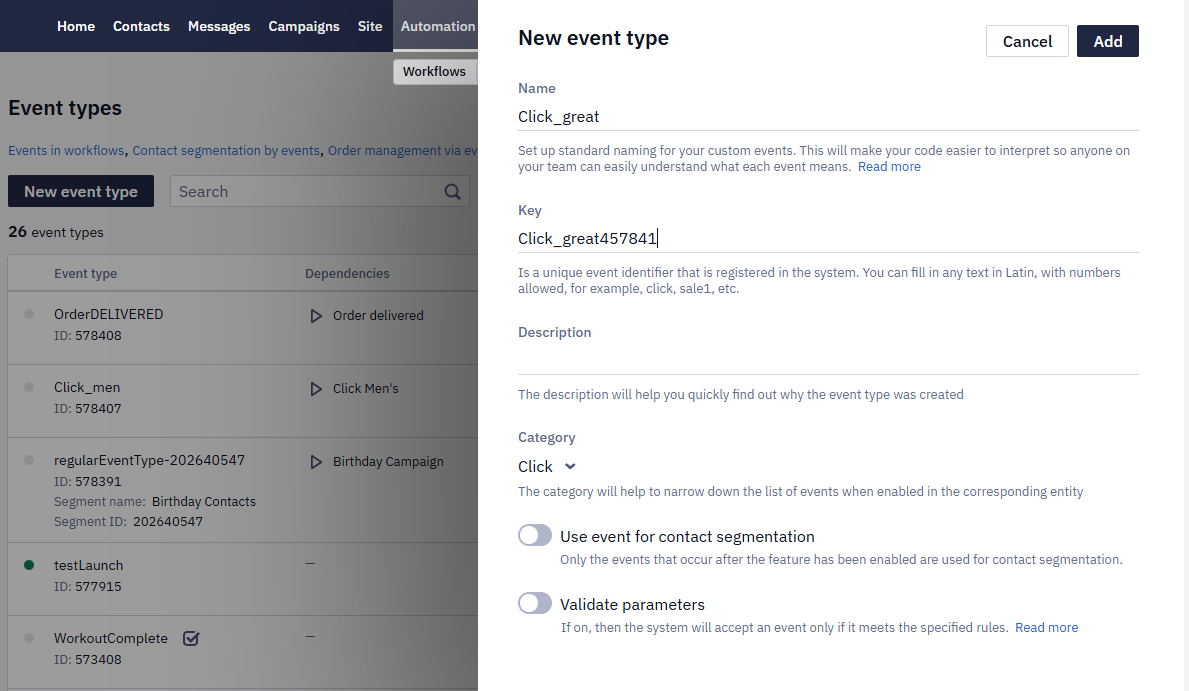
- Create an event in the Automation → Event types section by clicking on the New event type button:
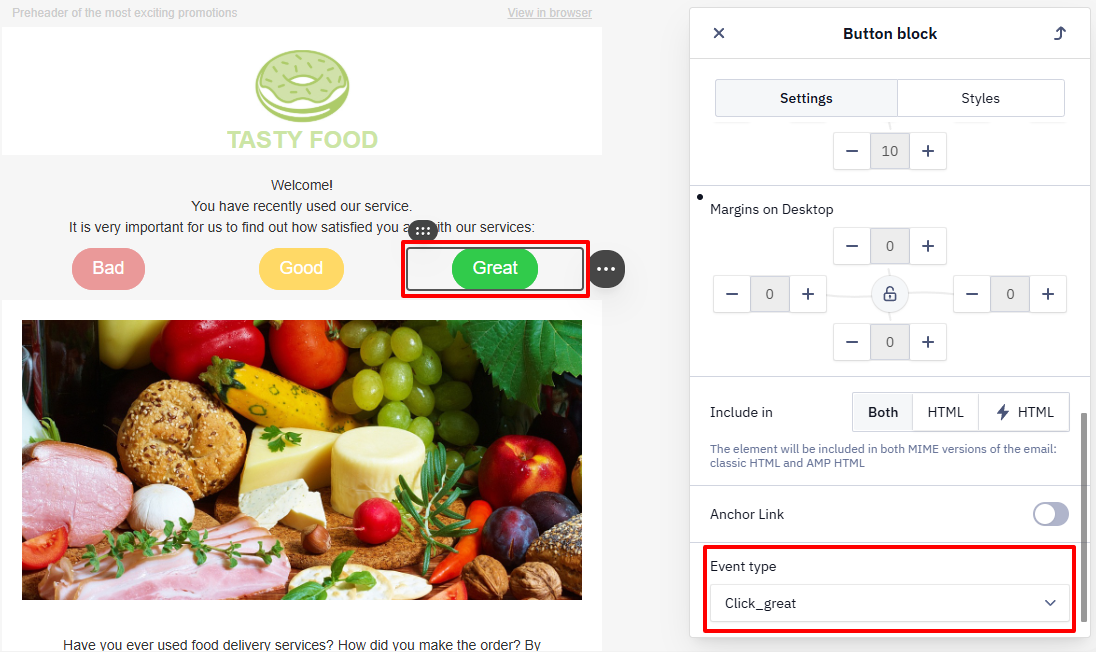
- Link the event to the button in the email. To do this, click on the block with the button and select the event on the toolbar's left side.
- Create a segment in the Contacts → Segments section:
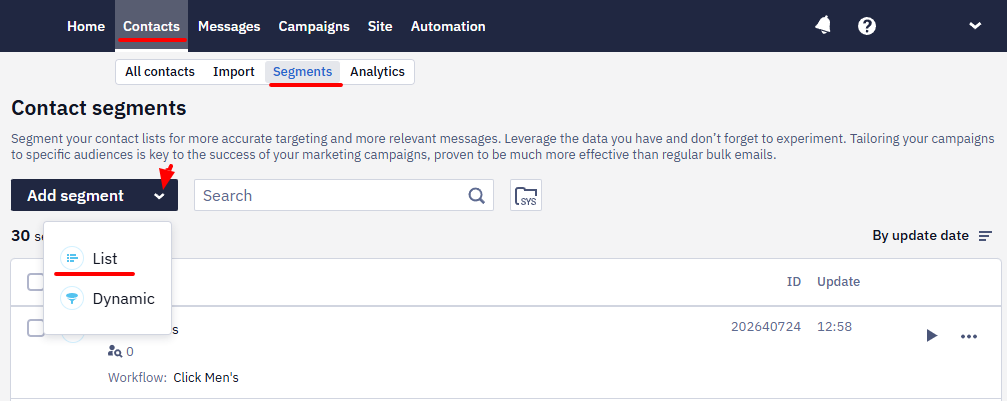
- Create a workflow with the Add to segment block in the Automation → Workflows section. In the workflow, specify the segment you created.
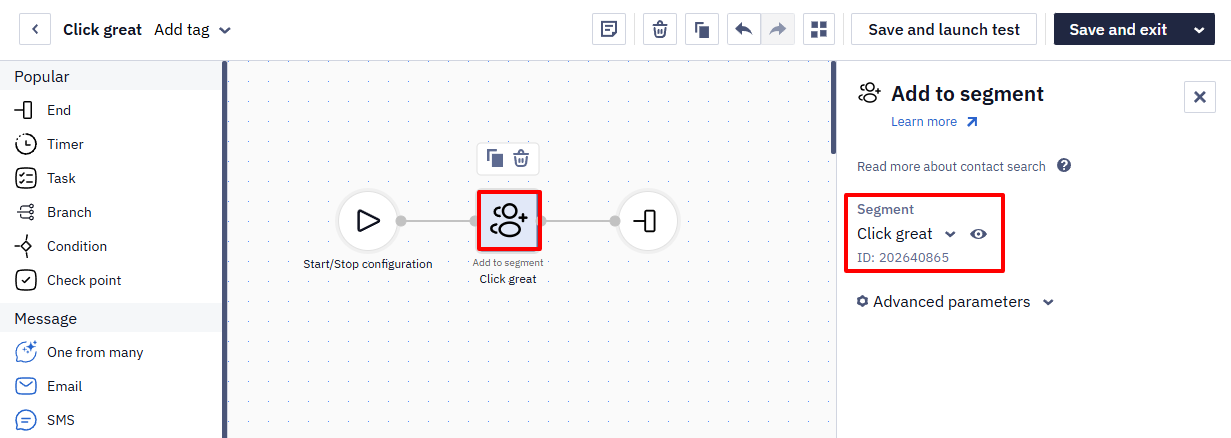
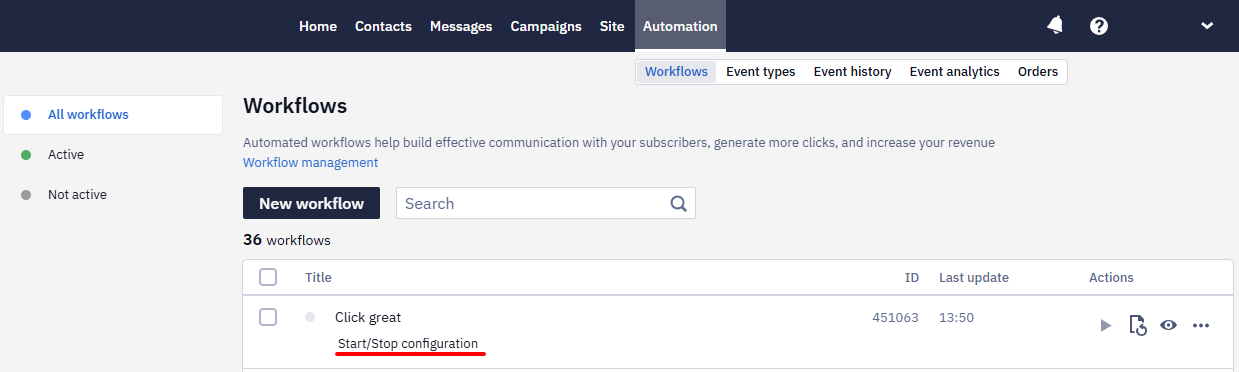
- Click Start/Stop configuration.
- Select the created event in the workflow launch conditions.
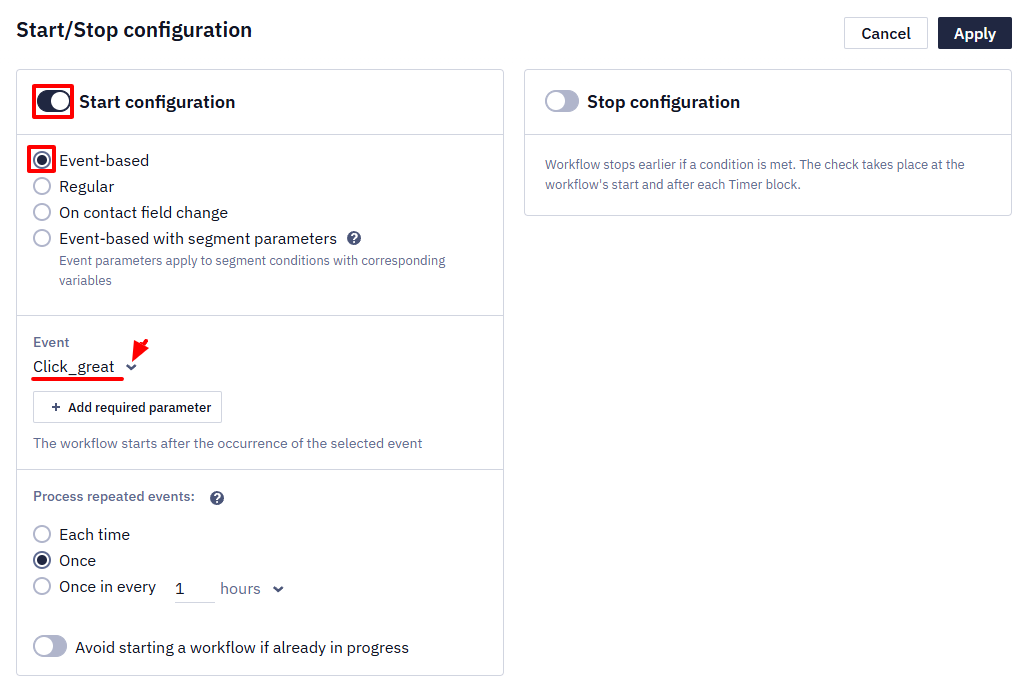
- Activate the workflow.
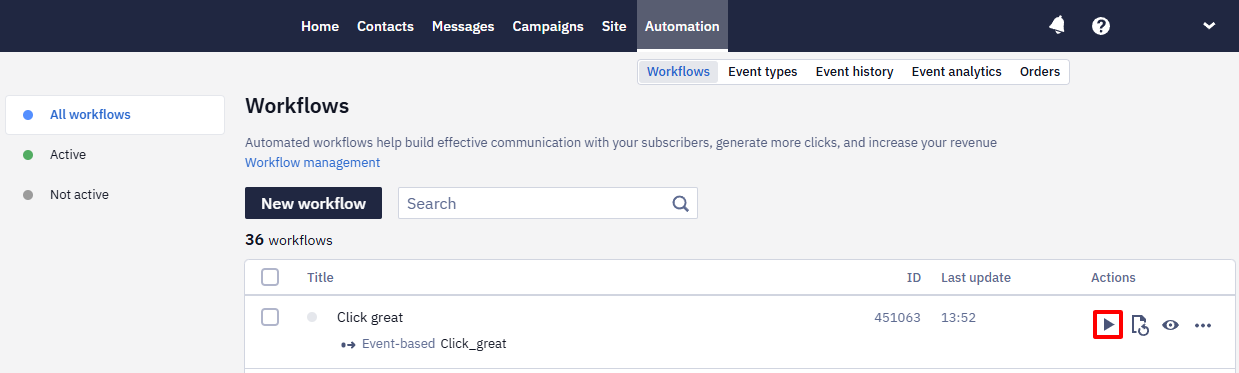
Repeat the same actions for each answer option.
The system will automatically distribute contacts according to clicks.
Email with a Link to the Form/Feedback Page
To create an extensive survey and better understand your customers, you can add a link to the survey in your email.
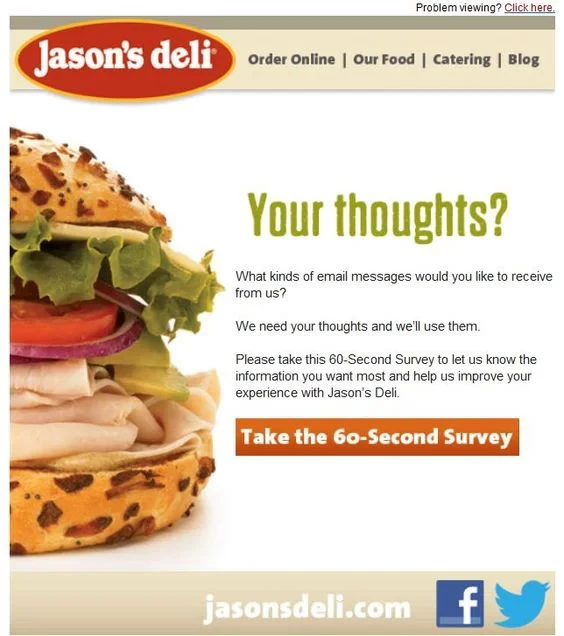
You can choose several ways to implement the survey:
- Create a form in a third-party service. For more information on how to do this, read the article on collecting customer feedback.
- Order a survey form from our technical support at [email protected].
NoteA built-in NPS survey form works in email and, among the mobile channels, only in App Inbox. In a mobile push, the link to the form doesn't open: the app expects a transition inside the app, while the link leads to a browser. In an In-App message, the link returns a 404 error. The survey link is a service link that has to be processed the same way as in an email, which isn't possible on the app side.
Collecting Feedback on Purchased Products
It is important to remind about the purchased products to get customer feedback.
Order data can be transferred using two API methods:
Information from the request will be displayed in the email instead of variables.
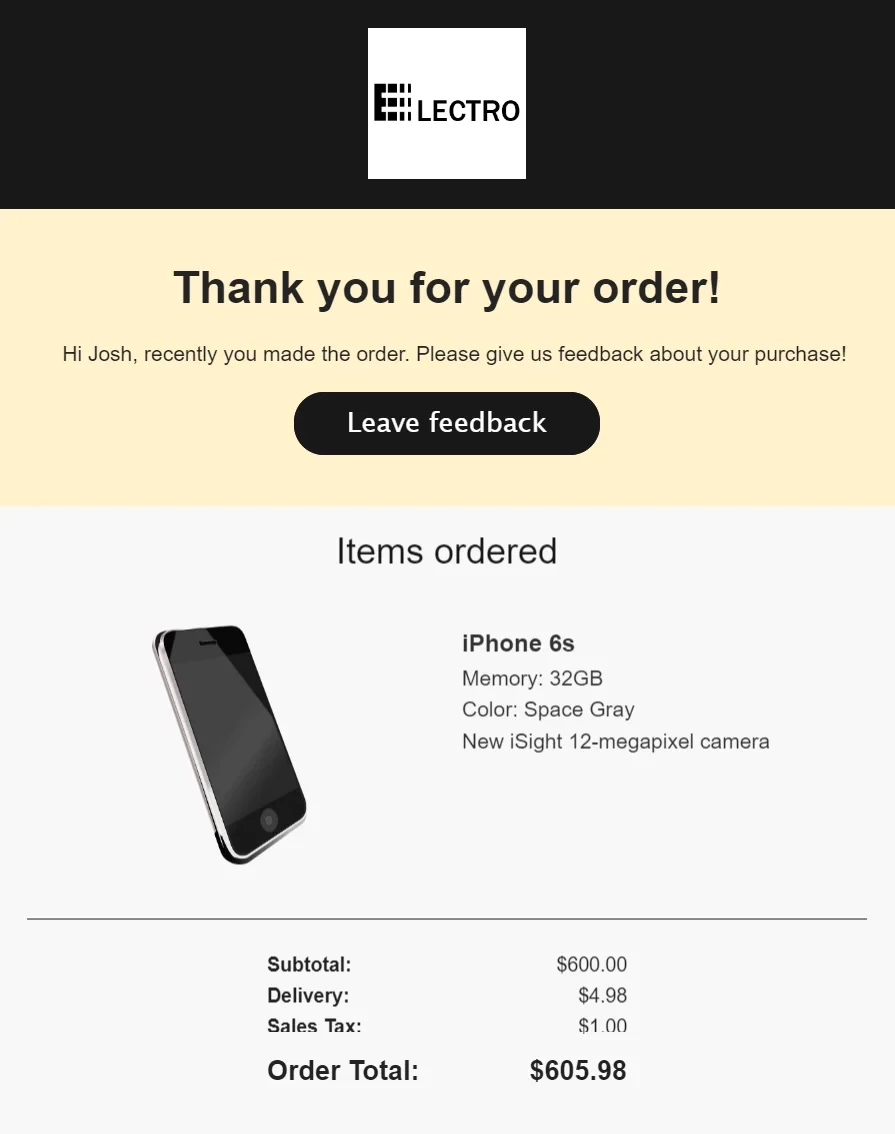
Learn more about using dynamic variables >
Getting Feedback Using the Add Orders Method
The Add orders method allows you to use different order statuses, for example:
- INITIALIZED — for a newly created order.
- IN_PROGRESS — for an order in the process of delivery.
- DELIVERED — for a paid and delivered order.
- CANCELLED — for a canceled order.
The event that should trigger the workflow to collect feedback is orderDELIVERED. This event is generated automatically when order data is transferred; you just need to add a workflow.
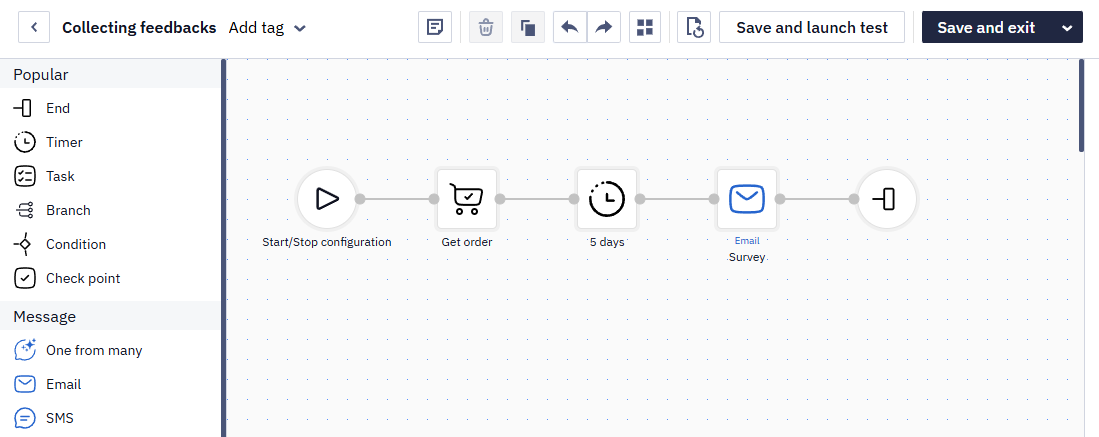
In addition to the required Start and End blocks for each workflow, the feedback collection workflow contains the following elements:
- The Get order block is needed to obtain product information and order status.
- The Timer block sets the number of days before sending the email so that the customer has time to use the product (2-5 days, depending on the specifics of your business).
- The Email block sends a message.
Getting Feedback Using the Generate Events Method
If you do not transfer order information to the system using the Add orders method, you can use the Generate event API method to run the workflow and substitute order information in the email.
The simplest workflow consists of three blocks: Start, Email, and End.
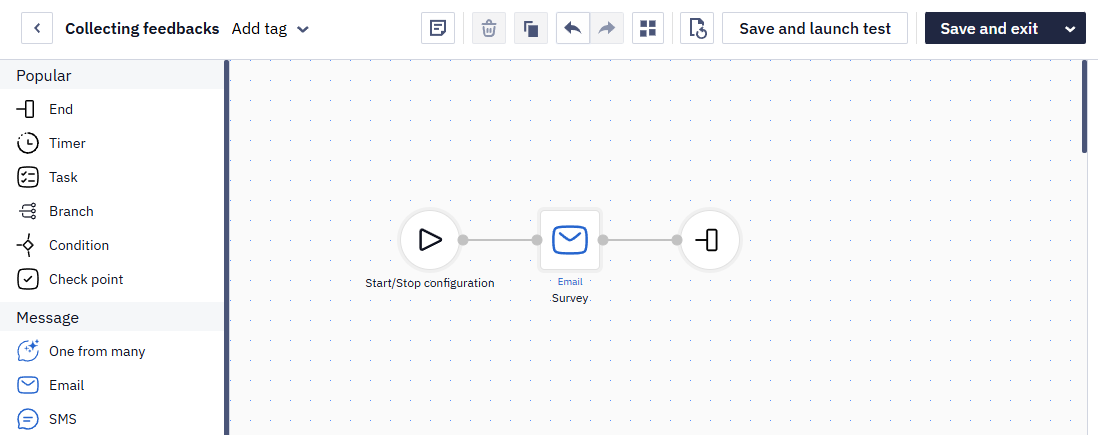
You can expand the workflow to include a check of opening the message and a reminder asking for feedback.
Updated 3 months ago