
Using Workflow Launch History
Track the number and status of workflow launches and check for errors in workflow blocks.
- Go to Automation → Workflows.
- Click the Launches icon for the required workflow.
- In the Show launches dropdown menu, select one of the following:
- In progress — launches that are still running, regardless of start date;
- Completed — launches without errors that finished within the last seven days, regardless of start date;
- With errors — launches during which an error occurred: those still running and those that finished within the last seven days;
- Last 7 days — all launches that started within the last seven days;
- Launch statuses per segment — launches for a segment of contacts. This option is available only for regular workflows for a segment.
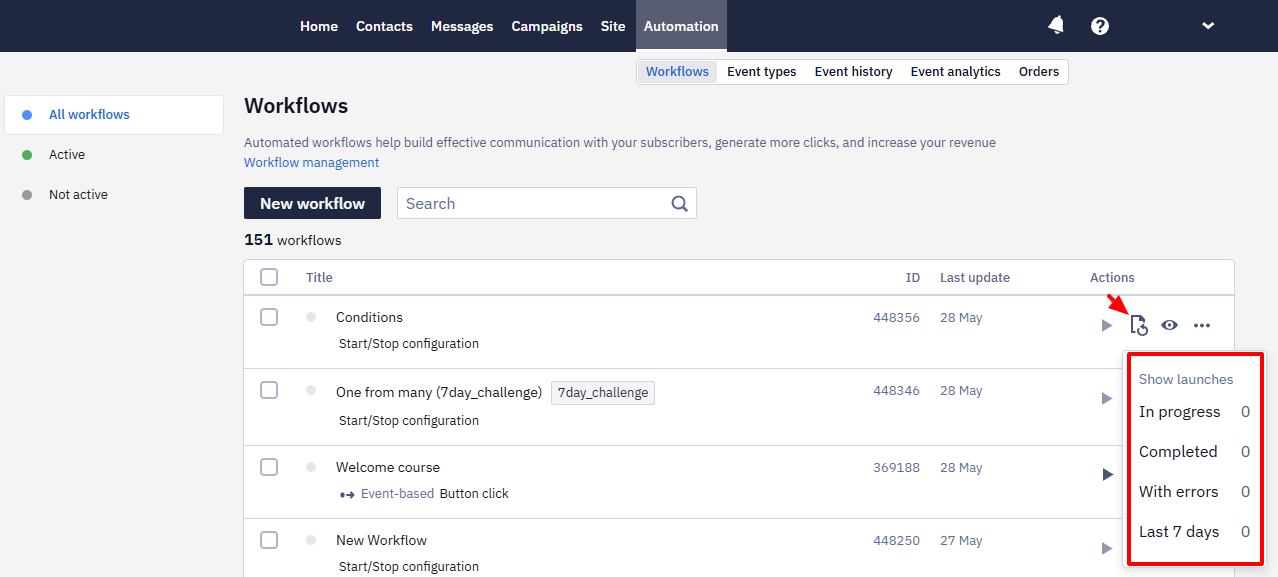
The number next to each option shows how many matching launches were counted, so the Last 7 days total may not equal the sum of the status counters. For example, a launch that started more than seven days ago and finished within the last seven days is included in Completed but not in Last 7 days. To view launches for a different period, open the launch history and select a period above the launch list.
Completed launches stay in the history for seven days after they finish; launches in progress stay with no time limit.
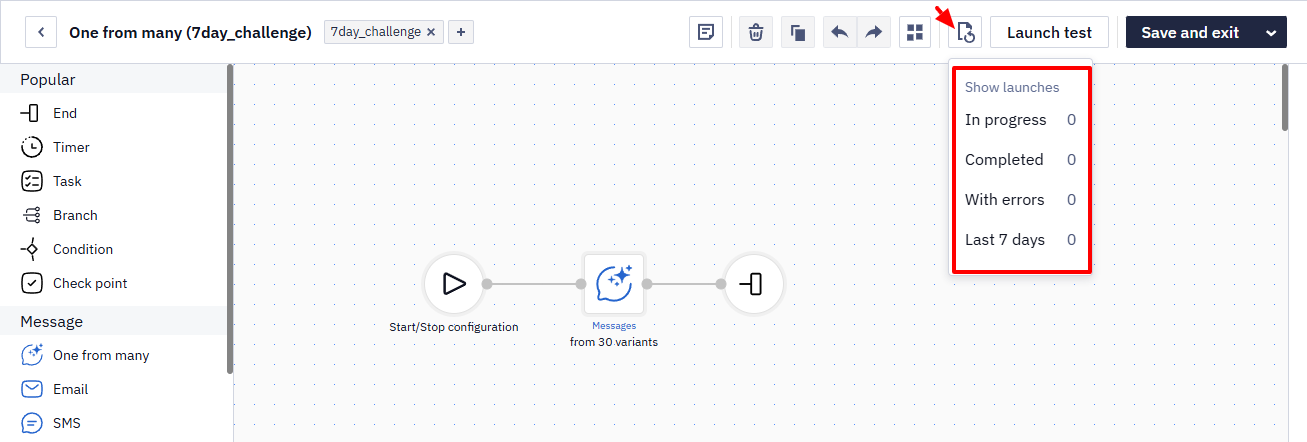
NoteYou can also open the workflow launch history directly in the editor. The Show launches dropdown contains the same filters and uses the same counting rules in both entry points.
When you select Launch statuses per segment, a side panel opens with the following information:
- Group ID
- Workflow launch date and time
- Number of contacts in the segment
- Launch status
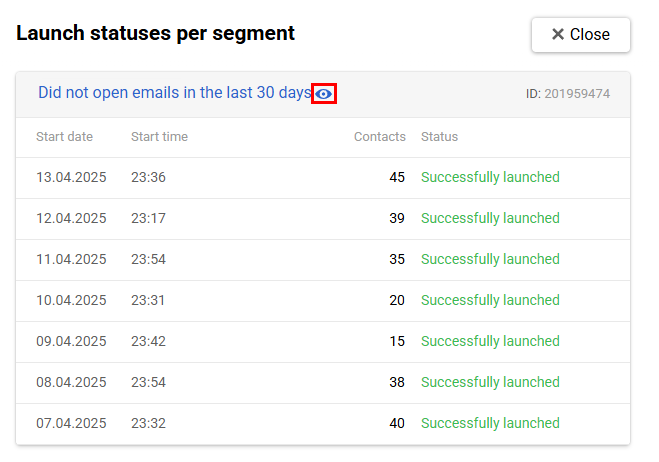
To view the contacts included in the segment, click the preview icon.
NoteA launch of a regular workflow for a segment appears in Launch statuses per segment only after the whole segment is processed. For details, see Configuring Workflow Start/Stop Conditions.
Launch History
Launch history contains the following data:
- Launches — individual instances of the same workflow. Each launch runs independently and may have a different result.
- Blocks activated during each launch.
- Block and context parameters.
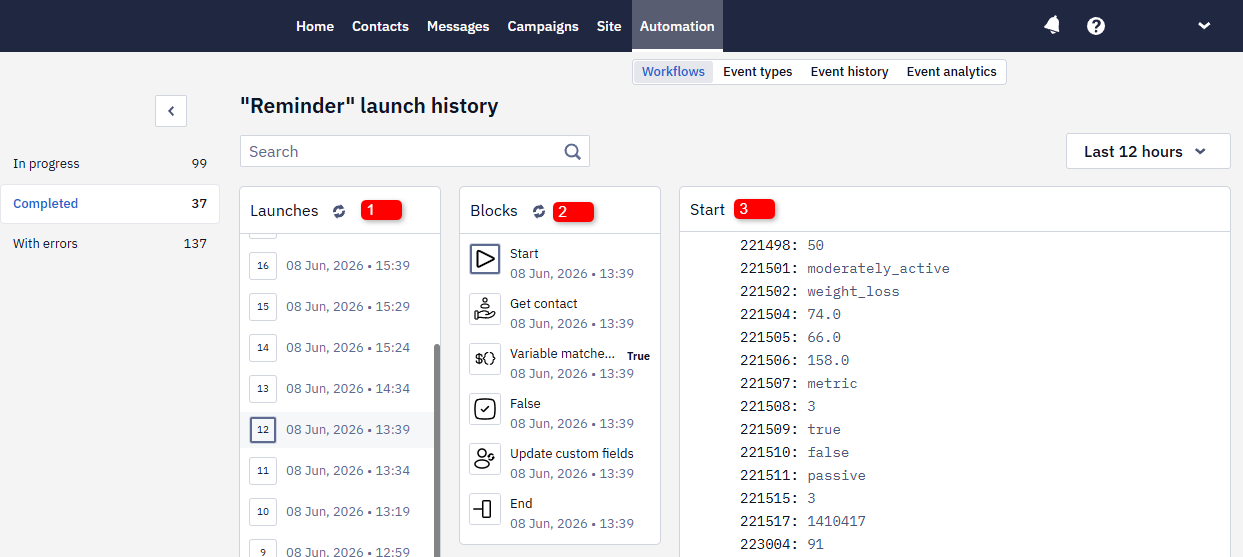
For condition blocks, the check result — true/false, yes/no, or the branch percentage for Split — is displayed directly in the block's row in the list, so you don't need to open the block to see the outcome.
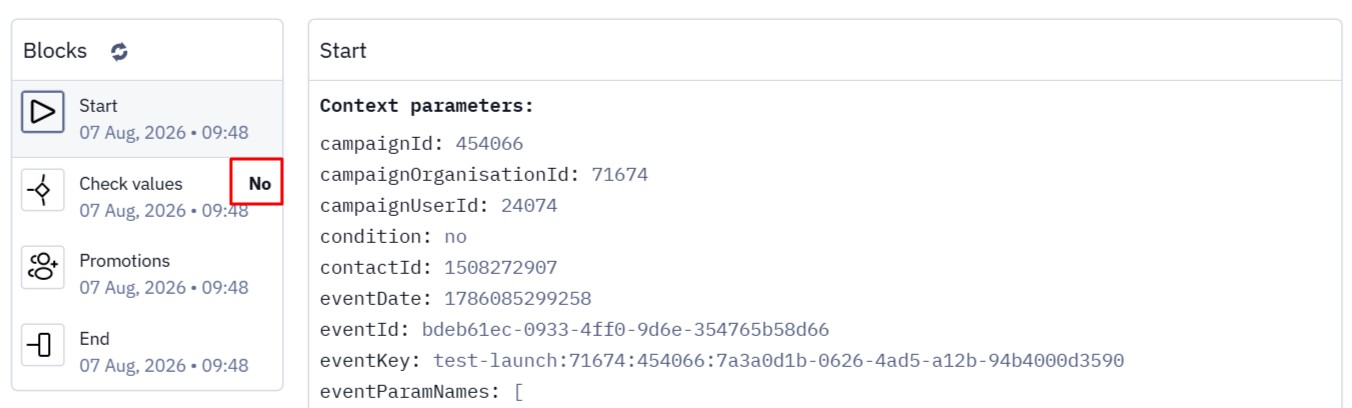
Why Event, Launch, and Message Counts Differ
The number of events that should trigger a workflow may not match the number of launches in the history: several events with the same workflow uniqueness key are merged into a single launch.
Fewer messages may be sent than events received. Some launches don't reach the send block: the contact follows a different branch because of workflow conditions, or the restriction on relaunching the workflow with the same required parameters applies.
Contacts without a media channel don't receive messages and don't appear in the campaign report, but the workflow launch for them is still recorded in the launch history. So the number of launches can exceed the total of sent and inaccessible contacts in the report.
Workflow Launch Viewing
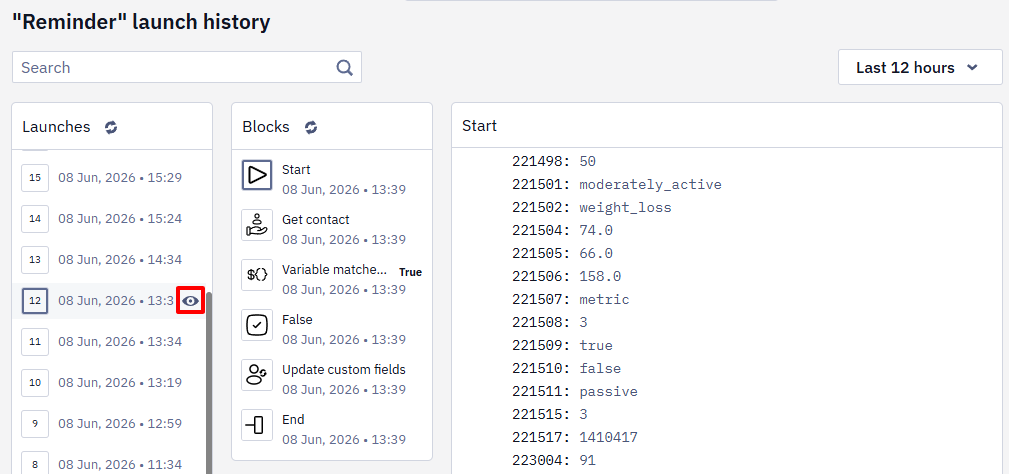
- Hover over the required launch and click the view icon.
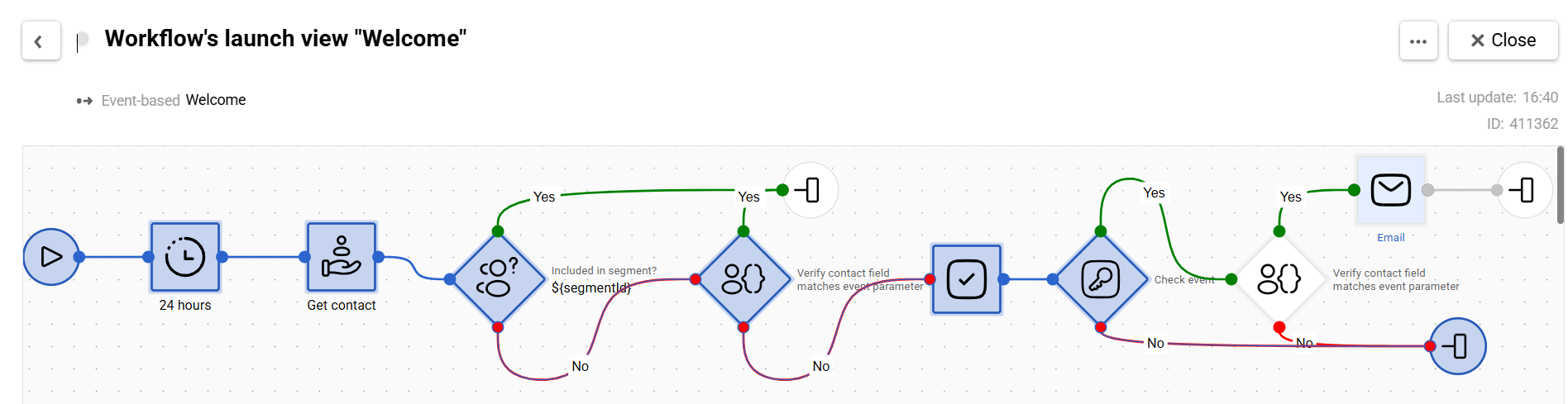
- The Workflow's launch view window opens. The execution path for that launch is highlighted in blue.
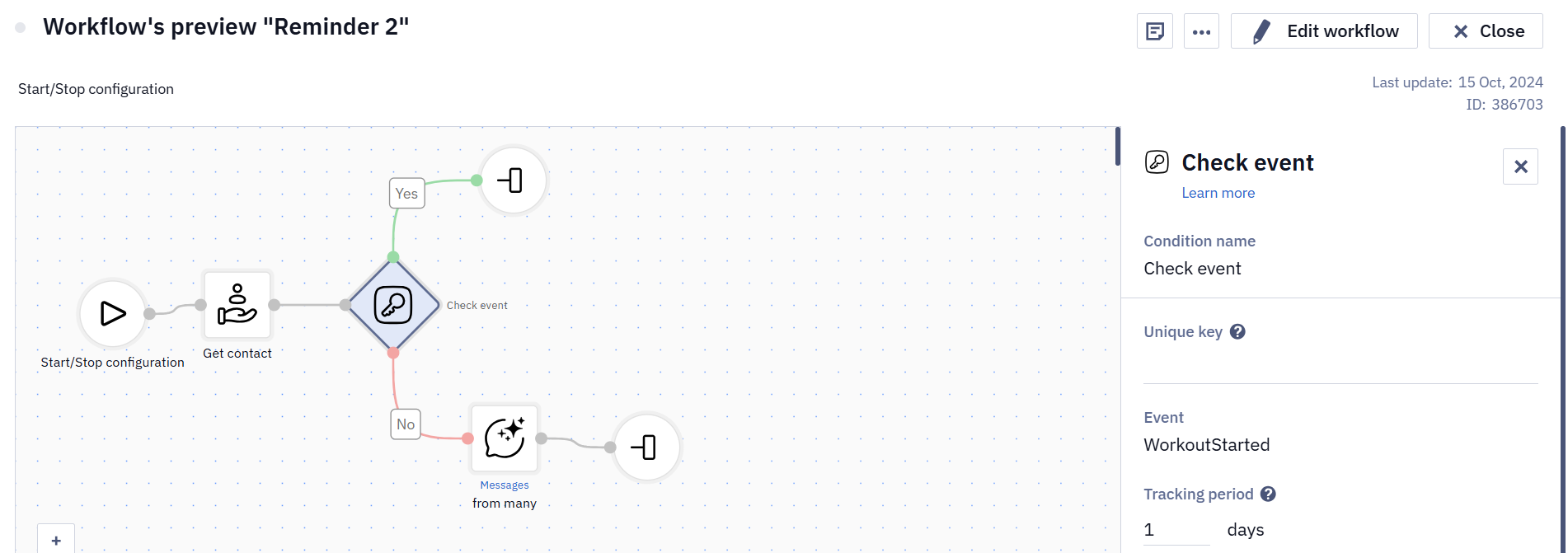
- Select a block to view its settings in the right pane. The settings are view-only — you cannot change them in this window.
Click the three-dot icon to view the campaign report.
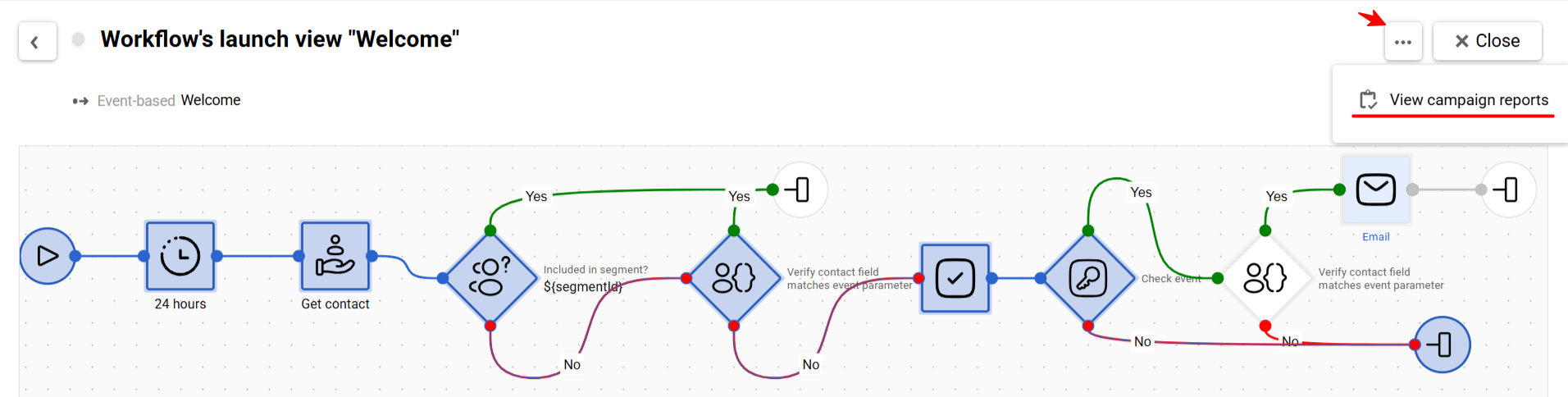
NoteThe report opens for the channel used for the first send. For example, if the first send was an email, the corresponding email campaign report opens. More details about campaign reports →
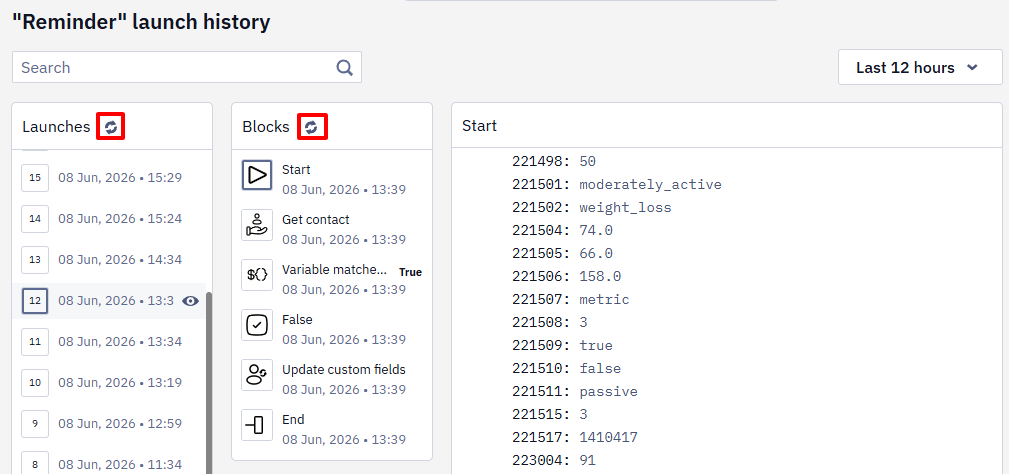
The Refresh button allows you to manually update data for launches and blocks with the In progress and Completed statuses.
Launch Errors
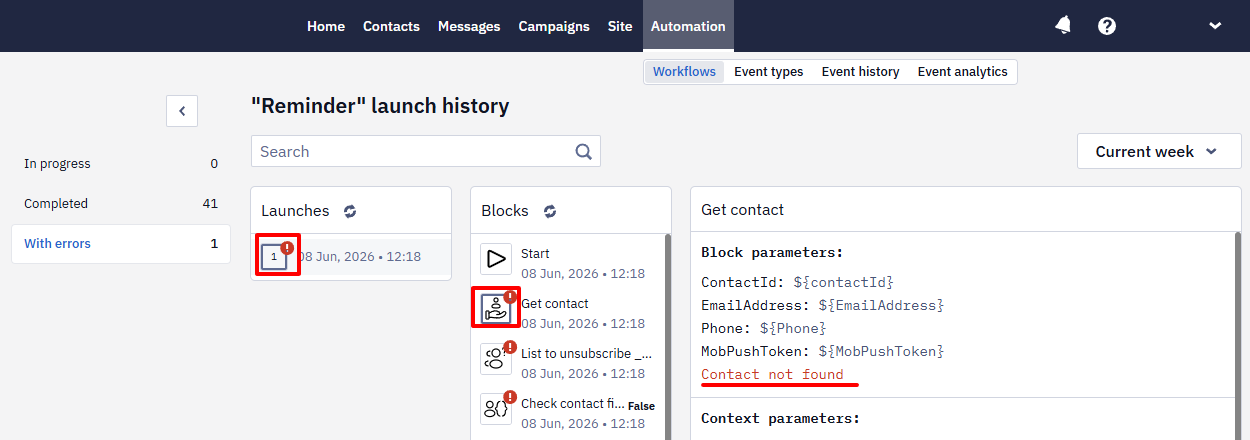
Workflows and blocks containing errors are marked with a warning icon.
Select a workflow launch with an error, and then select the block where the error occurred.
The right pane displays the block and context parameters, along with the error description highlighted in red.
A launch that ended with an error cannot be re-run. To put the contact through the workflow again, send the event once more.
An error in a message block does not stop the launch: the contact moves on to the next block, only without the message that failed.
No contact history found using the current algorithm — this error appears for recommendation-based triggers, such as Abandoned Category or Price Drop, when the algorithm cannot find the required web-tracking events for the contact within the configured lookback window. For example, the required page-view events may be missing.
Common causes:
- The contact is not being tracked — verify that web tracking is installed and events are recorded for this contact.
- The lookback period configured for the algorithm is too short for the contact's browsing behavior.
Contact not found by externalCustomerId. The action was not executed. — this error appears when the event carries an externalCustomerId that doesn't belong to any contact in the account. The contact isn't looked up by the other event data, so the block's action isn't performed and the launch is counted as With errors. For the workflow to run, send an externalCustomerId that already exists in the account, or pass the email or contactId explicitly in the message block.
Per hour emails limit reached: N — this error appears on email message blocks when the account's hourly limit on single email sends is exceeded; N is the current limit value (100 emails per hour by default). To increase the limit, contact support. For details, see Rate Limits.
CANNOT_FIND_CHANNEL — this error appears on sending blocks when the contact has no address in that channel. The block sends to the contact's own channel, so an address in the event parameters does not reach the message on its own: set that parameter in the block's recipient field for the message to go out.
Search and Filter Launches
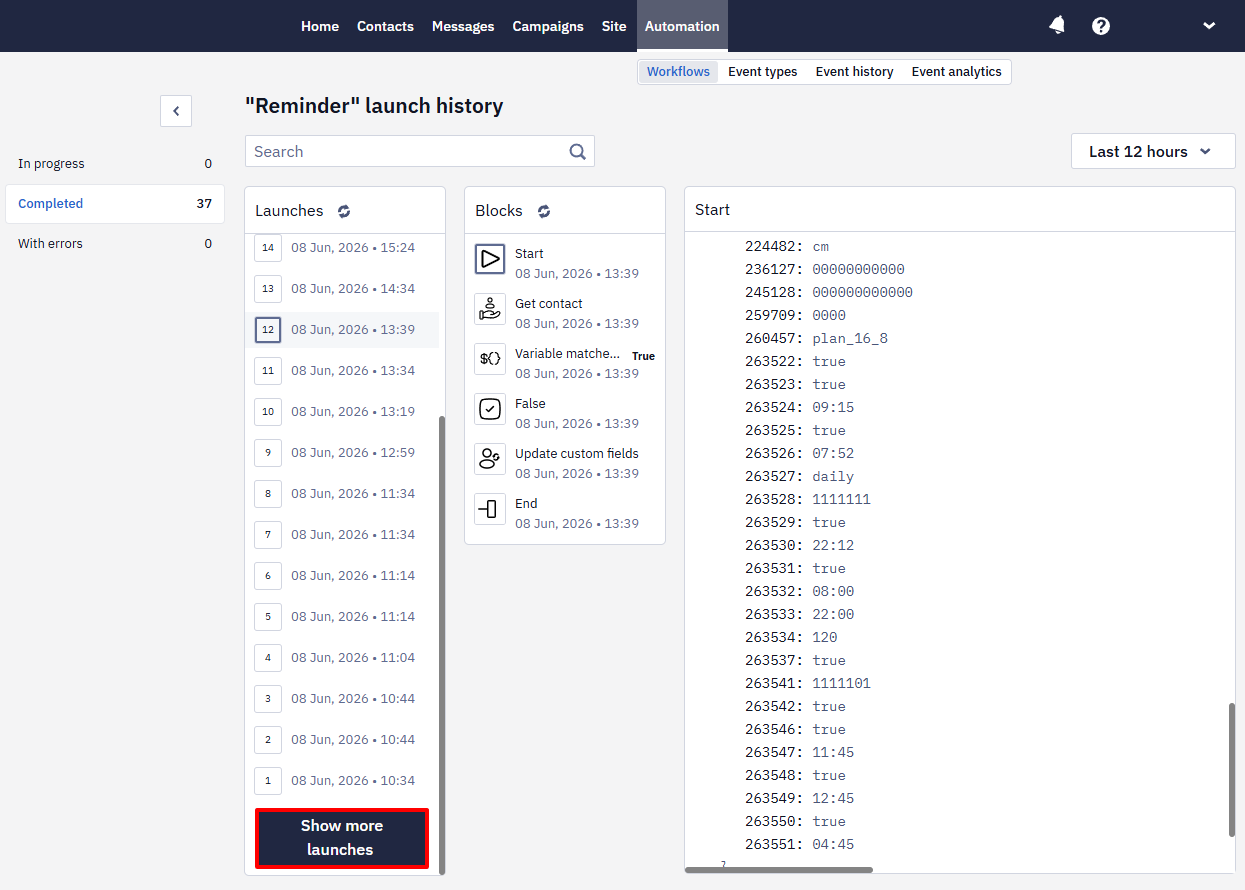
To load more launches, scroll down the list and click Show more launches.
You can also use the search bar to find a launch by block or context parameters.
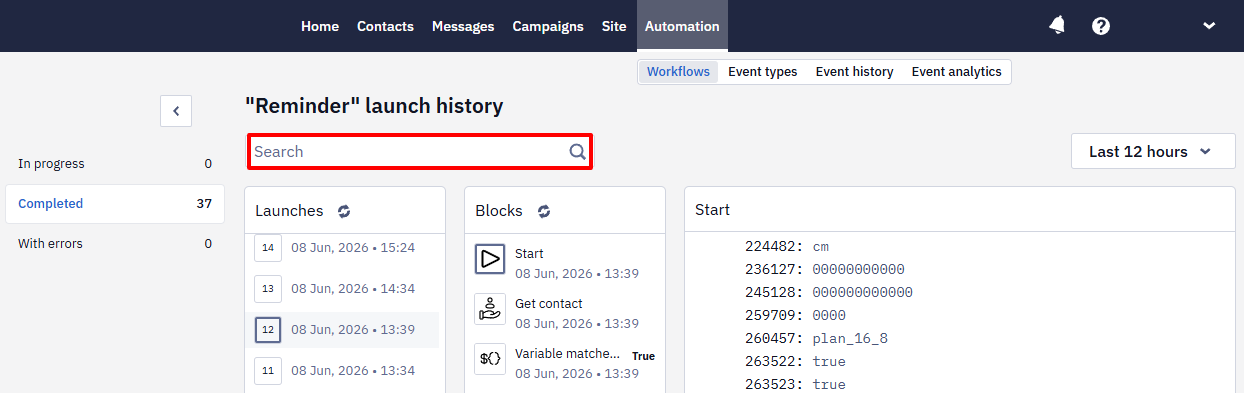
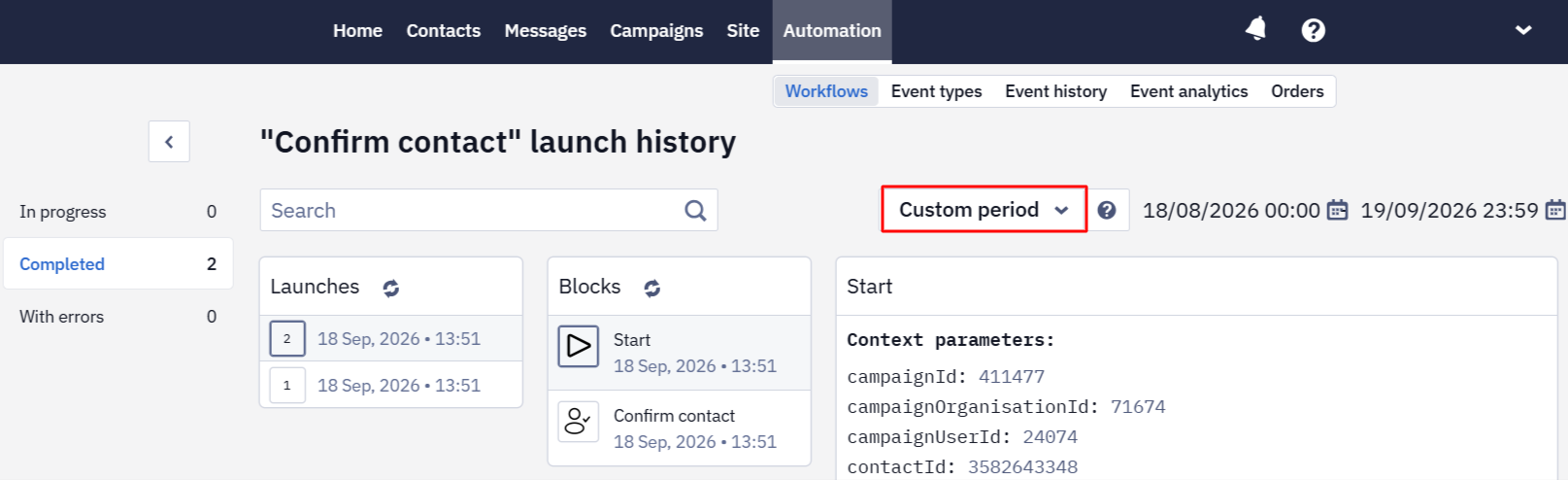
To view launches for a specific time, select a period above the launch list: Last 3 hours, Last 6 hours, Last 12 hours, Today, Yesterday, Current week, or Last 7 days, which is selected by default. To set your own range, select Custom period and specify the start and end date and time. The period filters launches by their start date and applies to all statuses: In progress, Completed, and With errors.
To filter launches by status, select In progress, Completed, or With errors to the left of the list. The counters next to them are recalculated for the selected period as well, so a wider range brings back older launches, within what the history still keeps.
Stopping a Workflow Launch
You may need to stop a workflow launch if it contains errors, is no longer relevant, or the workflow must be changed before execution continues.
- Open the In progress launches, hover over the required launch, and click the Stop icon.
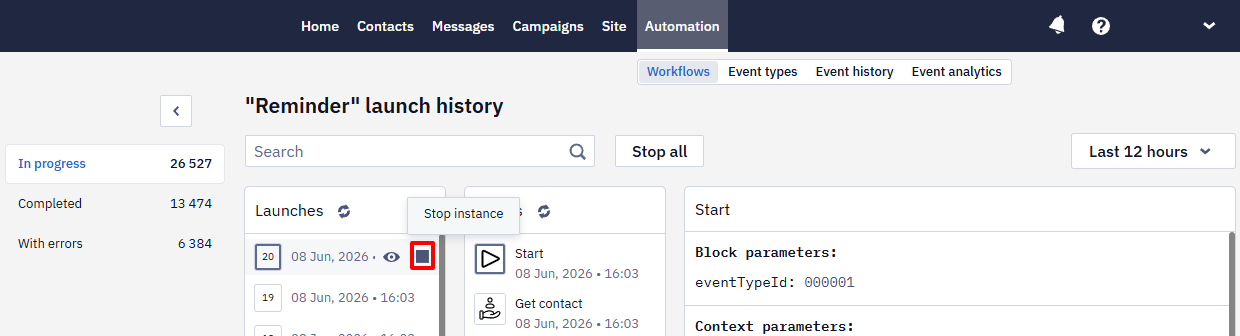
- Confirm the action.
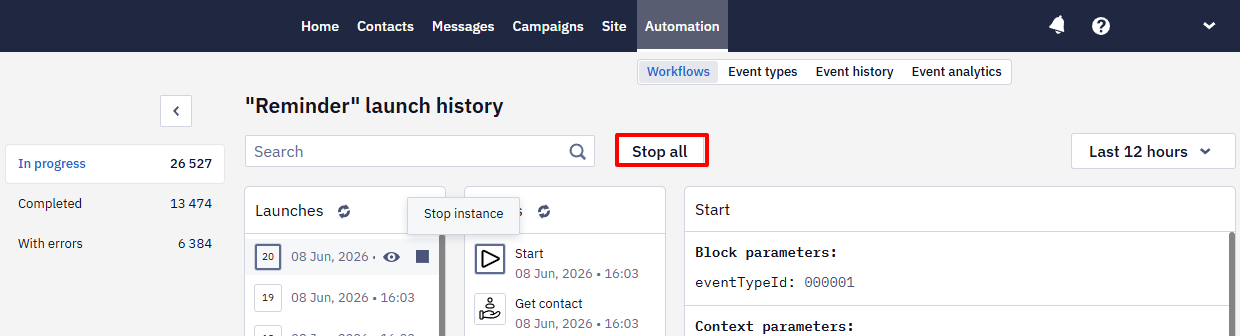
To stop all active launches, click Stop all.
Runs that belong to a deleted contact stop and do not continue — in the list they stay on the block they had reached when the contact was deleted.
The aggregated figures on this page can't be pulled through the API — export them from the interface. To feed a BI tool with the underlying data instead, use webhooks, the Get contacts activity resource, or the export to BigQuery.
Updated 7 days ago