
Creating Dynamic Segment
A dynamic segment is created based on dynamic conditions, which you can choose depending on your contact base. The segment cards can change based on whether the contact matches the chosen conditions. This feature can apply to birthday emails, reactivation emails, split between customers and subscribers, etc.
The Search contacts API method has no parameter to filter by contact creation date, even though createdDate is returned in the response. To isolate contacts created before or after a given date, use BigQuery export instead — the contacts table includes both contactId and createdDate, so you can query for the contacts you need there and then act on them (for example, delete via the API) using the returned IDs.
A segment of the List (static) type can't be converted into a dynamic one. To use a static segment as a workflow start condition, create a dynamic segment with a condition based on membership in that static segment.
Membership is recalculated by a background process, so there is no fixed interval and updates can appear with a delay — the larger the segment, the longer a recalculation takes.
How Relative Date Ranges Are Calculated
Relative date conditions are calculated from the moment when the segment is recalculated, not from the start of the calendar day. One relative “day” is a rolling 24-hour interval.
For example, during next 10 days starts at the recalculation time and extends 10 × 24 hours into the future. A preceding day is likewise the previous 24 hours. Because the boundary moves with each recalculation, a relative range can return a different count from a range entered as fixed calendar dates.
For a between X and Y condition, both bounds are inclusive: the range spans from (now − Y days) to (now − X days) — a window of (Y − X) days. For example, between 0 and 5 spans the full 5 days up to the current recalculation moment; between 1 and 5 spans only 4 days, from 5 days ago to 1 day ago, since the most recent day is excluded entirely.
Adding a Dynamic Segment
PreconditionsBefore creating a dynamic segment, add the contact fields and custom events you plan to segment by.
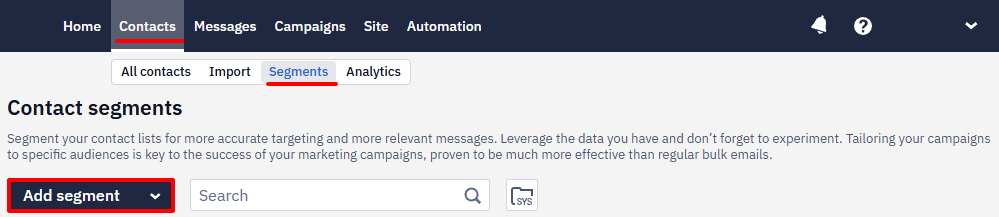
- Go to Contacts → Segments and click Add segment.
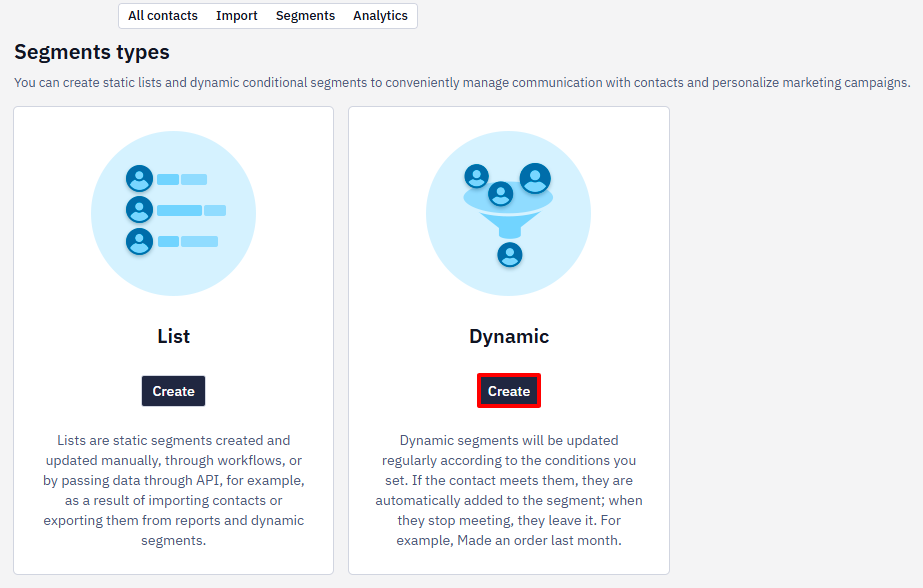
- Select the Dynamic segment type and click Create.
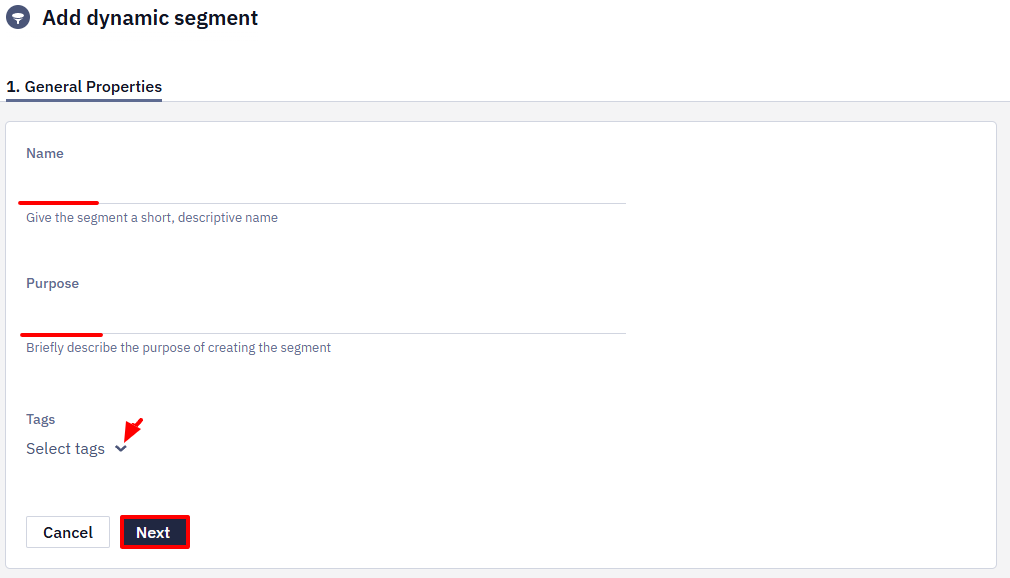
- Fill in general properties:
- Name (required) — displayed in the general segment list.
- Purpose (optional) — specify how the campaigns will be used. For example, for triggered emails, regular promo campaigns, etc.
- Tags (optional) — select from the list or add a new one for quick filtering and segment search.
- Click Next.
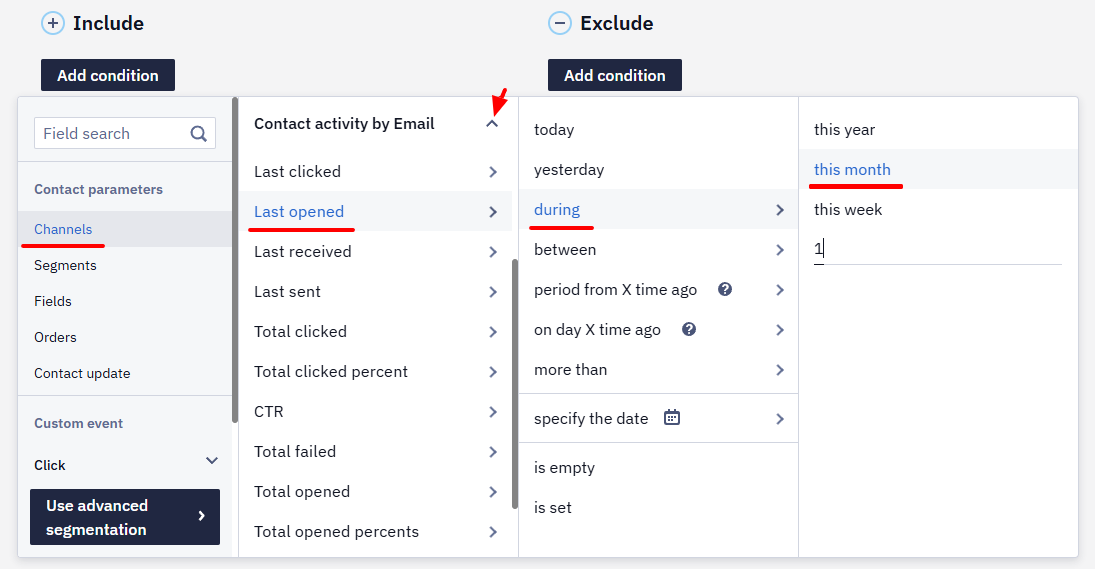
- Add condition.
For example, you need to select all subscribers who have read emails this month.
- Go to the Channels tab → Contact activity by Email → Last opened → During → This month.
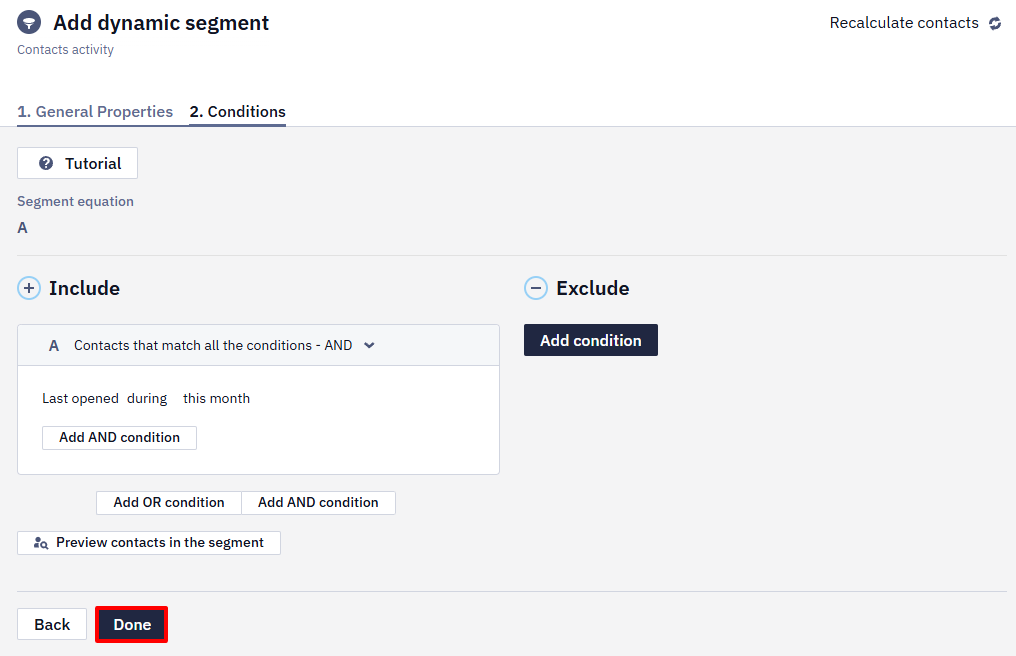
- To see what contacts have been added, click on Preview contacts in the segment.
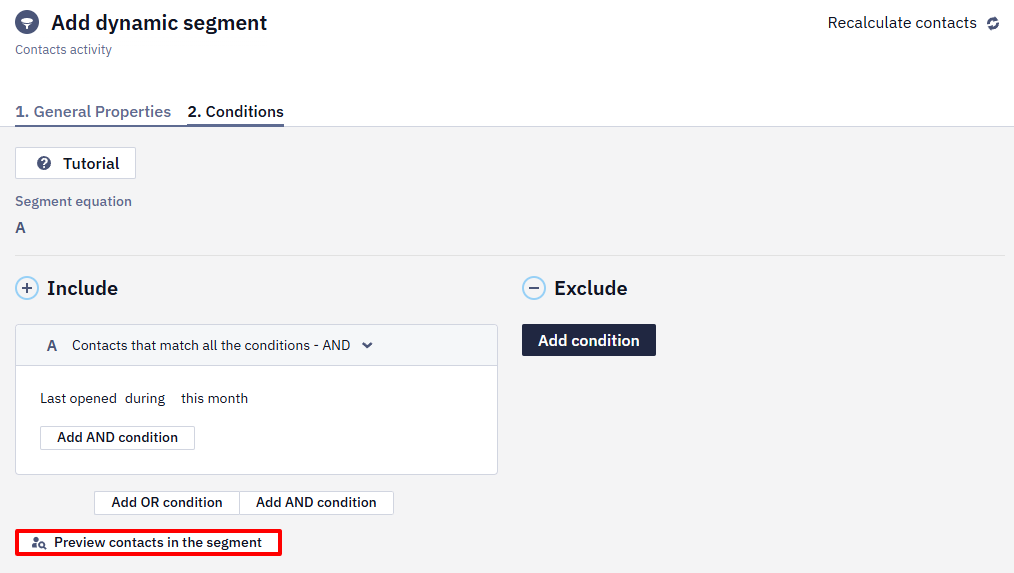
- To see how many contacts are in the segment, click on Recalculate contacts.
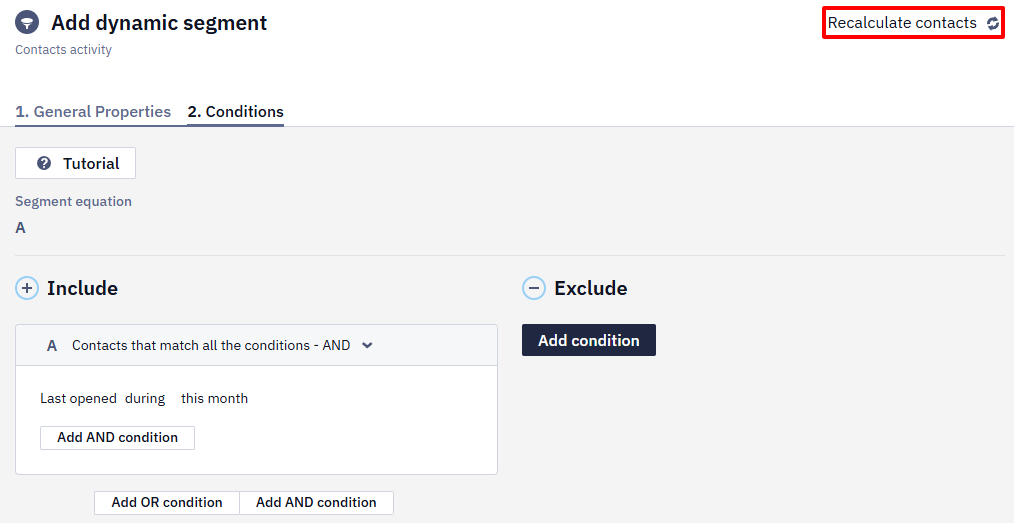
- If you need to create a custom condition for creating a segment, scroll down the list of conditions and click Set up segmentation.
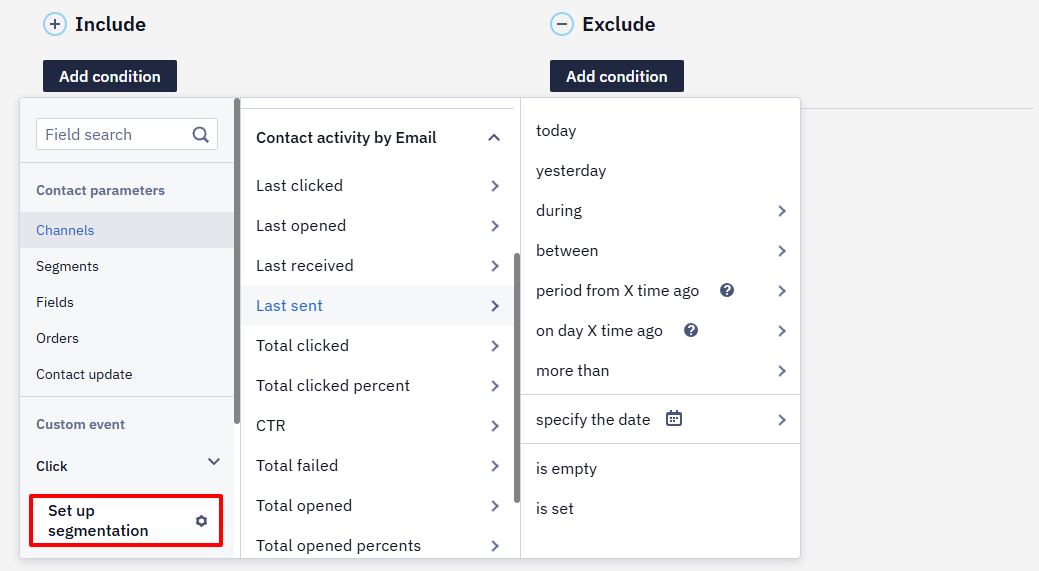
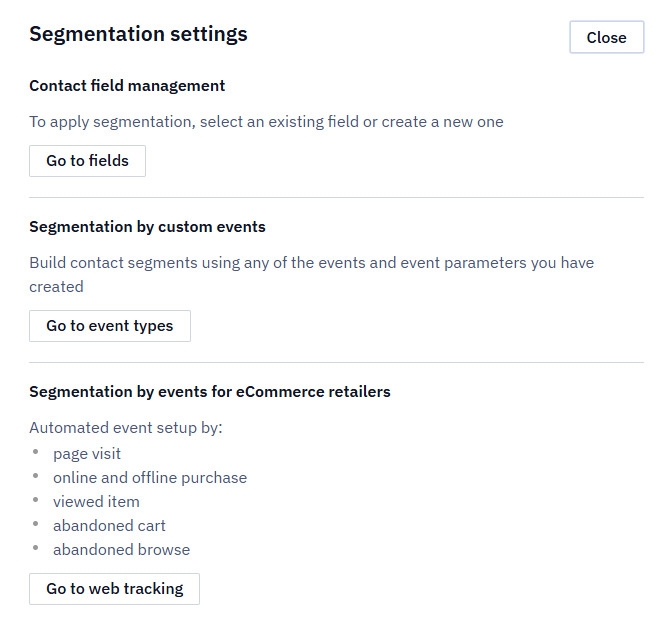
- In the Advanced segmentation window, select the following type of settings:
-
-
Contact field management
-
Segmentation by custom events
-
Segmentation by events for eCommerce retailers
-
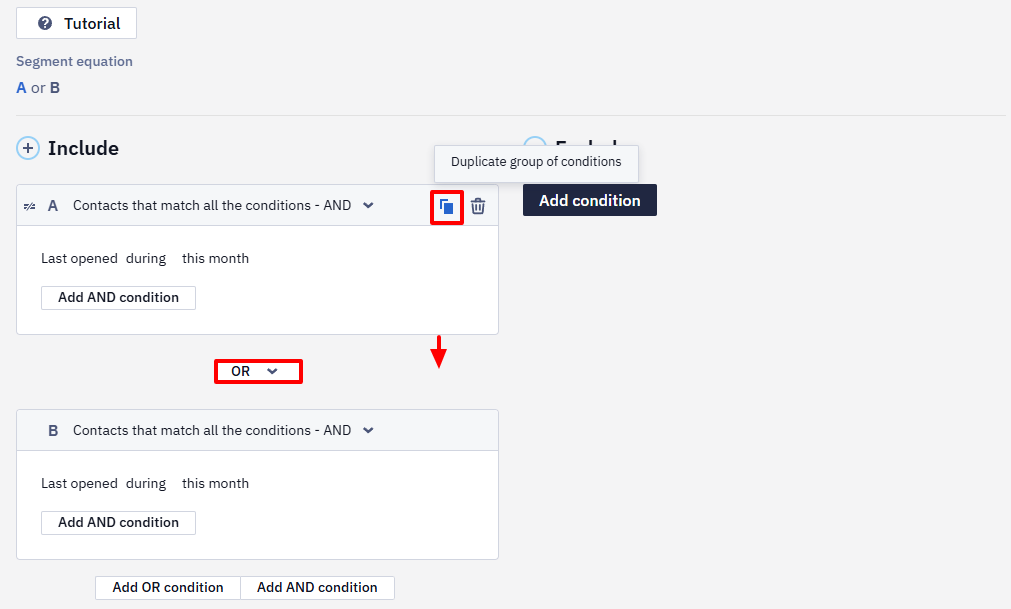
- You can copy a card to avoid having to recreate its conditions manually. By default, the copied card is added with an
ORoperator, which you can manually change toAND.
- When all the necessary conditions are specified, click the Done button. The new segment will be available in the general list of groups.
To segment by brand and last purchase date, store this data in contact custom fields and update them on every purchase — this way the group condition reads directly from the contact's fields rather than from event history.
Automatic Dynamic Segment Creation
This feature is available with the Professional plan and an active CDP subscription .
After you activate the subscription, the system automatically creates 20 preconfigured dynamic segments for recommendation triggers (such as Abandoned search, Wishlist reminder, New products, etc.). You can use these segments immediately in campaigns and workflows.
Creation details:
- the system creates the segments once during the first subscription activation for each organization;
- the system generates segment names in the organization’s language set in the account;
- when new recommendation triggers become available, the system automatically creates the corresponding segments.
Dynamic Segment Conditions
Let's take a closer look at how to create a segment with multiple conditions.
1. Card conditions
Contact state is available as a condition on the Email field on the Contact fields tab, in the Personal data group. Besides the text operators, it offers the states blacklisted, not confirmed, reported spam, and unsubscribed — that is how you exclude such contacts from a segment.
You can create an unlimited number of cards, each having unlimited conditions.
Conditions inside the cards
When adding conditions to a card, the segment will include only those contacts that match the specified conditions.
For example, you add two conditions:
- Last opened this year;
- Average order check greater than $1,000.
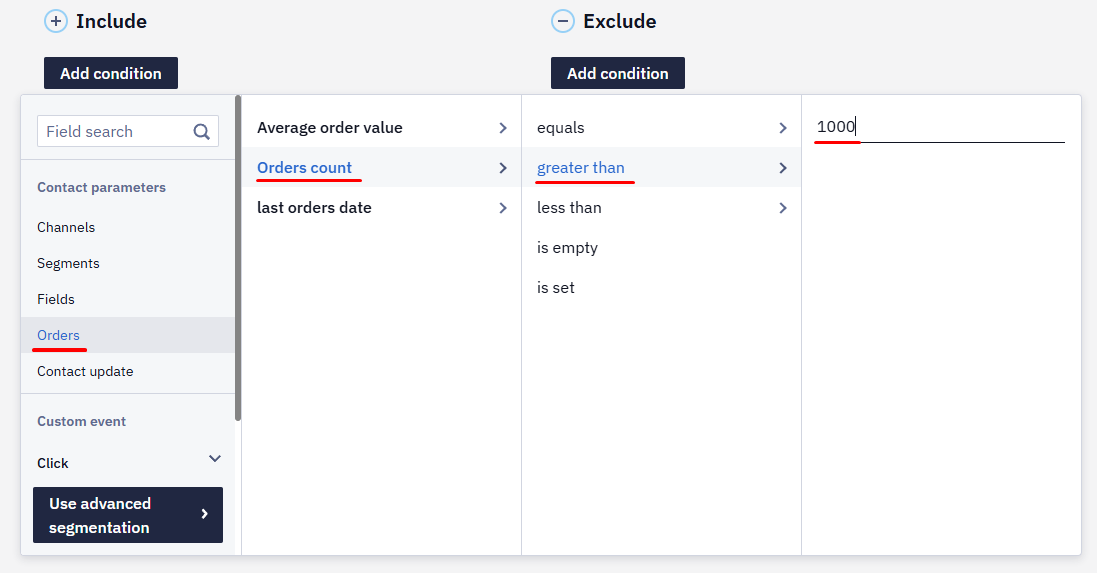
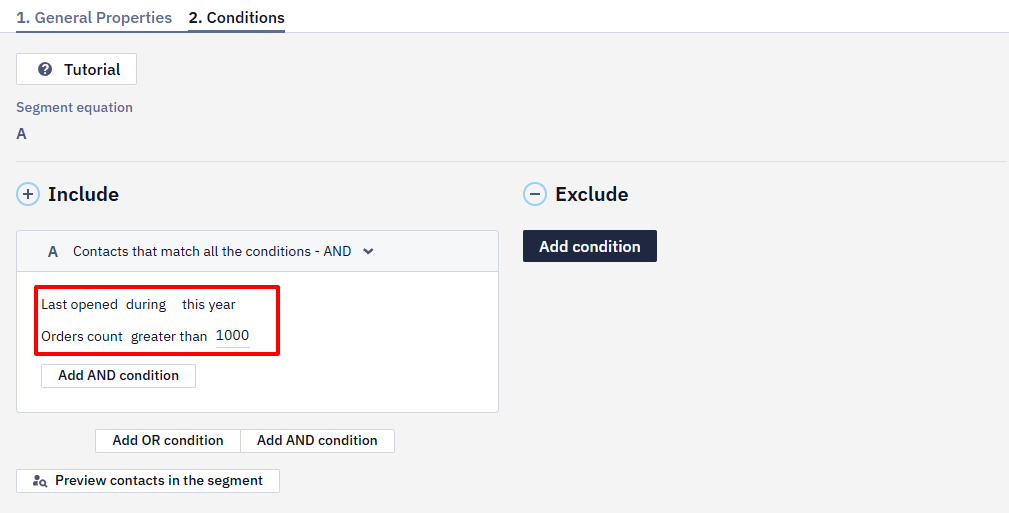
The segment will include only those contacts who have opened emails over the past year, with an average order value of more than $1,000. The card will look like this:
To add the contacts that match any condition, choose the corresponding option in the header of the card:
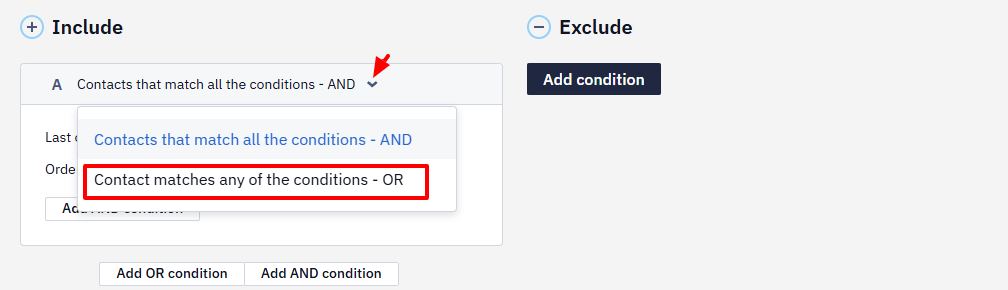
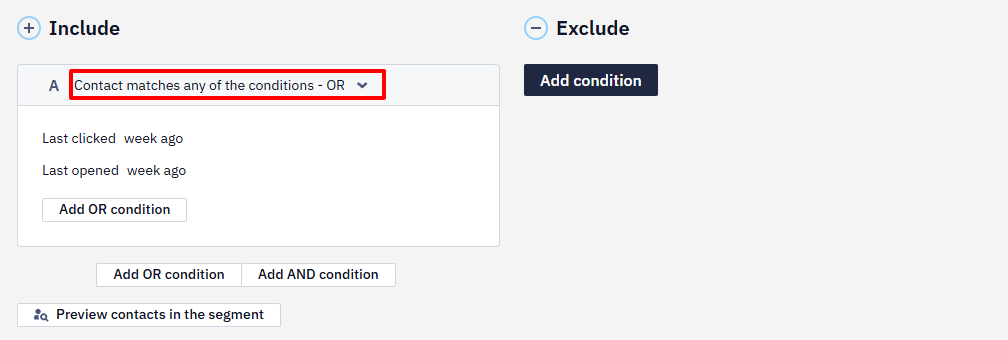
For example, you add the following conditions:
- Last clicked week ago;
- Last opened week ago
The segment will include the contacts that either clicked on links in the email or read an email a week ago.
Excluding Conditions from a Card
Any of these conditions can be made negative. Click on ≠ to exclude any condition from the card.
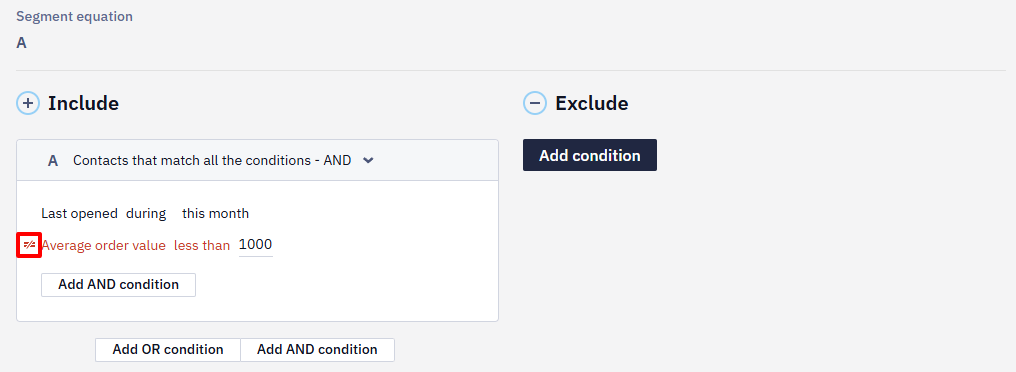
For example, you want to add to the card all the contacts that have opened emails over this month, with an average order value less than $1,000. Exclude the last condition, and the segment will include only the contacts that have opened emails during the last month and their average order value is more than $1,000.
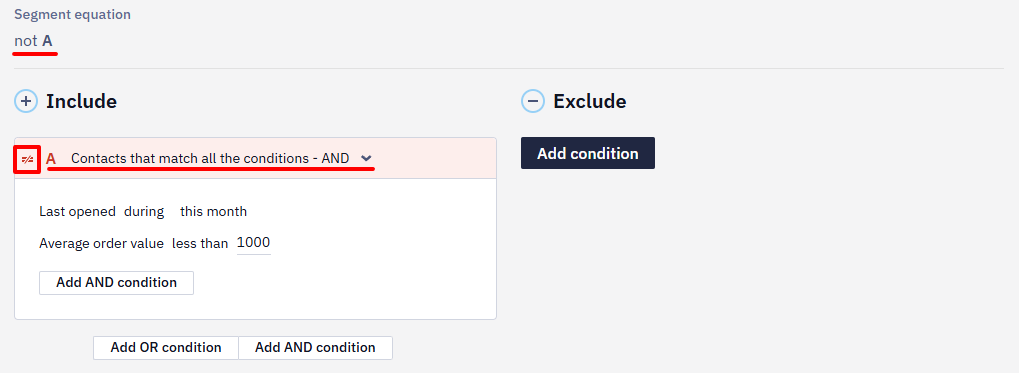
Excluding the Entire Card
You can exclude the whole card. Such a card will be highlighted red and will have a not prefix in the segment equation.
Excluding a Condition from the Segment
With many cards, when you need to exclude a particular condition from the entire segment, use the right column. Contacts that match the conditions from the right column will not be included in the segment.
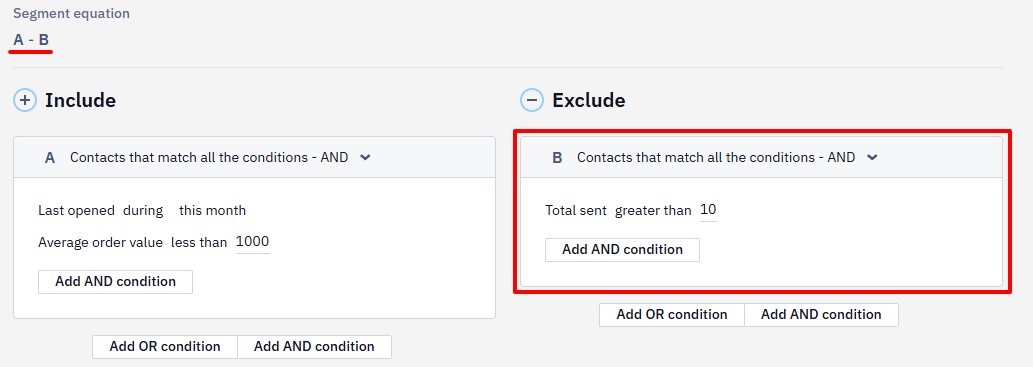
You can exclude several cards with different conditions.
NoteFor conditions with a valid/not valid state (for example, a push token condition), "not valid" covers all contacts that don't meet the "valid" criteria — this includes contacts with no token at all and contacts whose token exists but is older than the validity window (for example, expired or not refreshed within the last month). If you need to separate "no token" from "expired token," build two condition cards instead of relying on a single "not valid" condition.
A push token doesn't mean the user allowed notifications: the app can register a token even when the user declined the permission. To select the contacts who actually allowed notifications, segment by the PushNotificationsSubscribed and PushNotificationsUnsubscribed events, which the SDK sends when the permission changes.
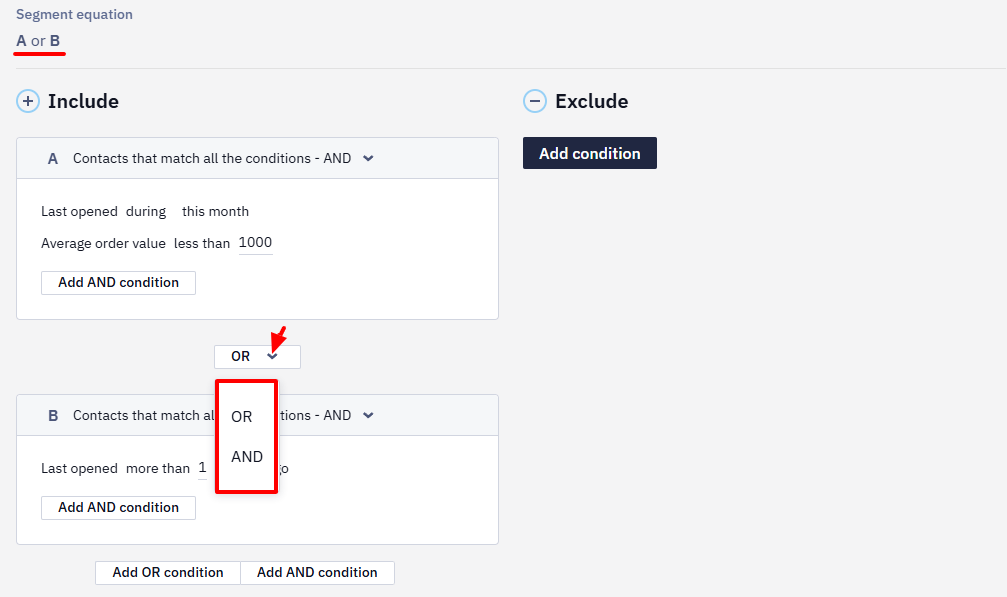
2. Equation Operators AND/OR
For convenience of operation, you can group conditions in several cards using the following operators:
AND — the segment will include all the contacts that match the conditions of all cards.
OR — the segment will include the contacts that match the conditions of any card.
3. Segment Equation
With many cards, the segment equation is displayed in the following formula: (A or B) – C.
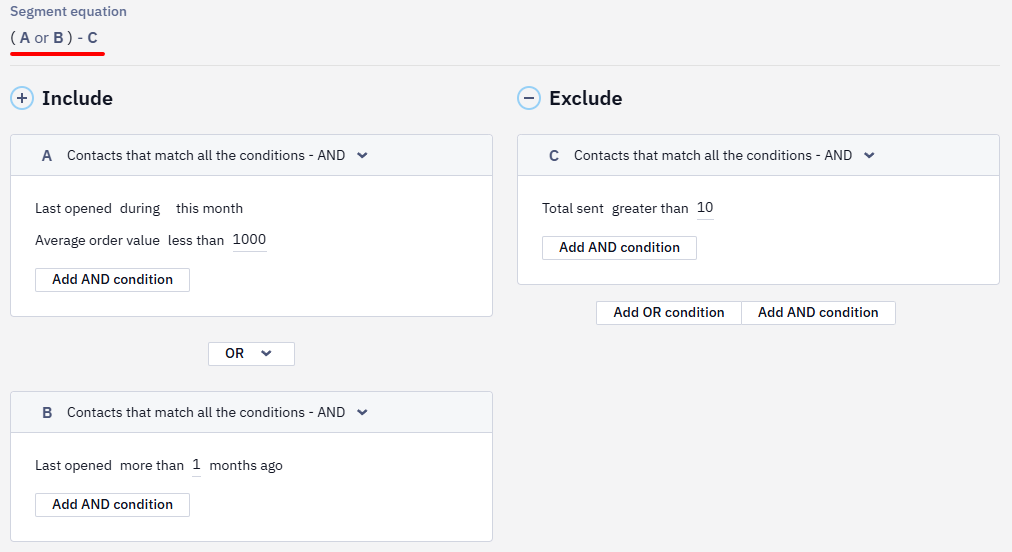
- The equation shows in what order the cards are processed.
- Brackets are put automatically to unite the cards based on the processing priorities.
- The letters in the equation match the cards. A cursor on the letter automatically highlights the corresponding card.
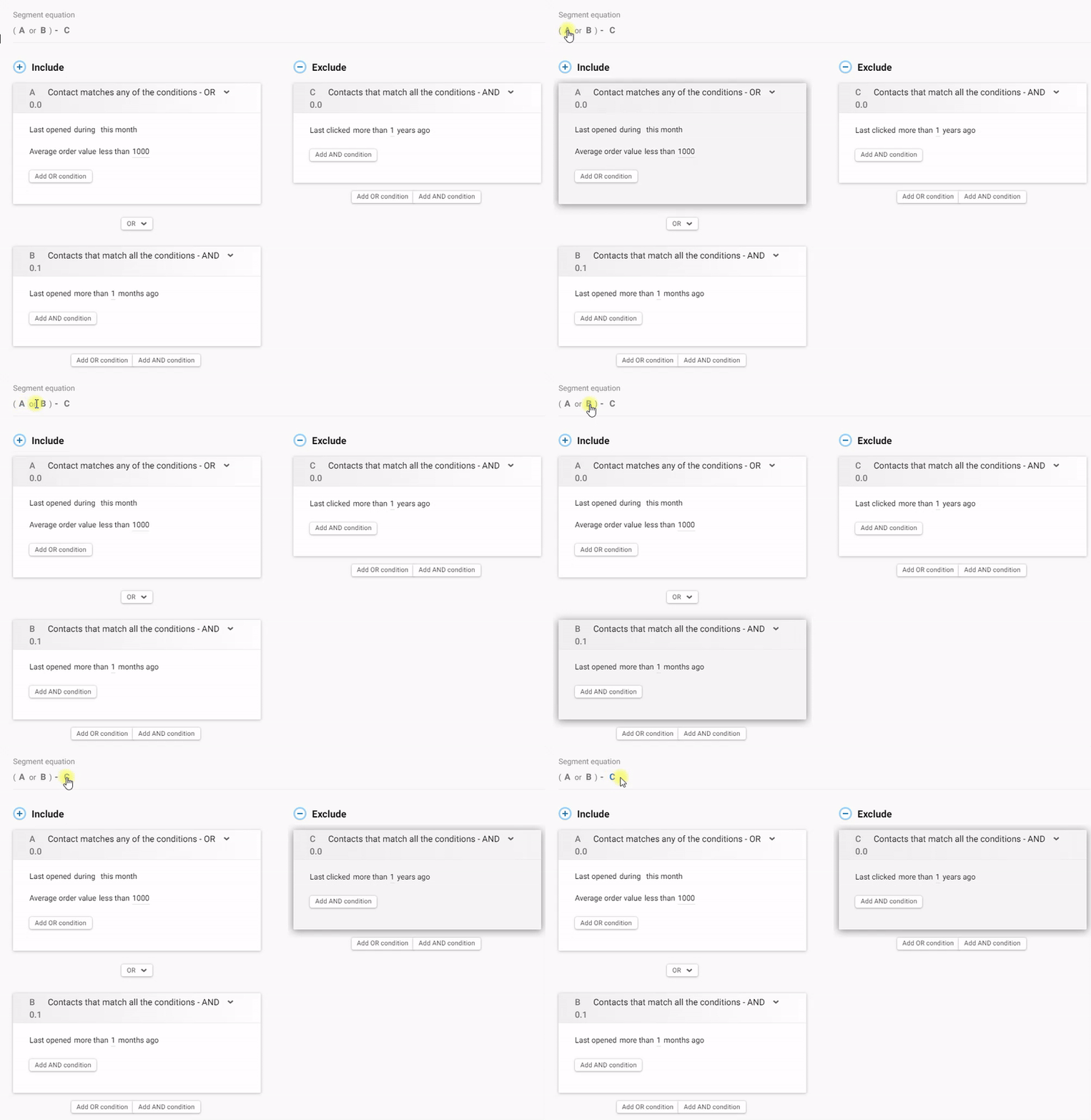
By default, the contacts that are processed first are united by AND operator. In the equation, such cards are enclosed in brackets.
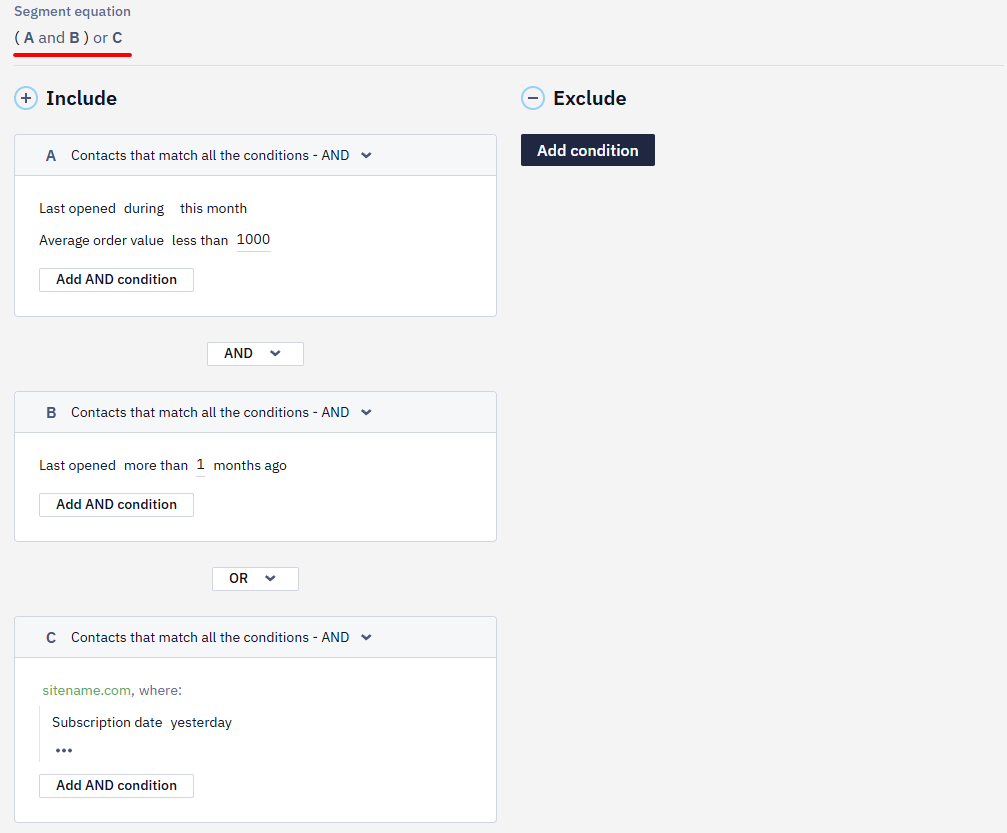
For example, the equation (A and B) or C will be processed as following:
- First, the system will find the contacts that match the conditions in A and B cards.
- Next, it will add the contacts that match the conditions in C card.
Useful Features
For more convenience, all the features are now available right in the segment interface after you’ve created a card:
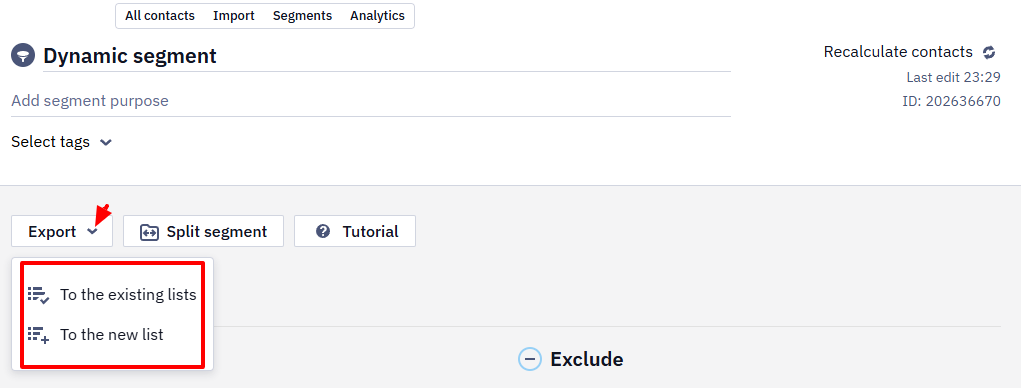
1. Export a dynamic segment to the list
You can export all the contact details as a static segment to the existing list. This is relevant for triggers so that a campaign for a segment can be launched instantly.
2. Splitting a Segment
This might be useful for A/B testing.
You can split a segment only if it includes more than 10 contacts. We recommend conducting split tests with more than 2,000 active contacts to avoid inaccurate results.
3. Tutorial
For any information on the segment creation, see Tutorial at the top of the page.
Hints are divided into 5 categories:
- Conditions inside cards
- Formula for contacts calculating
- Operator NOT
- AND, OR between cards
- Excluding contacts
4. Searching Events and Parameters
The search logic of events and parameters allows you to quickly and easily set the conditions for forming a dynamic segment.
The search works both in the first column (names of event types and contact parameters) and in the second (names of event parameters and additional contact fields).
If both the event and its parameter match the search query, you will see the corresponding events in the first column, and in the second column, not only the parameters that match the search query but also all the parameters of the events from the first column.
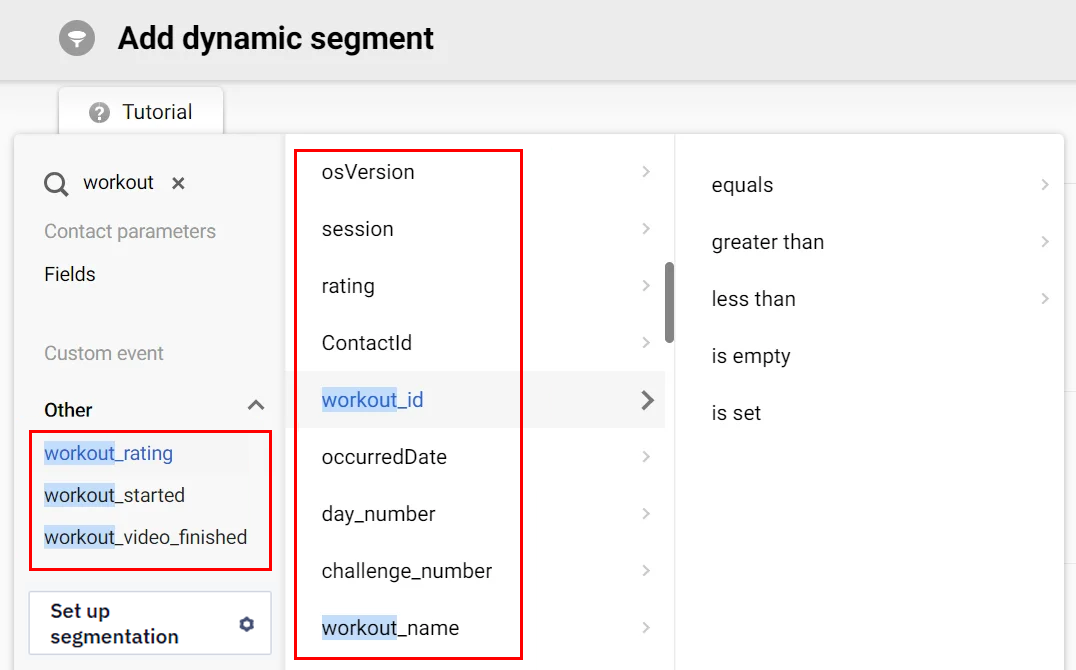
If you need to find all events that contain a certain parameter, enter its name in the search field. The first column will display the corresponding events, and the second column will display a list of event parameters indicating which event contains the parameter from the search query.
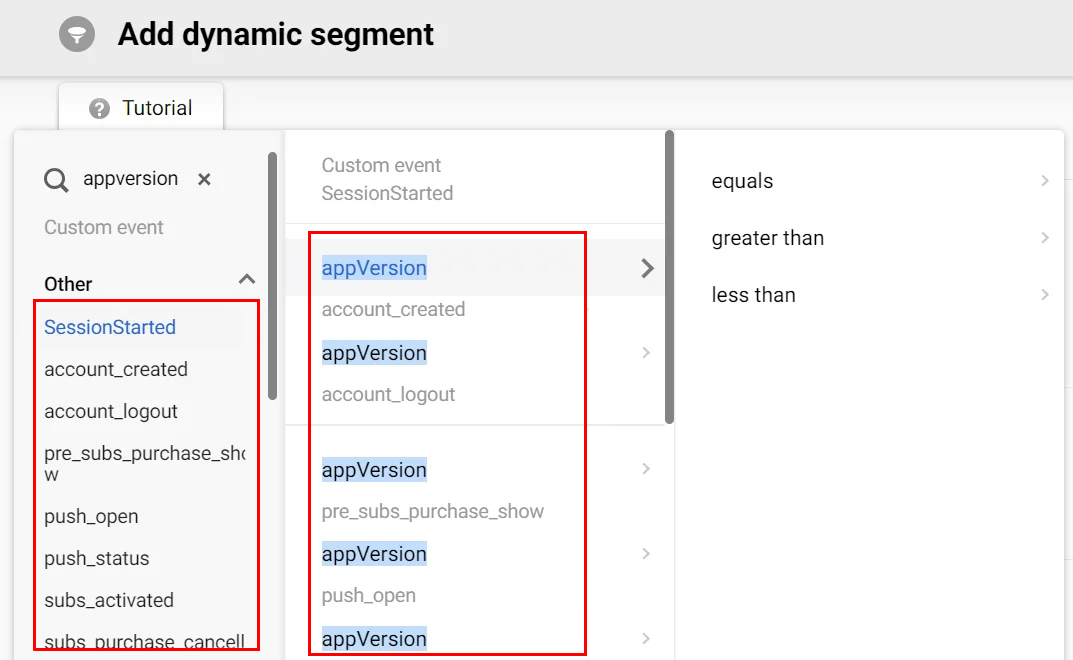
When you hover over a parameter in the first column, the name of the event type containing this parameter is highlighted.
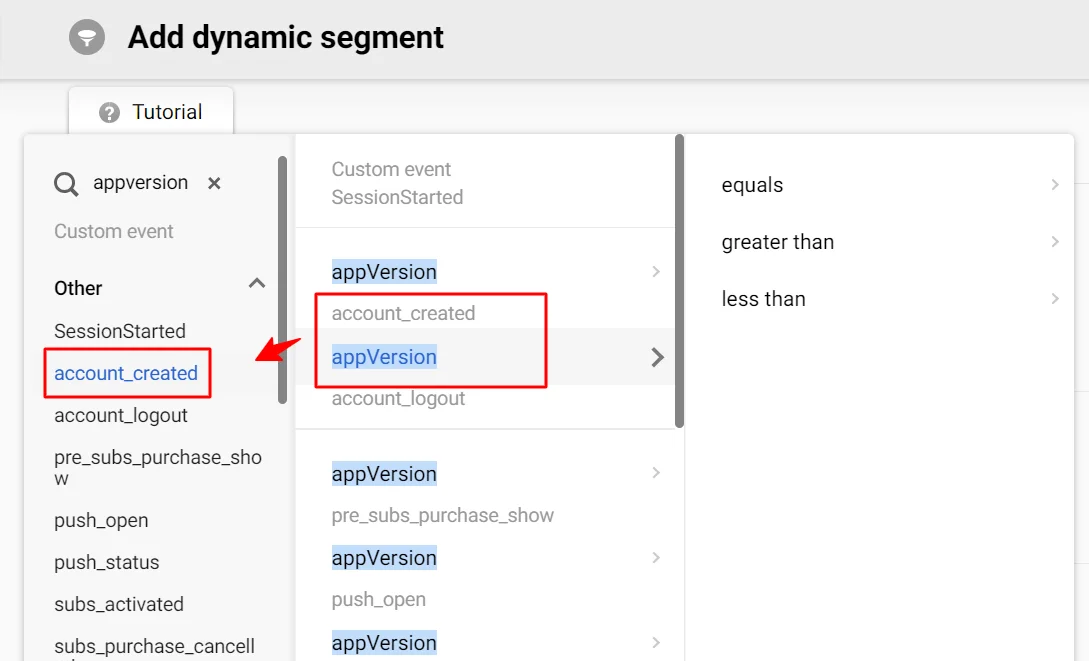
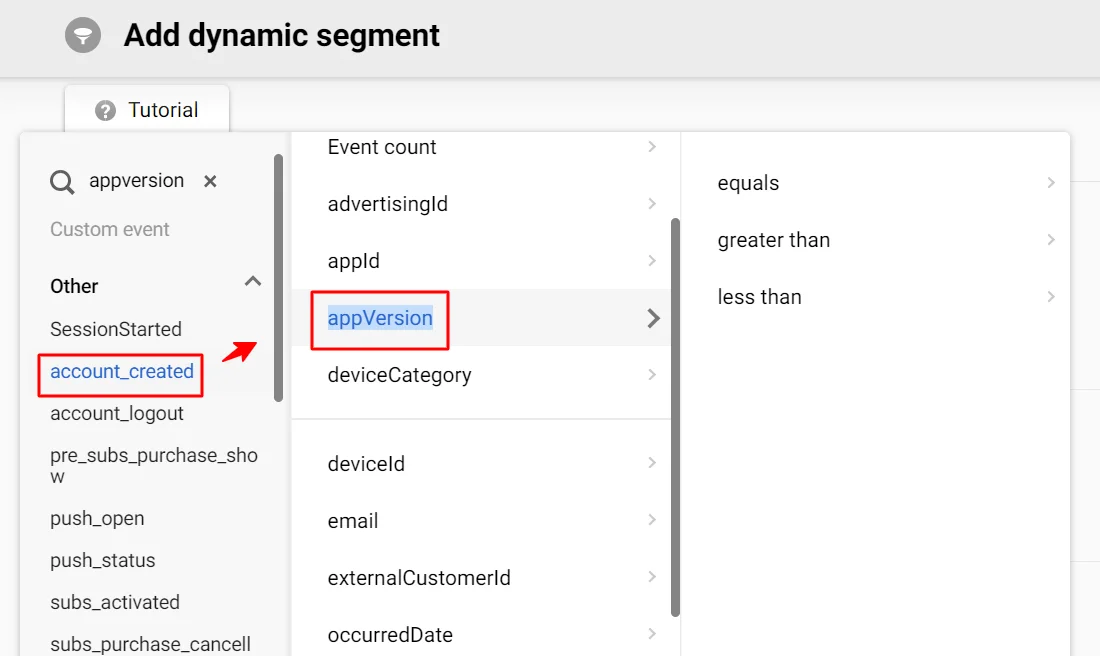
Click on a specific event's name to see a list of all parameters. The parameter that matches the search query is highlighted.
Segmenting by Country and Market ID
To use a contact's location or assigned market in a dynamic segment, add a condition and select Contact parameters → Contact fields → Personal. The section includes:
- Country (
countryCode): find a country by name, then use is empty, is set, equals, does not equal, or one of; - Market ID (
marketId): enter the market identifier and use is empty, is set, equals, does not equal, starts with, or one of.
These conditions let you build localized segments without copying country or market data into an additional field. For example, you can select contacts from several countries for one regional campaign or target users assigned to a particular store or market.
You can use the same fields in a workflow — in the Branch and Check Values blocks and in other workflow settings where a contact field can be selected.
Updated 6 days ago