
Integrating with Telegram Bot
NoteTelegram bot is required to enable the channel
To send newsletters in your Telegram bot using Yespo, do the following:
- Create a bot in the @BotFather service, copy the access key, and upload it to Yespo.
- Configure a service on your side that will accept contact tokens from your bot and pass them to Yespo. You can do this in any way that is convenient for you (see the implementation example at the link).
Connecting to Yespo doesn't change your bot's webhookTelegram allows one webhook per bot for receiving incoming messages. Yespo doesn't register a webhook of its own: the platform uses the bot token to send messages through the Telegram Bot API.
Connecting the bot to Yespo therefore doesn't change or disable the webhook configured on your own server or in your chat-bot service. It keeps receiving incoming messages, and processing them and replying stays on your side.
Access Settings
- Open @BotFather in Telegram.
- Send commands
/start/newbot
- Follow the instructions to set up the bot.
- After creating the bot, you will receive an access token. Copy it.
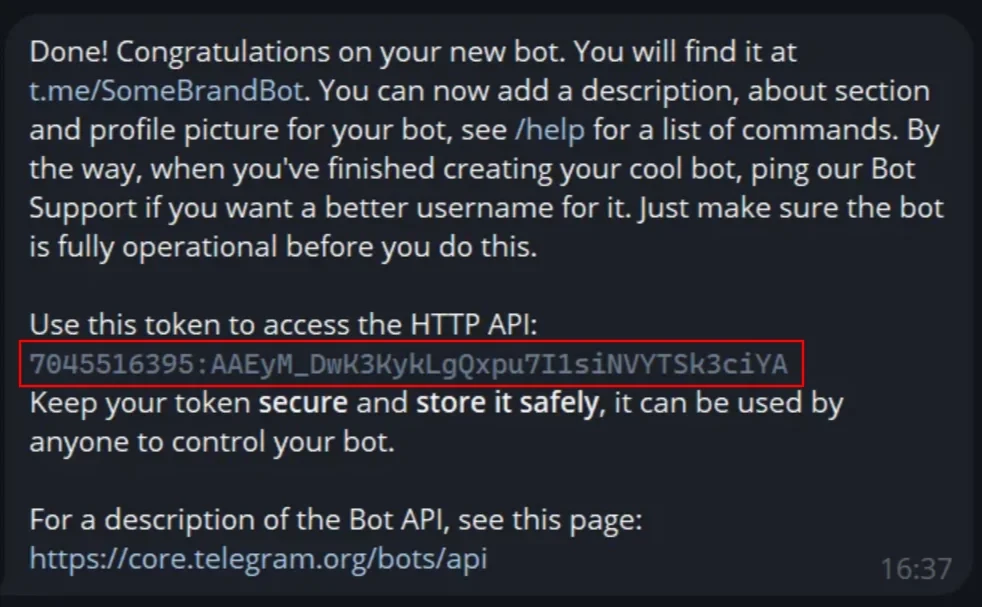
- Go to your Yespo account settings → Telegram bot tab and click Connect Telegram bot.
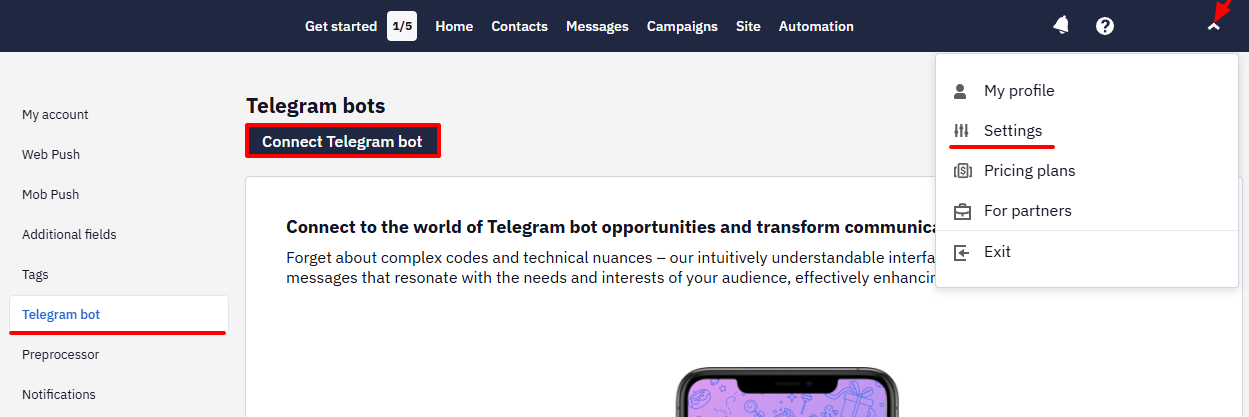
- Enter the token in the corresponding field and click Save.
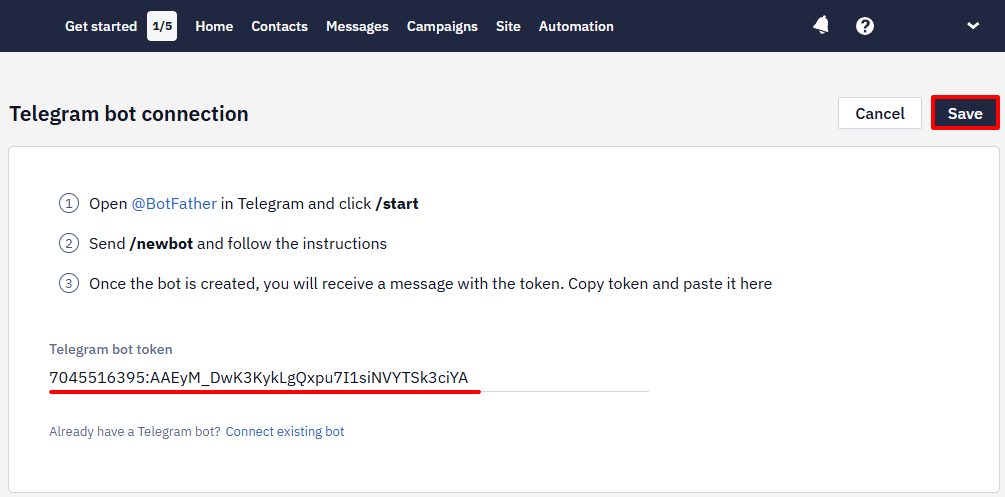
To integrate the already existing bot:
- Go to Telegram bot tab and click Connect Telegram bot.
- Click Connect existing bot.
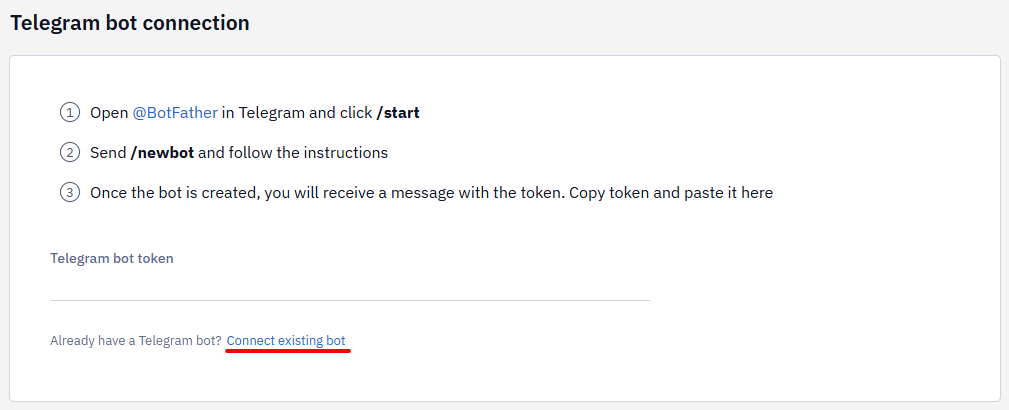
- Enter the
/mybotscommand in the @BotFather chat, select an existing bot from the list, copy its token, add it to the corresponding field, and click Save.
After connecting the bot, you will receive an application ID (app_uuid) - it must be used in the URL to send a request for adding and updating tokens of your contacts in Yespo: https://yespo.io/api/v1/apps/{**app_uuid**}/tokens.
The same bot can be connected to more than one account: each connection generates its own application ID, and you add the tokens to each account separately.
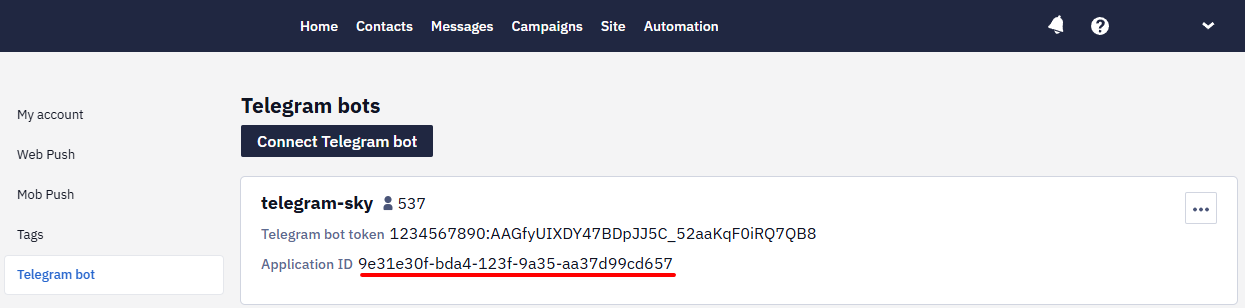
NoteThe number of subscribers of the Telegram bot is shown to the right of the bot's name.
Creating and Updating Contacts
To add or update contact tokens, use the Add application tokens API method (POST type).
Tokens are processed batch by batch: if one token in a request contains an error, the whole batch is skipped and none of its tokens are saved. Upload a large base in small batches — about a hundred tokens each — so that a single bad token doesn't cost you the rest.
JSON request format:
{
  "tokens": [
    "Token"
  ]
}
Contact data format in the request:
{
    "token": string,     // required

    // identifiers to search for contact (at least one is required)
    "contactId": Long,
    "externalCustomerId": string,
    "phone": string,
    "email": string
}
URL to send the request: /v1/apps/{app_uuid}/tokens
Send tokens in batches of up to 3000 per request — the same batch size as bulk contact upload.
- A contact is created with all identifiers if there is no contact with such identifiers in the system.
- If the identifiers already exist, they are not created or updated.
- Priority of identifiers for searching contacts in the system: contactId → externalCustomerId → phone → email.
- If a contact is not found by any of the identifiers — contactId → externalCustomerId → phone → email — a new contact is created with all the provided identifiers and the token.
- If a contact is found by any of the identifiers — contactId → externalCustomerId → phone → email — the token will be added to the existing contact. Please note that requests using the Add application tokens method do not update existing tokens, but only create new ones. For example, if two requests with the same email address contain two different tokens, both will be written to the contact card.
NoteTelegram does not automatically match phone and token — your own integration must submit phone and token together in the same API request. BigQuery integration only supports scheduled workflows, not event-triggered ones.
To update other contact information, use the Add/update a contact or Add/update contacts methods.
After a Telegram bot token is linked to a contact, Telegram Bot can be returned in the
channelsarray by theGet contactandSearch for contactsAPI methods.
Message Statuses
SENT, FAILED, and CLICKED statuses are tracked.
A token will be removed from the contact card upon receiving the FAILED (Forbidden) status, which is sent when the user blocks the bot.
If a bulk or triggered Telegram campaign fails with an Unauthorized error, the bot's authorization is no longer valid. Possible causes from the Telegram error reference: USER_DEACTIVATED (the bot's user has been deleted or deactivated), SESSION_REVOKED (the authorization was invalidated because all sessions were terminated), SESSION_EXPIRED (the authorization has expired). Check the bot token and reconnect the channel.
Updated 30 days ago