
Widget Calling Using JavaScript Variables
You can control widget display based on JavaScript variables that your site passes to Yespo in real time. This allows you to account for the current state of the page and visitor actions — such as cart value, loyalty tier, or subscription status — and show or hide a popup exactly when it's relevant.
Unlike Cookie and Local storage, JavaScript variables exist only during the current page session. The data is cleared when the page is reloaded or when a user navigates to another page. This makes them ideal for targeting based on what is happening right now.
Note
- JavaScript variables can also be used as Merge Tags — to substitute values directly into the widget text. Read more.
- JavaScript variables set the conditions for showing a widget within the calling rules. To trigger the display itself from your code, use the
eS('showForm', ...)call — see Calling a Widget via JavaScript API.
Setting Up Variables on Your Site
To send variable values to Yespo, add the script
- directly to your site code (after the main Yespo script is loaded)
- or to the Custom HTML tag in Google Tag Manager (more).
Script format:
<script>
  eS('addVariables', { variableName: value });
</script>
For example, to pass the subscription status:
<script>
  eS('addVariables', { subscribed: false });
</script>
You can also specify multiple variables at once:
<script>
  eS('addVariables', {
    user_age: 25,
    user_status: 'vip'
  });
</script>
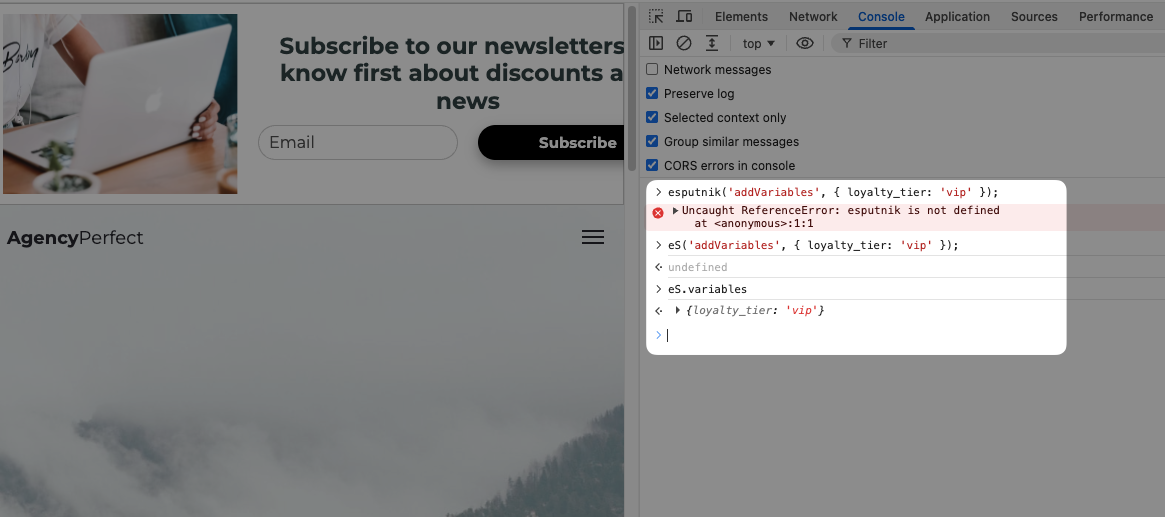
NoteTo verify which variables have already been passed to Yespo in the current session, run
eS.variablesin the browser console. It returns an object with all variable names and their current values.
Setting Up the Condition in Calling Rules
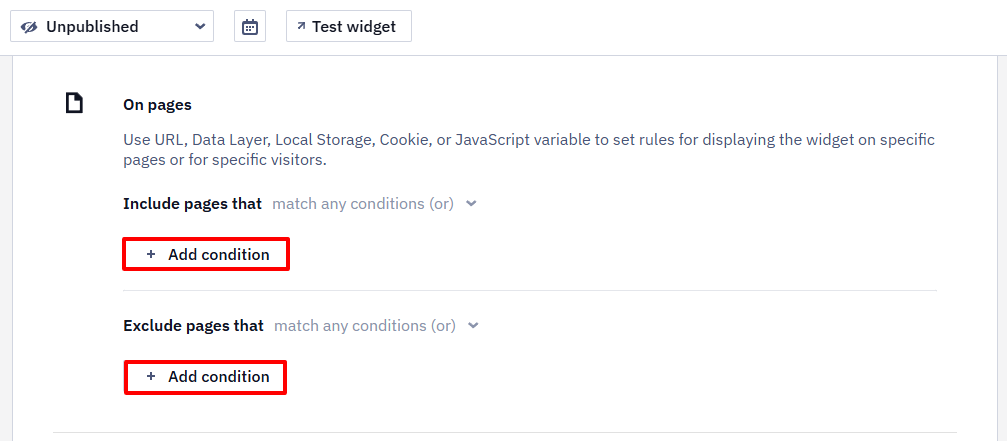
- In the On pages section of the widget calling rules, click Add condition.
- Select the JavaScript variable condition, enter the variable name, operator, and value:
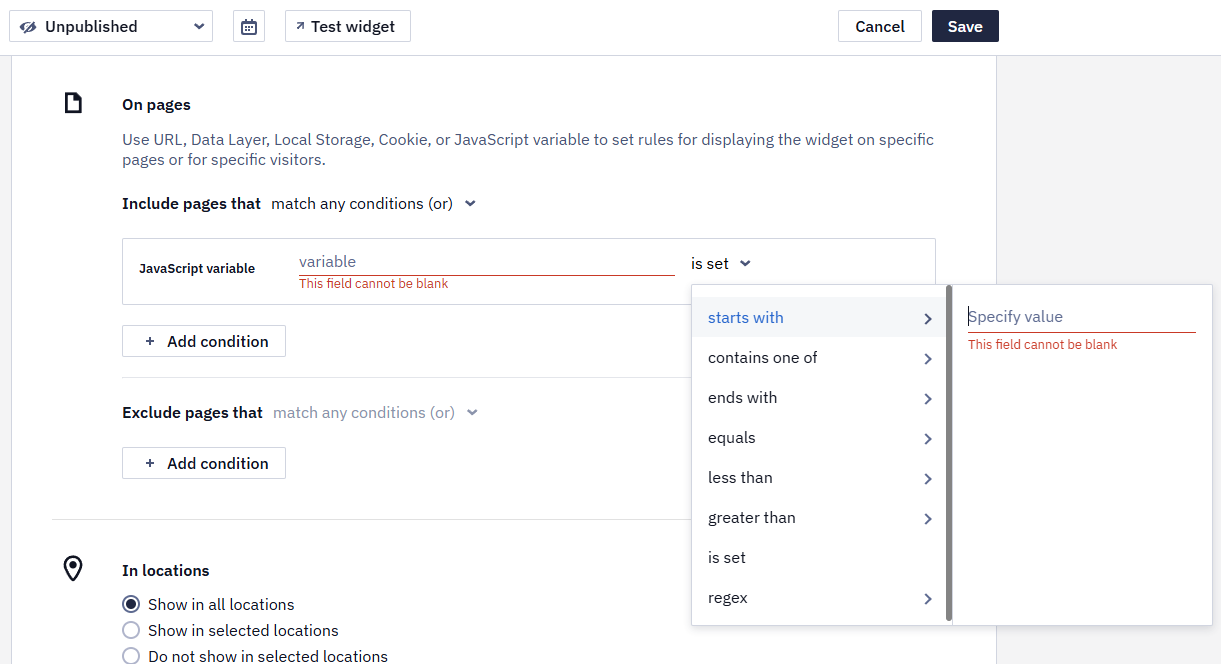
| Operator | When to use |
|---|---|
| starts with | The value begins with a specific string |
| contains one of | The value matches one of the specified options |
| ends with | The value ends with a specific string |
| equals | Exact value match |
| less than | Numeric value is below the threshold |
| greater than | Numeric value exceeds the threshold |
| is set | Check that the variable exists (regardless of its value) |
| regex | The value matches a regular expression |
Use Cases
Showing an Exclusive Offer to VIP Customers
After login, pass the loyalty tier via a JS variable:
<script>
  eS('addVariables', { loyalty_tier: 'vip' });
</script>
In the calling rules, add the condition: JavaScript variable loyalty_tier equals vip.
Result: Only VIP customers will see the popup with the exclusive offer.
Hiding a Popup from Mobile App Users
If your app sets a JS variable on every page load, you can hide the popup prompting users to download the app from those who already have it.
<script>
  eS('addVariables', { has_app: true });
</script>
In the calling rules, exclude pages where JavaScript variable has_app equals true.
Result: The popup will only be shown to visitors without the app.
NoteIf your app writes to Local storage instead of setting a JS variable on every page load, use the Local storage key condition instead — it is more reliable as values persist across page reloads.
Showing a Popup to Visitors with a High Cart Value
Pass the current cart value via a JS variable:
<script>
  eS('addVariables', { cart_value: 1500 });
</script>
In the calling rules, add the condition: JavaScript variable cart_value greater than 1000.
Result: Only visitors with a cart value exceeding 1000 will see the popup with the special offer.
Updated 2 months ago