
Collaborative Email Creation: Co-editing and Comments
Collaborative features allow team members to work on the same email template simultaneously, reducing the need for duplicate copies, screenshots, and coordinating edits in chats.
Why it's useful
- Faster approvals. Edits and discussions are kept in one place: in the template and in element-level comments.
- Change control. Version history shows exactly what changed and when. If an edit didn't work out, you can undo it or restore a previous version of the template.
NoteCustomer users see other customer collaborators in the avatar ribbon. Support staff accounts are hidden from this ribbon, although a support specialist can still appear temporarily when they focus an element in the editor. Support staff can see all collaborators.
Co-editing
Multiple team members can edit the same template simultaneously. Each person's actions are highlighted in real time, so you can immediately see which elements your colleagues are working on.
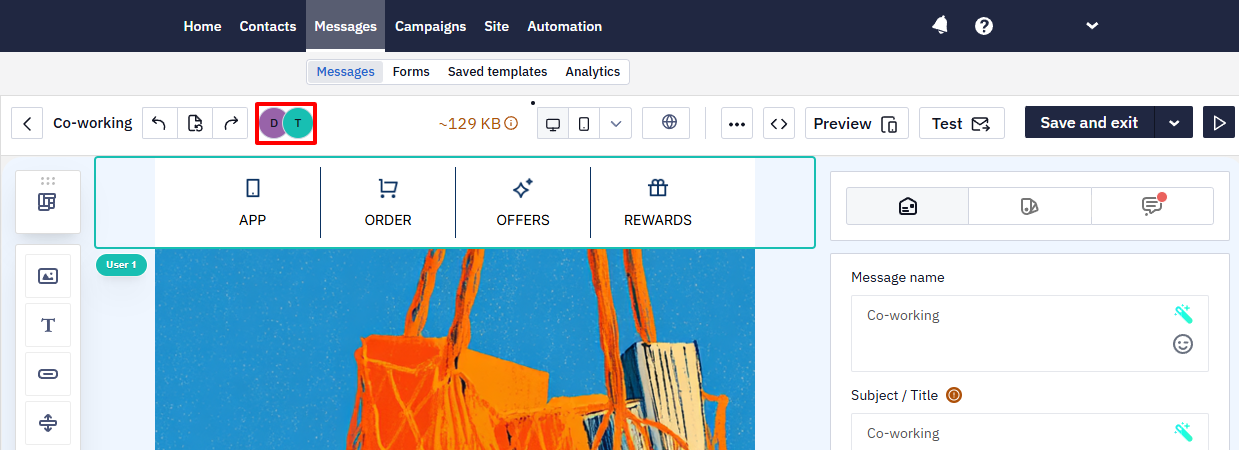
Version History
- Click the Version History icon in the email template.
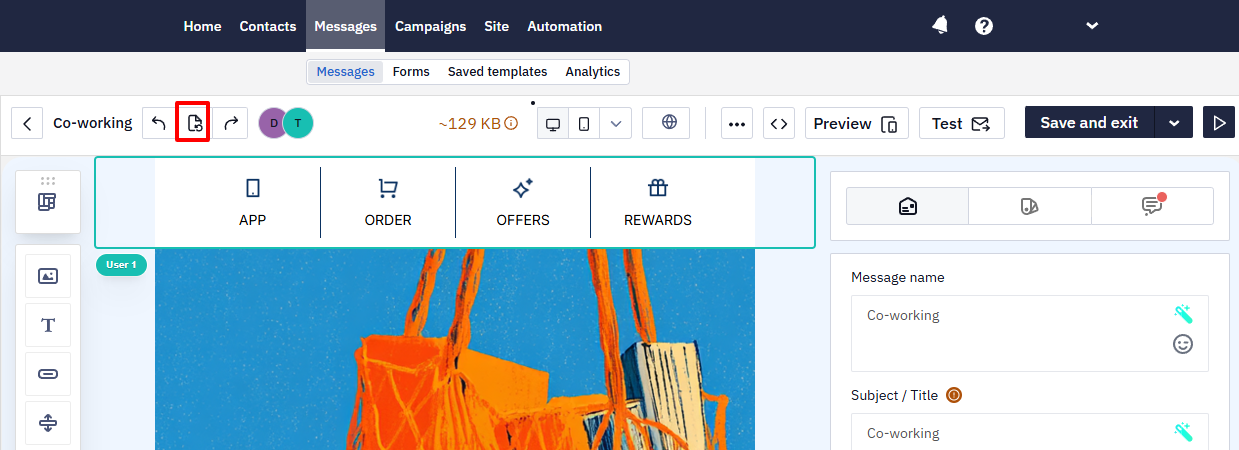
- Browse all message versions, grouped by timestamp. Expand a section to see the specific changes it contains.
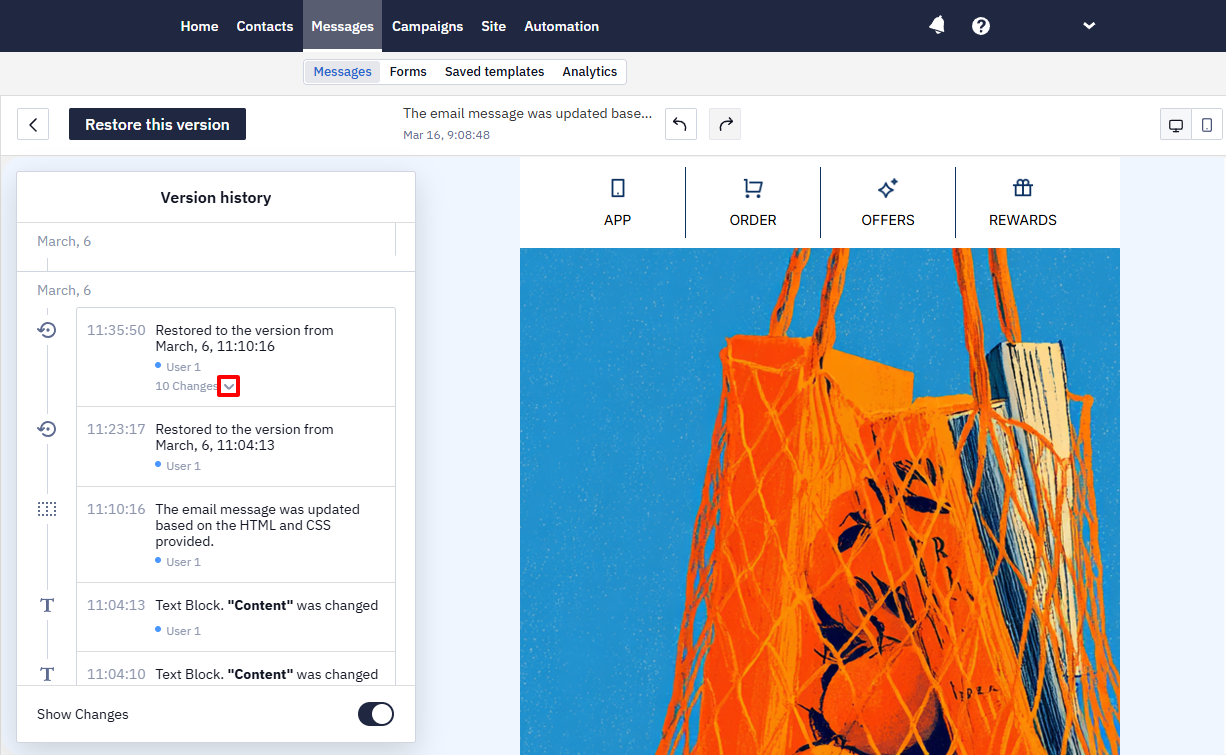
- Select a change to view its details. You can then undo or redo it.
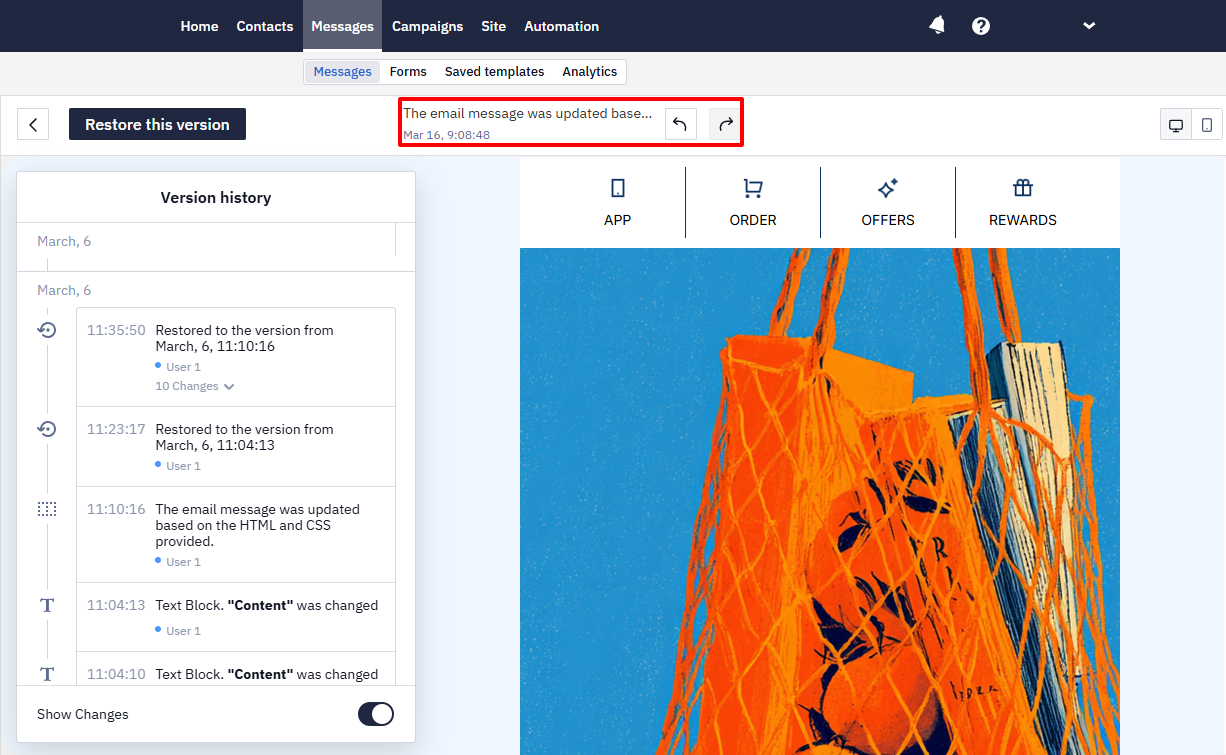
- To continue editing from a specific version, restore it.
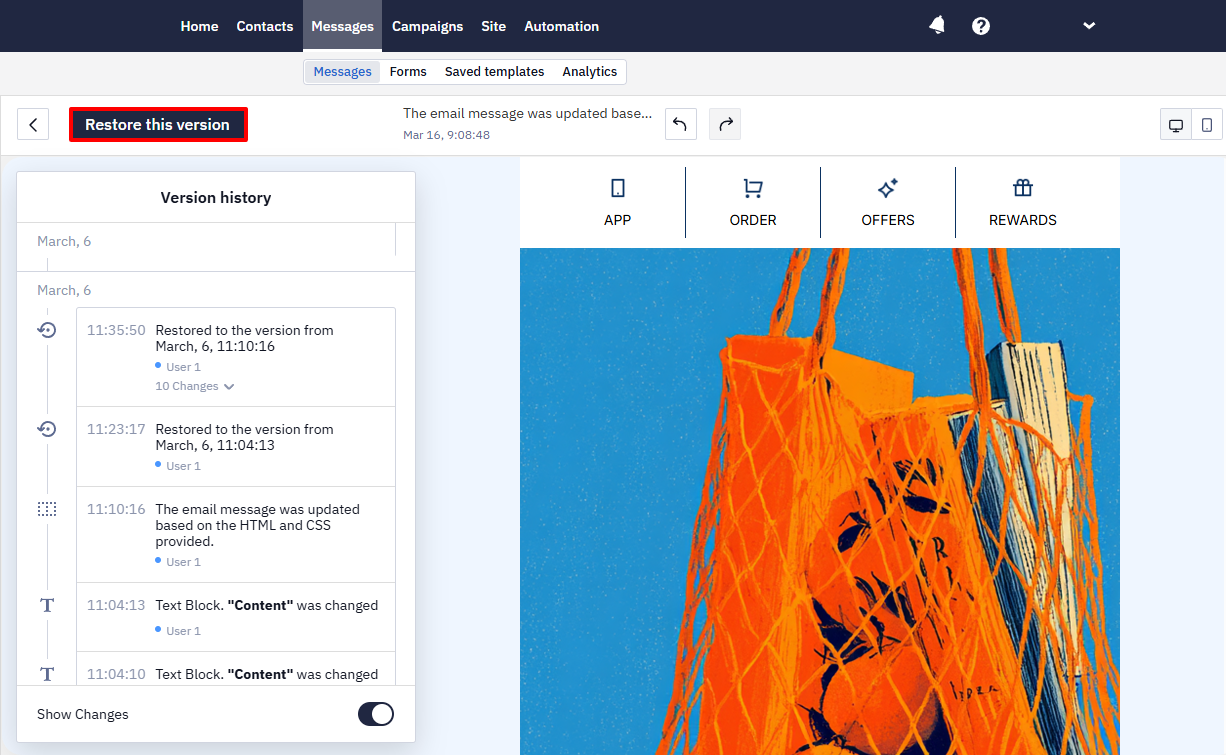
Changes made via the API also appear in the version history as separate versions: the entry marks an update from the HTML and CSS passed in the request and names the user whose API key sent it. Version history belongs to the email editor — messages of other channels keep no versions.
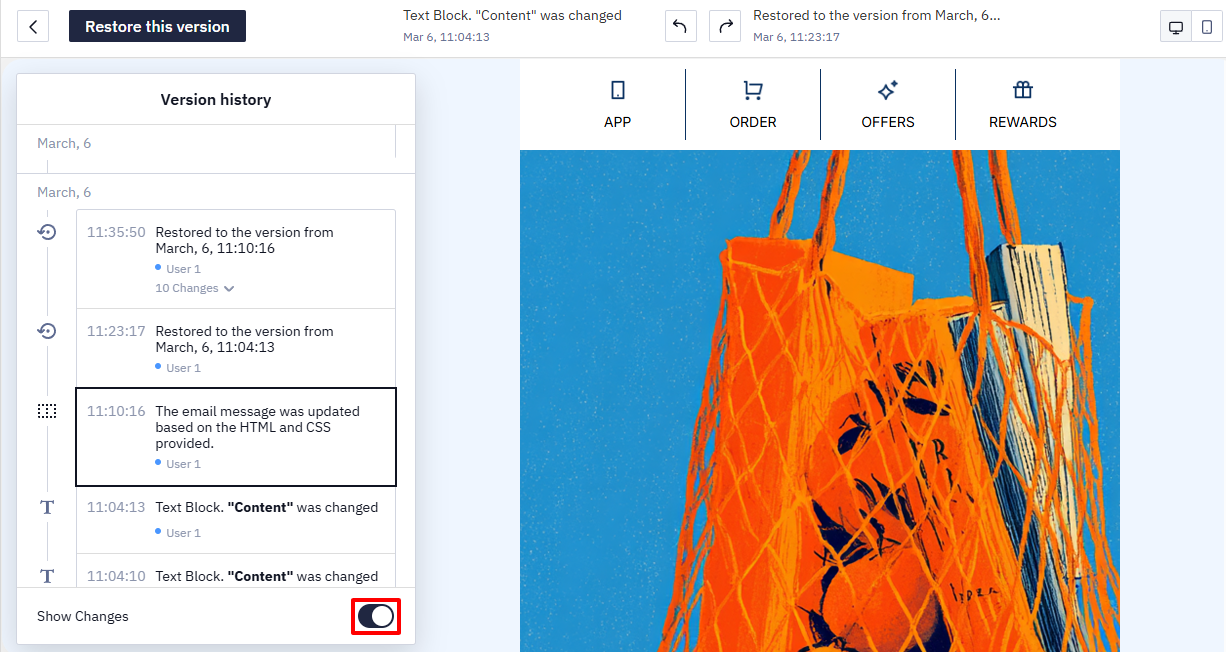
NoteThe Show Changes toggle enables real-time visual highlighting of changes.
Comments and Review
Comment Mode
Open the template and click the Comments tab.
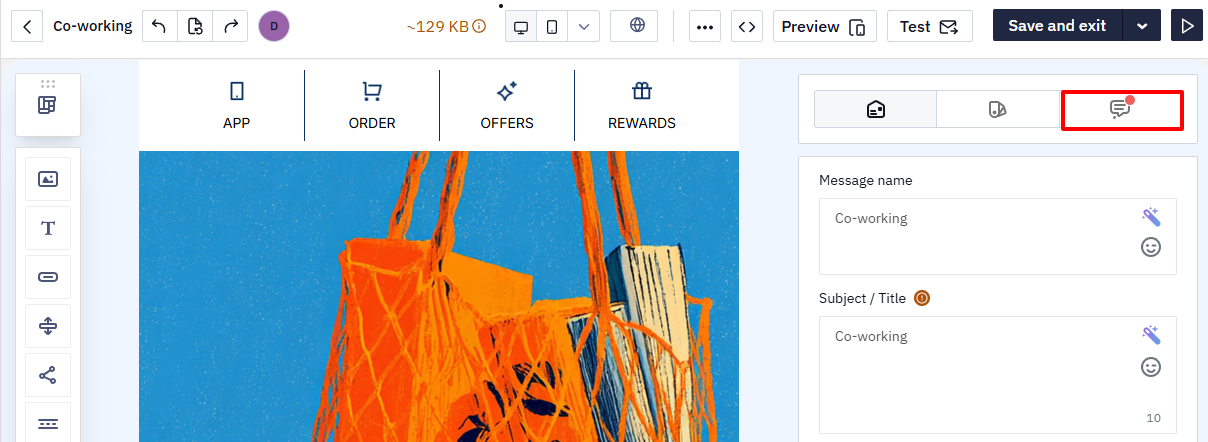
The editor will switch to review mode.
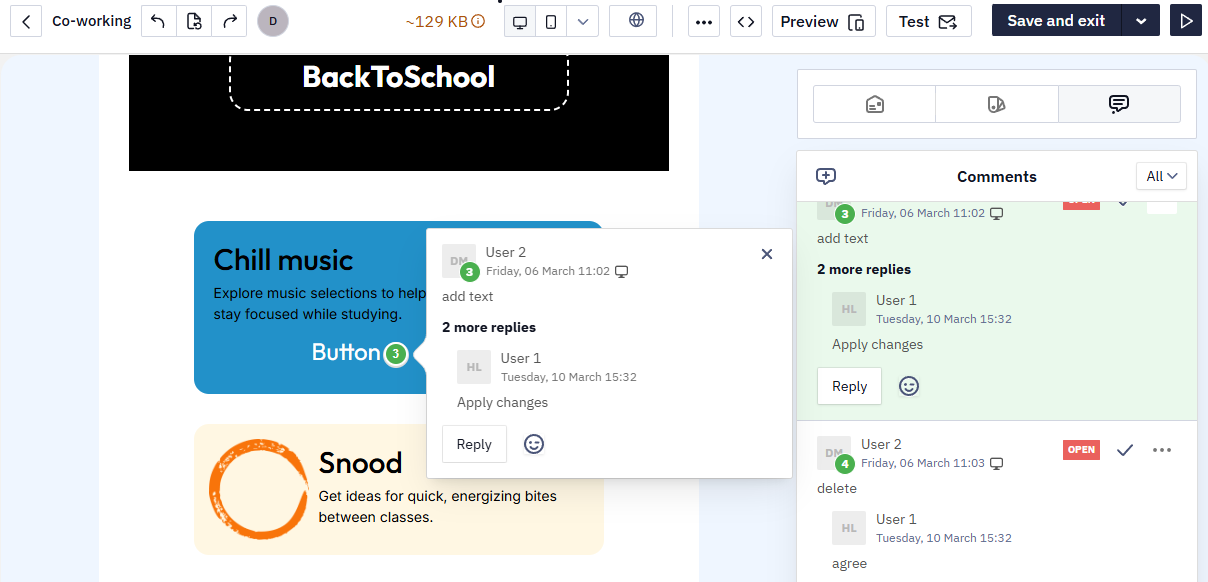
Adding Comments
- In comment mode, click the template element you want to comment on.
- Enter your comment.
- Publish it.
The comment will be linked to the selected element and marked in the layout.
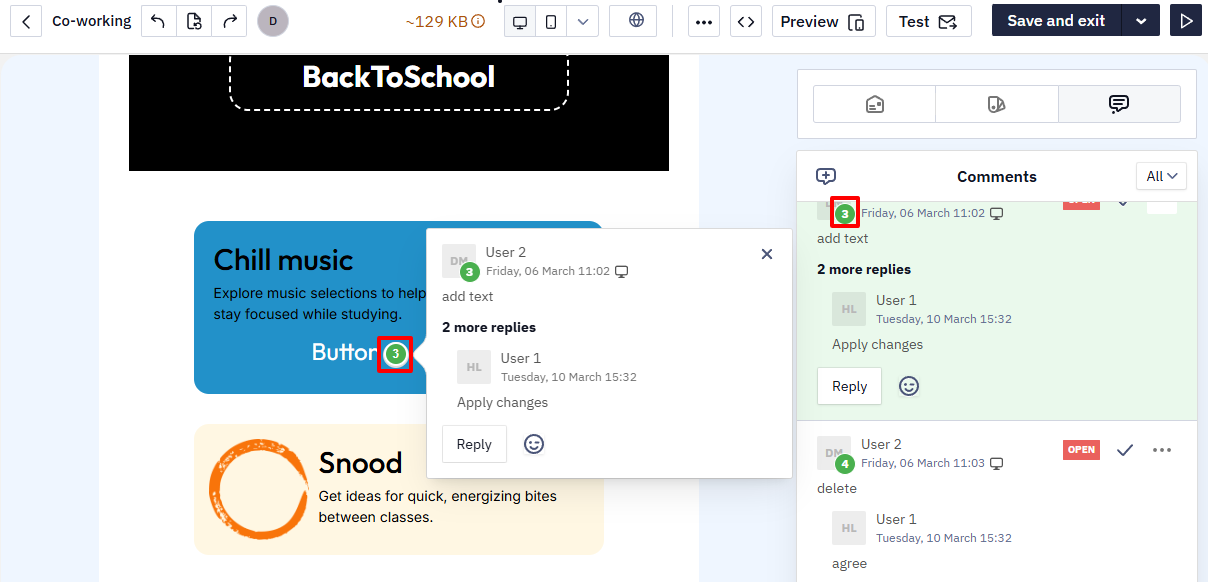
Working with Comments
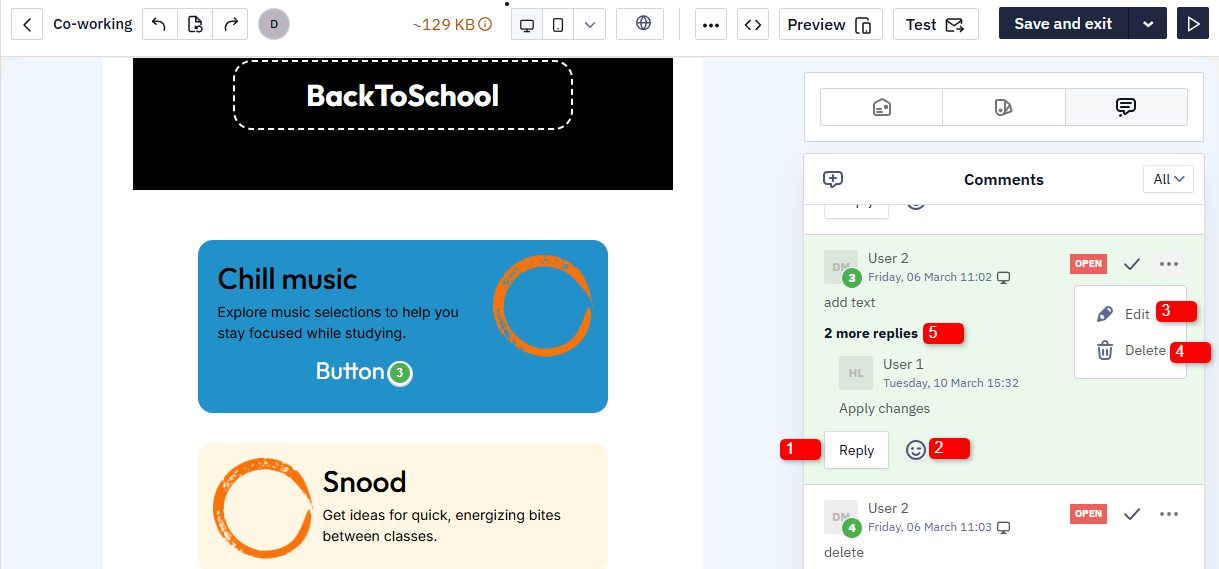
In comments, you can:
- Reply.
- Add emoji reactions.
- Edit comments.
- Delete comments.
- Expand and collapse discussion threads.
Note:The maximum length of a single comment is 500 characters. Use the comments panel's status filter to switch between Open and Resolved comments and other types, so you can quickly find outstanding feedback in a template with a long discussion history.
Updated 3 days ago