
Testing & Troubleshooting Velocity
Dynamic Content Preview
Before sending, preview how Velocity variables render with real data directly in the message editor.
Go to Messages → Messages, open the message, and click Additional settings → Configuring dynamic content.
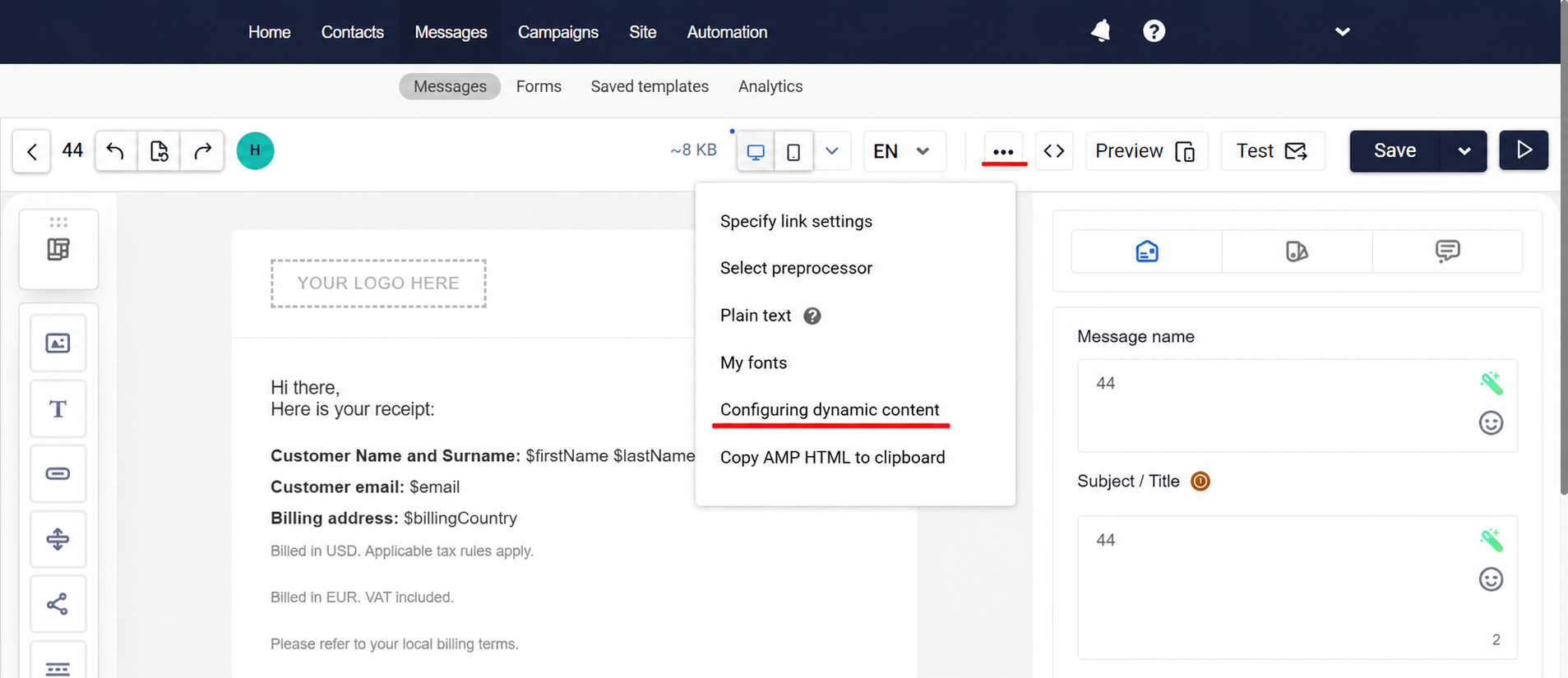
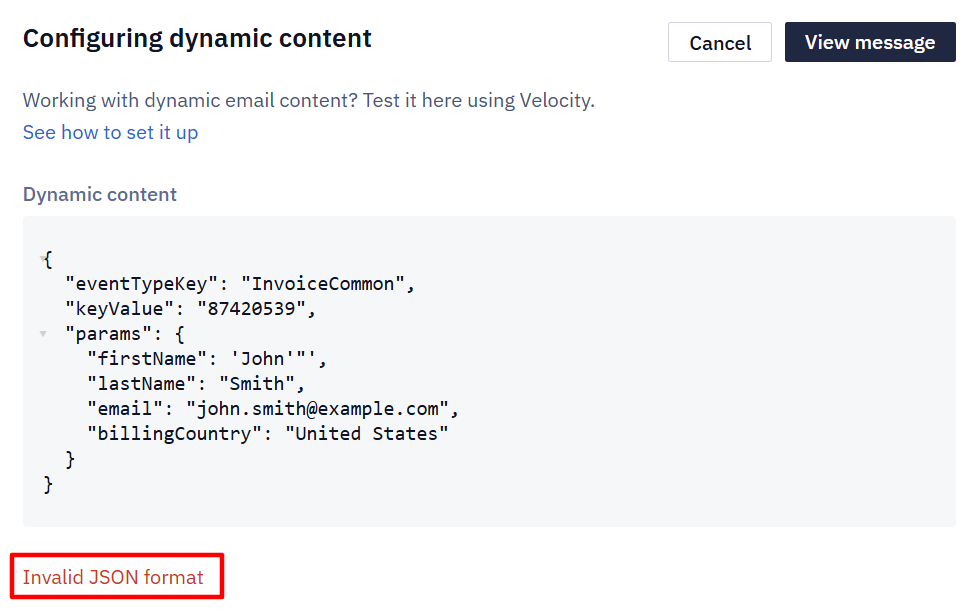
Enter the parameter values as a flat JSON object where each key is a parameter name, for example {"PurchasePrice": 36.99, "currency": "USD"}, and click View message. If you paste the whole event request — with eventTypeKey and params — the variables in the preview stay empty.
If there are errors in the Velocity code, the preview will show an error description instead of the rendered message.
Testing with Real Order Data
If the message is triggered by an event, you can copy real event parameters directly from the interface.
Go to Automation → Event history and click an event. It shows the whole request — with eventTypeKey, keyValue, and params. Copy only the contents of params: the preview needs the parameter object itself.
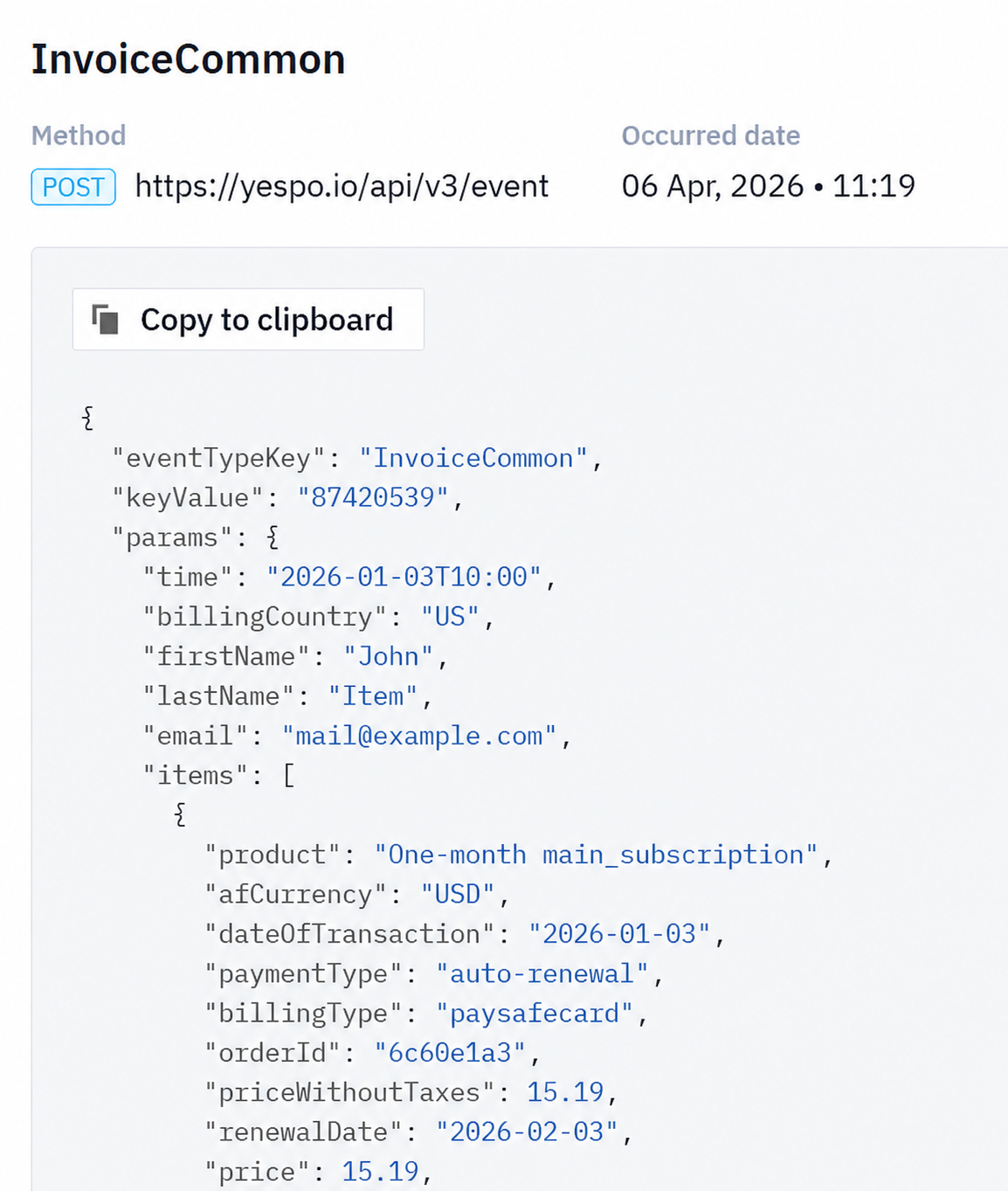
Paste the copied parameters into the Configure dynamic content field and click Preview message.
This is the easiest way to verify field names, array paths, and conditions before sending.
Checking Available Variable Context
Before debugging an expression, check which data source is actually available in the current context.
| Source | Available in | Typical access pattern |
|---|---|---|
| Contact fields | Messages, workflows, segments | ${firstName}, ${email} |
| Event parameters | Only inside the workflow triggered by that event | $deliveryMethod, $items[0].name |
| External source data | Messages or workflows where that source is connected | Depends on the source |
| Webhook response data | After the Webhook block is called in a workflow | Depends on the response structure |
If a value is not being substituted — check whether the expected source is available in the current context.
Case Sensitivity Rules
| Data type | Case sensitivity |
|---|---|
| Contact field names | Case-insensitive: ${firstName} = ${FIRSTNAME} |
| Event parameter names | Case-sensitive: $deliveryMethod ≠ $DeliveryMethod |
| External source field names | Case-sensitive: must match column headers or JSON keys exactly |
Variable Not Substituted
Symptom: the message shows the literal text $firstName or $deliveryMethod instead of the actual value.
Causes and fixes:
| Cause | Fix |
|---|---|
| Variable name doesn't match the field or parameter name | Check spelling and case against the contact field list or event parameters |
Value is missing and bare $var syntax is used | Use $!{var} or ${var|'fallback'} |
| Event parameter is not available in this context | Verify the message is sent through the correct workflow |
| External data source is not connected to the message | Connect the data source in the message settings |
Directive Rendering Issues in Email
Symptom: #foreach or #if content renders as raw text, or the email layout breaks.
Cause: directives in email HTML must be wrapped in comments. Without the wrapper, the email client treats them as invalid markup.
Fix: wrap all directives in HTML comments:
<!--#foreach($item in $items)-->
  <tr>
    <td>$!item.name</td>
    <td>$!item.cost</td>
  </tr>
<!--#end-->

<!--#if($deliveryMethod == 'express')-->
  <p>Express delivery: 1–2 days.</p>
<!--#end-->
This rule applies only to email. In SMS, Mobile Push, Viber, Telegram, and App Inbox, directives are used without comments.
Directive Written Against Adjacent Text
Symptom: the message fails to render, or isn't sent at all.
Cause: when text follows #end or #else immediately, Velocity can read it as part of the directive name — for example, #endparagraph.
Fix: separate the directive with a space, or use its formal form: #{end}, #{else}. Check the plain-text version of the email as well: it has no HTML markup, so a directive easily ends up next to a word.
Common Mistakes with Arrays and Nested Objects
Index out of bounds
$items[3].name ← error if the array has fewer than 4 elementsUse #foreach when the array size is not known in advance, or check the size first:
#if($items.size() > 3)
  $items[3].name
#end
Missing #end
Every #if and #foreach must be closed with #end. A missing #end breaks rendering for everything after it in the template.
<!--#if($deliveryMethod == 'express')-->
  <p>Express delivery.</p>
<!--#end-->    ← required
Wrong path to a nested value
$lastProductAdded.externalItemId    ← works if lastProductAdded is an object
$lastProductAdded[0].externalItemId ← use this if lastProductAdded is an array
If a nested value is not rendering, check whether the parent is an object or an array in the event payload.
Link Assembled with Velocity Isn't Wrapped in a Bulk Campaign
Symptom: in a bulk campaign, a link whose address is assembled in a #set directive is not wrapped into a tracking URL — clicks are not registered and UTM tags are not added.
Cause: a bulk campaign substitutes values from contact fields through personalization keys, and Velocity parameters appear in it only from a preprocessor or a data source. A #set built on a personalization key therefore has no Velocity context, and the address isn't recognized as a link. The same markup works in a triggered message.
Fix: in the link field, use a contact field variable instead of the Velocity expression. In the reported case this produced a wrapped link in the same campaign:
https://fitpulse.app/login?lang=%PERSONAL.LANGUAGE%Velocity Code in API Responses
The Get contact's message history and Get a Mobile Push message API resources return a message as a template, without substituted data: instead of values, you get Velocity code, for example $!abandoned_view_mostcost[0].imageUrl. So the API can't give you a message the way the contact received it.
To show received pushes in your app — for example, in a notification history — save them on the device when they arrive. On Android, the SDK passes received pushes to the RetenoNotifications.received listener, described in the article on push handling for Android. On iOS, the push arrives in the Notification Service Extension at delivery time, and the extension shares storage with the app through the App Group configured during iOS SDK setup. The willPresentNotificationHandler handler is called only when the app is in the foreground.
Next Steps
- Velocity Reference — full syntax reference
- Velocity in Messages — practical examples for message templates
- Velocity in Workflows — practical examples for workflows
Updated about 1 month ago