
Dark Mode in Emails
Dark mode is a color scheme that uses light text on a dark background. Email clients may render emails in dark mode based on the recipient’s device, browser, or email client settings. You cannot fully control whether your email is rendered in dark mode or how it will look because each email client applies its own rendering rules. Still, you can reduce rendering risks by designing emails with dark mode in mind, using Theme emulation for an early preview, and testing emails in real inboxes before launch.
Many recipients read emails in dark mode at least some of the time, so dark mode issues are not an edge case. This guide explains how email clients handle dark mode, how to reduce rendering risks in the Yespo Responsive Email Editor, and how to use Theme emulation before final inbox testing.
How Email Clients Render Emails in Dark Mode
Email clients don’t render dark mode in one consistent way. In practice, their behavior often falls into three broad patterns: no color change, partial color inversion, and full color inversion.
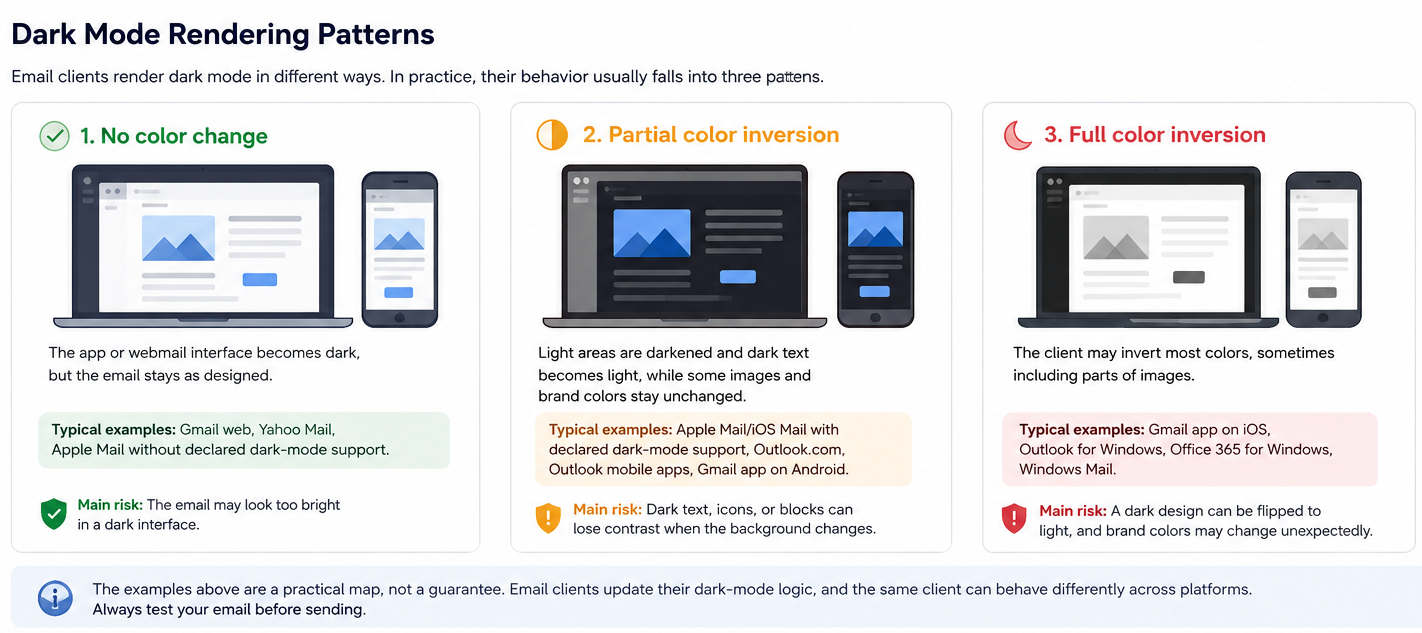
| Model | What Happens | Typical Examples | Main Risk |
|---|---|---|---|
| No color change | The email client or webmail interface becomes dark, but the email itself stays as designed. | Gmail web, Yahoo Mail, Apple Mail without declared dark-mode support. | The email may look too bright in a dark interface. |
| Partial color inversion | Light areas are darkened and dark text becomes light, while some images and brand colors stay unchanged. | Apple Mail/iOS Mail with declared dark-mode support, Outlook.com, Outlook mobile apps, Gmail app on Android. | Dark text, icons, or blocks can lose contrast when the background changes. |
| Full color inversion | The client may invert most colors, sometimes including parts of images. | Gmail app on iOS, Outlook for Windows, Office 365 for Windows, Windows Mail. | A dark design can be flipped to light, and brand colors may change unexpectedly. |
The examples above are a practical map, not a guarantee. Email clients update their dark-mode logic, and the same client can behave differently across platforms. Always test your email before sending.
Optimizing Your Emails for Dark Mode in Yespo
The safest strategy is progressive enhancement: first build a strong light-mode email, then make it resilient to color inversion, and only then add dark-mode styles for clients that support them.
These techniques reduce dark-mode risks, but they do not force one consistent rendering across all inboxes.
Choose Safer Neutral Colors
Pure #FFFFFF and #000000 can create harsh contrast or trigger noticeable color changes in some dark-mode clients. They are not always the root cause of dark-mode issues, but softer neutrals are usually safer.
For large backgrounds, text areas, and buttons, consider near-neutral values:
- off-white colors such as
#F0F0F0; - near-black colors such as
#1A1A1A; - softer variations of brand colors for large surfaces.
Set the main palette in General Styles, then adjust individual stripe, block, button, and text colors where needed.
Slightly adjusted values such as #FFFFFE instead of #FFFFFF or #000001 instead of #000000 may reduce unwanted inversion in some cases. Treat this as a workaround, not a guaranteed fix, and always test the result.
Protect Logos and Images
Images are one of the most common dark-mode problem areas. A dark logo can disappear on a dark background, and an image with a white frame can look like an unwanted bright box.
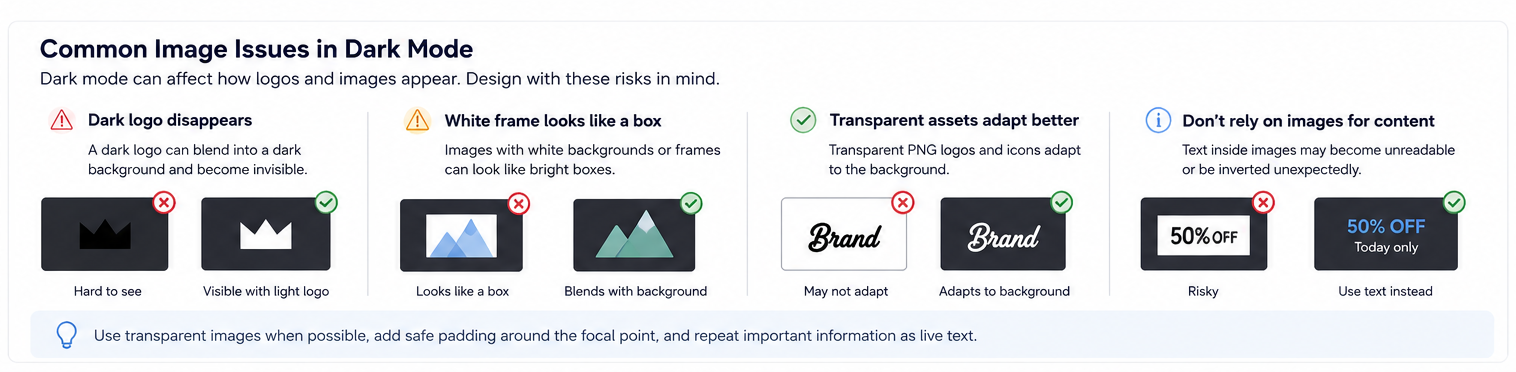
For logos and icons, transparent PNGs usually work better than assets with solid backgrounds because they adapt to the rendered background. However, transparency does not guarantee that every client will preserve the original logo or icon colors.
A light outline, subtle glow, or safe background container can help dark logos remain visible when the surrounding area becomes dark. This is especially important for brand marks, app icons, and white-only or dark-only icon sets.
For non-transparent images, keep enough padding around the focal point so the image does not feel crowded if the surrounding background changes. Photographs usually should remain regular images when the background is part of the content.
Avoid placing essential information only inside images. If a hero banner includes a trial reminder, subscription offer, workout challenge, or promo message, repeat the key information as live text in the email body.
Add Dark Mode Styles in the Code Editor
If you work with the full email HTML in the Code Editor, add dark-mode meta tags to the email <head>:
<meta name="color-scheme" content="light dark">
<meta name="supported-color-schemes" content="light dark">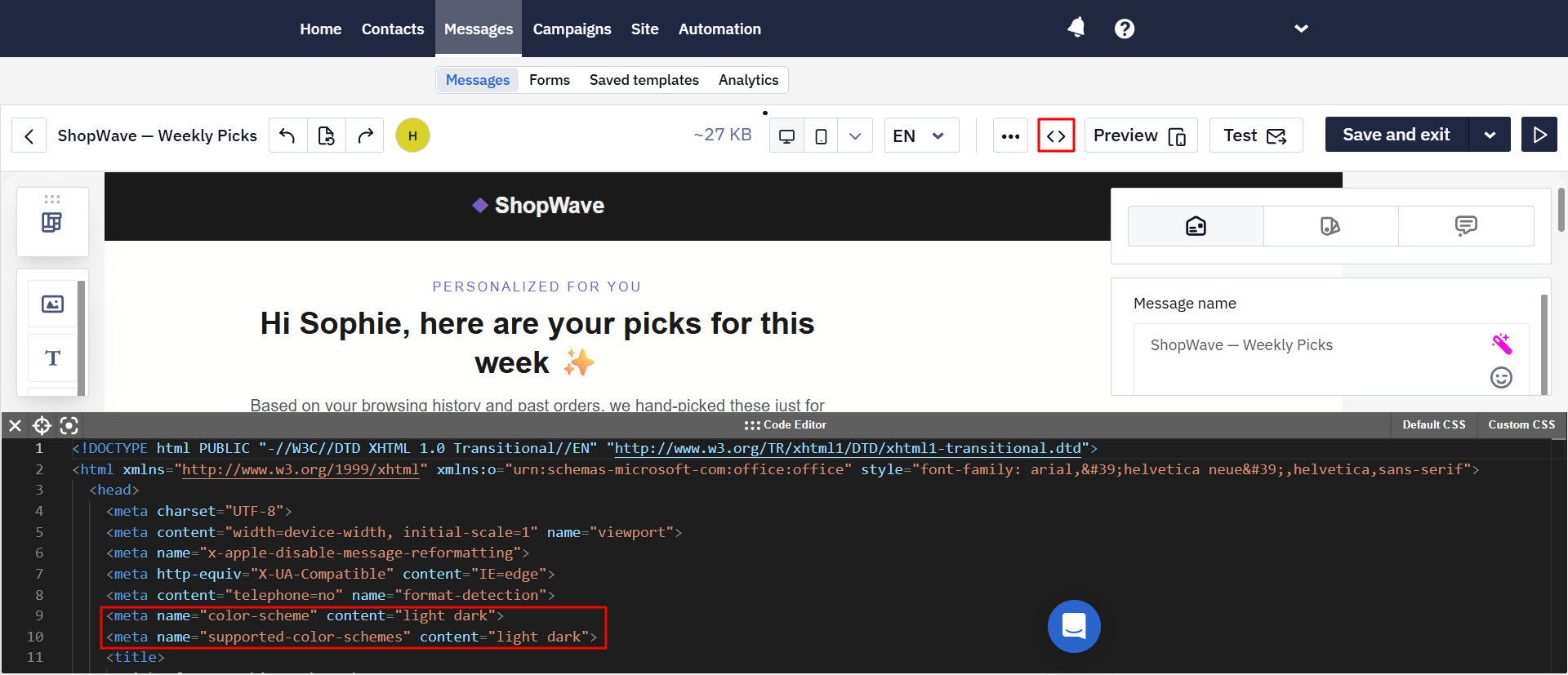
You can also duplicate color-scheme support in CSS:
<style>
  :root {
    color-scheme: light dark;
    supported-color-schemes: light dark;
  }
</style>
Then add scoped dark-mode styles for the parts of the template you intentionally control:
<style>
  @media (prefers-color-scheme: dark) {
    .email-dark {
      background-color: #1A1A1A !important;
    }
    .email-dark .dark-text {
      color: #F0F0F0 !important;
    }
    .email-dark .cta {
      background-color: #FFFFFF !important;
      color: #1A1A1A !important;
    }
  }
</style>
Apply these classes only to the sections, text elements, and buttons you want to control in dark mode.
Avoid broad global overrides unless you control the full template structure. For example, a rule applied to all h1, h2, p, a, and span elements can unintentionally affect footer text, unsubscribe links, legal copy, preheader text, or secondary links.
@media (prefers-color-scheme: dark) is an enhancement for clients that support it. Do not rely on it for Gmail apps, full-inversion clients, or clients that rewrite or ignore this media query.
For Outlook.com and some Outlook apps, Outlook-specific selectors may help:
<style>
  [data-ogsc] .email-dark .dark-text {
    color: #F0F0F0 !important;
  }
  [data-ogsb] .email-dark {
    background-color: #1A1A1A !important;
  }
</style>
These selectors do not solve all Outlook desktop dark-mode issues. Treat them as an Outlook-specific enhancement and test Outlook desktop and Outlook mobile separately.
When you edit HTML/CSS manually, you are responsible for its validity, responsiveness, and rendering across email clients. Test these changes especially carefully.
Lock a Fixed Text or Button Color
For elements that must keep one fixed color regardless of dark mode — for example, white text on a colored button — two named workarounds target specific clients:
- Gmail: wrap the text in nested
gmail-screen/gmail-differenceclasses so Gmail's blend-mode inversion cancels itself out:
<span class="gmail-screen"><span class="gmail-difference">Your text</span></span>u + .body .gmail-screen { background: #000000; mix-blend-mode: screen; }
u + .body .gmail-difference { background: #000000; mix-blend-mode: difference; }- Outlook: apply a
keep-whiteclass together with an MSO gradient text-fill rule in the<head>to stop Outlook from recoloring the text.
Use these only on the specific elements whose color must stay fixed — they are targeted workarounds, not a general dark-mode fallback.
Use Separate Images for Light and Dark Modes
Some clients that support @media (prefers-color-scheme: dark) can show different images depending on the mode. For example, you can display a dark logo in light mode and a light logo in dark mode.
<style>
  @media (prefers-color-scheme: dark) {
    .light-img {
      display: none !important;
    }
    .dark-img {
      display: block !important;
    }
  }
</style>
Image swapping is not a universal fallback. It may not work in Gmail apps or full-inversion clients, so important logos and icons should remain readable even when the swap is ignored. A transparent PNG, safe background, outline, or glow is usually a more reliable base layer.
Keep Contrast Readable
Text, buttons, links, and icons should stay readable in both light and dark mode. Thin fonts on dark backgrounds are especially risky; if your brand uses a light font weight, consider increasing the weight for dark-mode styles.
Aim for a contrast ratio of at least 4.5:1 for body text (WCAG AA), and check your palette with a tool like WebAIM's Contrast Checker.
What These Fixes Cannot Guarantee
Dark-mode optimization is risk reduction, not full control. Gmail iOS, Gmail Android, Outlook Windows, Outlook mobile apps, Apple Mail, and other clients may still change colors, text, backgrounds, buttons, or images differently.
Custom CSS, image swaps, neutral colors, and logo outlines help prevent common issues, but they do not replace real inbox testing.
Preview Dark Mode with Theme Emulation
Yespo lets you view a template in light and dark mode directly in the editor.
In the Email Management panel, click the arrow next to the desktop/mobile device toggle to open Theme emulation. Switch between the sun icon and the moon icon to view the template in light or dark mode, then use the desktop/mobile toggle to check both layouts.
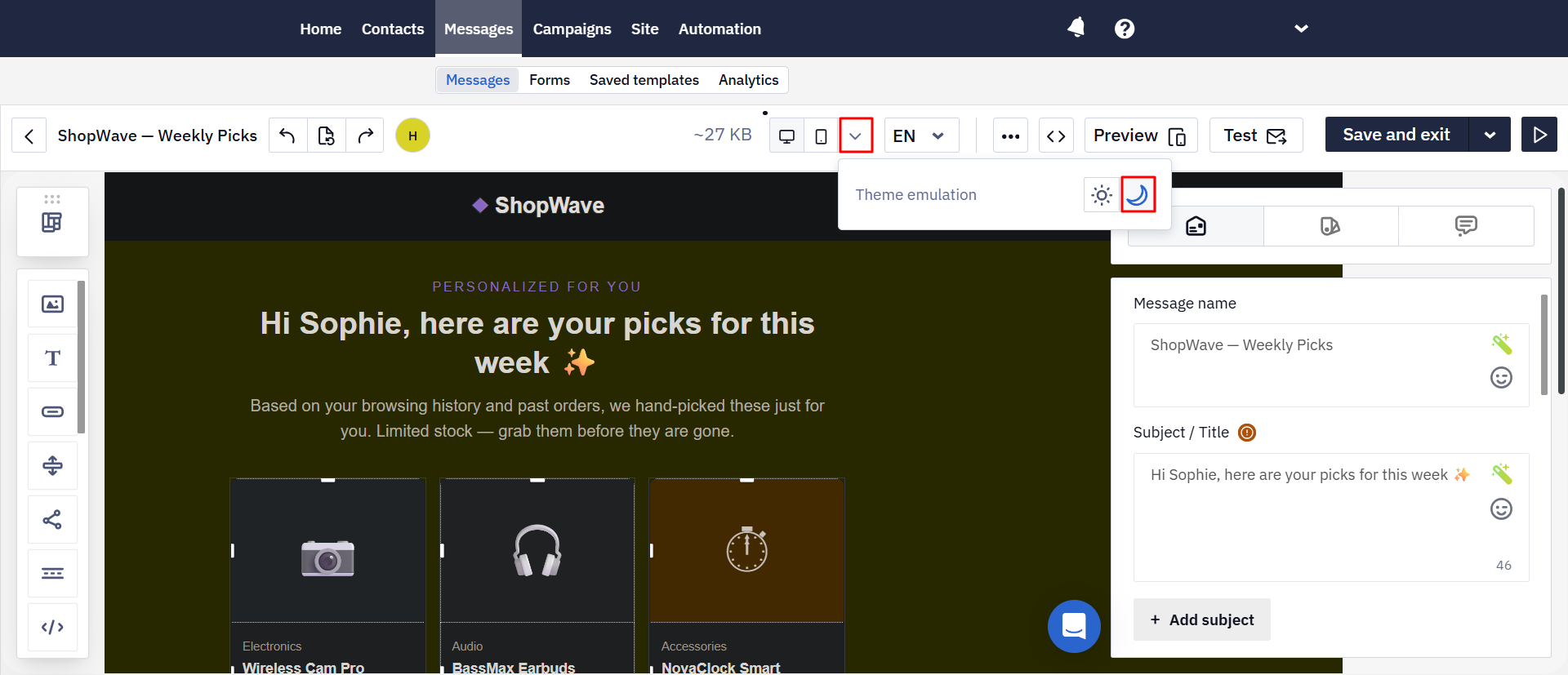
This preview is useful for catching obvious issues early:
- logos that disappear on dark backgrounds;
- text blocks with low contrast;
- buttons that no longer stand out;
- images with awkward light or dark backgrounds.
The editor preview is not a real inbox test. It shows an approximation of dark mode and does not reproduce the exact behavior of Gmail, Apple Mail, Outlook, or any other email client. Each client applies its own dark-mode logic after the email is delivered.
Use this preview for quick design checks, then confirm the final result in real inboxes.
Test on Real Clients
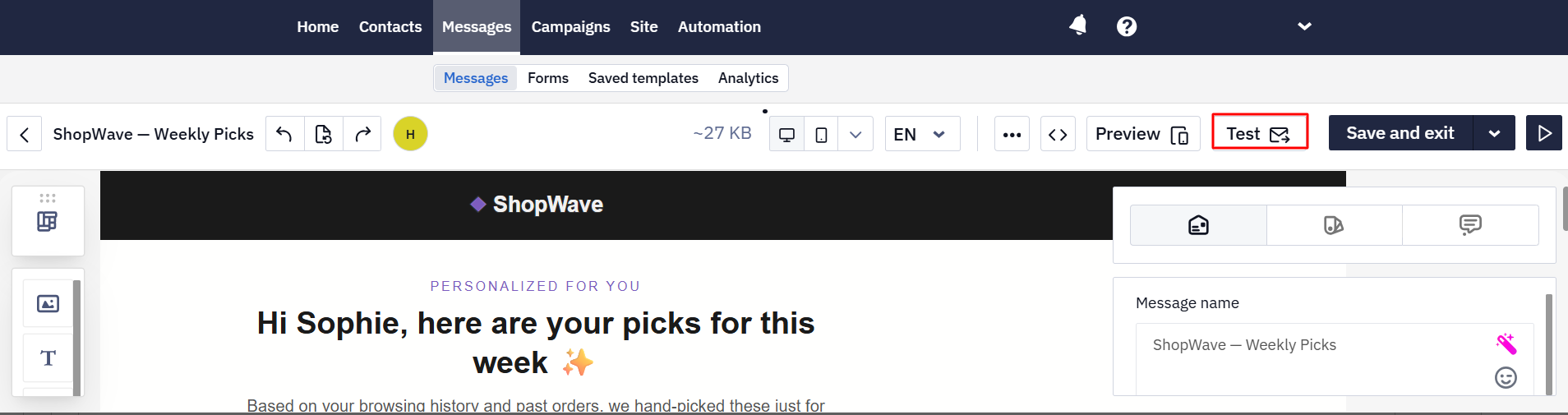
Before sending, click Test in the editor and open the email in the clients that matter most for your audience.
Prioritize:
- Gmail on iOS and Android;
- Apple Mail;
- Outlook desktop and mobile;
- any other clients that are important for your audience.
Check both light and dark mode. Pay special attention to logos, icons, CTA buttons, text contrast, links, footer content, unsubscribe links, legal text, and images with light backgrounds.
The two practical ways to see the real dark-mode result are sending a test email to your own addresses and opening it in the target clients, or running the email through an external rendering-testing service that shows screenshots from many clients at once.
Re-test when you significantly change a template, and periodically check reusable templates because email-client behavior can change over time.
Dark Mode Troubleshooting
| Problem | Likely Reason | What to Try |
|---|---|---|
| Dark logo disappears | Transparent or dark logo appears on a dark background. | Add a light outline or glow, use a safe container, or prepare a light logo version. |
| White image corners appear | The image has a white background or visible corners. | Use a transparent PNG, crop the image, or round corners inside the image file. |
| CTA loses contrast | Button and text colors are inverted differently. | Test button background and text together, and use stronger contrast. |
| Icons become hard to see | Icon color changes or blends into the rendered background. | Test icons separately and avoid white-only or dark-only icon sets. |
| Footer, legal text, or unsubscribe becomes unreadable | Global CSS overrides or client-side inversion affected secondary text. | Use scoped classes and check footer content in every test. |
| Dark design turns light | The email is opened in a full-inversion client. | Avoid relying on a dark-only design and use colors that survive inversion. |
| Custom dark-mode CSS is ignored | The client does not support @media (prefers-color-scheme: dark) or rewrites it. | Treat CSS as progressive enhancement and rely on resilient base design. |
| Outlook renders colors unexpectedly | Outlook applies its own dark-mode logic. | Test Outlook desktop and mobile separately; use Outlook-specific fixes only when needed. |
Dark Mode Checklist
Before sending an email, check that:
- The template does not rely on pure
#FFFFFFor#000000for key areas. - Logos and icons remain visible on dark backgrounds.
- Icons are tested separately from logos.
- CTA buttons keep enough contrast in both modes.
- Links are visible and distinguishable from body text.
- Text contrast is readable in light and dark mode.
- Footer, unsubscribe, and legal text remain readable.
- Important information is not placed only inside images.
- Image swaps are treated as an enhancement, not the only fallback.
- The template is checked with Theme emulation.
- The email is tested in the highest-priority clients for your audience, not only in generic previews.
Summing Up
You cannot fully control how every email client renders dark mode, but you can make your emails more resilient. Choose dark-mode-friendly colors, protect logos and images, keep contrast readable, and add custom styles carefully when you work with the full HTML code.
Treat dark-mode optimization as risk reduction, not full control. Check the template with Theme emulation, then confirm the final result in real inboxes.
Related Articles
Updated 2 months ago