
Dynamic Links in Email
A dynamic link is a button or text URL that changes per contact — for example, a link that carries the contact's email, language, or an order ID from a triggered event. Yespo builds these links from two data sources, and the method differs by source:
- Contact fields — inserted with merge tags (
%FIELDNAME%) directly in the link field. - Event parameters — inserted with Velocity, declared before the button and referenced in the link field.
Use this quick rule to choose the correct setup:
| Data source | Example | Link type | What to enter |
|---|---|---|---|
| Contact field | %PERSONAL.LANGUAGE% | Site | A literal URL with a merge tag inside |
| Event parameter with a full URL | $checkoutUrl | Other | A variable that holds the complete URL (assigned in an HTML block) |
| Event parameter with a partial value | $orderId | Site | A literal URL with a variable inside |
The examples below use a fictional store, ShopWave, to show each pattern in a real email. For the full data model, see the Velocity Overview.
Contact Field in a Link
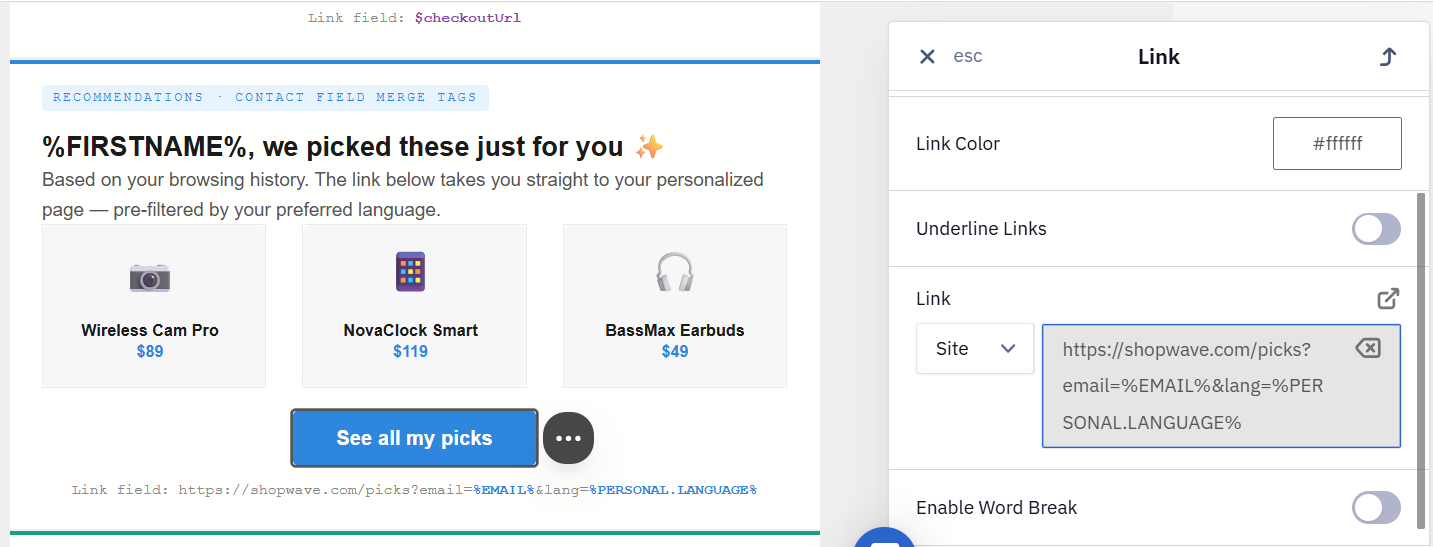
When the value belongs to the contact profile and doesn't depend on a specific event — email, name, language, an externally stored ID — use a merge tag. Type it straight into the Link field of the button, with the Link type set to Site. No HTML block is needed.
In this recommendations email, the See my picks button sends each contact to their personalized page, pre-filtered by their preferred language:
https://shopwave.com/picks?email=%EMAIL%&lang=%PERSONAL.LANGUAGE%%EMAIL% is a standard field, used by its bare name. %PERSONAL.LANGUAGE% is an additional field — the field language stored in the field list named Personal. Every attribute you store beyond the standard fields belongs to a field list under Settings → Additional fields, and its merge tag has the form %LISTNAME.FIELDNAME%. PERSONAL is the name of that list, not a prefix shared by all additional fields — a field in another list uses that list's name (for example, %LOYALTY.TIER%).
A ${field} variable placed in a link field can still resolve in the preview and in a test send, but it is not substituted in real campaigns — use the %FIELDNAME% form there.
Because the list and field names determine the tag, copy each tag straight from Settings → Additional fields (every field displays its tag) or insert it through the personalization menu in the editor rather than typing it by hand. A tag is replaced at send time with the value from each contact's profile, and resolves to an empty string if the contact has no value for that field.
Event Parameter in a Link
Event data — an order ID, a one-time checkout link, a token passed through a triggered workflow — is not available as a contact merge tag. Insert it with Velocity in two steps: declare the value in an HTML block placed before the button, then reference the variable in the button's Link field.
Event parameters are available only in triggered messages — those sent from a workflow that the event launched. They aren't available in regular bulk campaigns.
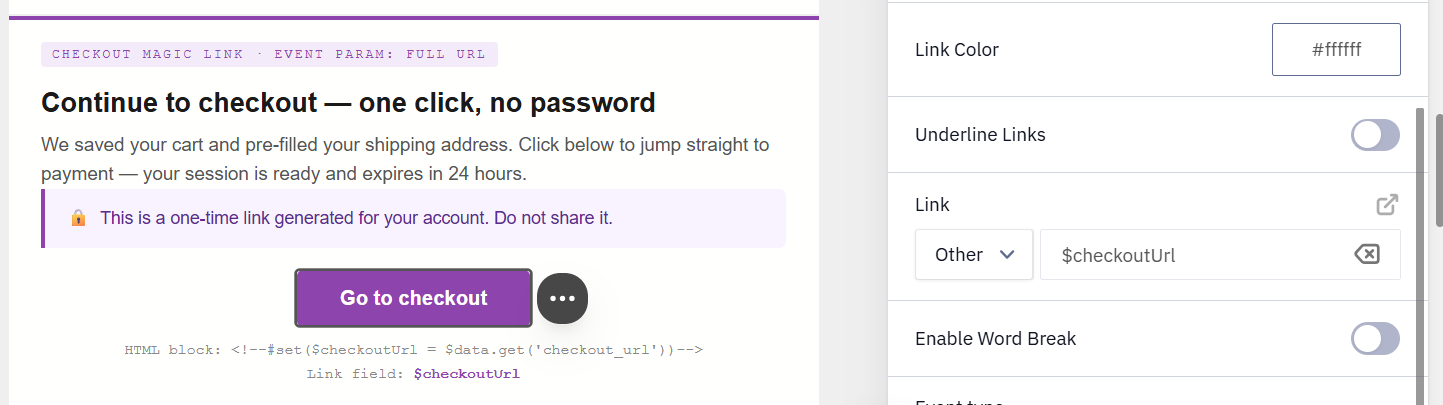
In this checkout email, a one-time checkout_url from the event becomes the button's destination.
Step 1 — HTML block before the button (assigns the variable and renders nothing):
<!--#set($checkoutUrl = $data.get('checkout_url'))-->Step 2 — Link field of the button:
$checkoutUrlThe Link type in the button settings controls how Yespo reads the value:
- Other — for a single variable that already holds the complete URL, such as
$checkoutUrl. - Site — for a literal URL that contains a merge tag or variable inside it, such as
https://shopwave.com/orders/$orderId.
Account Login Case
A dynamic link can also send a contact back to their account, order status, or dashboard.
For a page with non-sensitive context, such as language, build the URL directly in the Link field and set the Link type to Site:
https://shopwave.com/account?lang=%PERSONAL.LANGUAGE%For a personalized or passwordless session, generate the complete URL on your backend, pass it as an event parameter, assign it in an HTML block, and set the Link type to Other:
<!--#set($loginUrl = $data.get('login_url'))-->$loginUrlAvoid putting raw contact IDs, email addresses, or permanent tokens directly in visible URLs. Use a short-lived signed token, a one-time session link, or Secure Link for sensitive destinations.
Full URL vs. Partial URL
Choose the shape that matches what the event delivers:
- Full URL — the backend builds the complete link and passes it as one parameter, such as
checkout_url. Assign it (Steps 1–2 above) and use the variable as the entire link, with the Link type set to Other. - Partial URL — the event delivers only an identifier, such as
cartId. Assign the ID, build the rest of the path around it, and set the Link type to Site.
In this abandoned-cart email, the Complete my purchase button rebuilds the cart URL from a cartId:
<!--#set($cartId = $data.get('cartId'))-->https://shopwave.com/cart/restore?id=$cartId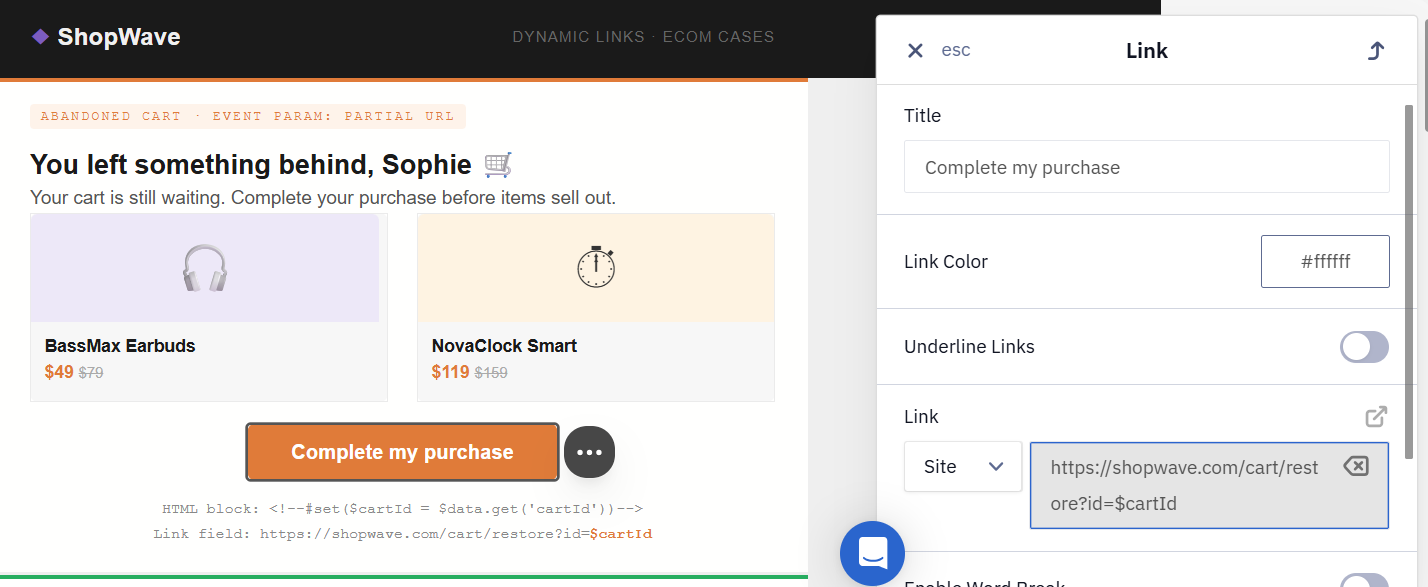
NoteEvent parameter names are case-sensitive. Before referencing one, confirm the exact name and path in Automation → Event history — copy a real event and check the payload structure.
Fallback for an Empty Value
If an event parameter is empty at send time, Velocity inserts nothing and the URL breaks. Guard against it by checking the value in the HTML block before the button and setting a default when it's missing.
In this order-confirmation email, the View my order button falls back to a safe value when orderId is absent:
<!--#if($data.get('orderId') && $data.get('orderId') != '')
  #set($orderId = $data.get('orderId'))
#else
  #set($orderId = 'unknown')
#end-->
Then reference $orderId in the Link field, with the Link type set to Site:
https://shopwave.com/orders/$orderId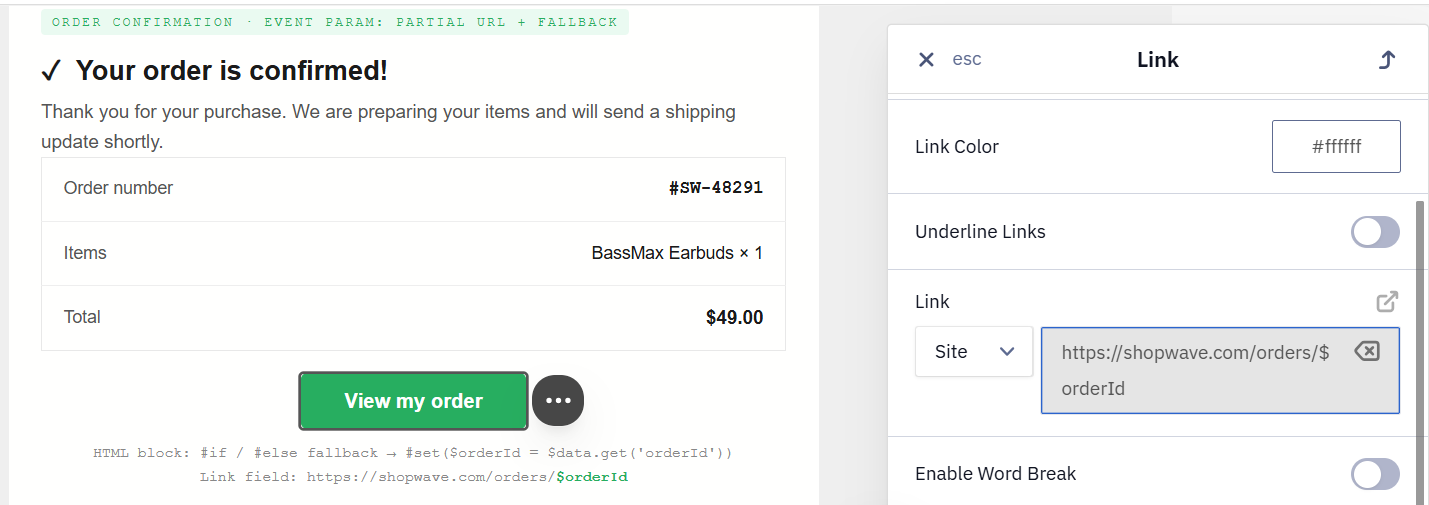
URL Encoding and Special Characters
When a dynamic value may contain spaces or special characters — a category name, a search query, anything passed into a query parameter — encode it so the final URL stays valid. Wrap the value in $esc.url when you assign it in the HTML block before the button.
In this triggered category-view email, category_name may be something like Smart Home & Audio. The space and the & would break the query string, so $esc.url encodes the value before it reaches the link:
<!--#set($category = $esc.url($data.get('category_name')))-->Then reference it in the Link field, with the Link type set to Site:
https://shopwave.com/category?name=$category&sale=trueIf you pass the contact's address in a query parameter, encode it with $esc.url(). Without encoding, a + can turn into a space once the link is opened.
$esc.url($email) encodes + as %2B and @ as %40:
https://example.com/r?email=$esc.url($email)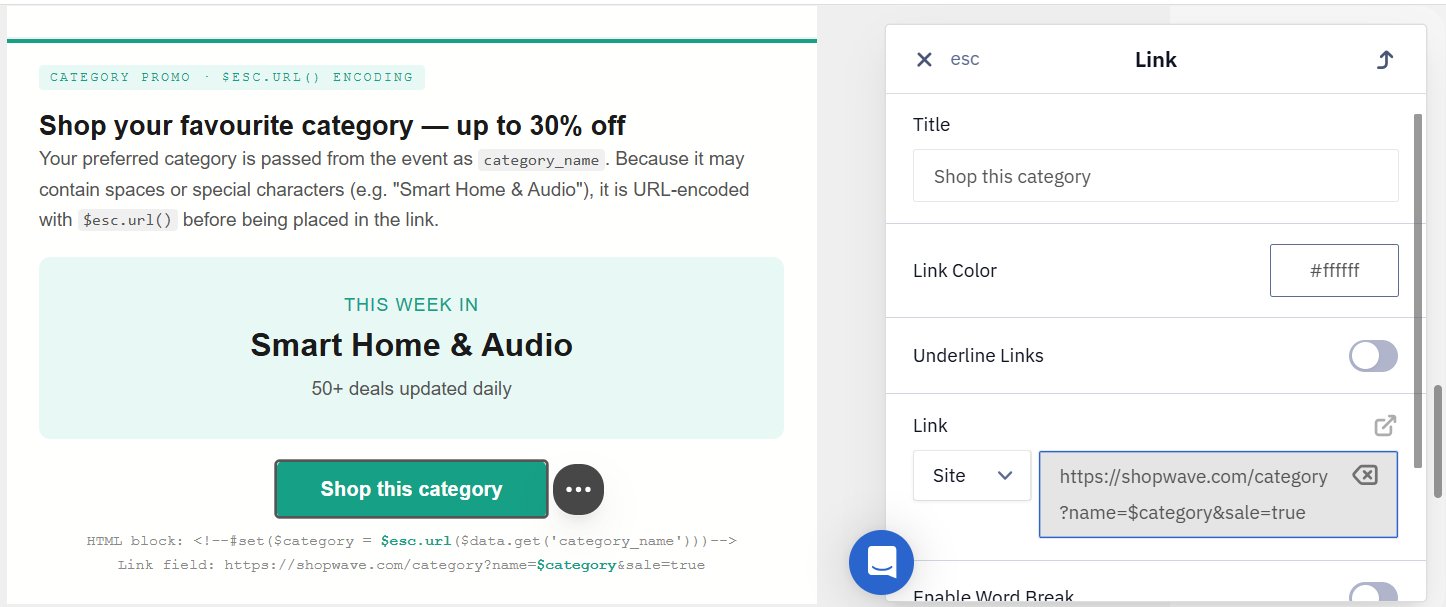
A literal $ immediately followed by a number — a price such as $13.99 shown next to a dynamic value — is misread as the start of a Velocity variable and breaks the tag. Print the dollar sign with ${esc.d}, which outputs a literal $:
${esc.d}13.99Combine it with a dynamic price the same way — ${esc.d} prints the sign, the variable prints the amount:
${esc.d}${price}This renders as $13.99.
Link Wrapping and Click Tracking
Yespo wraps links that have URL tracking enabled so it can track clicks. URL tracking is on by default; you can turn it off per message in the link settings. In Preview, you'll see a long wrapped URL containing the tracking domain, not your original link.
The wrapping domain is set at the account level. By default it's esclick.me; you can replace it with your own short-link domain so links look consistent with your brand. See Short Links Settings.
A new account starts on the shared sn.am domain. When the account becomes trusted, its wrapping domain switches to a subdomain of esclick.me, and links in messages that were already sent under sn.am stop working.
Wrapping also affects how Velocity works inside links. The link is stored separately from the message body and is wrapped into the tracking URL before Velocity is applied, so a variable placed inside a static href in the message HTML is not substituted — it stays in the final URL as literal text. The reliable approach is to assemble the entire address in an HTML block with #set and use the resulting variable as the link:
<!--#set($url = 'https://example.com/auth/reset/' + $!data.code)-->Then reference $url in the Link field.
NoteThe
|default-value syntax — in a merge tag (for example,%FIELD|default%) or in Velocity ($!data.get('param')|default) — works in the message body but breaks when used inside a button or text link, because link wrapping alters the URL. There's no confirmed way to keep this fallback syntax working inside a link. Disabling link wrapping / URL tracking for the email is one workaround, but it removes click tracking for all links in that email, not just the one with the fallback value.
Disabling link wrapping also breaks click-based segmentationFor Email, disabling link wrapping / URL tracking turns off click tracking for every link in the message. As a result, segmentation by "clicked a link" will not see those clicks at all.
Secure Link
When a link carries sensitive data — contact identifiers, tokens, signed keys, or links to personal pages or orders — use Secure Link. It's disabled by default and enabled on request through support. Dynamic links and personalized static links are converted into a secure link even when you don't mark them with the Secure link checkbox.
Once enabled, a Secure link checkbox appears in the button settings. With it on, the link is converted at send time into a redirect:
https://esclick.me/sl?u=target_link&iid=sent_mail_identifier&h=hashThis works in test campaigns, triggered campaigns, broadcasts, the browser view, and per-message reports.
Short Links and Dynamic URLs
Whether a link can be shortened depends on whether its address starts with a protocol.
An address that starts with https:// counts as static, even when it contains personalization. Such links are stored separately from the message and get an identifier, and the short key is built from that identifier at send time.
An address assembled from an expression without a protocol — $data.get('link') or $link, for example — is dynamic. It stays in the message as an expression and is substituted only at the moment of sending, so it gets no identifier and there is nothing to build a short key from. Such links are wrapped as a secure link, in the redirect format shown above, rather than a short one — in every channel except SMS. Bulk campaigns have a further exception, described below.
Personalized static links are wrapped as a secure link too. Within one campaign, the short keys of contacts with nearby identifiers differ by only a few characters, so someone else's personalized link could be guessed by brute force — the secure link prevents that.
For a dynamic CTA you have three options:
- Build the URL upstream. Assemble the full link in advance, write it to a contact field or pass it as an event parameter, then insert that ready-made URL. The shortener can then shorten it.
- Skip the short link for dynamic CTAs. Keep the full dynamic URL — it is still click-tracked through link wrapping when the value comes from the message's own context, such as an event parameter or a data source.
- Build the final URL on the backend. Generate the complete link server-side and send it as an event parameter, ready to use.
A URL assembled in Velocity is a separate case: in a bulk campaign it isn't wrapped at all. See Testing and Troubleshooting Velocity.
UTM Tags and Dynamic Parameters
Yespo can append UTM tags to links automatically, configured at the account level under Settings → Links. If auto-UTM is on, a utm_source you added manually to a button URL may be overwritten by the account value. To keep your own tag, disable auto-UTM for that message (or for the account).
Several parameters are available as built-in UTM keys — you don't need to build them into the URL by hand. Enable the key and Yespo fills it in:
$messageId— message identifier$contactId— contact identifier$messageName— message name$mediaType— channel (email, Viber, etc.)
For the full list and setup, see Setting Up UTM Tags.
NoteAccount-level UTM settings apply to new and copied messages. Existing templates with manual UTM overrides are not updated automatically.
Test the Link Before Sending
Confirm a dynamic link resolves correctly before you launch the campaign:
- In the email editor, open Additional settings → Configure dynamic content and paste a test JSON payload with the parameters your link uses.
- Click Preview message and check that the rendered button URL contains the expected values, with no leftover
$variables or empty parameters. - Send a test email and click the button to confirm it opens the correct destination.
To copy a realistic payload, open a real event in Automation → Event history and copy the contents of its params object.
See Also
- Velocity Overview
- Contact Field Variables Cheat Sheet
- Creating CTA Button
- Short Links Settings
- Setting Up UTM Tags
Updated 20 days ago