
Setting Up the Yespo Plugin for OpenAI Codex
The Yespo plugin for OpenAI Codex connects Codex directly to your Yespo account through the Yespo MCP server.
The plugin combines the MCP connection with reusable skills for:
- Editing and localizing Yespo email templates.
- Auditing email deliverability configuration.
- Analyzing messaging and event exports.
Once installed, you can complete these tasks from Codex in the ChatGPT desktop app without opening Yespo for every individual step.
For the available skills, examples, and limitations, see Integrating Yespo with AI Agents.
Yespo also provides a plugin for Claude Code and Claude Cowork.
Requirements
Before you start, make sure you have:
- An active Yespo account.
- The ChatGPT desktop app installed and signed in.
- Git installed on your computer.
ChatGPT Desktop AppInstall the Yespo plugin from Plugins in Codex in the ChatGPT desktop app. Codex CLI is not required for this setup.
Installation
Step 1. Add the Yespo Plugin Marketplace
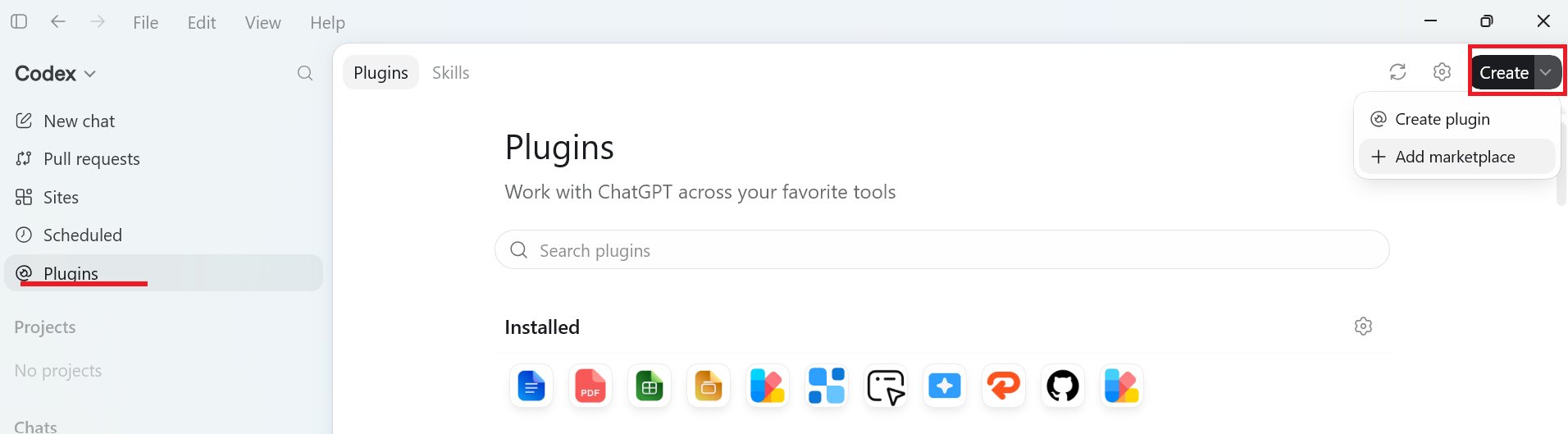
- In the ChatGPT desktop app, switch to Codex and open Plugins.
- Click Create in the upper-right corner and select Add marketplace.
- In Source, enter:
https://github.com/Yespo-CDP/ai-plugin- Leave Git ref set to
main.
- Leave Sparse paths empty.
- Click Add marketplace.
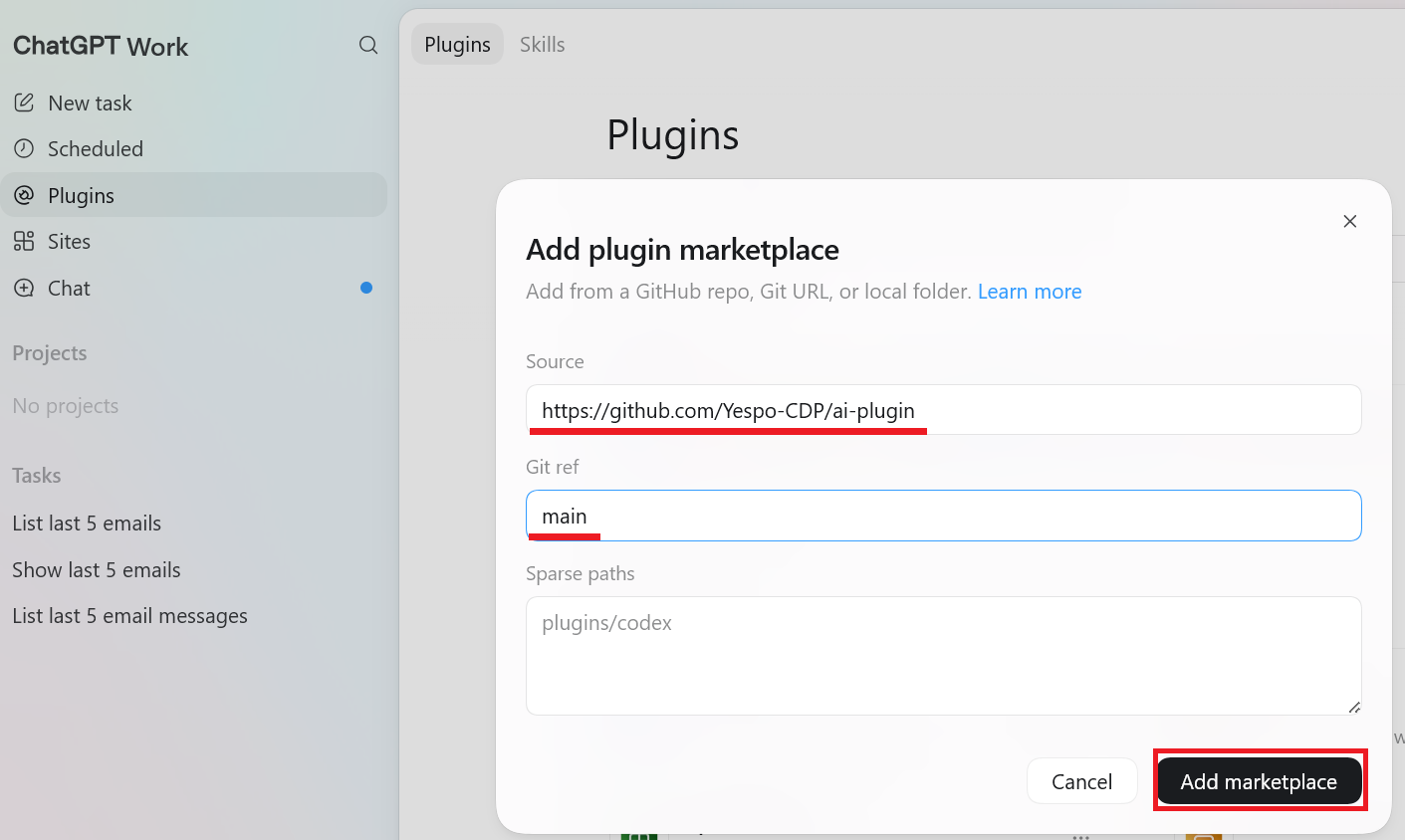
Codex adds the marketplace from the Yespo plugin repository.
Git Is RequiredCodex uses Git to retrieve the marketplace.
If Codex displays a
program not foundor similar Git error, install Git and restart the ChatGPT desktop app.On Windows, restart the computer if Codex still does not detect Git after installation.
Step 2. Install the Yespo Plugin
After adding the marketplace, Codex may keep you on the By OpenAI tab.
- Switch to the Personal tab.
- Find the Yespo plugins section.
- Click Install next to Yespo.
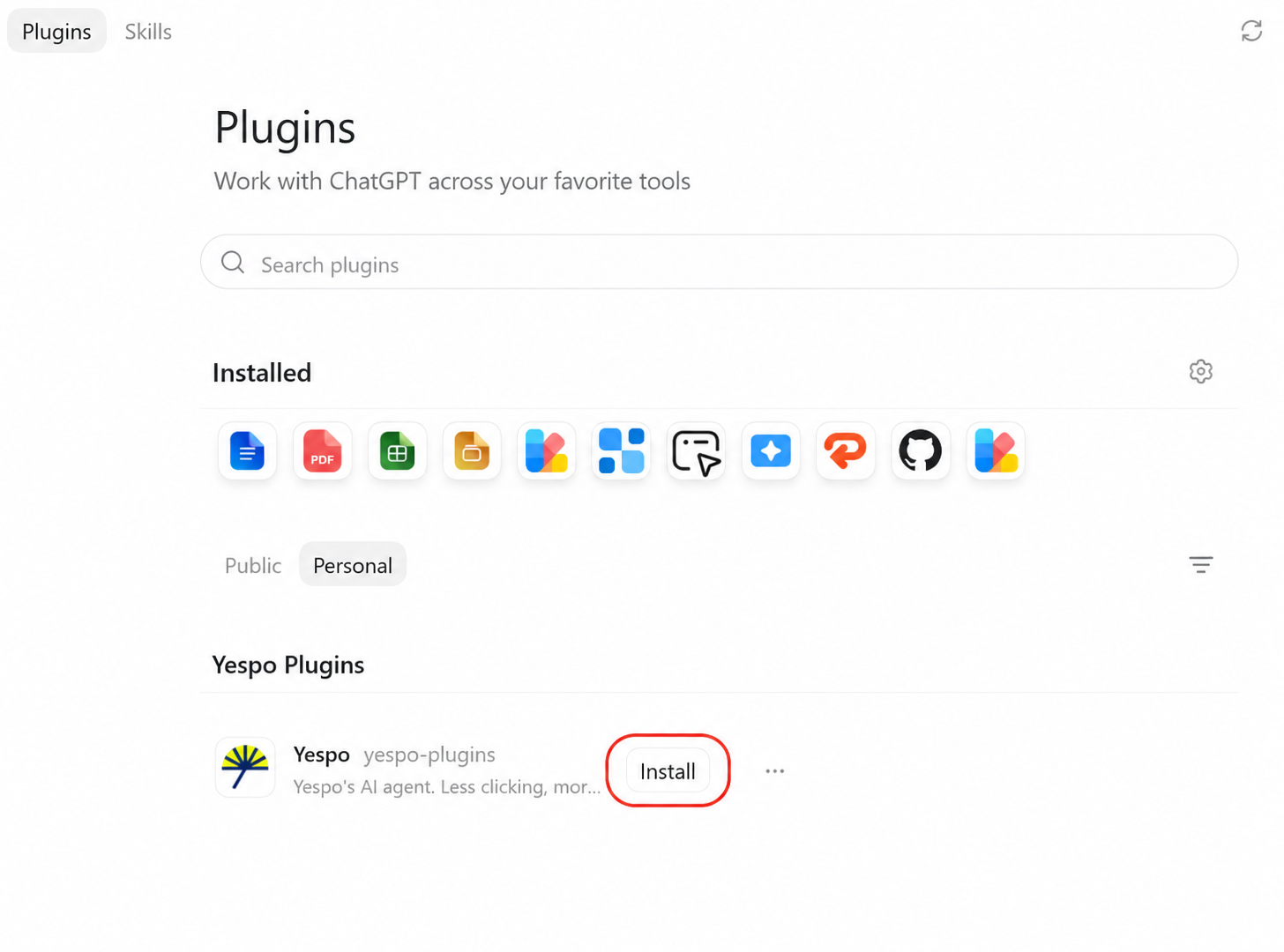
Codex installs the Yespo plugin, including its skills and MCP connection.
Step 3. Authenticate With Yespo and eSputnik
The plugin bundles connectors for both Yespo and eSputnik accounts — Yespo and eSputnik run on the same underlying platform. Right after you click Install, Codex opens two separate authorization windows, one for each connector.
For each window that opens:
- Sign in to the matching account — Yespo in the Yespo window, eSputnik in the eSputnik window.
- Confirm access.
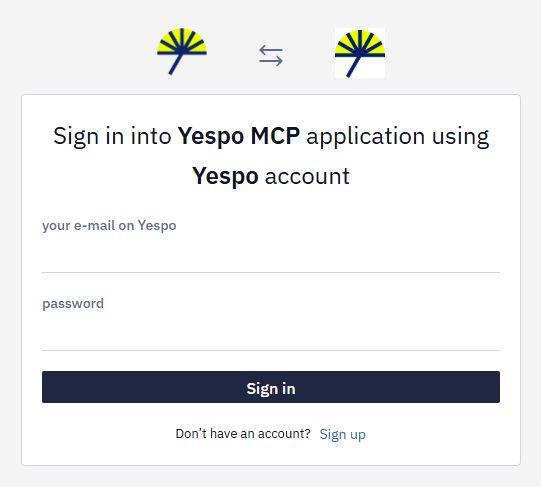
- When the Authorization complete page appears, close the browser tab and return to Codex.
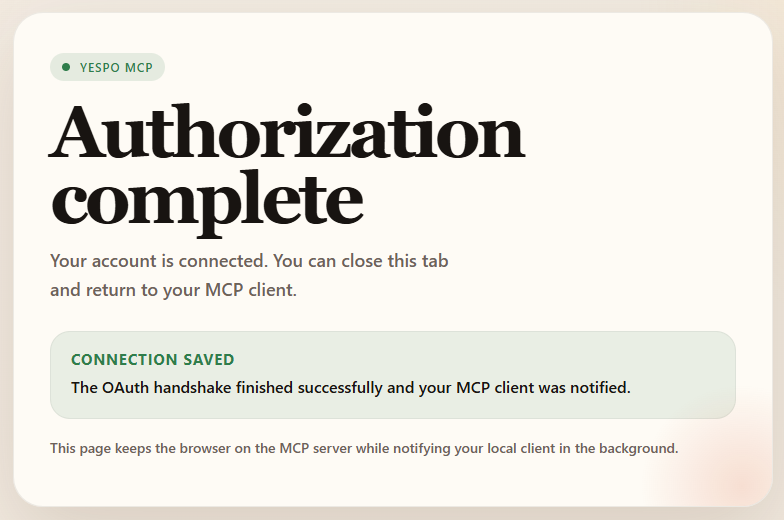
You only need to complete the window for the account(s) you actually use — sign in to one or both. If you close a window without signing in, you can authorize that connector later, the first time you ask Codex to use it.
Restart After InstallationIf Codex was already open while the marketplace, plugin, or connection was added, restart the app and begin a new chat so the Yespo tools and skills are loaded in the new session.
Verify the Connection
Start a new Codex chat and ask:
Use the Yespo MCP tools to show me my last 5 email templates.If Codex returns templates from your Yespo account, the MCP connection is working.
Next, check the installed skills:
List the installed Yespo skills and briefly explain when each one should be used.Codex should list:
yespo-email-editoremail-deliverabilityyespo-analytics
Codex approval settings continue to apply to plugin actions. Depending on your configuration, Codex may ask for confirmation before reading or changing data in your Yespo account.
What to Do Next
Describe the required result in plain language and tell Codex which skill to use when the task should follow a specific workflow.
Update and Localize an Email
Use the yespo-email-editor skill.

Read email template ID 3935987 and create a clone. Translate the cloned template into Polish while preserving its existing builder HTML, CSS, links, dynamic variables, and Unicode characters. Validate the editable text and buttons before applying the changes.
Replace an Existing Image
Use the yespo-email-editor skill.

Read email template ID 3935987 and identify its current hero image. Replace that image with the attached file through the Yespo image upload flow. Do not change the template layout or other images.
Audit Email Deliverability
Use the email-deliverability skill.

Audit the email deliverability setup of my Yespo organization. Combine the Yespo configuration with public SPF, DKIM, DMARC, MX, domain resolution, short-link domain, and SSL checks. Produce a Markdown report for the marketing team and a JSON report for technical follow-up.
Rank Campaign Performance
Use the yespo-analytics skill.

Get messaging analytics for the previous quarter, download the export, and rank workflows by Conversion Rate. Include Sent, Delivered, Open Rate, Click Rate, CTOR, Conversion Rate, Bounce Rate, and Unsubscribe Rate. Show the calculation formulas and exclude workflows with fewer than 5,000 delivered emails.
Analyze Events
Use the yespo-analytics skill.

Find the relevant purchase event type, get event analytics for the last 30 complete days, and show the event count by day. Compare the first and second halves of the period and calculate the percentage change.
For additional use cases, see Integrating Yespo with AI Agents.
Troubleshooting
Codex Cannot Add the Marketplace
Make sure Git is installed and available in your system path. Restart Codex after installing Git.
Confirm that:
- The marketplace source matches
https://github.com/Yespo-CDP/ai-plugin. - Git ref is set to
main. - Sparse paths is empty.
- Your network can access the repository.
The Yespo Plugin Is Not Visible
After adding the marketplace, switch from By OpenAI to Personal.
If your organization manages plugins centrally, the marketplace or plugin may require administrator approval.
Authorization Succeeded, but the Tools Are Missing
Restart Codex and start a new chat.
Also confirm that:
- The Yespo plugin is installed.
- The connector for the account you're using — Yespo, eSputnik, or both — is authorized.
- You signed in to the correct account.
- Your user has access to the required organization and data.
Codex Requests Confirmation for Every Action
This is controlled by your Codex approval settings. Review the requested action before approving it.
Keep explicit approval enabled for template updates and other write actions unless different permissions have been approved by your organization.
Updated 3 months ago