
Creating and Editing Workflows with AI
The AI assistant in the workflow editor helps you create and edit workflows using natural language descriptions and ready-made e-commerce templates. Describe the logic you need in the chat — the assistant will determine the required blocks and connections and ask follow-up questions if needed.
To learn how to open the AI assistant chat and navigate between screens, see AI Assistant in the Workflow Editor.
Prepare Messages and Segments in AdvanceThe assistant does not create messages or contact segments — it adds existing messages and segments to workflow blocks. Prepare them before you start, or temporarily use any existing ones and replace them later.
How to Write a Prompt
The more details your prompt includes, the more accurately the assistant can build the workflow. When possible, specify:
- Start condition — the event or other condition that should start the workflow, such as adding a product to the cart or a long period of contact inactivity.
- Channels and their sequence — for example, Email, Web Push, App Inbox, Viber, or SMS.
- Messages — the IDs or names of the messages to use for each channel.
- Timing — delays between actions, such as 30 minutes or 24 hours.
- Conditions and branches — for example, whether the contact made a purchase, whether an email was delivered or opened, or which segment the contact belongs to.
- Workflow goal — bring a user back to the cart, re-engage inactive contacts, upsell, notify users when a product is back in stock, or offer a discount.
You can start with a short prompt:
Build an abandoned cart workflow using Email and Viber.
If more information is needed, the assistant will ask which messages to use, when to send them, and under which conditions the workflow should continue or stop.
To reduce the number of follow-up questions, describe the logic in more detail from the start:
After an abandoned cart, send email 12345. After 24 hours, check whether a purchase was made. If no purchase was made and the email was not opened, send Viber message 67890. Stop the workflow after a purchase.
Creating a Workflow From a Ready-Made Template
Select Start with ready-made workflows and tell the assistant which workflow you want to create.
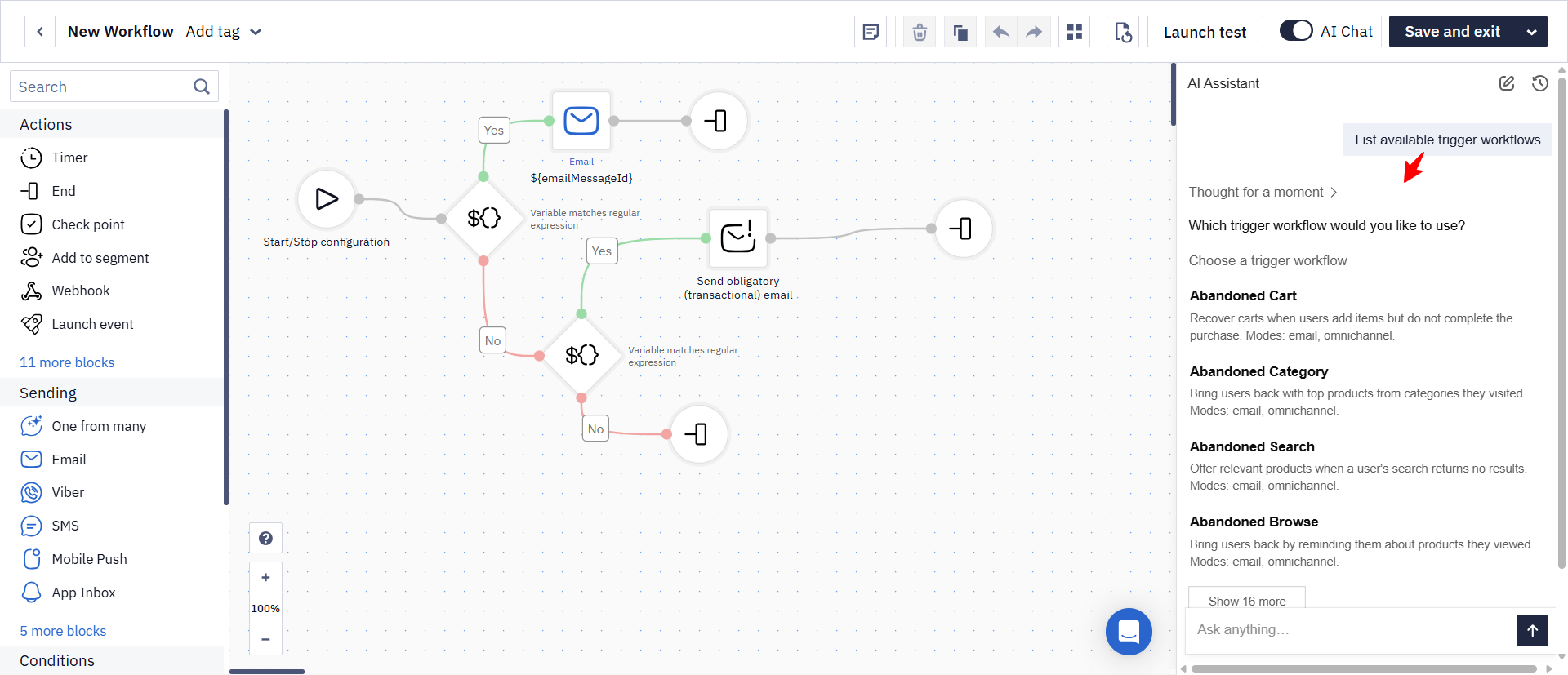
The assistant supports 20 ready-made e-commerce templates for common triggered campaigns.
After creating a workflow from a template, you can edit it manually in the editor or ask the assistant to refine the logic.
Available Ready-Made Templates
| Template | What It Does |
|---|---|
| Abandoned Cart | Brings back users who added products to the cart but did not complete a purchase |
| Abandoned Browse | Reminds users about viewed products to bring them back to the website |
| Discount on Items in Cart | Encourages a purchase when the price of products added to the cart drops |
| Discount on Similar Cart Items | Offers discounted alternatives similar to products left in the cart |
| Discount on Viewed Products | Notifies users when previously viewed products drop in price |
| Discount on Similar Viewed Products | Shows discounted products similar to recently viewed products |
| Next Best Offer | Recommends complementary products or products that are frequently bought together |
| Inactive Users Reactivation | Re-engages users who have not interacted with the website for a while |
| Back in Stock | Notifies users when a previously viewed product is available again |
| Out of Stock | Offers available alternatives when a viewed product is unavailable |
| Discounts | Promotes discounted products from categories a user is interested in |
| New Arrivals | Shows new products from categories a user has previously viewed |
| Abandoned Category | Brings users back with a selection of popular products from visited categories |
| Repeat Purchase | Reminds users to restock regularly purchased products |
| Discount on Wishlist Items | Notifies users when products added to their wishlist drop in price |
| Discount on Similar Wishlist Items | Offers discounted alternatives similar to products in the wishlist |
| Wishlist Item Back in Stock | Notifies users when a wishlist item is available again |
| Wishlist Reminder | Reminds users about products added to their wishlist |
| Wishlist Item Out of Stock | Offers alternatives when a wishlist item is out of stock |
| Abandoned Search | Offers relevant products when a user's search returns no results |
Editing a Workflow
To edit the open workflow, describe the required change in the chat. The assistant will ask for details if needed and apply the changes in the editor.
What the assistant changes goes into the same action history as your own edits, so undo rolls it back as well.
Editing Active WorkflowsChanges to an active workflow may affect contacts that are already moving through it. The result depends on where each contact is in the workflow and which blocks, connections, conditions, or timing settings were changed. Review the updated logic and test the workflow before applying changes.
The assistant can:
- add and remove blocks;
- change connections between blocks;
- change timer delays;
- edit settings within blocks;
- change workflow start and stop conditions;
- rearrange blocks to make the workflow easier to read.
For example:
Add SMS 24 hours after Viber if there is still no purchase.
Stop the workflow immediately after a purchase.
Arrange the blocks from left to right to make the workflow easier to read.
Prompt Examples
Below are examples of tasks you can describe to the assistant in natural language. Use them as a starting point for your own prompts.
For an Abandoned Cart Workflow
| Task | Example Prompt |
|---|---|
| Send Viber if an email was not delivered | If the email was not delivered and no purchase was made, send a Viber message |
| Check email delivery and opens | Check email delivery: if it was not delivered and no purchase was made, send Viber immediately. If the email was delivered, check whether it was opened after 24 hours |
| Stop the workflow after a purchase | Stop the workflow as soon as the contact makes a purchase so no unnecessary messages are sent |
| Send a follow-up email if there was no click | If the contact did not click the previous email, send a follow-up email |
| Send messages through multiple channels | If the email was not opened, send an App Inbox message and then a Web Push |
| Create a reminder series | Send a series of email and Web Push messages up to three times, with delays of 1 day and 3 days, until a purchase is made |
Learn more: Setting Up an Abandoned Cart Workflow.
For the Branch Block
The Branch block routes contacts into different workflow branches based on conditions.
| Task | Example Prompt |
|---|---|
| Contact language | Send different emails based on the contact's language |
| Loyalty level | Send a discount email based on the contact's loyalty program level |
| Contact segment | Send different messages to contacts in different segments |
| User platform | Send different messages based on the user's platform |
| Abandoned cart category | Send different messages based on the category of products in the abandoned cart |
| Purchase amount | Send different messages based on the purchase amount |
| Delivery method | Send a message based on the selected delivery method |
| Order status | Send different messages based on the order status |
Learn more: Using Branch Block.
If the Result Does Not Match Your Expectations
If the workflow logic does not match your task, continue the conversation in the current chat and clarify what needs to be changed. For example, specify the block, connection, timing, or condition.
If the assistant cannot add the required message or segment, check that it exists in the account and provide its exact name or ID.
After making changes, test the workflow before launch.
Related Articles
- AI Assistant in the Workflow Editor
- Analyzing Workflows with AI
- Using Branch Block
- Setting Up an Abandoned Cart Workflow
- Configuring Workflow Start/Stop Conditions
Updated 10 days ago