
Analyzing Workflows with AI
The AI assistant can analyze the open workflow, describe its logic, find issues in its structure and settings, and suggest fixes. This helps you check a workflow before launch or understand the logic of an existing workflow.
To learn how to open the AI assistant chat and navigate between screens, see AI Assistant in the Workflow Editor.
How to Analyze a Workflow
- Go to Automation → Workflows and open the required workflow.
- Enable the AI Chat toggle.
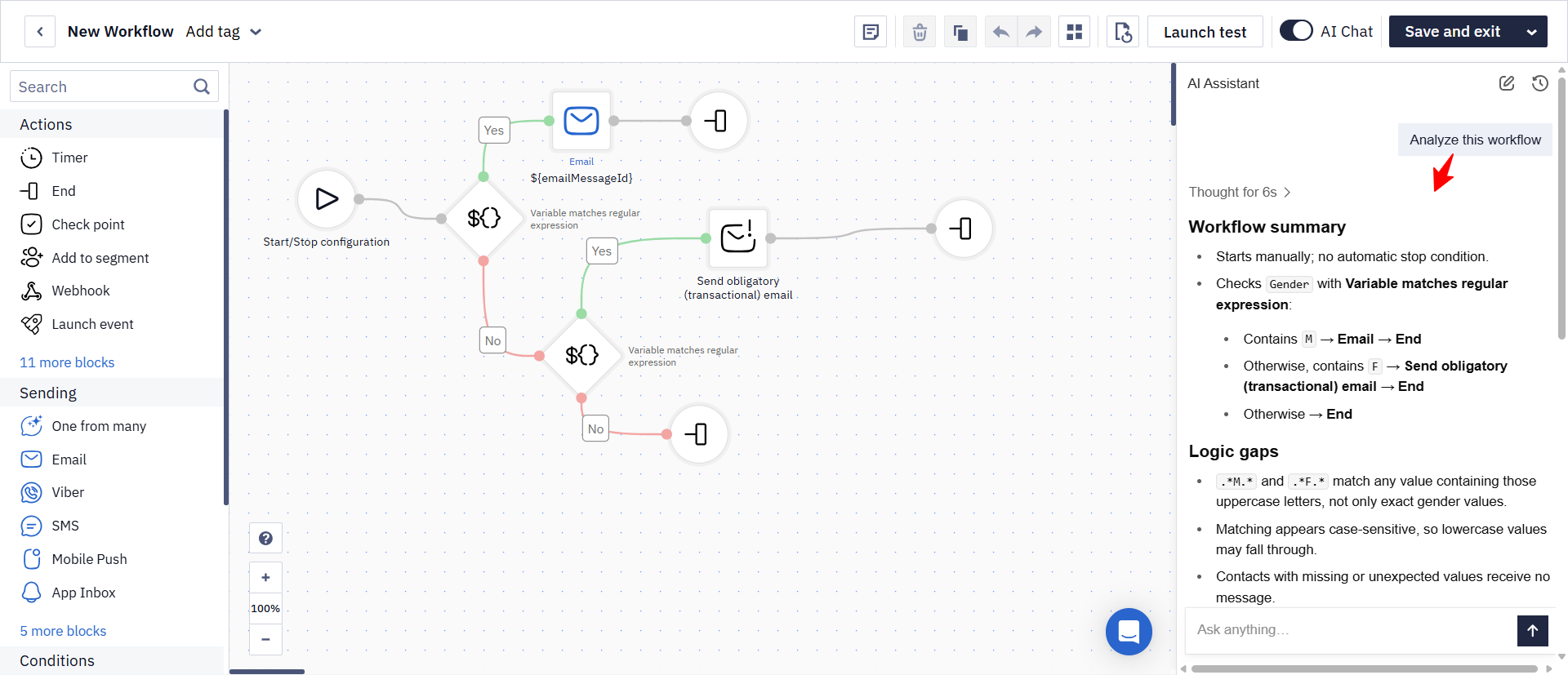
- Select Analyze this workflow.
- Review the assistant's report.
What the Report Includes
The report consists of three parts:
- Summary — a description of the workflow logic: which blocks are used, the conditions that route contacts between branches, and which messages are sent.
- Issues — detected problems grouped by type:
- logic gaps — for example, a workflow branch does not end with an End block;
- data and settings risks — for example, the recipient or contact identifier is missing from an Email block;
- layout issues — a confusing block layout that makes the workflow harder to read and maintain.
- Suggested fixes — specific fixes for the detected issues.
The assistant can also explain individual parts of the workflow. Continue the conversation in the chat to clarify block logic, branch conditions, or the reason an issue was detected.
For example:
Explain the conditions that route contacts into each branch.
Why is this branch marked as a logic gap?
Which messages are sent in this workflow and in what order?
How to Apply Fixes
After the analysis, the assistant suggests applying the detected fixes.
After confirmation, it can:
- add blocks and connections;
- change block settings;
- add required values, such as a personalization variable to the recipient field;
- rearrange blocks into a readable left-to-right layout.
Review the changes in the editor after they are applied.
How to Check the Result
Test the workflow and make sure that:
- the workflow starts under the required conditions;
- blocks run in the expected order;
- contacts move through the required branches;
- messages are sent through the required channels;
- the workflow ends under the expected conditions.
If the Result Does Not Match Your Expectations
If the assistant described the logic incorrectly or suggested an unsuitable fix, clarify the task in the current chat. Specify the block, branch, condition, or setting that needs to be reviewed.
For example:
Do not change the block layout. Fix only the incomplete branch.
Add an End block to this branch, but do not change any other blocks.
Explain the suggested changes before applying them.
After making changes, test the workflow again before launch.
Useful Links
- AI Assistant in the Workflow Editor
- Creating and Editing Workflows with AI
- Using Branch Block
- Configuring Workflow Start/Stop Conditions
Updated 2 months ago